Mount OneDrive for Business on Windows — NetDrive Setup Guide

Map OneDrive for Business as a Windows drive letter using NetDrive. Covers Microsoft 365 OAuth, drive letter assignment, MSI deployment, and enterprise team use.
A consultant splitting time across three Microsoft 365 tenants knows the problem with the OneDrive sync client: a separate installation per account, local folders filling up the SSD, and the constant friction of keeping file copies in sync. NetDrive takes a different approach — it maps each OneDrive for Business account as a drive letter in Windows Explorer, streams files on demand, and keeps nothing local unless you explicitly download something.


Map OneDrive for Business as a Windows drive letter
NetDrive lets Google Drive, OneDrive, S3, SFTP, WebDAV and more appear as native drives on Windows and macOS — no syncing, no full downloads.
- Access your full OneDrive for Business library from any Windows app's Open/Save dialog
- Assign any drive letter — works inside Remote Desktop and Windows Terminal Server sessions
- No local sync; files stream on demand and uploads run in the background
Free trial. Lifetime and subscription plans available.
OneDrive for Business vs. Personal OneDrive
OneDrive for Business is the enterprise document storage tied to a Microsoft 365 work or school account — backed by SharePoint and managed by your organization’s IT admin. It behaves differently from personal OneDrive in terms of authentication (Azure AD OAuth rather than a Microsoft personal account), storage quotas, and access policies.
NetDrive has supported OneDrive for Business since version 3.1.196. When you add it in NetDrive, the connection targets the modernized OneDrive for Business API, which provides reliable access to your library root, shared folders, and files shared with you from colleagues.
If you need to connect both a personal OneDrive and a work OneDrive for Business account, add them as two separate drives in NetDrive — each gets its own drive letter.

Requirements
- Windows 8 / 8.1 / 10 / 11, or Windows Server 2012 / 2016 / 2019 / 2022
- A Microsoft 365 work or school account with OneDrive for Business enabled
- NetDrive 3.19.7 — download the EXE installer at https://www.netdrive.net/download/windows/
For IT administrators deploying to multiple machines, the MSI installer supports silent installation via Group Policy or SCCM:
msiexec /i NetDrive3-3.19.7.msi REINSTALL=ALL REINSTALLMODE=vamusAfter installation, NetDrive sits in the system tray. A 7-day free trial starts automatically — no credit card required to start.
Adding OneDrive for Business in NetDrive
- Click the NetDrive icon in the system tray to open the Drive Manager.
- Click + Add Drive.
- In the provider list, select OneDrive for Business.
- NetDrive opens your default browser to the Microsoft login page. Sign in with your work or school Microsoft 365 credentials.
- If your tenant enforces MFA or conditional access policies (Intune compliance, location-based access), complete the challenge in the browser window — NetDrive waits for the OAuth redirect to complete.
- Back in NetDrive, configure the drive:
- Drive letter: Assign an available letter such as W: or O:. This is the letter that appears in Windows Explorer under This PC.
- Drive type: Choose Network drive for normal read/write access, Read-only drive for a no-edit view, or Removable drive if you want Windows to treat it like a USB device.
- Click Save, then click ▶ Connect on the drive card.
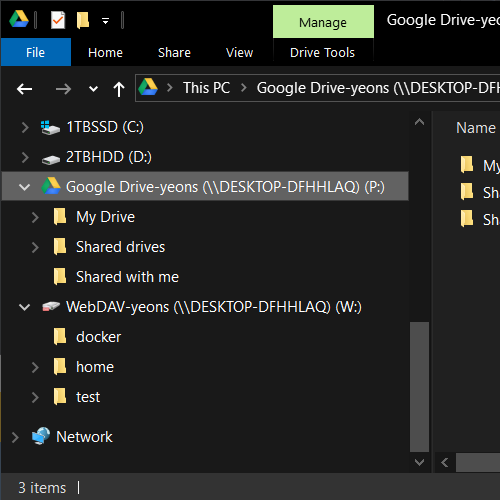
The drive letter appears under This PC in Windows Explorer within a few seconds.
Day-to-Day Use from Windows Applications
Once W: is connected, any Windows application sees it as a normal drive. Open a PowerPoint file from W:\Marketing\Campaigns\ directly in Microsoft PowerPoint, edit the slides, and hit Save — NetDrive uploads the updated file to OneDrive for Business in the background while you move on to the next task.
Windows Explorer integration includes file status overlay icons, so you can tell at a glance whether a file is being uploaded, was recently synced, or is still pending. Right-clicking a folder and selecting Refresh from the NetDrive context menu triggers an immediate directory refresh if the remote contents changed and you want the latest listing without waiting for the automatic cache update.
For Office-heavy workflows, NetDrive handles Microsoft Office file locking (since version 3.8.921): when one team member opens a Word document from the shared drive, others opening the same file see it as read-only, preventing conflicting edits. This is the same behavior you’d get on a traditional file server — except the backend is your Microsoft 365 tenant’s OneDrive for Business library.
Multi-User and Terminal Server Environments
If your team runs Windows Terminal Server or uses shared Windows sessions, NetDrive supports team licensing and multi-user configurations since version 3.1.286. Each user session can mount their own OneDrive for Business account under its own drive letter within the same Terminal Server environment.
Administrators can pre-configure drives and distribute them via the MSI installer’s configuration options, so users log in to a shared Windows session and find their OneDrive for Business drive letter already connected — no manual setup required.
Wrap-up
Mapping OneDrive for Business as a Windows drive letter through NetDrive removes the sync agent entirely. Your full library is accessible as W: the moment the drive connects, nothing is copied locally until you open or download a file, and uploads run in the background without interrupting your workflow. If your organization also uses SharePoint document libraries, those connect separately through NetDrive’s SharePoint provider — see the NetDrive comparison page for the full list of supported providers and connection types.
— Casey, NetDrive