Home NAS Owners with NetDrive — One Drive Letter for Every Box and Bucket

Use NetDrive to mount a Synology or other home NAS over WebDAV or SFTP next to your cloud buckets, so your NAS and cloud storage appear as ordinary drives.
You have a Synology in the hall closet holding years of family photos and project folders, plus a Backblaze B2 bucket you use as an off-site copy. On the laptop, they live in two different places: a browser tab for one, a mapped share (when it works) for the other. NetDrive puts both on the same footing, as drives your editor, Explorer, or Finder can open directly.


Your NAS and cloud, side by side
NetDrive lets Google Drive, OneDrive, S3, SFTP, WebDAV and more appear as native drives on Windows and macOS — no syncing, no full downloads.
- Mount WebDAV, SFTP, or FTP endpoints as native drives
- Add Backblaze B2, S3, or Wasabi next to them in the same app
- Read-only drive type for archives you never want to touch
Free trial. Lifetime and subscription plans available.
Which Protocol Fits Your NAS
NetDrive supports three standard protocols that nearly every NAS speaks: WebDAV, FTP, and SFTP. Which one you pick is mostly about what the box already exposes.
- WebDAV is the simplest to set up on a Synology: enable it in DSM, point NetDrive at the host and port, and you are done. It also works over HTTPS if you have a certificate set up.
- SFTP is the better choice if you already run SSH on the NAS. NetDrive has supported symlinks over SFTP since 3.17.817, and the SFTP settings include permission options (added in 3.6.548).
- FTP works, but it is the oldest of the three. Use it only when the device offers nothing else.
Since NetDrive 3.7.687, WebDAV, FTP, and SFTP connections can also be set up without stored credentials, which suits a shared family machine where you would rather be prompted.
Getting the Synology Side Right
Most “I can’t connect” reports come from the NAS, not the client. Before you blame the mount, check three things on DSM: WebDAV is actually enabled, the user has permission on the shared folder, and the port and HTTPS setting in NetDrive match what DSM shows.
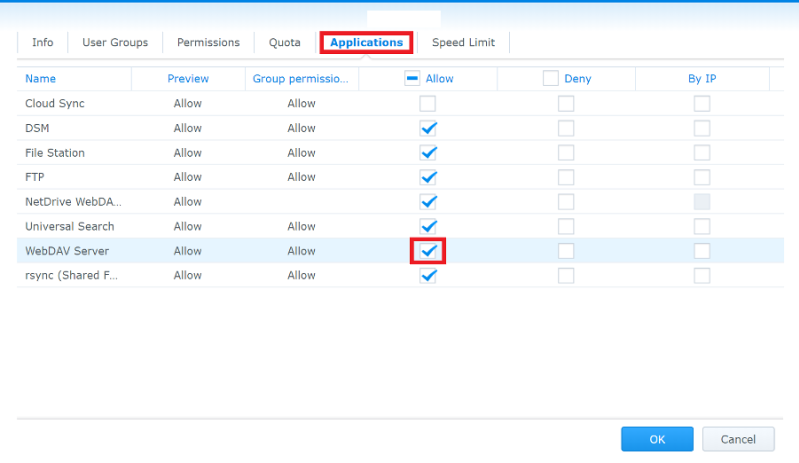
If the drive connects but looks empty, the usual cause is a permission mismatch on the share. Our step-by-step walkthrough is in Fix Synology WebDAV Connection Problems in NetDrive.
Adding Cloud Storage Next to the NAS
The NAS is your fast local copy. A cloud bucket is your off-site one. NetDrive supports Backblaze B2, Amazon S3, S3-compatible services such as Wasabi, and Google Cloud Storage, so each gets its own drive entry beside the NAS. From there, you can open both in the same file manager and move files between them the way you would between any two folders.
That last part is you copying files, not NetDrive syncing them. NetDrive mounts storage; it does not schedule transfers between providers or keep two locations in step. If you need automated cloud-to-cloud jobs, that is the job of our sibling product, RcloneView.
A Setup That Works
- Open NetDrive and add a new drive, then choose WebDAV or SFTP as the protocol.
- Enter the NAS hostname or IP, the port, and your credentials. For WebDAV, tick HTTPS if the NAS serves it.
- Save and mount the drive. It appears in Explorer or Finder like any other volume.
- Repeat for your Backblaze B2 or S3 bucket.
- For the off-site bucket you only want to read from, choose the Read-only drive type so an accidental drag-and-drop cannot delete anything. See Read-Only Drives in NetDrive.
- Turn on auto-mount if you want both drives available after boot.
Limits Worth Knowing
NetDrive has no offline mode. If you are away from home and the NAS is not reachable from outside your network, the drive will not connect. That is a network question (VPN, port forwarding, a reverse proxy), and NetDrive does not solve it for you. NetDrive also has no client-side encryption feature, so if you need that, encrypt before the data leaves your NAS.
Wrap-up
A NAS and a cloud bucket do not need different workflows. Mount both, keep the archive read-only, and treat them as two more drives. For the NAS on your phone, Access NAS Files on Mobile over WebDAV and SFTP covers NetDrive Mobile. For the full desktop walkthrough, see Mount an SFTP Server on Windows.
— Kai, NetDrive