Video Editing 4K RAW Footage from Cloud Storage — NetDrive for Media Studios

Mount Amazon S3 or Google Drive as a native drive on Windows or macOS and edit 4K RAW footage without syncing your entire library. A workflow guide for video production teams.
A post-production house finishing a feature documentary has 3.4 TB of ProRes 4444 masters on Amazon S3. The colorist runs Windows 11; the VFX artist runs macOS Sonoma. Both need simultaneous write-capable access to the same library—and neither has the local SSD space (or the patience) to sync three terabytes before opening a clip. NetDrive solves this by mounting the S3 bucket as a native drive letter on Windows (Z:) and a Finder volume on macOS, with no sync agent involved.


Mount S3 as a local drive in under 5 minutes
NetDrive lets Google Drive, OneDrive, S3, SFTP, WebDAV and more appear as native drives on Windows and macOS — no syncing, no full downloads.
- Works with Amazon S3, Google Drive, Dropbox, and 20+ cloud providers
- Background uploads keep originals safe while you keep working
- Allocate up to 1 TB of local cache for smooth playback
Free trial. Lifetime and subscription plans available.
Why Video Teams Are Moving RAW Libraries to the Cloud
RAW files are uncompressed or minimally compressed—a single 4K ProRes clip from a cinema camera can run 20 GB. Storing a feature film’s worth of material locally means buying and maintaining NAS hardware, managing RAID rebuilds, and shipping drives between offices. Cloud object storage (Amazon S3, Backblaze B2, Google Cloud Storage) shifts that burden to a pay-as-you-go model with redundancy and multi-region failover built in.
The friction point has always been access. Traditional sync tools download the entire bucket before you can open a clip—impractical for a 3 TB library. NetDrive eliminates the wait by presenting the cloud bucket as a native drive. Your NLE (DaVinci Resolve, Premiere Pro, Final Cut Pro) talks to files the same way it talks to a local disk.
For teams with multiple editors in different locations, cloud storage also means every workstation can mount the same bucket simultaneously. There’s no “who has the drive?” handoff.
Setting Up NetDrive with Amazon S3
Getting an S3 bucket mounted takes about five minutes:
- Download and install NetDrive from netdrive.net/download. The Windows installer includes the required filesystem driver; macOS requires an additional system component—follow the prompts on the download page to install it before launching NetDrive. NetDrive 3.18+ requires macOS 14 Sonoma or later.
- Open NetDrive and click + Add Drive in the drive manager.
- Choose Amazon S3 from the provider list.
- Enter your AWS credentials: Access Key ID, Secret Access Key, and your bucket’s AWS region. If you’re on Backblaze B2, Wasabi, or MinIO, select S3 Compatible instead and enter the custom endpoint URL.
- Assign a drive letter (Windows) or accept the auto-generated mount path (macOS).
- Click Connect—the drive appears immediately in File Explorer or Finder.
After mounting, open your NLE’s media browser and point it at the new drive letter. Resolve and Premiere treat it identically to a local volume.
Tuning Cache and Upload Settings for Video Work
NetDrive caches recently accessed data locally. For 4K editing, maximizing cache size is the single most impactful setting:
- Cache size: Open Settings → Cache and increase the allocation. NetDrive supports up to 1 TB of local cache. A 500 GB cache keeps your most recently touched clips on local NVMe; everything else streams on demand from S3.
- Upload mode — asynchronous vs synchronous: In asynchronous mode (the default), a write operation returns immediately to the application while NetDrive uploads in the background. For render and export workflows this is the right choice—a 200 GB render lands on the local cache immediately, and the upload to S3 runs without blocking the timeline.
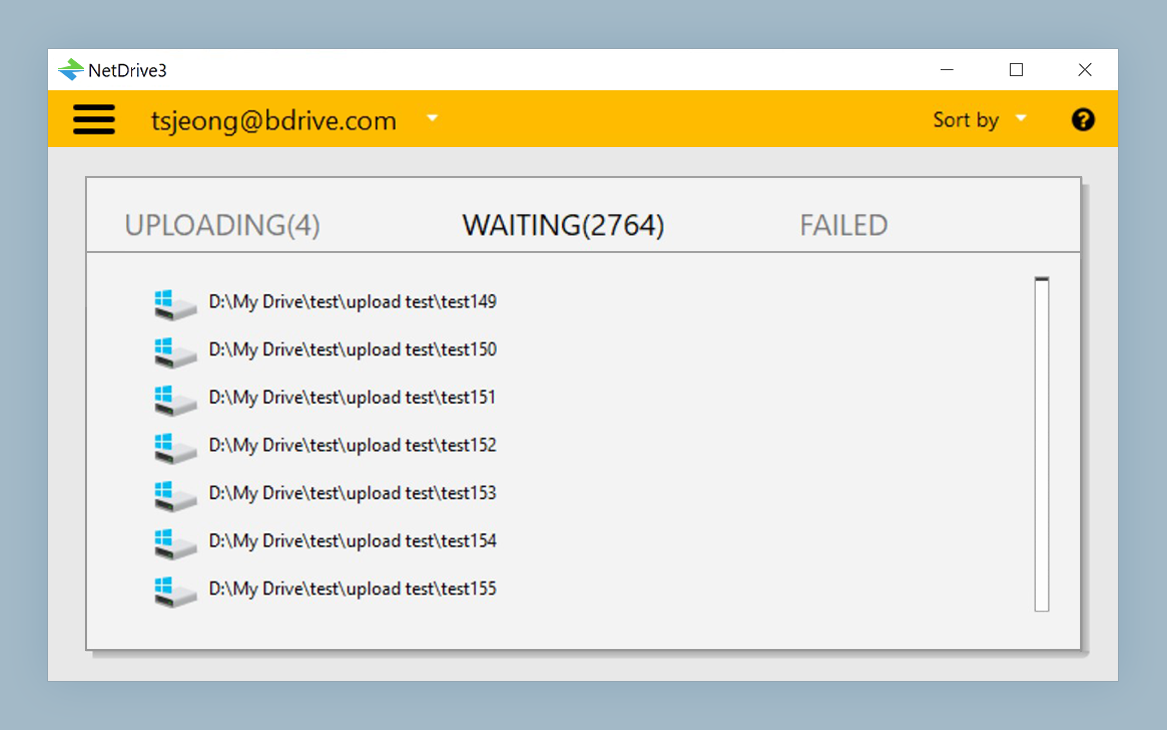
- Background upload queue: The queue panel shows every active transfer with per-file progress and a cancel button. You can continue editing while the previous night’s renders finish uploading.
- Bandwidth limit: Under Settings → Network, cap upload speed to prevent a large transfer from saturating a shared uplink. If the office runs on a 1 Gbps symmetrical line shared among multiple editors, a 400 Mbps cap leaves headroom for playback and preview streaming.
File Locking for Multi-Workstation Workflows
When two workstations mount the same S3 bucket, cloud storage does not natively prevent concurrent writes—the last write wins. NetDrive adds a file-locking layer that works on all file types: right-click any file and choose Lock. A lock icon appears in File Explorer and Finder for every other workstation mounting the same drive, signaling that the file is in use. This prevents a colorist from overwriting a VFX comp the artist is mid-render.
Team licenses extend this further: an administrator configures the S3 mount once in the team console and publishes it to every team member. No per-user credential entry, no emailing access keys over Slack.
Wrap-up
For media teams with cloud-based RAW libraries, NetDrive removes the sync bottleneck and lets your NLE treat S3 like a fast external drive. See the Windows S3 setup guide or macOS S3 guide for step-by-step credential setup, and the DevOps use case for how engineering teams use the same mount approach for test fixtures and build artifacts.
— Casey, NetDrive