Mount Google Cloud Storage on Windows — NetDrive Setup Guide

Mount a Google Cloud Storage bucket as a Windows drive letter using NetDrive. Access GCS directly from Explorer on Windows 10, 11, and Server — no gsutil needed.
Your data pipeline writes processed results to a Google Cloud Storage bucket. Your Windows-based tooling needs to read those results, which today means either installing the Google Cloud SDK, running gsutil cp on a schedule, or keeping a sync agent running. NetDrive removes all of that: mount the GCS bucket as a local drive letter, and every application that reads from G:\ reads from your bucket directly — no SDK, no sync loop.


Access GCS buckets like any Windows drive
NetDrive lets Google Drive, OneDrive, S3, SFTP, WebDAV and more appear as native drives on Windows and macOS — no syncing, no full downloads.
- Assign any unused drive letter to your GCS bucket
- No Google Cloud SDK or gsutil required on the machine
- Works on Windows 8 through Windows 11 and Server 2022
Free trial. Lifetime and subscription plans available.
What you need before connecting
NetDrive runs on Windows 8, 8.1, 10, 11, and Windows Server 2012 through 2022. Download the latest installer from netdrive.net/download/windows — the current stable release is 3.19.7. NetDrive depends on Microsoft Visual C++ Redistributables (vcredist12 and vcredist14, 32-bit and 64-bit); if your system is missing them, the NetDrive download page offers them as separate downloads.
For credentials, you need a Google account that has the right IAM permissions on the bucket. Storage Object Viewer is sufficient for read-only access; Storage Object Admin lets you write. If you’re setting this up for an automated workload — a build server, a render farm node — using a dedicated Service Account is the right approach so the mount isn’t tied to one person’s credentials.
You do not need the Google Cloud CLI or any other Google software installed. NetDrive handles the API calls on its own.
Adding Google Cloud Storage in Drive Manager
Open NetDrive from the system tray. The Drive Manager window is where all your cloud connections live — it displays a card for each configured drive. To add GCS:
- Click Add to open the provider selection dialog.
- Choose Google Cloud Storage from the provider list.
- Authenticate with your Google account. The OAuth flow opens in your default browser — log in and grant NetDrive access to your Google Cloud Storage data.
- After authorization, NetDrive lists the buckets accessible to your account. Select the bucket you want to mount.
- Assign a drive letter. Any unoccupied letter works —
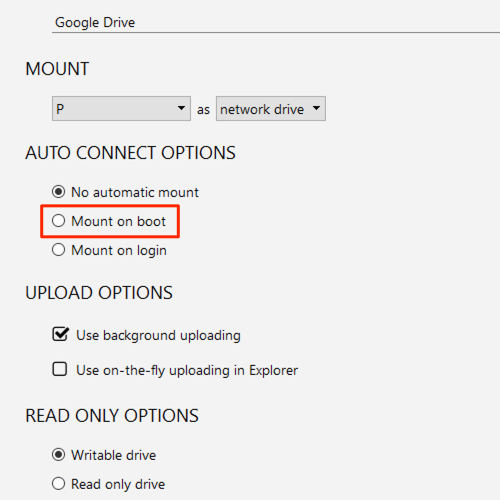
G:is a common choice for GCS, though any letter fromD:toZ:is valid. - Under Auto Mount, choose On Boot to have the drive available before you log in (useful for servers and scheduled tasks), or On Login for standard workstation use.
- Click Save to confirm.
Back in Drive Manager, click Mount on the new entry. Within a few seconds the bucket appears in Windows Explorer under This PC alongside your local disks.
Working with the mounted GCS volume
Once mounted, the bucket behaves like ordinary disk storage for every Windows application. You can:
- Open files directly in their associated application — double-click a
.xlsxin Explorer and Excel opens it from GCS. - Run PowerShell or Python scripts against the drive path:
python analyze.py G:\pipeline\output\. - Drag and drop files between the GCS drive and local folders.
- Use any backup or archiving tool that accepts a drive letter as its source.
One behavior to be aware of: GCS has no native directory hierarchy. Objects are stored with slash-delimited names, and NetDrive maps these to the folder structure you see in Explorer. Creating a folder in the mounted drive places a zero-byte prefix object in the bucket — standard GCS behavior shared by all GCS clients.
MIME type metadata is preserved on uploads starting with NetDrive 3.15.450. Files written through the mounted drive carry the correct content-type header when served from GCS.
Boot-time mount for servers and unattended machines
If the Windows machine runs tasks before anyone logs in — a scheduled task at 3 AM, a service process that starts with the OS — set Auto Mount to On Boot in the drive settings. NetDrive loads a background service that mounts the drive during Windows startup, independently of any user session.
For unattended authentication to work at boot, your credentials need to be saved in NetDrive’s credential store (the default behavior after you complete the OAuth flow). You won’t be prompted to re-authenticate on each reboot.
Cache size and bandwidth settings
NetDrive streams content on demand rather than syncing the full bucket. For workloads that re-read the same files repeatedly, the local cache (configurable between 100 GB and 1 TB under Settings → Cache) keeps recently accessed content on disk and avoids redundant API calls.
If a large background upload is competing with other network traffic, you can cap the upload bandwidth per drive under the Bandwidth setting in Drive Manager.
Wrap-up
Mounting Google Cloud Storage as a Windows drive letter with NetDrive takes about five minutes end-to-end: install, authenticate, choose a bucket, assign a letter. The result is a GCS bucket that every Windows tool — Explorer, Office, Python, PowerShell — treats as standard local disk, with no extra software layer on the machine.
For object storage on macOS, see Mount Amazon S3 on macOS with NetDrive. For a DevOps-focused workflow using S3-compatible storage in CI pipelines, check out DevOps S3 Test Fixtures with NetDrive.
— Alex, NetDrive