Browse OneDrive on iPhone and Android — NetDrive Mobile

Access OneDrive personal and OneDrive for Business from iOS and Android using NetDrive Mobile. Upload, download, and preview files in one app.
You check OneDrive for a project file, Dropbox for a client deliverable, and S3 for something the engineering team pushed — and each trip means opening a different app. NetDrive Mobile consolidates OneDrive personal, OneDrive for Business, and every other cloud you use into a single file browser on iPhone and Android.
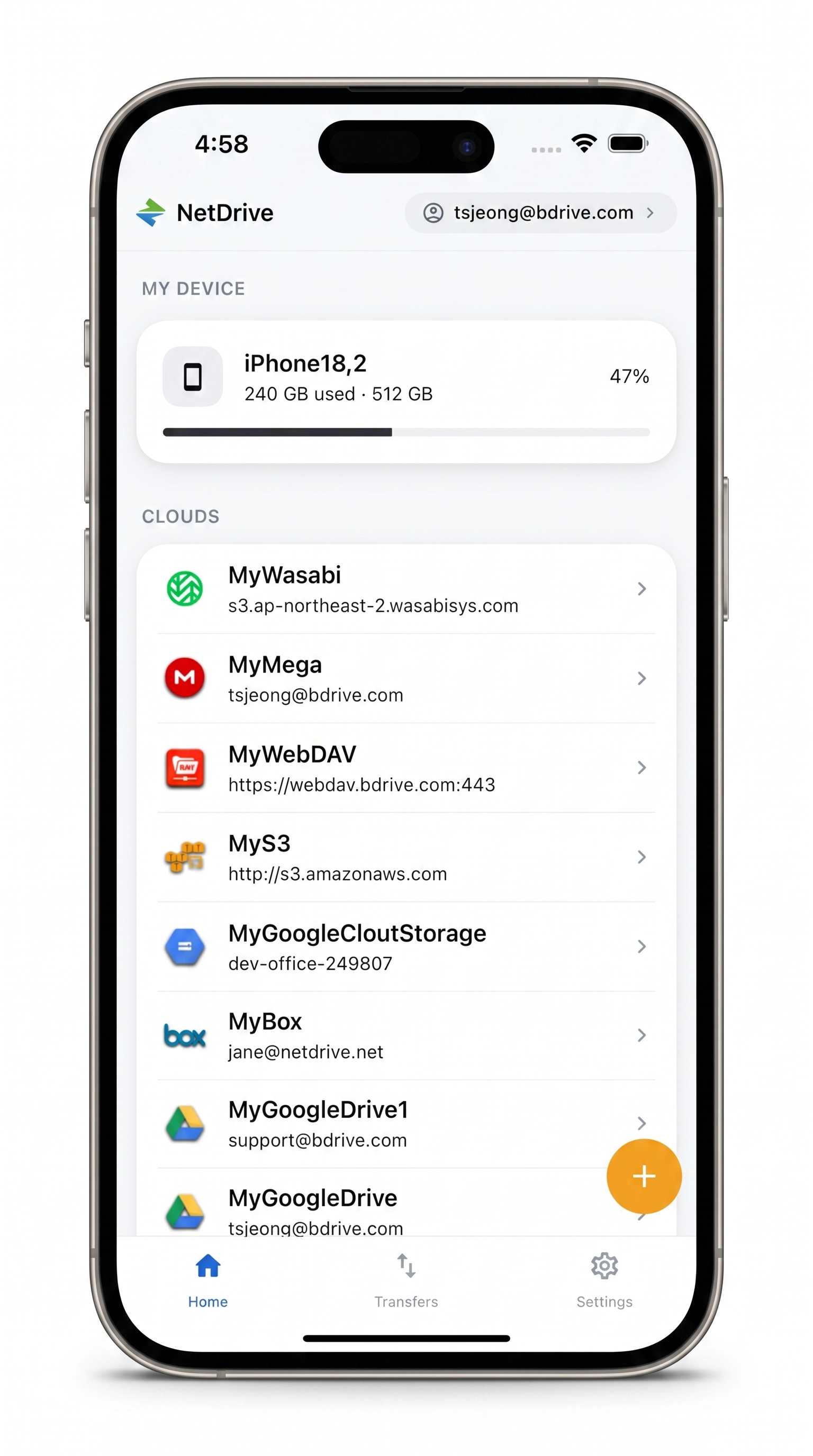
All your clouds — one mobile app
Browse OneDrive alongside Dropbox, Google Drive, S3, and 30+ other providers.
- Access OneDrive personal and OneDrive for Business from the same app
- Upload photos and documents directly from your device
- Preview files without downloading to your camera roll
Free Bdrive account required.
What You Need Before You Start
NetDrive Mobile is a free download that requires a free Bdrive account to sign in. If you don’t have one, register at netdrive.net before launching the app — it takes under a minute.
The app runs on iOS 15 and later (iPhone and iPad) and on Android via Google Play. Sign in with Apple and Sign in with Google are available if you prefer social login over email and password.
For OneDrive for Business, your Microsoft 365 account needs permission to authorize third-party OAuth applications. Most organizational accounts allow this by default. If the authorization flow fails with a consent error, your IT administrator may have restricted third-party app access — ask them to allow com.bdrive.ndmobile or whitelist the Bdrive OAuth app ID.
Add Your OneDrive Account
After installing NetDrive Mobile and signing in with your Bdrive account:
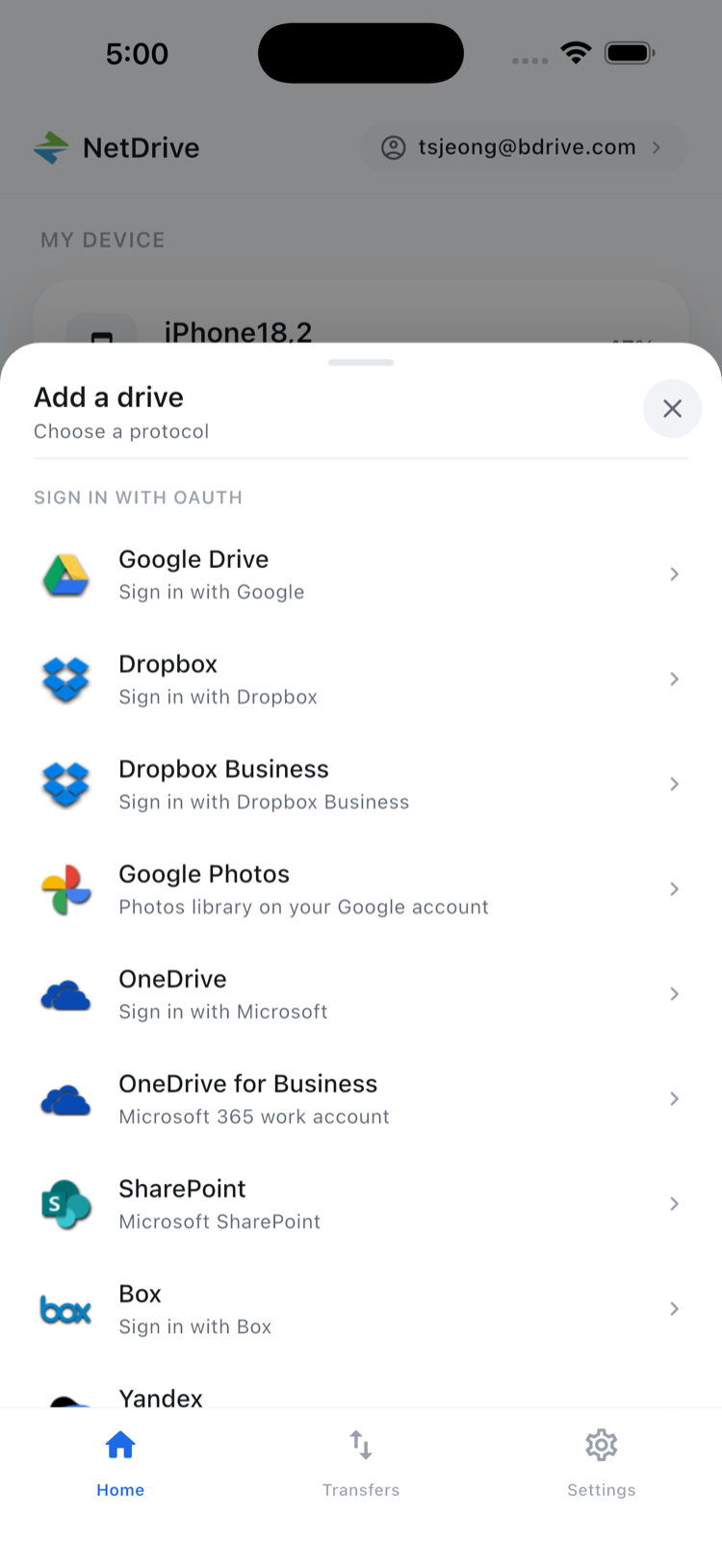
- On the home screen, tap the + icon or pull up the Add a drive sheet.
- In the provider picker, tap OneDrive for a personal Microsoft account or OneDrive for Business for a Microsoft 365 / work account.
- A browser sheet opens Microsoft’s OAuth login. Enter your credentials and approve the permissions request.
- After authorization, you are returned to NetDrive Mobile and your OneDrive appears under Clouds on the home screen.
Your credentials are stored in the device’s secure keystore — iOS Keychain on iPhone, Android Keystore on Android — and never leave the device unencrypted.
You can add both a personal OneDrive and an OneDrive for Business account simultaneously. Each appears as a separate entry under Clouds. This is useful for consultants or contractors who maintain separate personal and client Microsoft accounts and need to access both throughout the day.
Browsing and Previewing Files
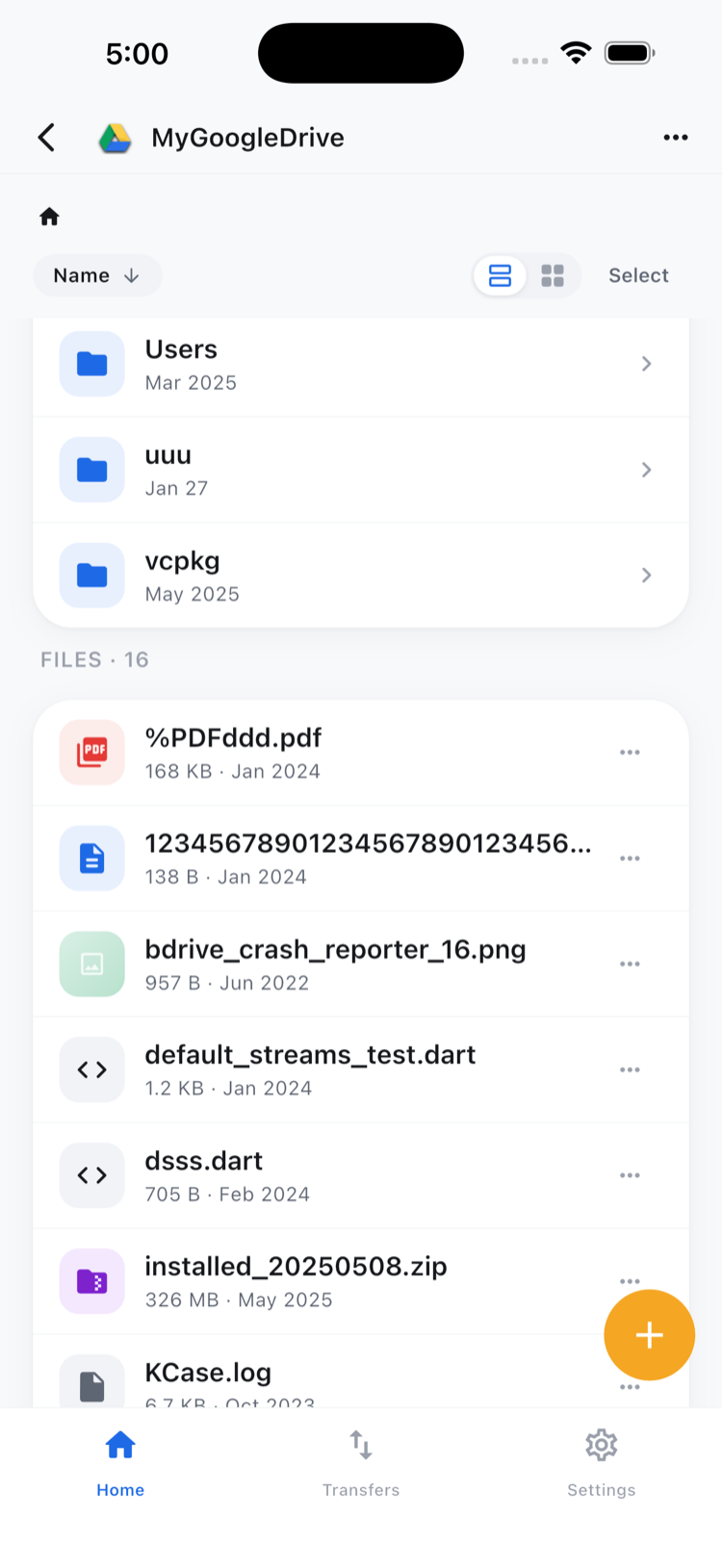
Tap any OneDrive cloud on the home screen to open the file browser. Folders and files are listed with names and last-modified dates. Toggle between list and grid view using the icon at the top right, or sort by name or date.
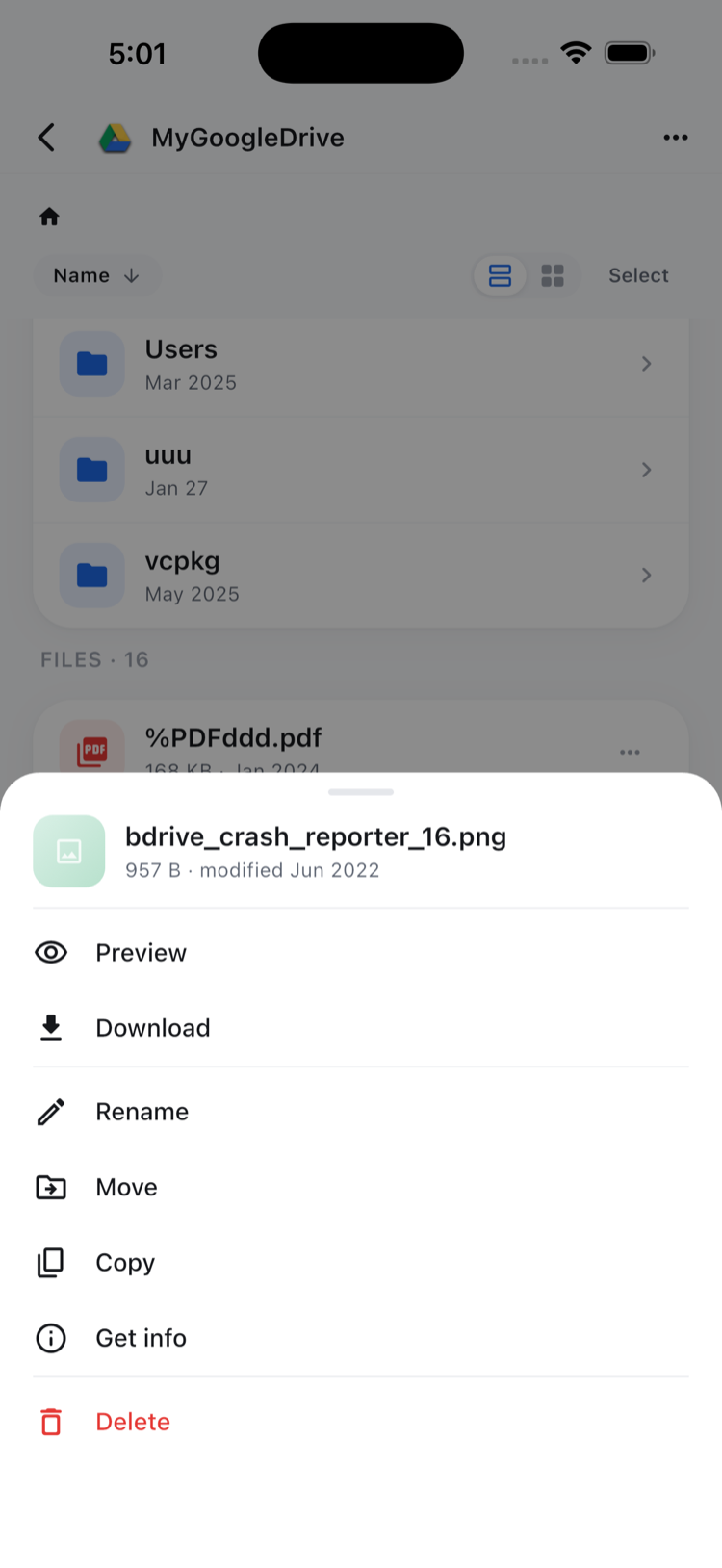
Tap a file to see its action sheet: Preview, Download, Rename, Move, Copy, Get info, and Delete. Preview opens documents, images, and videos inside the app — no download to your camera roll required. For a project manager reviewing a slide deck before a meeting, this means opening a PowerPoint stored in SharePoint or OneDrive instantly, without the file touching local storage.
Uploading Files to OneDrive
To upload from your device:
- Navigate to the target folder in the OneDrive browser.
- Tap + and choose Camera, Photos, or Files as the upload source.
- Select one or more items. NetDrive Mobile queues them and shows real-time progress in the Transfers tab.
Multi-file uploads run concurrently where possible, and the Transfers tab lets you monitor progress or cancel individual items. A photographer uploading a batch of RAW files from an iPhone shoot can queue the entire set at once and watch them land in OneDrive while reviewing the remaining shots.
Bulk Operations With Multi-Select
For moving or copying several files at once, tap Select at the top of the file browser and check each item you want. The toolbar at the bottom shows Move, Copy, Download, and Delete for the selection. This is faster than repeating the action sheet for each file individually, and avoids the gymnastics of dragging files across OneDrive’s own mobile app.
Wrap-up
NetDrive Mobile makes OneDrive — personal or Business — one cloud among many in a single app rather than a separate destination you navigate to. If you also use Google Drive or Dropbox alongside OneDrive, both are already covered: see Browse Google Drive on iPhone and Android and Browse Dropbox on Mobile with NetDrive to add those accounts using the same steps above.
— Robin, NetDrive