Browse and Manage Dropbox on iPhone & Android — NetDrive Mobile

Use NetDrive Mobile to browse, upload, and download Dropbox files on iOS and Android. Supports Dropbox and Dropbox Business alongside all your other clouds.
You are between client meetings with only your phone, and the deck your colleague saved to Dropbox an hour ago needs one last file before you can present it. The signed contract is in SharePoint. The video asset came in over S3. That is three separate apps, three separate logins, three separate file trees to navigate. NetDrive Mobile collapses all of them — Dropbox, SharePoint, S3, and more — into a single screen on iOS and Android.
This post shows how to connect Dropbox (and Dropbox Business) to NetDrive Mobile, browse and manage files, and run transfers from your device.
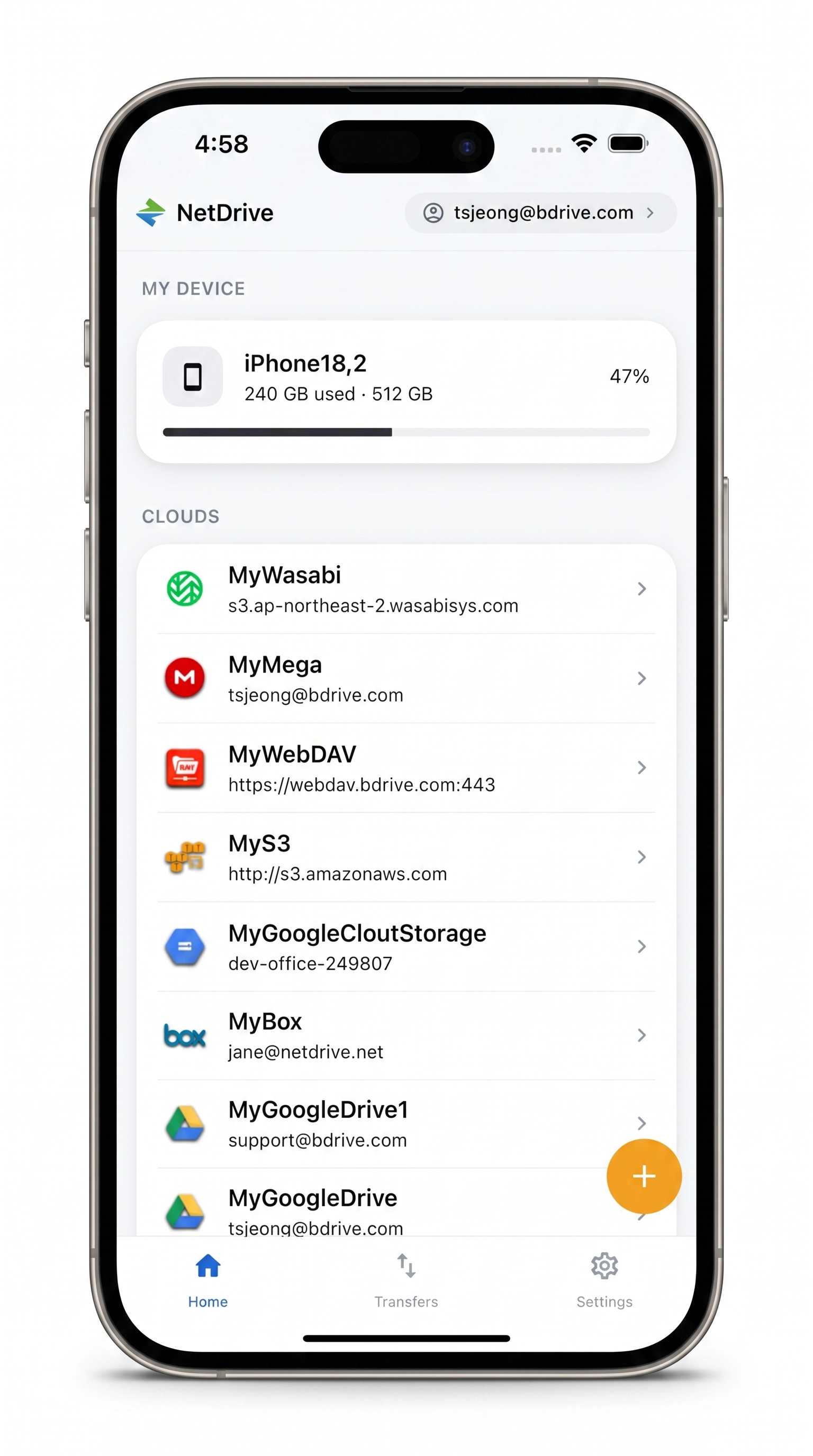
All your clouds in one mobile app
Browse, upload, and download Dropbox files right alongside every other cloud you use.
- Dropbox and Dropbox Business both supported
- Multi-file transfers with real-time progress and cancel
- Credentials stored in iOS Keychain / Android Keystore
Free Bdrive account required.
What NetDrive Mobile does with Dropbox
NetDrive Mobile is a multi-cloud file manager. It gives you on-demand access to browse, upload, download, copy, move, rename, and preview files across any cloud you have connected — Dropbox included. It does not sync a local folder to your device and does not replace Dropbox’s own sync client. Think of it as a single file browser for every cloud service you use, all reachable from one home screen.
Both Dropbox (personal) and Dropbox Business accounts are supported. You can add multiple Dropbox accounts if you have both types, and switch between them alongside Google Drive, OneDrive, Amazon S3, or any other provider you have connected.
To get started you need a free Bdrive account — sign up at netdrive.net before installing the app. The app is listed as NetDrive on Google Play (com.bdrive.ndmobile) and NetDrive Mobile on the App Store (id 1588863649). The iOS version requires iOS 15.0 or later.
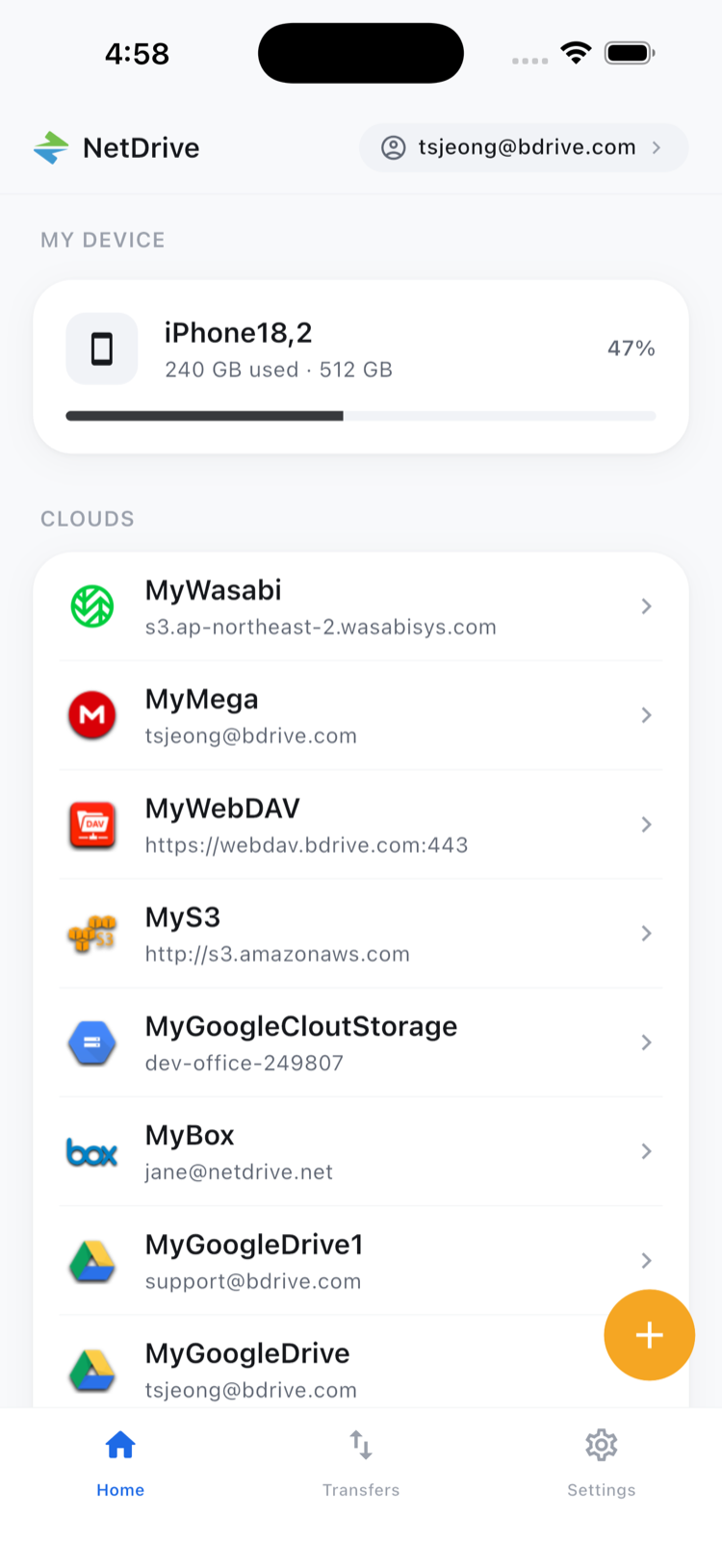
Adding Dropbox to NetDrive Mobile
-
Open NetDrive Mobile and tap the ”+” button on the home screen.
-
The “Add a drive — Choose a protocol” sheet slides up from the bottom. Scroll to Dropbox and tap it. To add a business account instead, tap Dropbox Business.
-
NetDrive opens the Dropbox OAuth page in a web view. Enter your Dropbox credentials and tap Allow to grant access.
-
After authorization, your Dropbox appears as a new entry under Clouds on the home screen. Tap it to open its root folder and start browsing.
Your Dropbox credentials are stored in the iOS Keychain or Android Keystore — your phone’s built-in secure credential storage. The OAuth token never leaves your device in plain text.
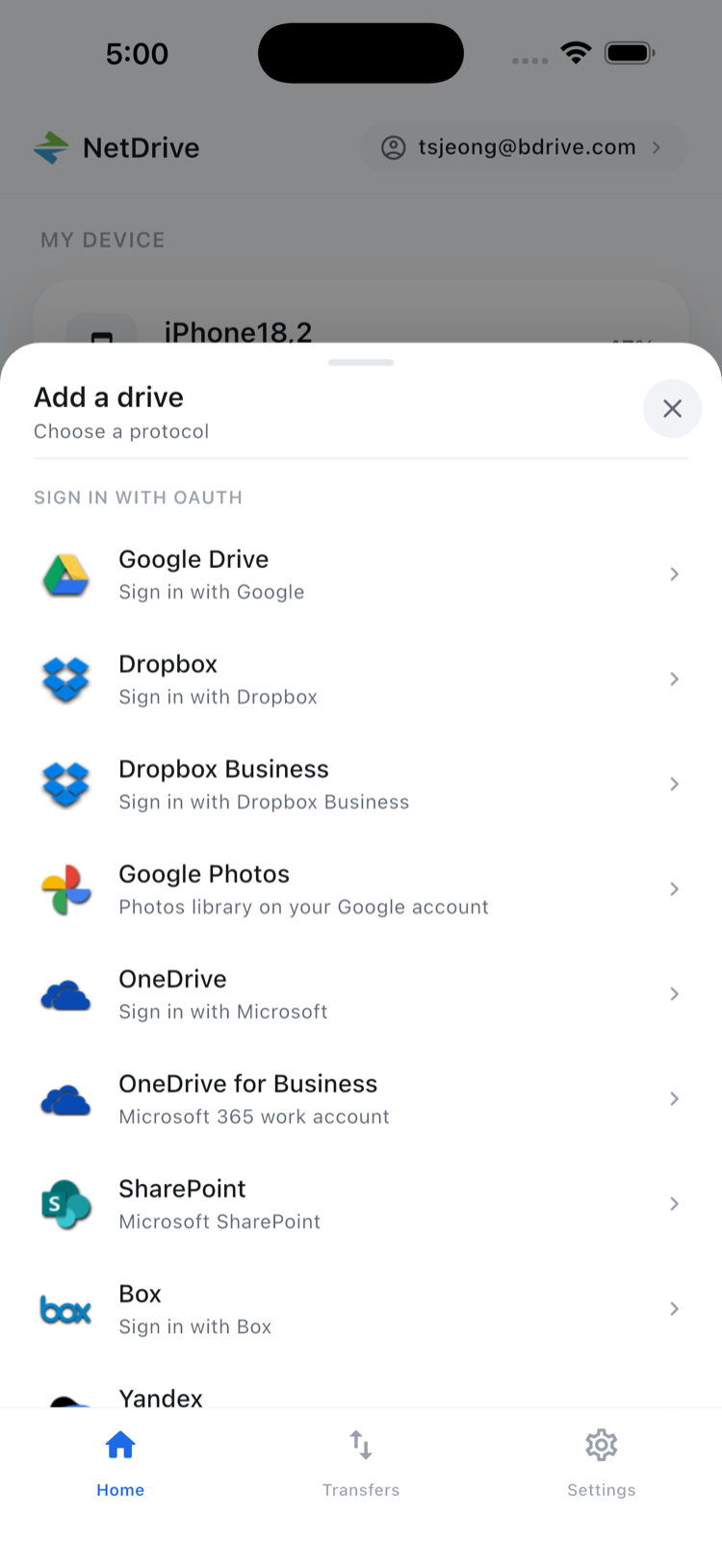
Browsing and managing files
Tap any folder to open it. Tap a file to preview it inside the app — documents, images, and videos open in the in-app viewer without downloading to a separate application. Tap the ”…” icon next to any file for the full action sheet: Preview, Download, Rename, Move, Copy, Get info, Delete.
For working with multiple files at once, tap Select in the top-right corner of the file list to enter multi-select mode. Check the files you want, then choose a batch action from the bar at the bottom of the screen: Move, Copy, Download, or Delete. Move and Copy work within the same Dropbox account — you pick a destination folder inside Dropbox. Moving files from Dropbox directly into another provider (cloud-to-cloud transfer) is not something NetDrive Mobile does; that is the role of a dedicated transfer tool.
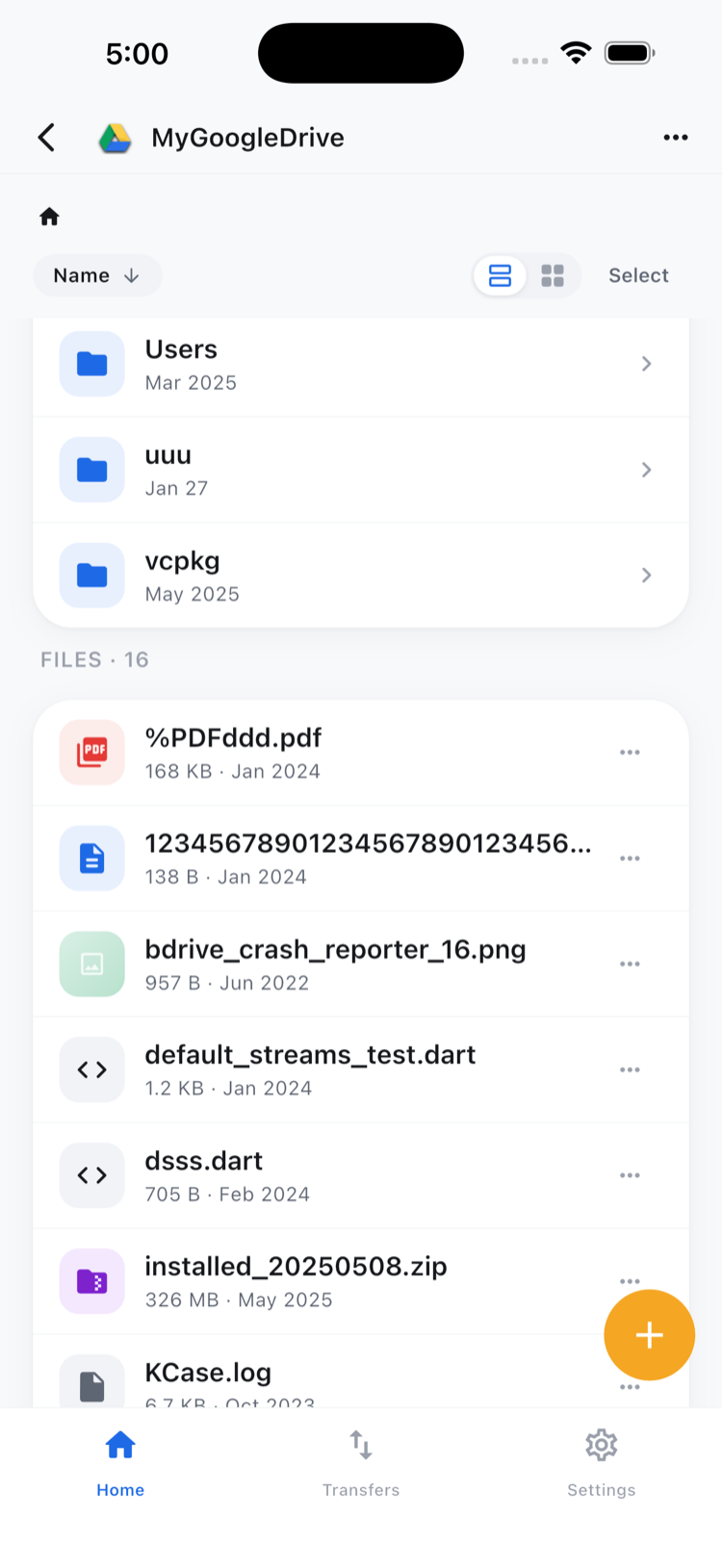
Uploading files from your device
Tap ”+” while inside any Dropbox folder to start an upload. NetDrive Mobile lets you pull files from:
- Photos — images or videos from your camera roll.
- Files / device storage — any file accessible through the iOS Files app or Android’s system picker.
- Camera — capture a photo or video and upload it in one step.
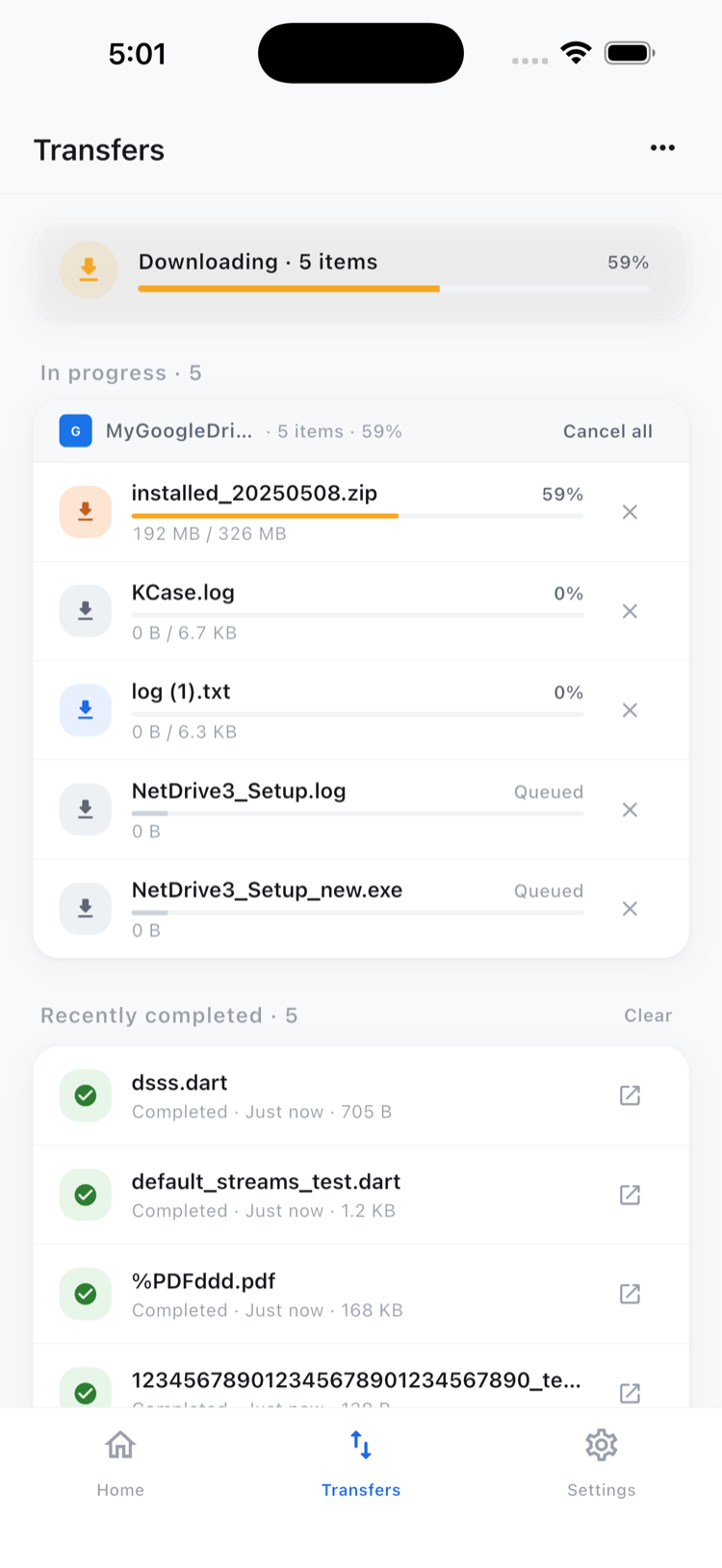
All uploads run through NetDrive’s Transfers queue. Open the Transfers tab to see real-time progress for each item and cancel individual transfers if needed. Multiple files upload in parallel, so a batch of photos does not queue one by one.
Wrap-up
NetDrive Mobile’s Dropbox integration gives you clean on-demand access to your Dropbox files without adding another dedicated sync app. Because Dropbox sits alongside your other clouds on the same home screen, you can pull a reference from Dropbox, check a new upload in S3, and share a document from OneDrive — all without leaving the app.
For other providers on mobile, Browse Google Drive on Mobile with NetDrive walks through the same setup for Google Drive, and Access NAS Files on Mobile via WebDAV and SFTP covers connecting to your own NAS or server.
— Kai, NetDrive