File Status Icons in Windows Explorer — NetDrive

NetDrive overlays sync, upload, and lock status directly on file icons in Windows Explorer, so you can tell a file's state without opening it or the app.
A marketing coordinator finishes editing a pitch deck on a Google Drive folder mounted through NetDrive, closes the laptop lid, and heads to a client site with spotty Wi-Fi. She didn’t check whether the file finished uploading first — but she didn’t need to. A quick glance at the icon in Explorer before closing the lid would have told her the file was still mid-upload, badge and all, without opening NetDrive or the file itself.


See file status without opening a single file
NetDrive lets Google Drive, OneDrive, S3, SFTP, WebDAV and more appear as native drives on Windows and macOS — no syncing, no full downloads.
- Overlay icons show sync, upload, and lock state at a glance
- Works across every mounted provider — Google Drive, S3, SharePoint, and more
- Pairs with file locking so teams avoid overwrite conflicts
Free trial. Lifetime and subscription plans available.
What the Overlay Icons Show
NetDrive has attached status icons to files on a mounted drive since its first 3.x release (3.1.196). Every file and folder on a NetDrive-mounted drive gets a small badge layered on its normal Explorer icon, and that badge changes based on what NetDrive is doing with the file at that moment — sitting untouched and fully available, actively uploading a local change back to the cloud, or locked against edits.
The value is that none of this requires opening NetDrive’s own window. You’re already looking at Explorer to find the file; the badge answers “is this safe to disconnect from” or “is someone else working on this right now” without an extra click. Because uploads run in the background by default, a file can look finished on screen while the actual bytes are still in transit to the provider — the overlay is the one place that distinction is visible without opening a transfer log.
Lock Status Rides on the Same Icons
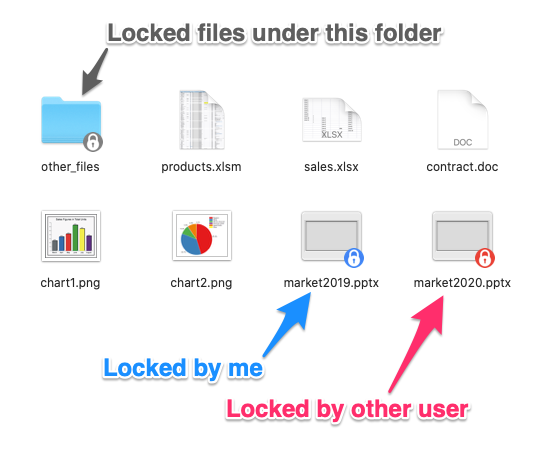
The overlay system does double duty for file locking. NetDrive supports locking on every file type since version 3.9.1190, and locking specifically for Microsoft Office documents since 3.8.921 — the Office case matters because Word and Excel write to a file in ways that silently corrupt it if two people save at once. When a file is locked, the Explorer badge changes to reflect that, and it differs depending on who holds the lock.
A file you locked yourself shows a distinct badge from a file a teammate has locked. That distinction is what keeps a shared Team Drive usable with several people pulling from the same mounted folder: you can tell instantly whether you’re free to edit or whether someone else already has the file open, instead of finding out the hard way when your save conflicts with theirs.
Reading and Acting on the Icons
- Open Explorer and navigate to any NetDrive-mounted drive letter.
- Look at the bottom corner of each file or folder icon — the badge there reflects current status (available, uploading, or locked) without needing to select the file.
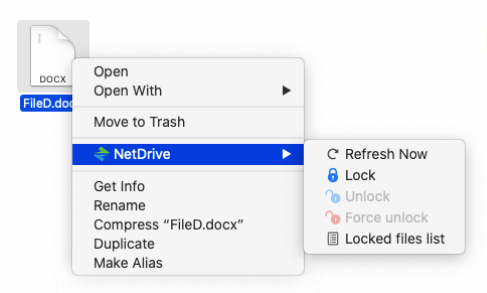
- If a file shows a locked-by-other badge, right-click it to see who holds the lock and confirm before attempting to edit.
- To release a lock you’re holding — for instance, after finishing an edit — right-click the file and use the lock menu to unlock it explicitly, or simply close the application that has it open.
On a Team Drive with several active members, this turns what would otherwise be a guessing game — “did anyone else open this yet?” — into something visible in the same window you’re already using to find your files. It’s a small habit change: check the badge before you double-click, not after a save fails.
Wrap-up
The overlay system is small on its own, but it’s the piece that makes file locking and background uploads legible without a second app window. For the locking mechanics themselves, see the Office file locking guide; for setting up a shared drive where multiple teammates see these icons together, see the Team Drive guide.
— Alex, NetDrive