Consultants with NetDrive Mobile — Every Client's Cloud in One App

Independent consultants use NetDrive Mobile to open client files from SharePoint, Box, Google Drive, and Dropbox on iPhone and Android, preview them, and upload deliverables.
A consultant is on a train to a client site when the partner asks for last week’s workshop deck. One client shares through SharePoint, another through Box, a third through a Google Drive folder, and the deck is in a fourth place entirely. Four apps and four sign-ins later, the train is nearly at the station. NetDrive Mobile opens all of those clouds in one app.

Every client cloud, one app
NetDrive Mobile opens SharePoint, Box, Google Drive, Dropbox and more side by side. Preview documents and upload deliverables from your phone.
- Keep each client in its own drive
- Preview documents in-app before you share them
- Upload photos and files with progress and cancel
Free Bdrive account required.
One drive per client
Client work scatters across whatever each client prefers. NetDrive Mobile connects each provider or account as its own drive and lists them together on the home screen. You can add several accounts from the same provider, so two Google Drive accounts for two clients stay separate.
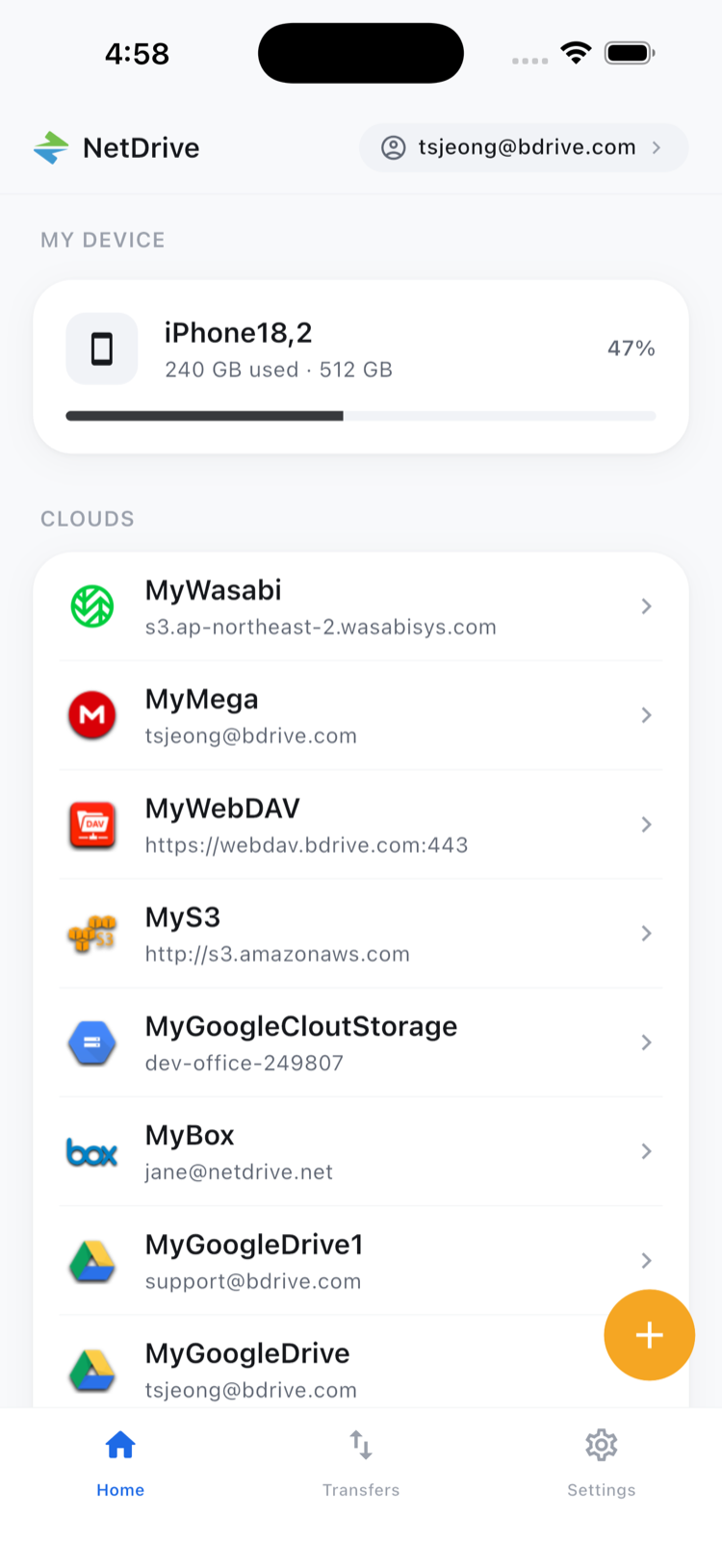
Each drive stays separate. Copying or moving a file happens within the cloud it belongs to. The app is for reaching what you need, not for merging storage or moving files between clients.
Connecting a client’s cloud
Open the Add a drive sheet, pick a provider such as SharePoint, Box, Dropbox, or Google Drive, and sign in with the credentials the client gave you. A free Bdrive account is required for the app, and it supports Sign in with Apple and Google as well as two-factor verification. Credentials are kept in the device’s secure storage (iOS Keychain or Android Keystore).
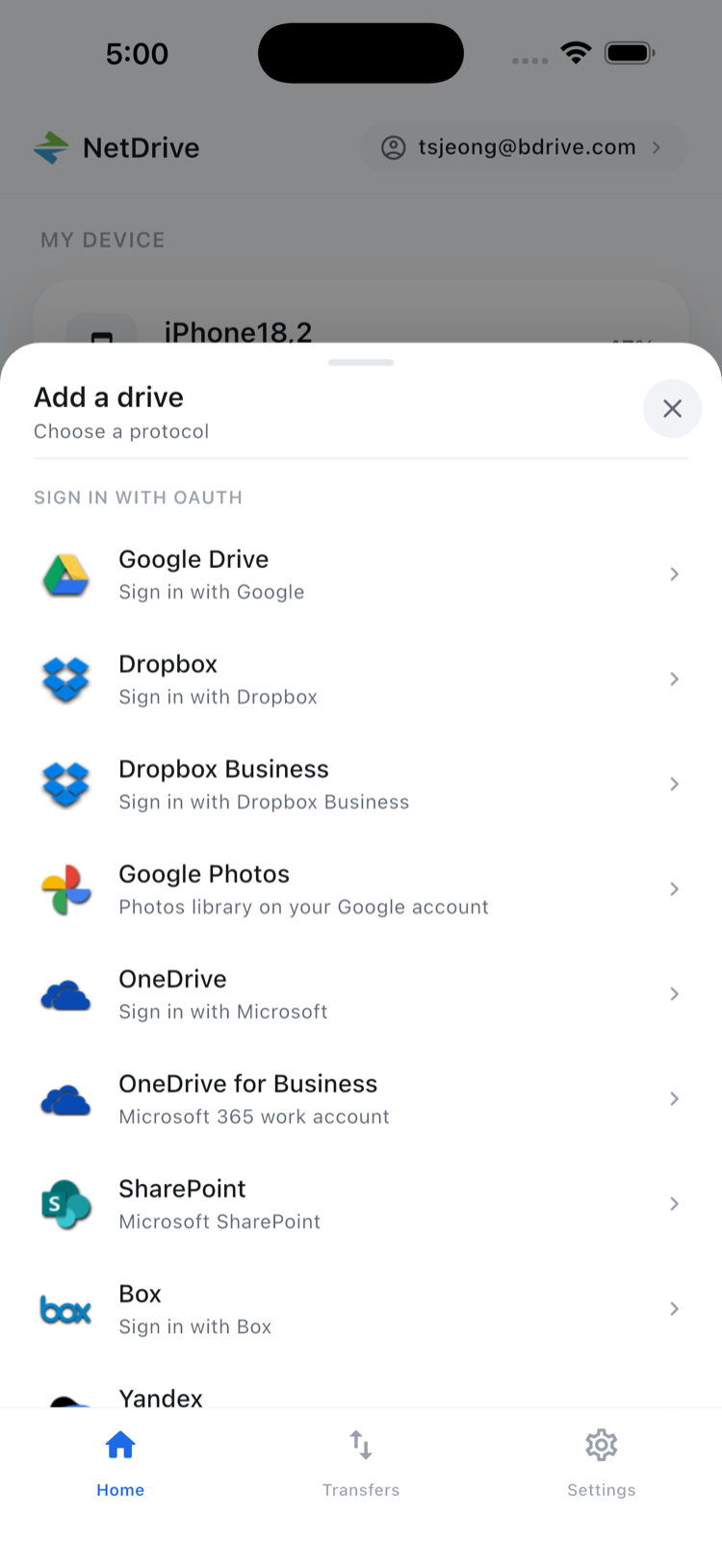
Check with each client about their policy before adding their cloud to a personal phone.
Finding the right version
Open a drive, move into the project folder, and use sort or the list and grid toggle to find the latest file. Tap a document, image, or video to open the in-app preview and confirm you have the right version.
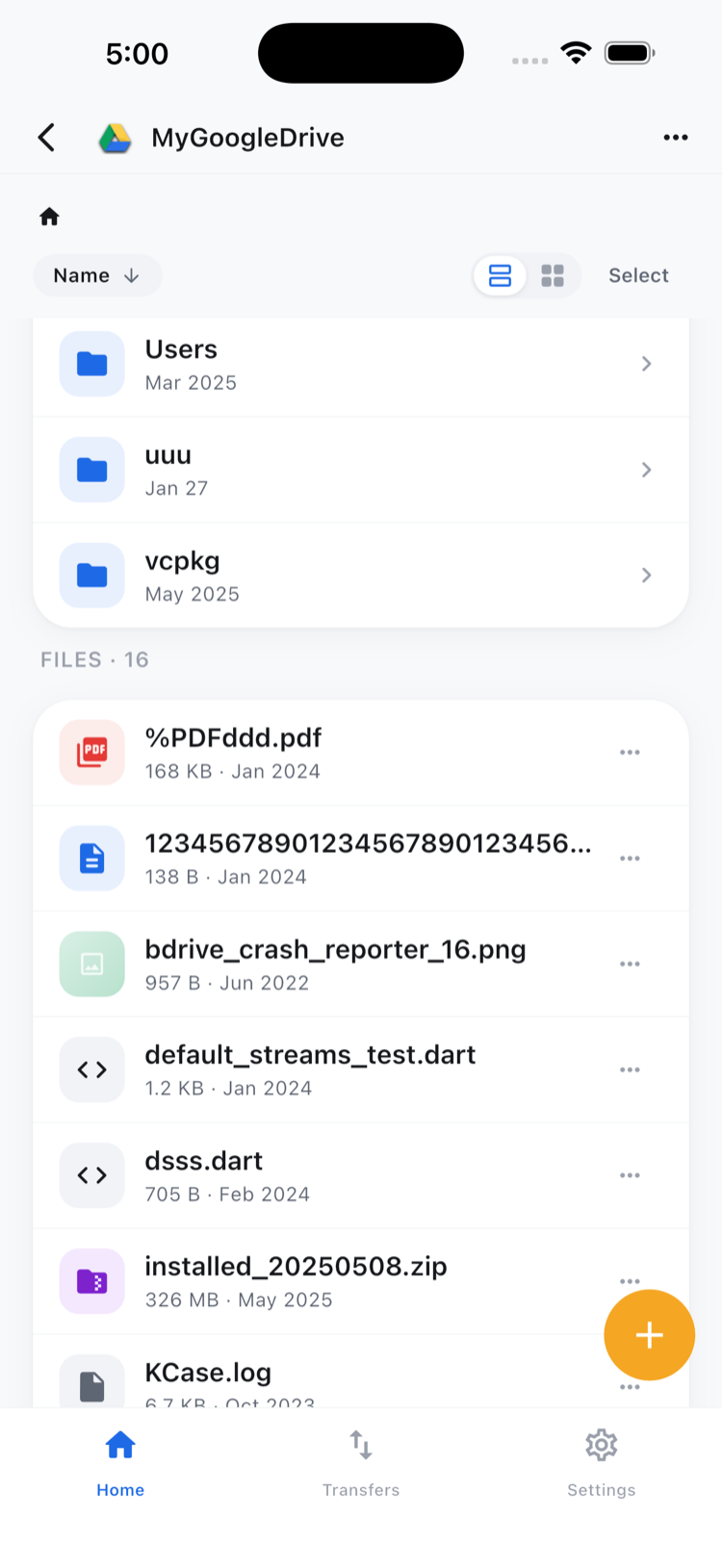
The file action sheet offers Preview, Download, Rename, Move, Copy, and Delete. Download pulls a copy to your phone when you need to attach it in another app.
Sending a deliverable or a site photo
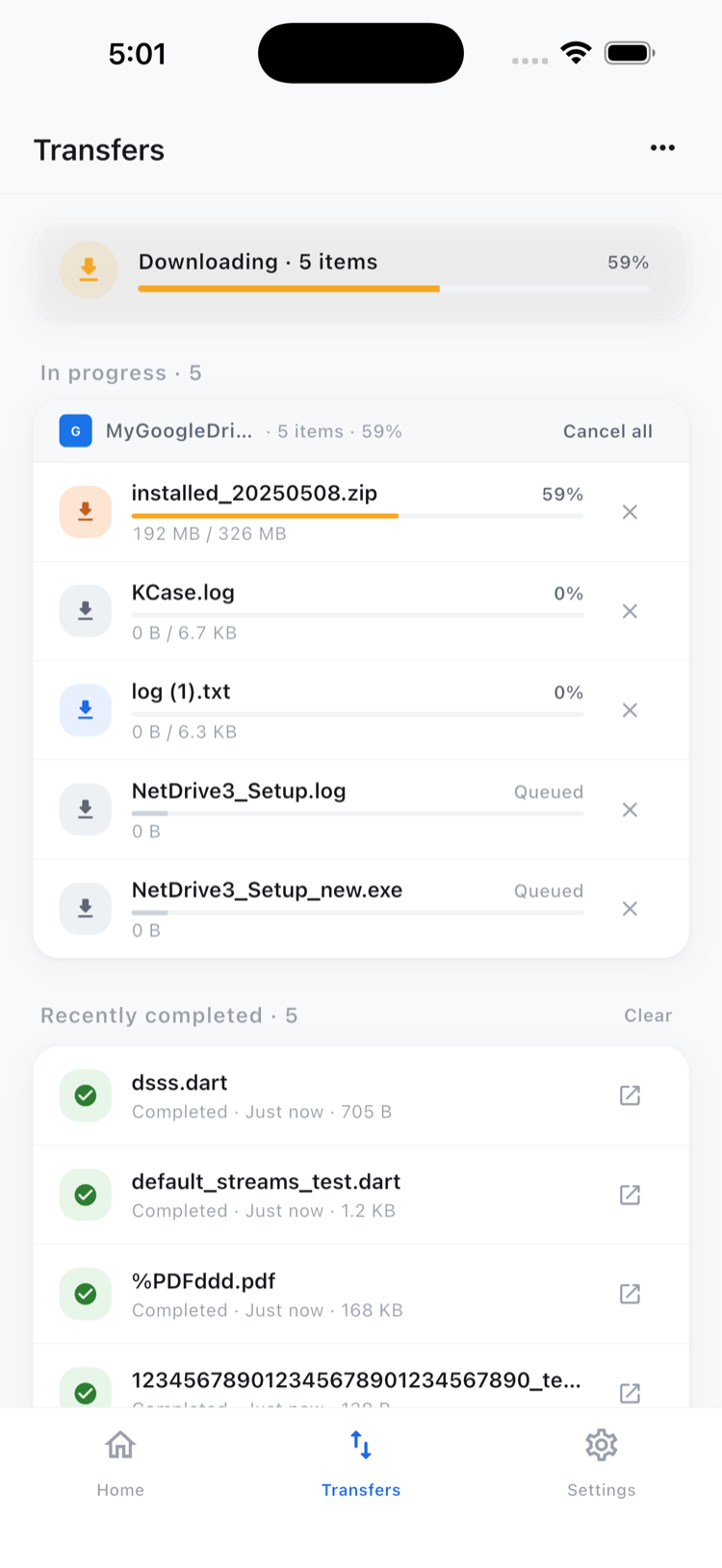
Open the target drive, go to the right folder, and upload from the camera, photo library, or device files. You can queue several transfers at once, watch progress, and cancel any of them.
Setting up for a new engagement
- Install NetDrive Mobile from the App Store or Google Play and sign in with your free Bdrive account.
- Tap to add a drive and choose the client’s provider.
- Keep one drive per client so you can tell clients apart at a glance.
- Use a consistent folder layout so deliverables always land in the same place.
Wrap-up
For consultants, the cost of switching between clients is mostly app-switching. See NetDrive Mobile — Multiple Cloud Accounts for managing accounts, and Browse SharePoint on iPhone & Android for the most common client setup. If you also work at a desk, NetDrive Desktop vs Mobile explains how the two fit together.
— Morgan, NetDrive