Students and Thesis Writers with NetDrive — One Drive Letter for All Your Cloud Storage
How university students use NetDrive to mount Google Drive, OneDrive, and a university SFTP or WebDAV share as drives, so thesis files and datasets stay in one place.
A graduate student in her final year has a thesis draft in Google Drive, lecture slides in a university OneDrive account, and a 40 GB folder of interview recordings on a lab server she reaches over SFTP. Every file lives somewhere different, and her citation manager and writing tool can only open files from a normal folder path. Mounting each account as its own drive gives her one place to browse and one path to point her tools at.
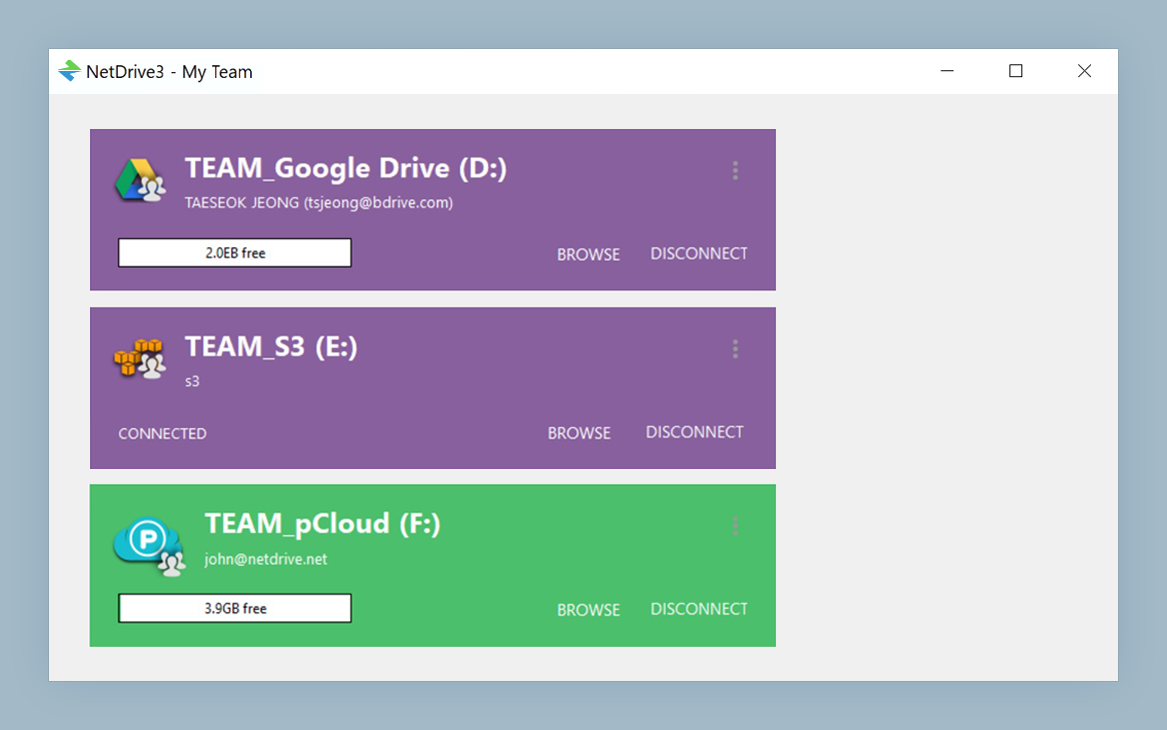
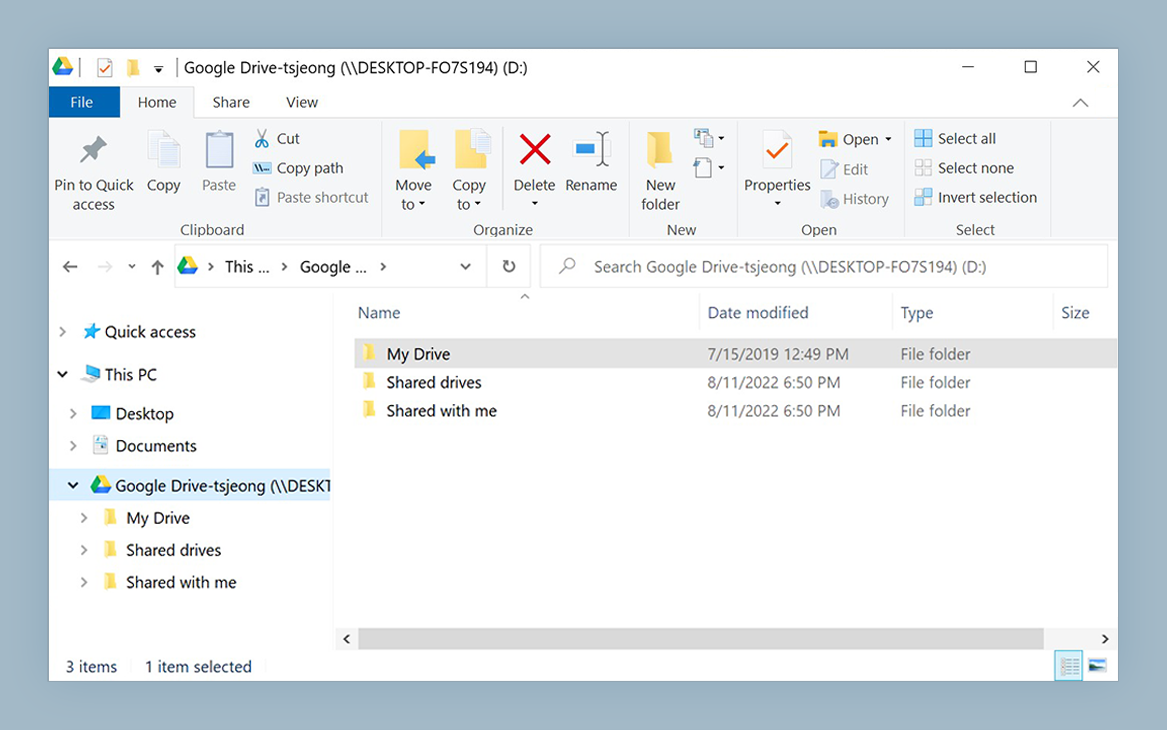
Every Cloud Account, One File Explorer
NetDrive lets Google Drive, OneDrive, S3, SFTP, WebDAV and more appear as native drives on Windows and macOS — no syncing, no full downloads.
- Mount Google Drive, OneDrive, SFTP, and WebDAV side by side
- Open files from any app that reads a normal path
- Try it free for 7 days before you decide
Free trial. Lifetime and subscription plans available.
The Problem with Scattered Accounts
Student life accumulates accounts: a personal Google Drive, a university-issued OneDrive, maybe a Dropbox shared by a project group, and a department server. Each has its own web page, its own sync client or none at all, and its own idea of where a file should go.
The common workaround is downloading and re-uploading by hand, which is how a thesis ends up with final_v3_REAL.docx in three places. Mounting the accounts through NetDrive removes the copying step for your own work. The files stay where they are, and your writing tool opens them in place.
What Students Typically Mount
NetDrive supports Google Drive, OneDrive, OneDrive for Business, Dropbox, Box, and SharePoint, which cover most university and personal setups. Departmental and lab servers are often reachable over SFTP, FTP, or WebDAV, and NetDrive mounts those too.
A realistic layout looks like this:
- Google Drive as the home for the thesis draft and notes.
- OneDrive for Business or SharePoint for course material your university provides.
- SFTP for the lab server holding raw data, if your lab allows access.
- A cloud object bucket or a second cloud account as a backup copy of finished chapters.
Your university may restrict which sign-in methods are allowed, so check with your IT office before connecting an institutional account.
Working With Large Files Without Filling Your Laptop
A laptop with a 256 GB disk cannot hold every recording and dataset a research project produces. Because a mounted drive reads files from the cloud on demand, you open the file you need and leave the rest where it is. NetDrive does not offer an offline mode, so the machine needs a connection while you work, which is worth planning for if you write on trains or in libraries with weak Wi-Fi. Keep the chapter you are actively editing in a local folder and save finished versions to the mounted drive.
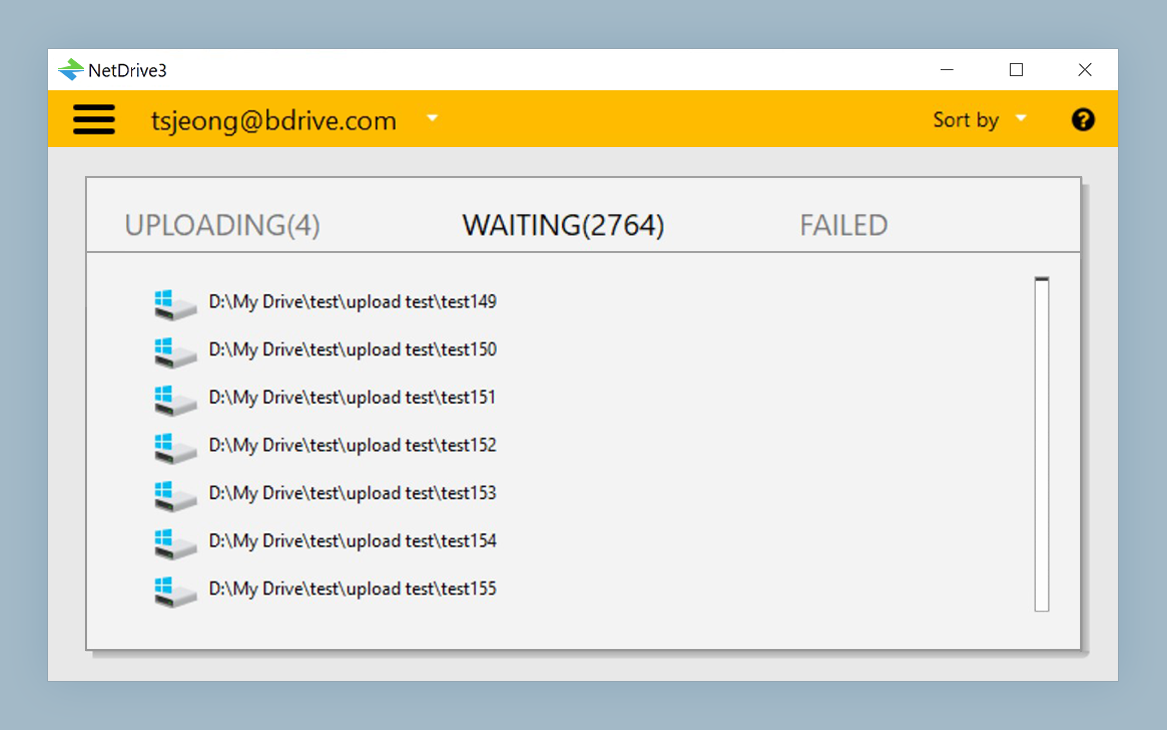
Uploads run in the background, so you can save a large file and keep writing. The queue is visible if you want to check progress.
Setting It Up
- Install NetDrive from the download page and start the free 7-day trial.
- Click the Add Drive button and pick Google Drive. Sign in with your Google account when prompted.
- Repeat for OneDrive, and for SFTP if your lab provides a host, username, and credentials.
- Choose a drive letter on Windows, or a volume name on macOS, for each account.
- In each drive’s settings, set mounting to start automatically so the drives are ready when you open your laptop.
- Point your writing tool and reference manager at folders on the mounted drives.
For a first-time walkthrough of one provider, see Mount Google Drive on Windows 11 or Mount OneDrive on macOS.
Habits That Protect Your Thesis
A mounted drive is not a backup. If you delete a file on it, you delete it in the cloud. Keep a second copy of finished chapters in a different account, and consider a read-only drive for reference material you never want to change; Read-Only Drives in NetDrive explains how.
Also keep file names consistent across accounts, since the same name in two places is how old versions resurface.
Wrap-up
NetDrive will not write your thesis, but it does remove the friction of juggling accounts. One set of drives, opened by the tools you already use, leaves more of your time for the writing itself. If your lab server is behind SFTP, see Mount an SFTP Server on Windows for the setup details.
— Tayson, NetDrive