Travelers with NetDrive Mobile — Passports, Tickets and Trip Photos

Travelers use NetDrive Mobile to open trip documents from Google Drive or Dropbox, upload photos to their own cloud, and keep every account in one app on iPhone and Android.
At an airport gate, the hotel confirmation is in one cloud, the visa PDF in another, and the shared itinerary your travel partner built sits in a third. Hunting through three separate apps with a boarding call in the background is nobody’s idea of a holiday. NetDrive Mobile opens all of those clouds in one app on iPhone and Android.

Every trip file, one app
Open Google Drive, Dropbox, OneDrive and more side by side, and send photos to your own cloud as you go.
- Switch between clouds without switching apps
- Preview PDFs and images right in the app
- Upload photos from the camera with live progress
Free Bdrive account required.
One Home Screen for Scattered Trip Files
Trip planning rarely stays in one place. You might keep passport scans in your own Google Drive, a booking PDF in Dropbox, and a group itinerary in a OneDrive account someone invited you to. NetDrive Mobile lists each connected cloud on the home screen, so you pick the right one in a tap instead of logging in and out.
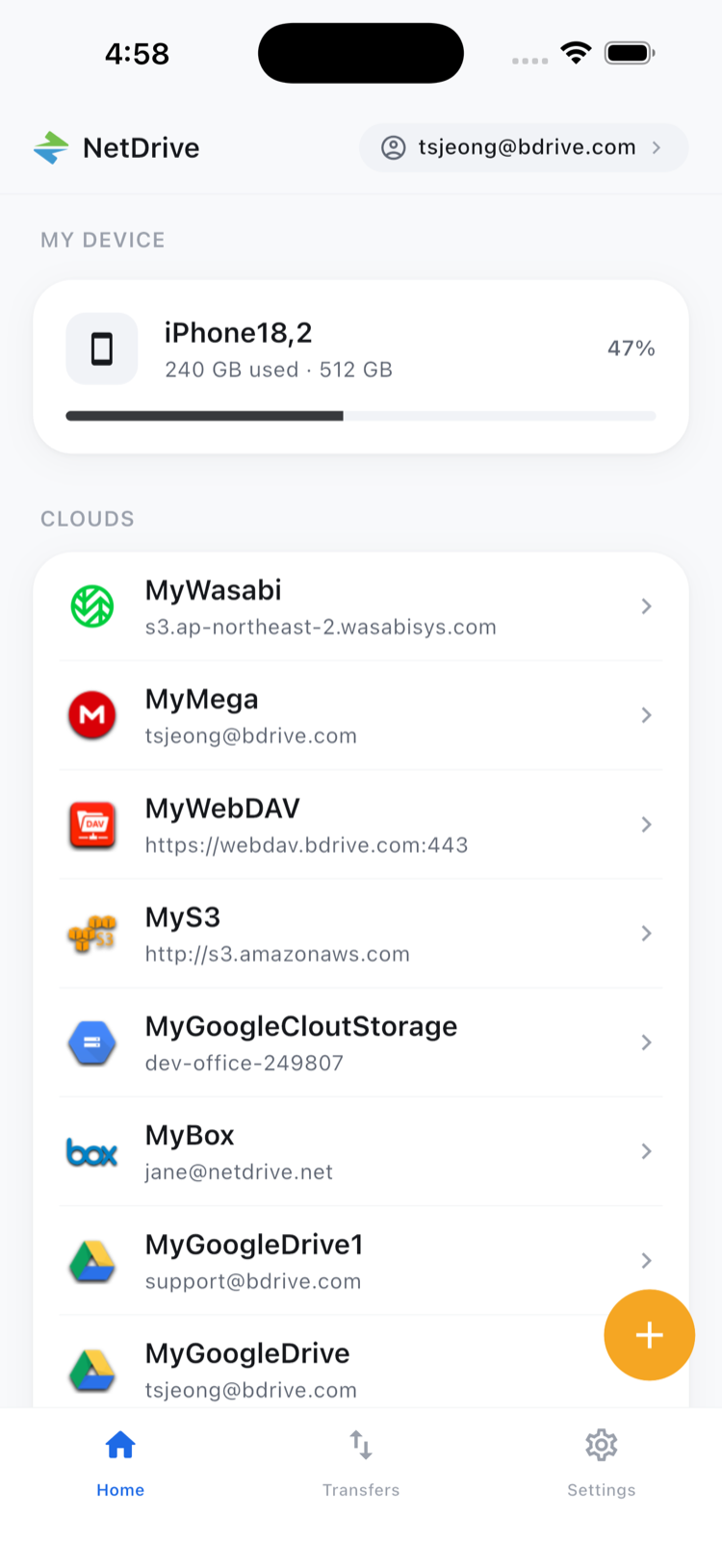
NetDrive Mobile requires a free Bdrive account. After that, you add each cloud once and it stays in the list.
Adding Your Clouds Before You Leave
Do the setup at home, on reliable Wi-Fi, rather than at the gate. Open the Add a drive sheet from the home screen, choose a provider and sign in. The sheet covers major clouds such as Google Drive, Dropbox, OneDrive and Box, plus WebDAV, FTP and SFTP if you keep documents on a home NAS.
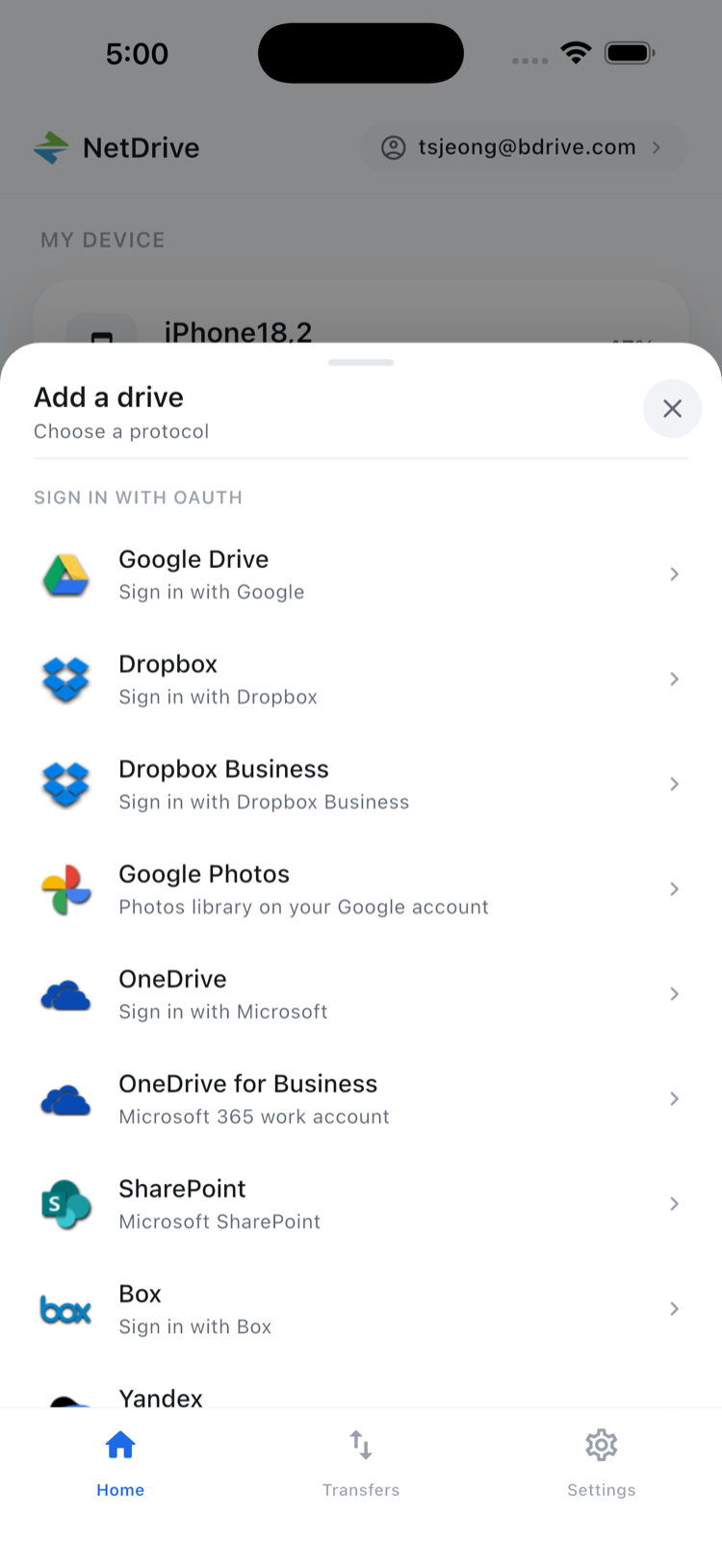
Your cloud credentials are kept in the phone’s secure storage (Keychain on iOS, Keystore on Android). If the Bdrive account uses two-factor login, the approval code arrives as a notification in the app, including on the lock screen. Sort that out before you travel, not while roaming.
Previewing Tickets and Documents
Open a cloud, find the folder, and tap a file. The file actions sheet offers Preview, Download, Rename, Move, Copy, Get info and Delete. Preview opens PDFs, images and other documents inside the app, which is handy for confirming a booking reference before you commit to downloading anything.
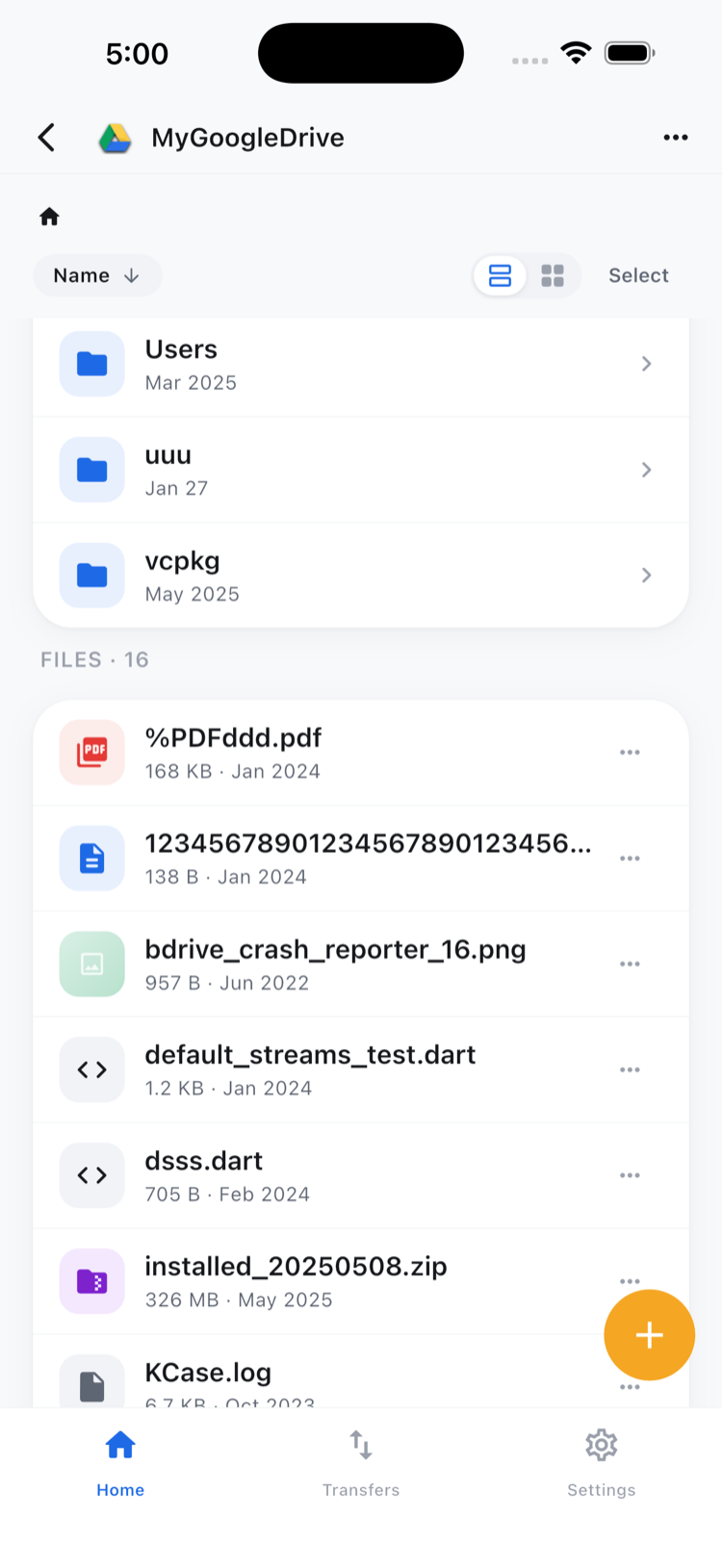
Organize the trip folder before departure: one folder per destination, with tickets, reservations and ID scans named clearly. Rename and move work within the same cloud, so you can tidy a folder from the phone. Moving a file from one provider to a different one is not something NetDrive Mobile does directly; download it first and upload it where you want it.
Uploading Photos as You Go
Phone storage fills fast on a long trip. NetDrive Mobile can upload from the camera, your photo library or the file picker straight into a folder in the cloud you chose. Uploads run with live progress and a cancel option, and you can queue several at once.
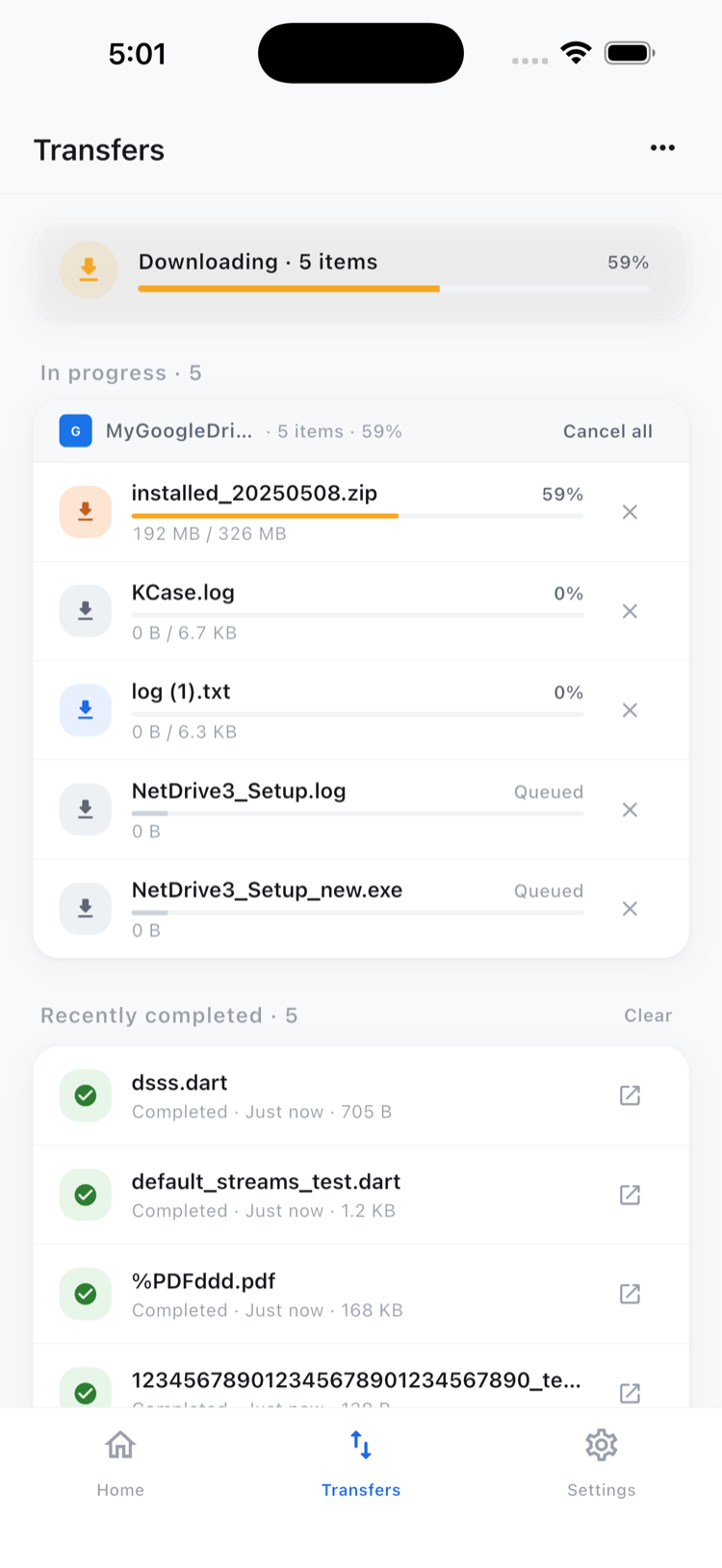
A simple routine: at the end of each day, open the trip folder in your cloud, select the day’s best shots and upload them. Check the Transfers tab to confirm everything finished before you delete anything from the phone. Uploads need a connection, so wait for hotel Wi-Fi if mobile data is expensive.
Limits to Plan Around
NetDrive Mobile is a file manager, not an offline vault. Do not assume a document will open without a signal: if a ticket is critical, also keep the airline’s own copy, or take a screenshot. Google Photos support is limited to items uploaded through the app, so it will not show your full existing photo library.
Wrap-up
Treat NetDrive Mobile as the one place that knows where your trip files live. To get set up, read NetDrive Mobile — Getting Started; for camera uploads see Upload Phone Photos to Any Cloud; and Organize Files with NetDrive Mobile covers renaming and moving.
— Morgan, NetDrive