Fix Stale File Listings in NetDrive — Force Refresh and Cache Timing
A NetDrive-mounted cloud drive that doesn't show a new upload or a rename isn't broken — it's showing a cached directory listing. Here's how to force a refresh and tune it.
A teammate uploads a file straight to the Google Drive web UI, and thirty seconds later you’re still staring at the old file list in the drive NetDrive mounted on your desktop. Nothing’s wrong with the upload — the file is on Google Drive. NetDrive just hasn’t refetched that folder’s listing yet, and the fix takes one right-click once you know where to look.


One drive letter, always in sync
NetDrive lets Google Drive, OneDrive, S3, SFTP, WebDAV and more appear as native drives on Windows and macOS — no syncing, no full downloads.
- Force-refresh any folder instantly with a right-click
- Adjustable directory cache for busier, multi-editor drives
- Same drive-letter workflow across Google Drive, S3, SharePoint, and more
Free trial. Lifetime and subscription plans available.
Why the listing goes stale in the first place
NetDrive doesn’t re-query a cloud provider’s API every time you open a folder — that would make browsing a large Google Drive or S3 bucket painfully slow. Instead, it caches the directory listing for a short window and re-displays it from memory on subsequent visits. Most of the time that’s invisible: you never notice the cache because nothing changed. It only becomes visible when someone else — a teammate, a script, another device signed into the same account — adds, renames, or deletes a file in that same folder while your mount is still holding the old listing.
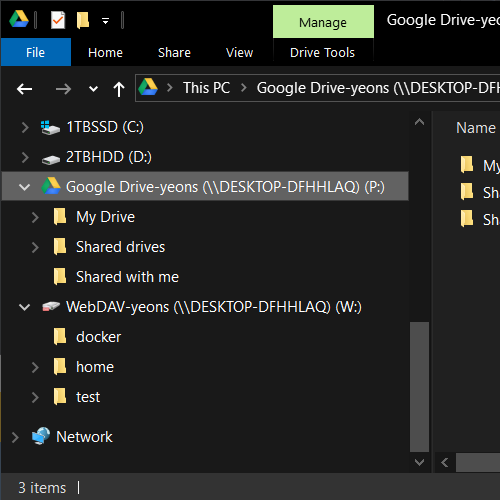
This is separate from NetDrive’s local cache size setting (100 GB–1 TB, configurable per drive), which controls how much downloaded file content NetDrive keeps on disk. A stale listing is about folder metadata — what files exist — not about whether a file’s bytes are cached locally.
Force a refresh immediately
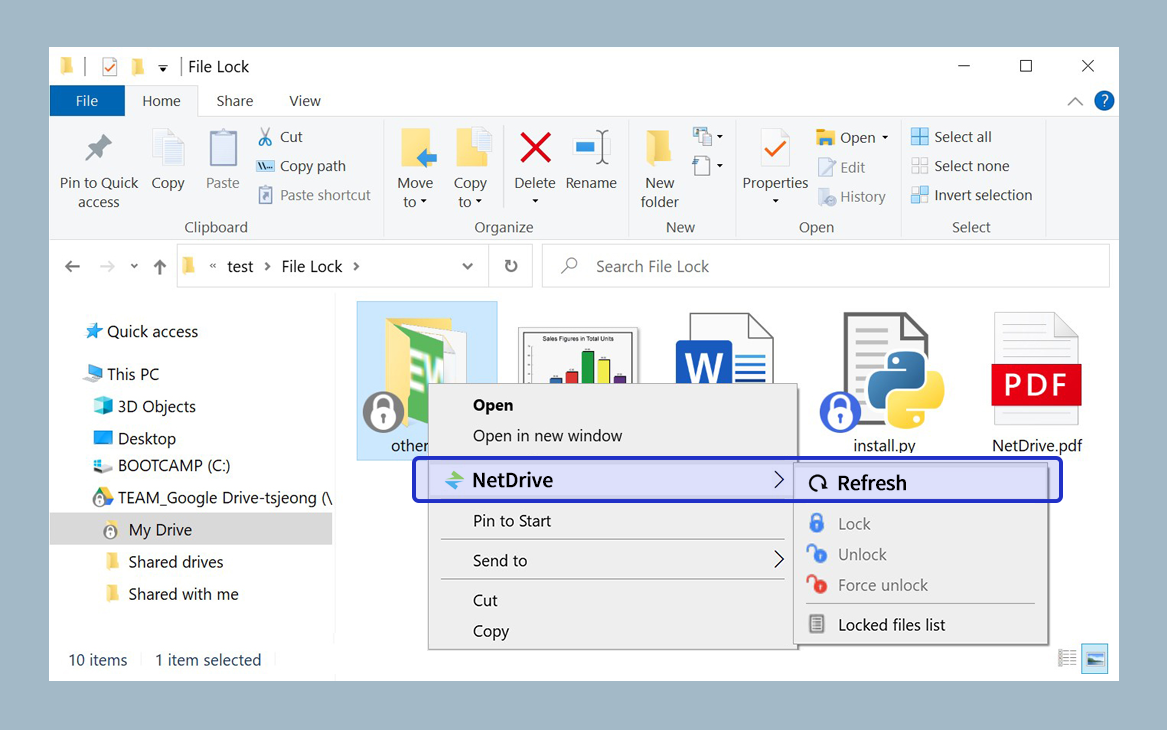
You don’t have to wait out the cache window. Right-click inside the folder that looks out of date and choose Force refresh from the context menu.
- Open the NetDrive-mounted drive in Explorer or Finder and navigate to the folder in question.
- Right-click anywhere in empty space inside that folder.
- Select Force refresh.
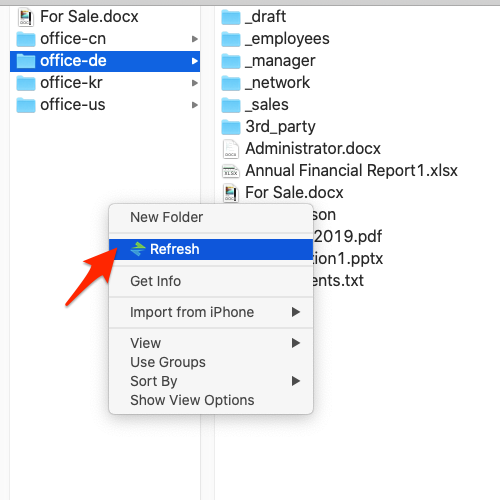
NetDrive immediately re-queries that folder from the cloud provider and updates what you see — no need to unmount and remount the whole drive, and no need to wait for the next scheduled refresh.
Tune the cache for drives with frequent changes
If a particular drive gets edited by multiple people or processes throughout the day — a shared project folder, a CI pipeline writing build artifacts to S3 — right-clicking every time gets old. Instead, shorten how long NetDrive trusts a cached listing before it checks again:
- Open Drive Manager and select the drive.
- Click Properties → Advanced.
- Reduce the directory cache timeout from its default down to something like 15–20 seconds for a drive that changes constantly.
A shorter timeout means more frequent API calls to the provider, so it’s worth applying selectively — to the one or two drives that actually see concurrent edits — rather than globally to every mount. A personal Dropbox that only you touch doesn’t need it.

When force refresh doesn’t fix it
If a forced refresh still doesn’t surface a file you know exists, the more likely cause isn’t caching at all — it’s a permissions issue on the provider side (the account NetDrive is signed in with can’t see that file or shared folder) or, for a Google Drive shared drive specifically, the file simply living outside the shared drive NetDrive has mounted. Confirm the file is visible from the provider’s own web interface using the exact same account before assuming NetDrive is at fault.
Wrap-up
Most “NetDrive isn’t showing my file” reports come down to a cached listing that hasn’t caught up yet — force refresh for a one-off, a shorter directory cache timeout for drives that change constantly. If the problem turns out to be something else entirely, Fix Slow S3 Directory Listing and Fix Google Drive Shared Drive Not Showing cover two of the next most common causes.
— Tayson, NetDrive