Logistics and Operations Teams with NetDrive — Partner SFTP Folders as Drives

Logistics and operations teams use NetDrive on Windows and macOS to mount partner SFTP and FTP folders, cloud storage and archives as drives, with background uploads.
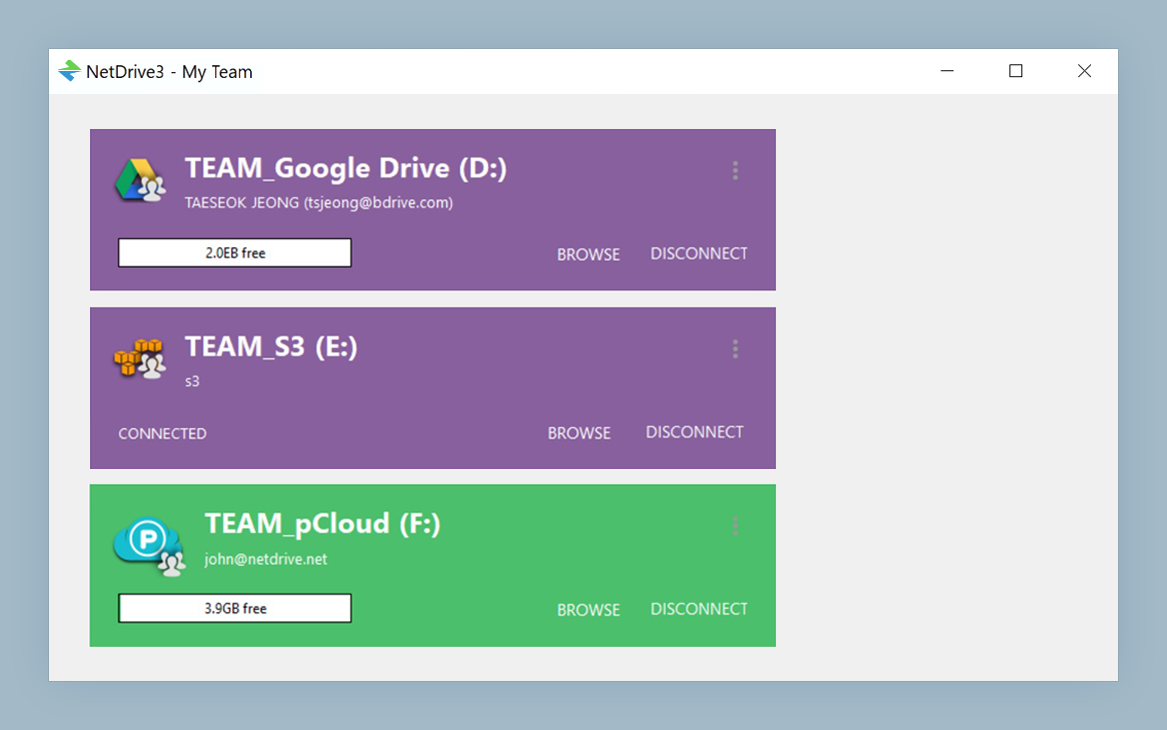
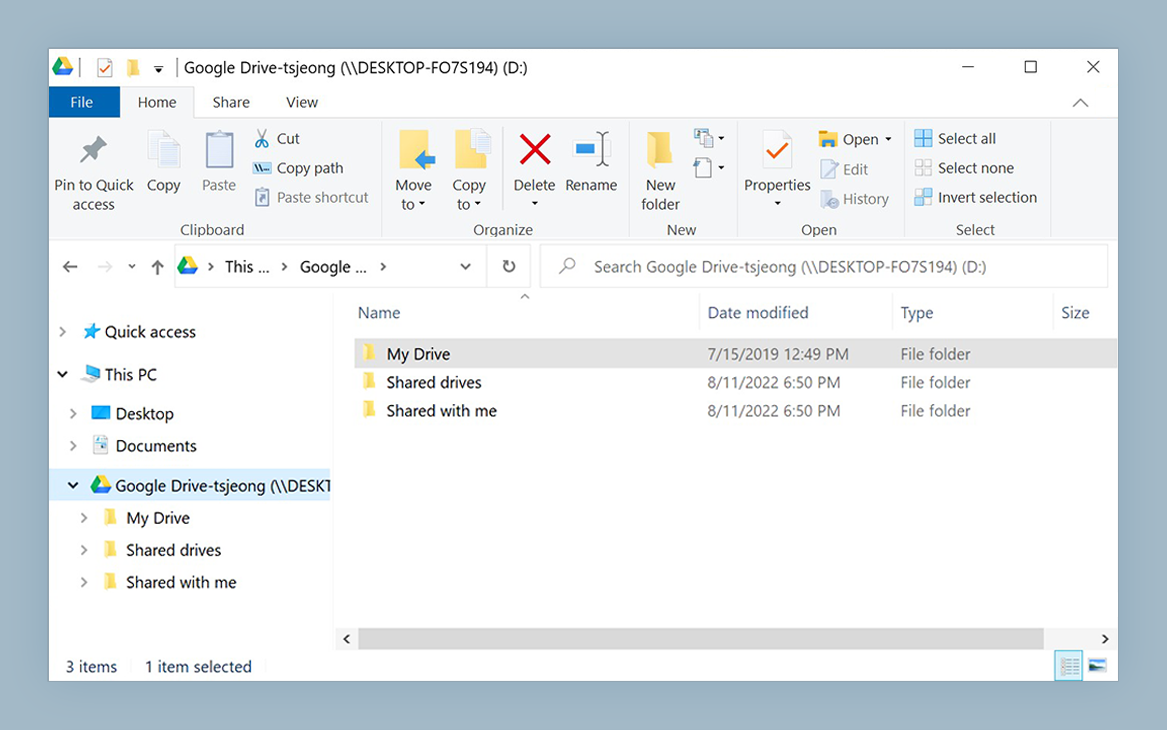
A regional operations coordinator starts every morning the same way: open an FTP client to pull the carrier’s manifest, open a browser for the shared cloud folder with bills of lading, then drag files between them and a spreadsheet. Three tools for one routine. NetDrive mounts the partner SFTP or FTP server and the company’s cloud storage as drives on Windows or macOS, so the same routine happens in one file manager window.
Partner folders, one file manager
NetDrive lets Google Drive, OneDrive, S3, SFTP, WebDAV and more appear as native drives on Windows and macOS — no syncing, no full downloads.
- Mount SFTP, FTP and cloud storage as drives on Windows and macOS
- Keep working while uploads finish in the background
- Add finished shipments as a read-only archive drive
Free trial. Lifetime and subscription plans available.
Why Operations Teams End Up With Five Transfer Tools
Logistics runs on file drops. Carriers publish manifests on an SFTP server, a customs broker wants documents in a shared cloud folder, and the warehouse system exports CSV files to an FTP location. Each partner picks its own method, and the operations team inherits every one of them.
NetDrive supports WebDAV, FTP, SFTP and cloud providers such as Google Drive, OneDrive, SharePoint, Dropbox, Box, Amazon S3 and Wasabi. Each connection appears as a drive, so Excel, a PDF viewer or a script that reads a folder can open the file directly. Step-by-step setup is in Mount an SFTP Server on Windows with NetDrive and Mount an FTP Server on Windows with NetDrive; macOS versions exist too.

A Morning Routine, Rebuilt
With the drives in place, the same morning looks like this:
- The carrier manifest sits in a folder on the SFTP drive; open it in Excel straight from the drive.
- Customs documents go into the broker’s cloud folder by saving to that drive.
- Last week’s finished shipments move to an archive folder that other teams can only read.
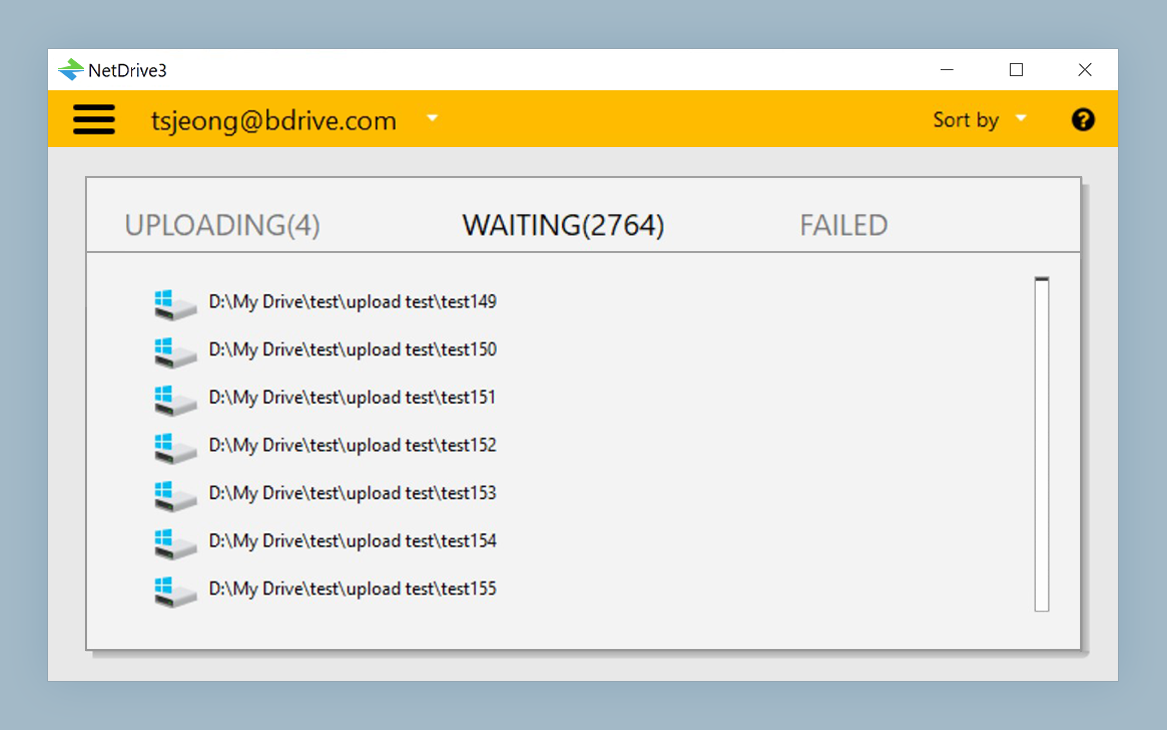
NetDrive can upload in the background, so saving a 400 MB scanned document bundle does not freeze the application while it transfers. The choice between asynchronous and synchronous upload is explained in Background Upload Mode in NetDrive. If a partner link is slow, Bandwidth Limit in NetDrive lets you cap the transfer rate so video calls survive the end-of-day upload.
Keeping Archives Safe
Shipping records have to stay as they were. Add the archive storage as a read-only drive for planners and customer service staff; they can open and search files but cannot change or delete them from the mounted drive. The setup is covered in Read-Only Drive in NetDrive.
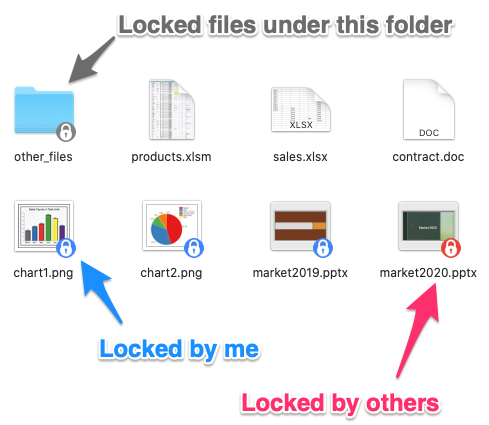
For documents several people edit during the day, such as a daily dispatch workbook, NetDrive’s file lock works for every file type and, for Microsoft Office files, a second user who opens a file already in use gets it read-only. See Office File Locking in NetDrive.
Setting It Up
- Install NetDrive on each Windows or macOS workstation. Current macOS releases need macOS 14 (Sonoma) or later.
- Open NetDrive and add a new drive for each partner, choosing SFTP, FTP or the matching cloud provider, and entering the host and credentials your partner supplied.
- Name each drive after the partner so the drive list reads like your contact list.
- Add the archive as a read-only drive for staff who only look things up.
- Turn on auto mount so drives return after a restart; see Auto-Mount on Boot in NetDrive.
- If a connection stalls, check Fix FTP Connection Timeout in NetDrive.
Limits to Know
NetDrive mounts storage; it does not schedule jobs or move files between two servers on its own. Automated partner exchanges and direct cloud-to-cloud copying belong in other tooling. NetDrive also has no offline mode, so a drive is unavailable without a network connection, and it does not offer client-side encryption, so sensitive documents depend on your servers’ and providers’ security settings. Confirm what your partner agreements require before putting regulated data on any shared drive.
Wrap-up
Mounting partner servers and cloud folders as drives removes the tool-switching from the daily routine without changing how partners deliver files. Start with the one or two connections you use every day and add the archive drive once the layout settles.
— Jay, NetDrive