Browse pCloud on iPhone and Android — NetDrive Mobile

Access your pCloud files on iOS and Android with NetDrive Mobile. Upload, download, and preview without opening a second app.
pCloud stores your files, but managing them on a phone typically means switching between your cloud app and whatever you were doing before. If you already use NetDrive Mobile to reach Google Drive, Dropbox, or an SFTP server from your phone, adding pCloud costs you one tap — it appears on the same home screen, uses the same file browser, and shares the same transfer queue as everything else.
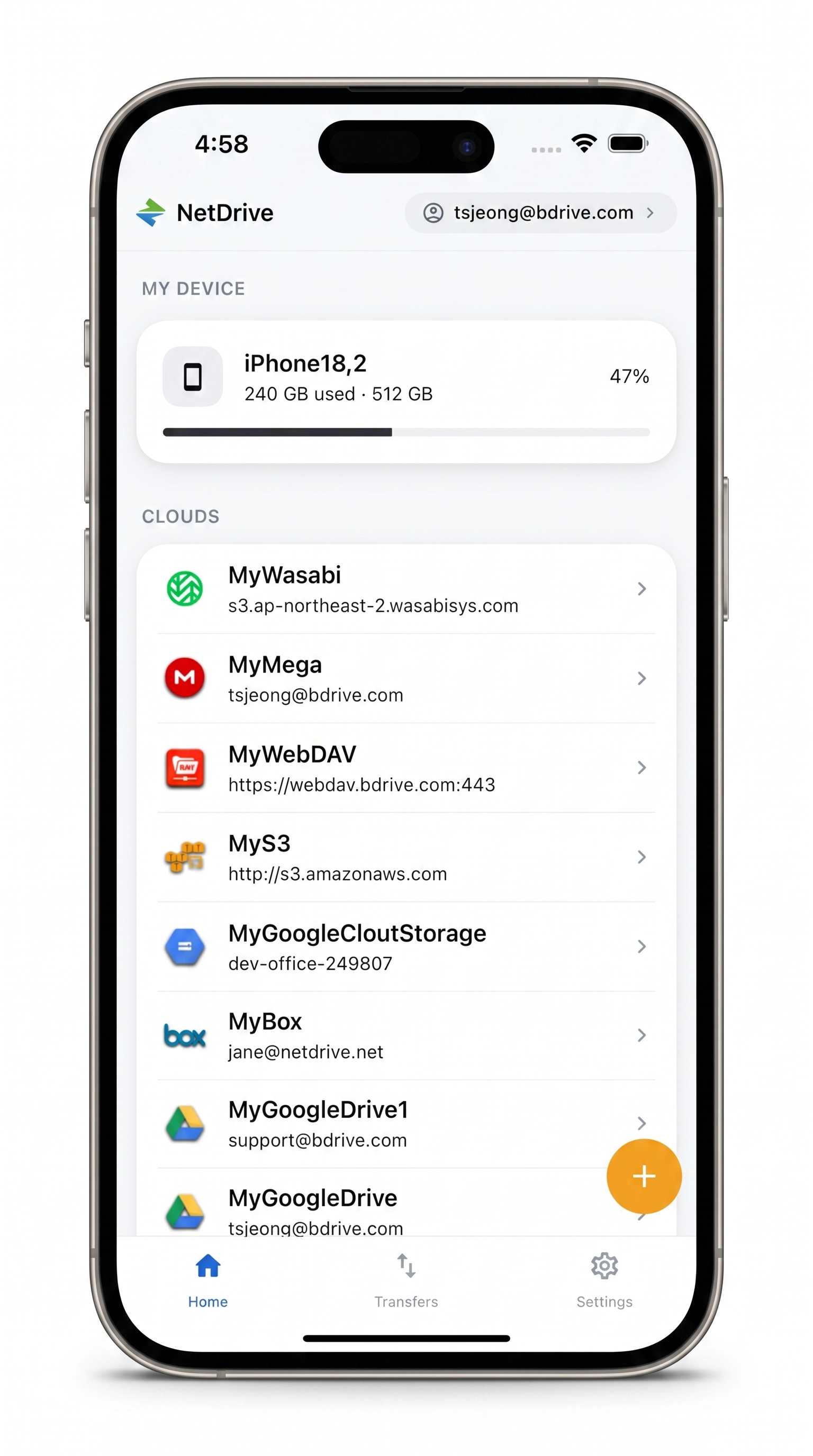
All your clouds — including pCloud — in one app
Browse, upload, and preview pCloud files on iPhone and Android.
- pCloud alongside Google Drive, Dropbox, S3, and more
- Multi-file uploads with real-time progress and cancel
- In-app preview for documents, images, and video
Free Bdrive account required.
What you need
- NetDrive Mobile — App Store for iOS 15+ or Google Play for Android
- A free Bdrive account — sign up at netdrive.net (no paid plan required to connect pCloud)
- Your pCloud credentials — email and password you use to log in to pCloud
Add pCloud to NetDrive Mobile
Open the app and tap + on the home screen. The Add a drive sheet slides up with the full list of supported providers.
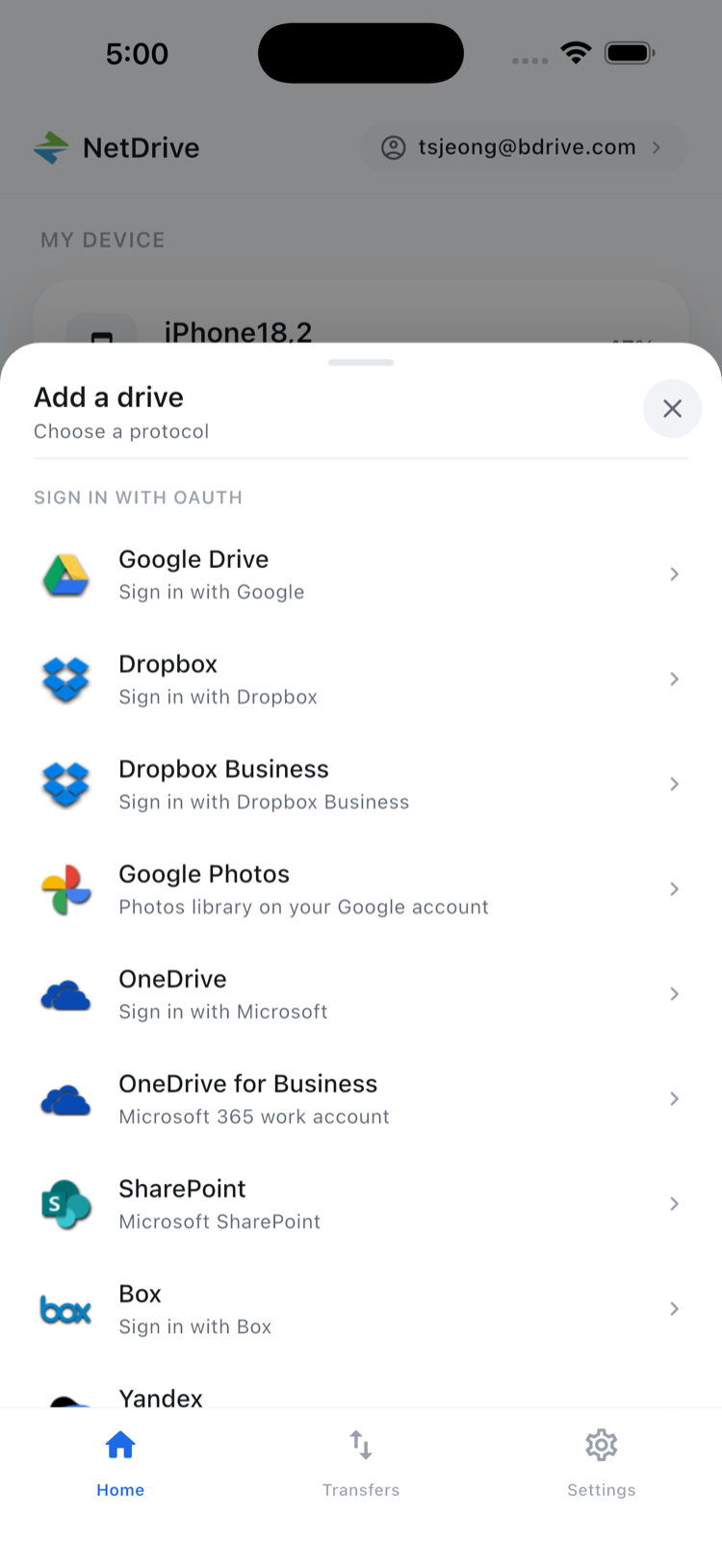
Scroll to pCloud and tap it. NetDrive Mobile opens pCloud’s OAuth authorization page in a secure browser sheet — sign in with your pCloud account and tap Allow. The sheet closes automatically and pCloud appears in your home screen under Clouds.
Your credentials are stored in the iOS Keychain or Android Keystore — they stay on your device, never transmitted as plain text.
Browse your pCloud files
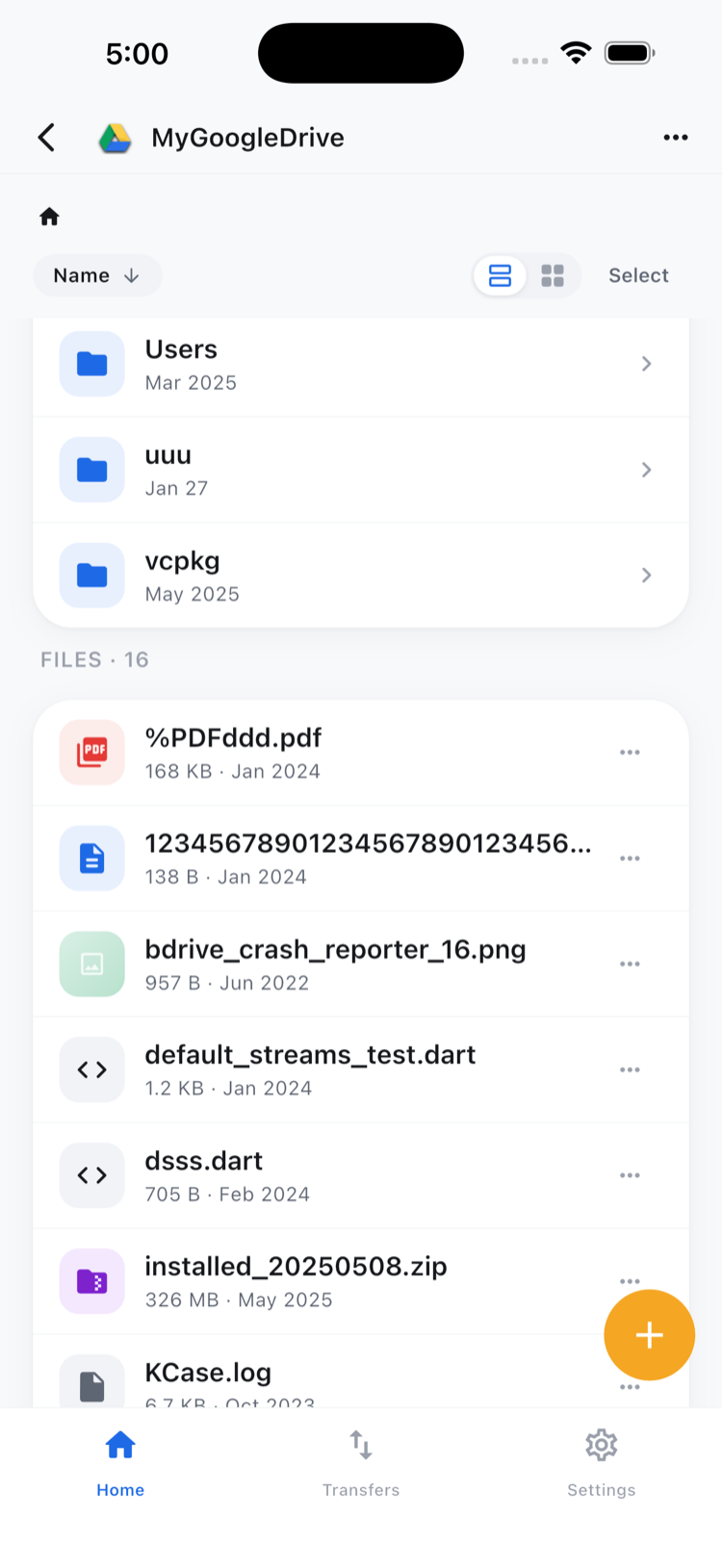
Tap the pCloud entry to open your file tree. Folders and files appear in a list; tap the grid icon in the top-right corner to switch to thumbnail view, which is easier to navigate when you’re looking through a folder full of photos or design exports.
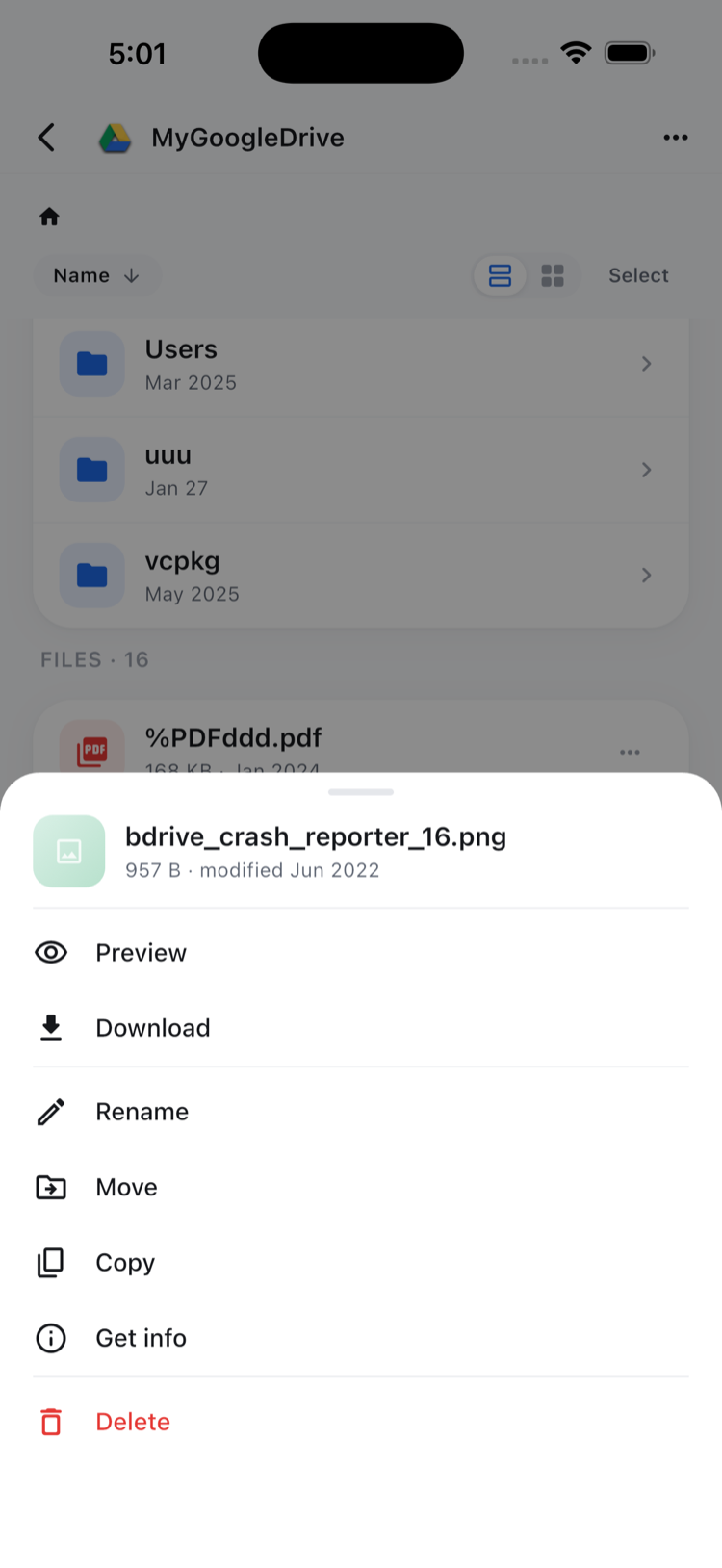
Tap any file to open the action sheet:
- Preview — opens the file in-app without downloading to your camera roll (works for PDFs, common image formats, and most video files)
- Download — saves to your device’s local storage for offline access
- Rename / Move / Copy — reorganize files within your pCloud storage
- Delete — removes the file from pCloud permanently
Tap Select in the top-right to enter multi-select mode when you need to act on several files at once.
Upload from your phone to pCloud
Navigate to the destination folder in pCloud, then tap + → Upload. You can choose from three sources:
- Camera — snap a photo or record a video directly
- Photos — pick one or more items from your camera roll (multi-select supported)
- Files — pick any document from iOS Files or Android’s document picker
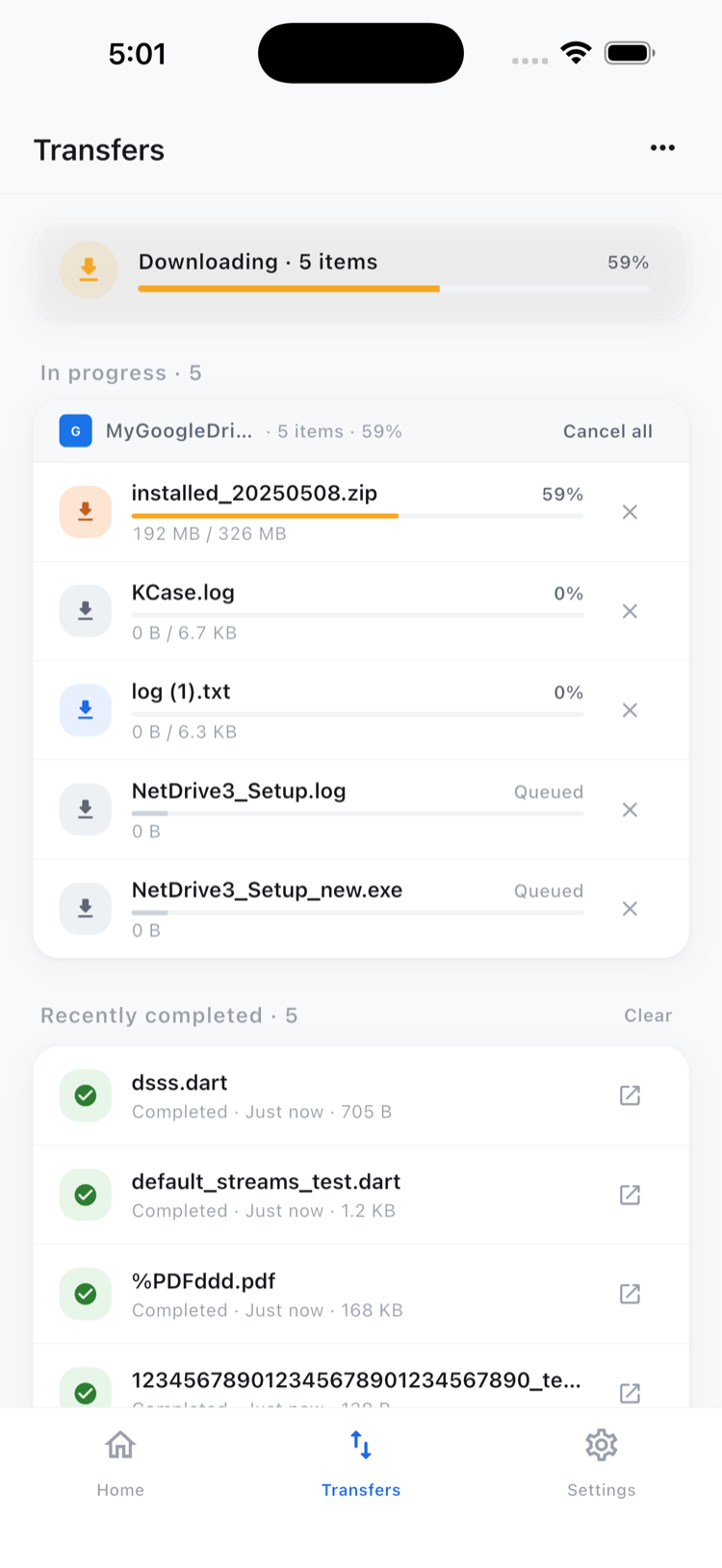
Open the Transfers tab at the bottom of the screen to see live upload progress. Each item shows its transfer speed and a cancel button — useful when a large video upload starts chewing through your mobile data plan mid-commute.
Add multiple pCloud accounts
If you have a personal and a business pCloud account, you can connect both. Tap + again on the home screen and add a second pCloud connection with different credentials. Each appears as a separate entry with its own label — no mixing of file trees.
The same applies across providers: a freelance video editor might keep client-delivered footage in pCloud and their own archive on a Wasabi S3 bucket. Both show up on the same NetDrive Mobile home screen, and the Transfers tab queues uploads to either without confusion.
Wrap-up
Once pCloud is connected, it’s just another folder in your unified mobile file manager — no second app, no re-authentication, no tab-switching. For the full picture of what NetDrive Mobile supports, see NetDrive Mobile — Every Cloud in One App. If you also want to reach a home NAS from your phone, Access NAS Files on Mobile with WebDAV and SFTP walks through that setup.
— Robin, NetDrive