Researchers with NetDrive Mobile: Papers and Field Data on Your Phone

How researchers use NetDrive Mobile to browse papers, lab data, and field photos across Google Drive, SFTP, S3, and WebDAV from one iPhone or Android app.
A postdoc is standing at a poster session when a collaborator asks for the supplementary tables. The paper PDFs are in Google Drive, the raw data sits on the department’s SFTP server, and the field photos from last month went into an S3 bucket. Three logins, three apps, and one very patient collaborator. NetDrive Mobile puts those accounts side by side in one iPhone or Android app so the answer takes a few taps.
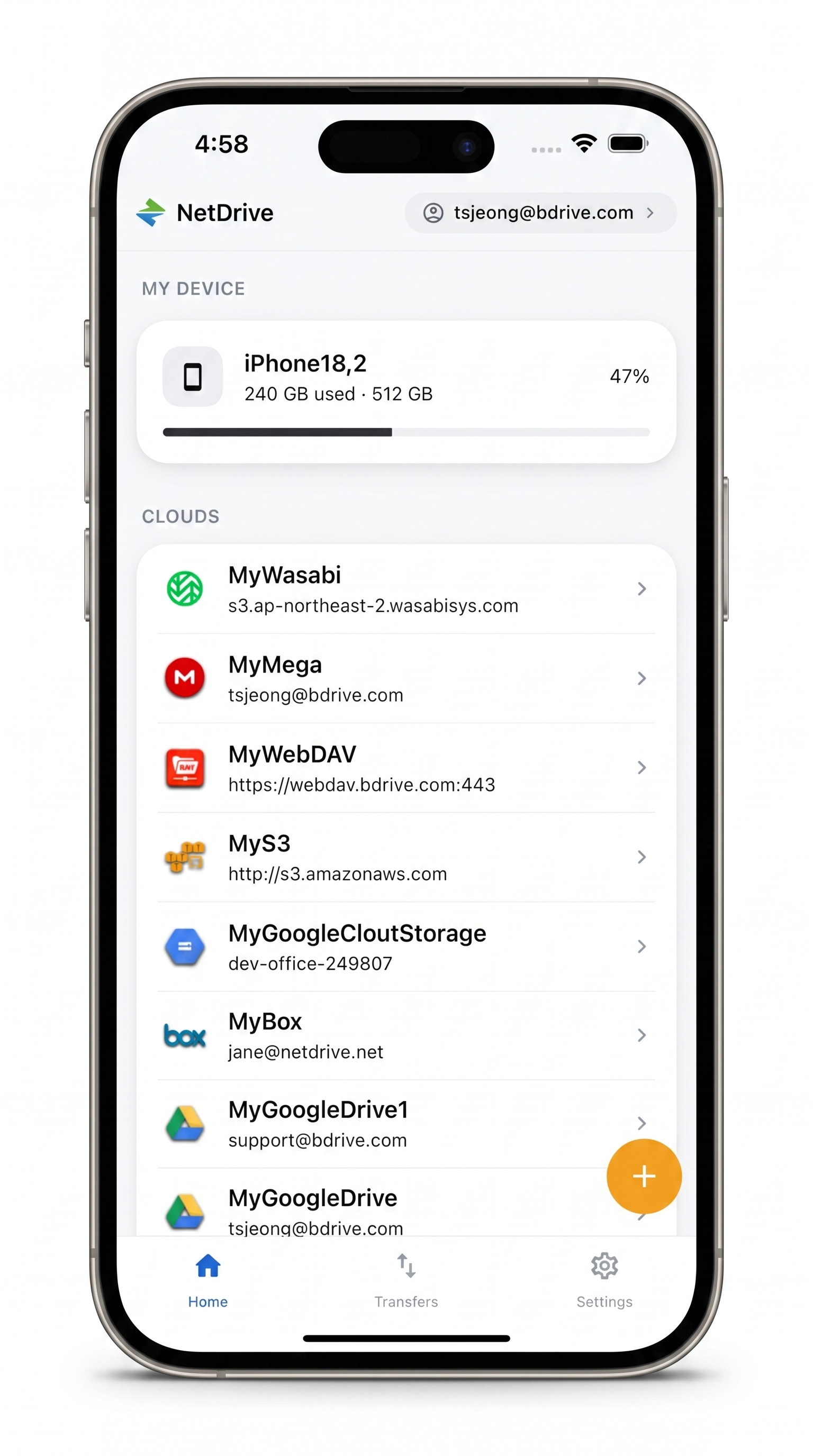
Every research folder, one app
NetDrive Mobile opens Google Drive, Dropbox, OneDrive, S3, WebDAV, SFTP and more in one app — browse, upload, download, and preview right from your phone.
- Browse Google Drive, SFTP, S3, WebDAV and more in one place
- Preview PDFs and images before downloading anything
- Upload field photos straight from your camera or photo library
Free Bdrive account required.
Keeping Papers, Data, and Photos in Their Own Homes
Research storage is rarely tidy. Writing lives in a consumer cloud, datasets live where the lab or university put them, and a collaborator on another continent shares a Dropbox folder. NetDrive Mobile does not ask you to consolidate any of it. You add each storage account once, and the home screen lists them together under Clouds, with your phone’s own storage under My Device.
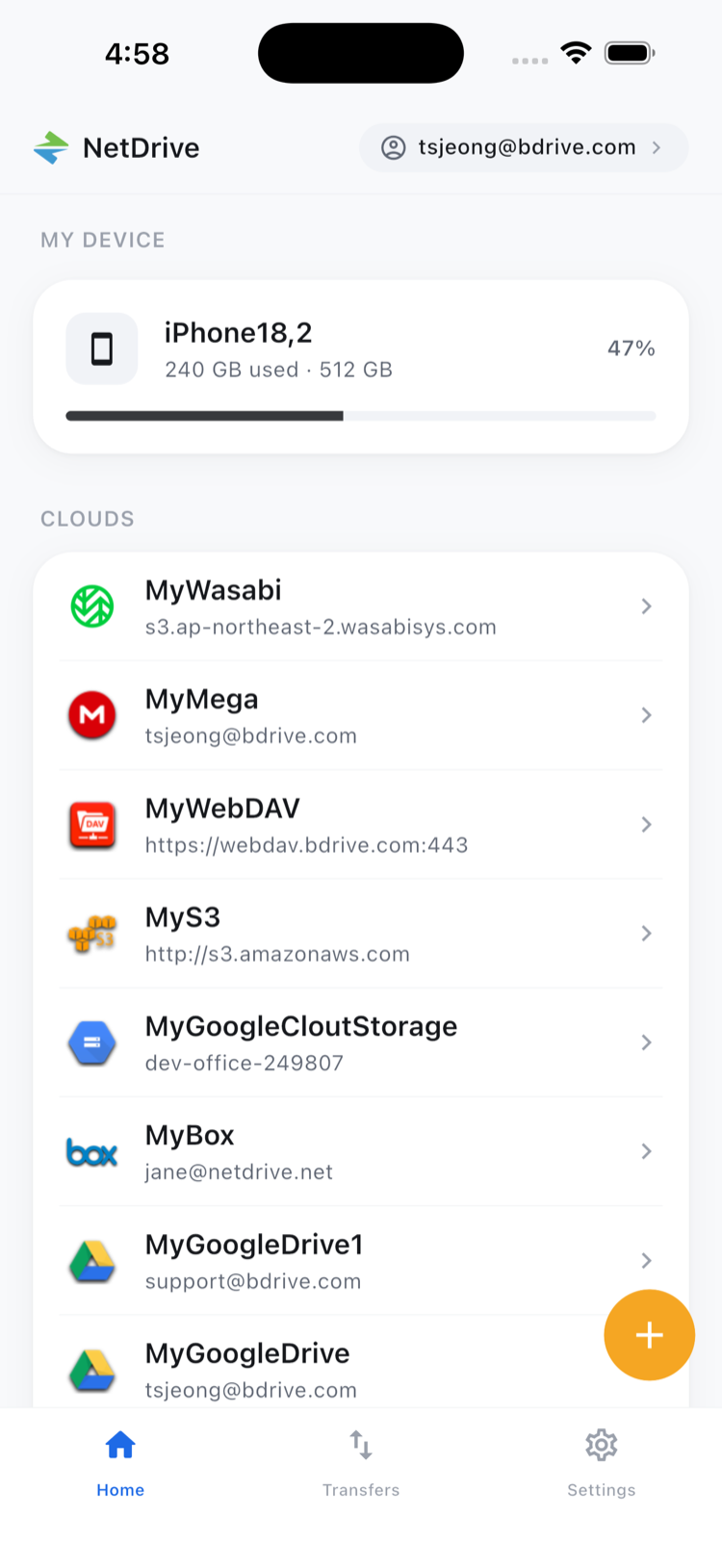
The providers a researcher is likely to need are on the list: Google Drive, OneDrive, OneDrive for Business, SharePoint, Dropbox, Box, Amazon S3 and S3-compatible storage, Backblaze B2, plus WebDAV, FTP/FTPS, and SFTP for servers run by a department or lab. A free Bdrive account is required to sign in to the app.
Adding the Department Server
- Open NetDrive Mobile and sign in with your Bdrive account.
- Open the Add a drive sheet and pick a provider or protocol, such as SFTP or WebDAV.
- Enter the server address and your credentials, then confirm.
- Repeat for Google Drive, S3, or any other account you use.
Credentials are stored in the device’s secure storage (iOS Keychain or Android Keystore). If your university requires a VPN to reach a server, connect to it first as you would for any other app. For more on NAS and server access from a phone, see Access NAS Files on Mobile — WebDAV and SFTP with NetDrive.
Checking a File Before You Pull It Down
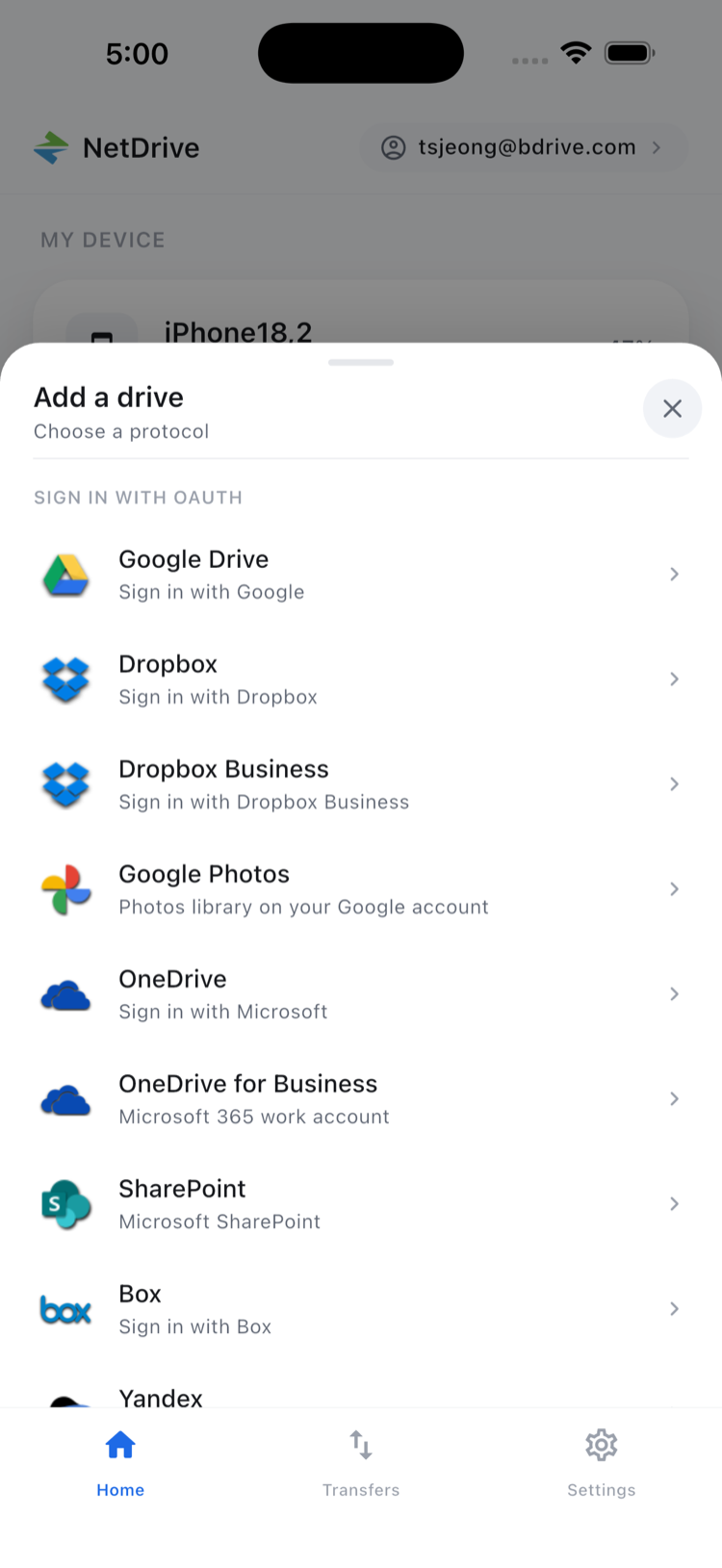
At a conference or in a corridor, mobile data is not always generous. Open a PDF or image from the file browser and NetDrive Mobile previews it in the app, so you can confirm it is the right version before deciding to download. Details are in In-App Preview on NetDrive Mobile. When you do need a local copy to attach elsewhere, Download from the file’s action sheet.
Sorting and the list or grid toggle in the browser help when a folder holds hundreds of numbered figures. Multi-select lets you pick several files and move, copy, or download them in one go.
Getting Field Data Off the Phone
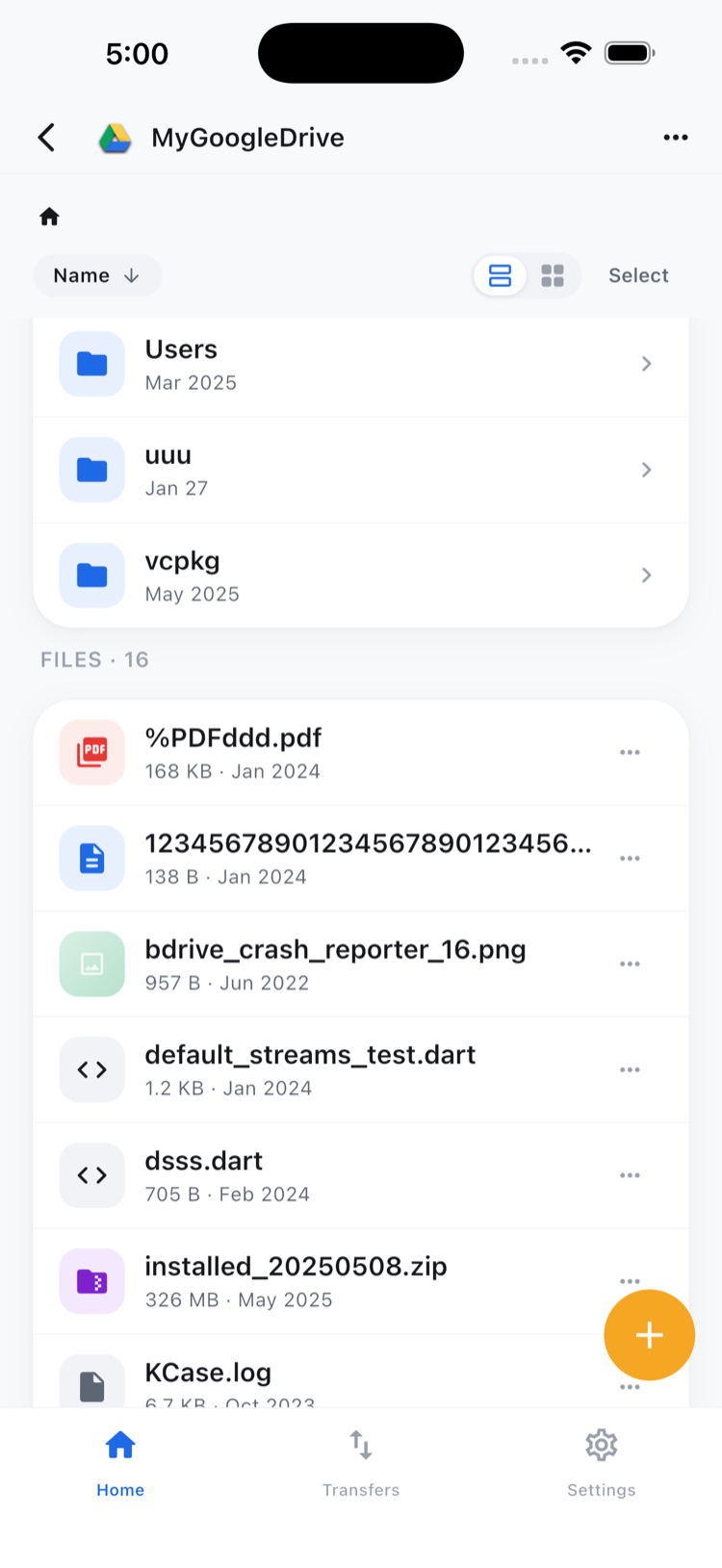
Field researchers often take the clearest record of a site or specimen with the phone in their hand. Uploads can come from the camera, the photo library, or ordinary files, going to whichever cloud you choose. Progress and cancel controls for each transfer are on the Transfers tab, as described in Multi-File Transfers on NetDrive Mobile; the photo workflow is covered in Upload Phone Photos with NetDrive Mobile.
Keep the scope in mind. Copy and move work within a single cloud, for example reorganizing folders inside one S3 bucket. NetDrive Mobile does not copy a file directly from one provider to another. If you need to replicate a dataset between providers, that is a job for RcloneView, NetDrive’s sibling product. Also, Google Photos only exposes items uploaded by the app itself, so it is not a way to browse your whole photo library.
Wrap-up
For researchers, the value is not a new place to store things; it is one place to reach all the old ones. If you are new to the app, start with NetDrive Mobile — Getting Started, then add your lab server and your paper folder first.
— Robin, NetDrive