NetDrive vs Windows Map Network Drive — When Built-In WebDAV Is Enough
A fair comparison of NetDrive and Windows' built-in Map Network Drive for WebDAV: what the built-in option does well, where it stops, and when NetDrive earns its place.
An IT generalist at a small agency needs a shared WebDAV folder to show up as a drive letter on six laptops. Windows already has a feature for that, so why install anything? It is a fair question, and the honest answer is “sometimes you should not.” This post compares the built-in route with NetDrive so you can pick the right one for your situation.
Beyond a single WebDAV share
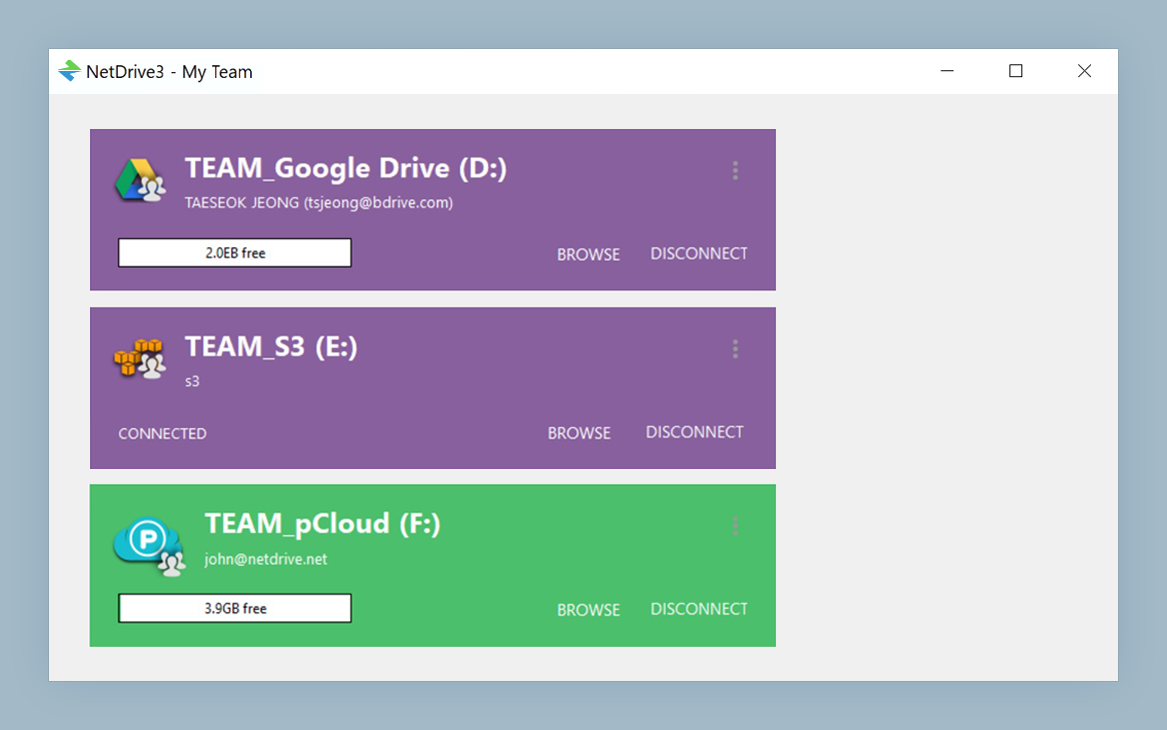
NetDrive lets Google Drive, OneDrive, S3, SFTP, WebDAV and more appear as native drives on Windows and macOS — no syncing, no full downloads.
- One tool for WebDAV, SFTP, FTP, and cloud storage
- Read-only, local-disk, and removable drive types
- Auto-mount and background uploads
Free trial. Lifetime and subscription plans available.
What Map Network Drive Does Well
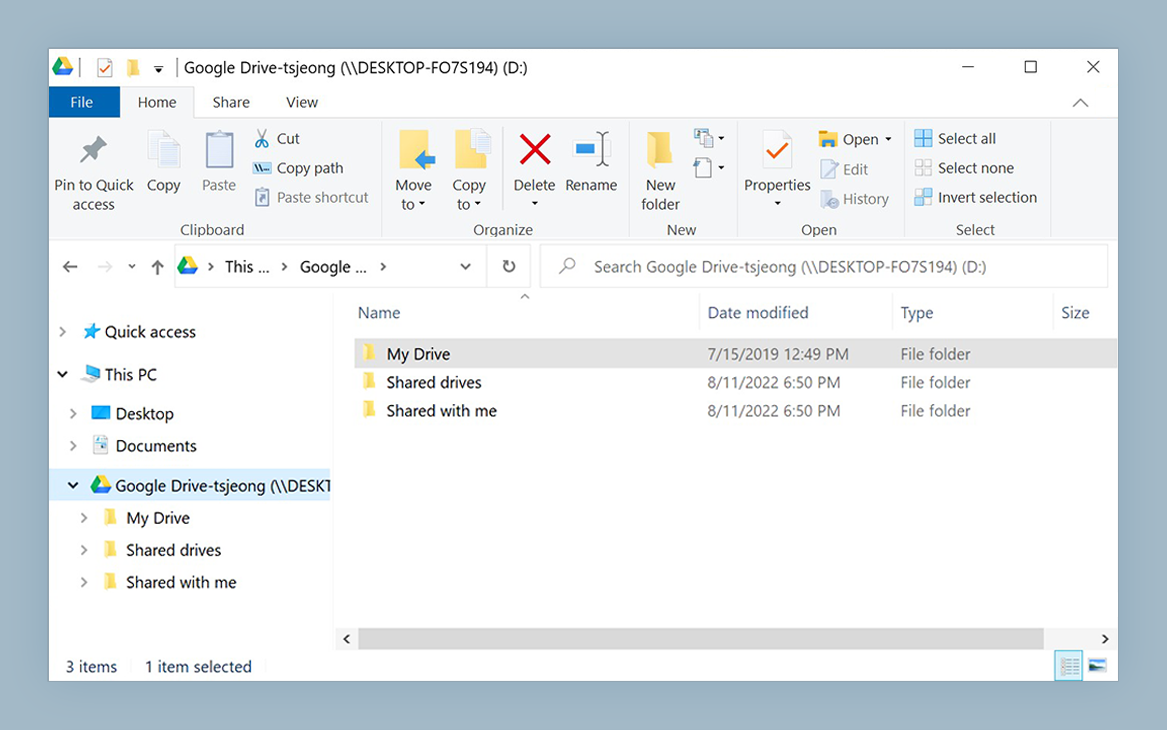
In File Explorer you can choose Map network drive and enter a WebDAV address. Windows hands the work to its built-in WebDAV client (the WebClient service) and assigns a drive letter. There is nothing to install, nothing to license, and your security team already approves it.
For a single, well-behaved WebDAV server on a trusted network, that is a perfectly reasonable answer. If your need ends there, use it.
Where It Stops
The built-in client is a WebDAV client and only that. Several limits tend to show up in practice:
- One protocol. It cannot mount Amazon S3, SFTP, Google Drive, OneDrive, Dropbox, Azure, or the other providers NetDrive supports. If your storage is not WebDAV, Map Network Drive is not an option.
- File size limit. Windows’ WebDAV client applies a configurable maximum file size, set in the registry (
FileSizeLimitInBytesfor the WebClient service). Teams that copy large video or disk images find out about it the hard way. Raising it is an administrative change on every machine. - Authentication quirks. Basic authentication over plain HTTP is restricted by default, so many servers need HTTPS or a registry change before the drive maps.
- Windows only. macOS has its own separate mechanism (Finder’s Connect to Server), with different behavior and different limits.
None of this makes the built-in feature bad. It is a general-purpose tool bundled with the operating system.

What NetDrive Adds
NetDrive is built around mounting storage as a drive, so the extras follow from that focus:
| Need | Built-in Map Network Drive | NetDrive |
|---|---|---|
| WebDAV server | Yes | Yes |
| SFTP, FTP | No | Yes |
| S3, Azure, Google Cloud Storage, Backblaze B2 | No | Yes |
| Google Drive, OneDrive, Dropbox, Box | No | Yes |
| Read-only drive type | Not a mapping option | Yes |
| Mount on boot, without login | Reconnects per user session | Yes |
| Windows and macOS | Windows only | Both |
Two NetDrive features matter most for WebDAV users. First, the drive types: network, read-only, local disk, and removable. A read-only drive is a safe way to expose a reference library; see Read-Only Drives in NetDrive. Second, auto-mounting at boot, which spares users from reconnecting after a restart.
NetDrive also has a file browser for looking at remote files without mounting anything, handy for a one-off check on a server.
A Fair Note on Performance
NetDrive’s own published tests, run in a fixed environment against a WebDAV server, include a Windows scenario with 10,000 small files and one with an 800 MB file; results are on the comparison page. Those numbers compare NetDrive with other commercial mount tools, not with Windows’ built-in client, and they come from the vendor’s own environment. Treat them as one data point, and test with your own server and your own files before deciding. Our WebDrive performance comparison explains the method.
How to Decide
- One WebDAV server, small files, trusted network, Windows only? Use Map Network Drive.
- Large files hitting the size limit, or users on both Windows and macOS? Try NetDrive.
- More than one storage type? NetDrive, because one tool replaces several workflows.
- Need drives available at boot or read-only by design? NetDrive.
To try it with WebDAV, follow Mount WebDAV on Windows with NetDrive. If your server is a Synology NAS, Fix WebDAV Connection Problems with Synology covers the common snags.
Wrap-up
Windows’ built-in WebDAV mapping is a handy tool, and for simple cases it is enough. NetDrive is worth installing when your storage is more varied, your files are larger, or you want one consistent behavior across Windows and macOS.
— Tayson, NetDrive