Mount Box on Windows with NetDrive — Access Your Files as a Drive Letter

Step-by-step guide to mounting Box as a native Windows drive using NetDrive. Access Box content from any app on Windows 10 or 11 without a browser or sync client.
Your video editor opens Premiere Pro, navigates to the project folder, and the Box files are just there — sitting under B:\Projects as if they were on a local SSD. No browser, no sync folder eating up gigabytes. That is what NetDrive does for Box on Windows.


Mount Box as a Windows drive in minutes
NetDrive lets Google Drive, OneDrive, S3, SFTP, WebDAV and more appear as native drives on Windows and macOS — no syncing, no full downloads.
- Access Box files from any Windows app — no browser needed
- Assign a persistent drive letter (B:, D:, Z:, etc.)
- Background uploads keep your workflow moving without blocking you
Free trial. Lifetime and subscription plans available.
Why Mount Box Instead of Using a Sync Client
Box Drive, the official desktop client, syncs files to a local folder. That works fine for small workspaces but breaks down when your storage holds hundreds of gigabytes that cannot fit on a laptop SSD. NetDrive takes a different approach: it streams Box content on demand over the Box API and presents your account as a Windows drive letter you choose.
The practical difference matters most when opening large files. A 2 GB Photoshop file at B:\Creative\Campaigns\Q2.psd starts in seconds because NetDrive only pulls the bytes your app requests. You are not waiting for a full sync before you can work.
NetDrive supports Windows 8, 8.1, 10, and 11, plus Windows Server 2012, 2016, 2019, and 2022. The setup below applies to all of these.

Before You Start
- A Box account (personal or Business)
- NetDrive 3 installed — download the Windows installer from netdrive.net/download/windows/
- A 7-day free trial activates automatically on first launch; no payment card required to test the full setup
Mounting Box on Windows: Step by Step
Step 1 — Add a New Drive in NetDrive
Open NetDrive from the system tray icon or the Start menu. The Drive Manager lists all your configured drives. Click the + button in the lower-left corner to open the provider selector.
Step 2 — Authenticate with Box
From the provider list, select Box. NetDrive opens a browser window pointing to the Box OAuth page. Sign in with your Box credentials and click Grant Access. The browser closes and you return to Drive Manager with the connection confirmed.
Step 3 — Configure the Drive Letter and Mount Behavior
Back in the configuration pane for the new Box drive:
- Drive Letter — pick any unused letter.
B:is an easy mnemonic for Box. - Drive Type — Network drive is the default and works in every application context. Switch to Local disk if you need Explorer to display a storage capacity bar, or Removable drive if you want Windows to treat it like a USB stick.
- Auto Mount — set to Boot to have the drive appear before you log in, which is useful on shared workstations or machines running overnight batch jobs.
Click Save, then the Mount button (the play icon on the drive card). NetDrive connects to Box and the drive appears under This PC in Explorer within a few seconds.
Step 4 — Open Box Files from Any App
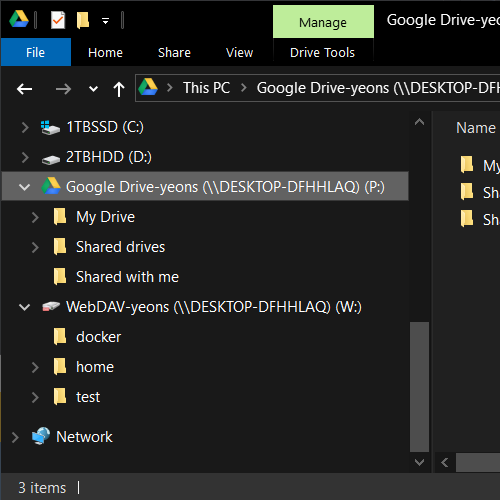
Double-click your new drive in Explorer to browse. Any application that can open a local file — Word, Lightroom, AutoCAD, DaVinci Resolve — can now open Box files directly. NetDrive handles the read and write operations transparently.
Reading File Upload Status in Explorer
NetDrive adds overlay icons to every file on your mounted drive. A file you have modified but not yet committed shows a pending indicator. Once the upload finishes, the icon updates to a clean checkmark. This tells you at a glance whether it is safe to close an app and disconnect.
Tuning Performance for Your Workflow
Bandwidth limit: If Box shares a connection with video calls or other services, open the drive’s settings in NetDrive and set a custom upload bandwidth cap. This prevents large uploads from saturating the link during working hours.
Sync vs. async uploads: NetDrive queues writes asynchronously by default, so apps return control to you immediately after a save. In workflows where a colleague needs to read the committed version right away, switch the drive to synchronous mode under Advanced settings. You trade a slower save dialog for guaranteed visibility.
Force folder refresh: Box’s API can cache directory listings for a few minutes. If a file uploaded from another device is not showing up, right-click the folder in Explorer and choose Force Folder Refresh from the NetDrive submenu to bypass the cache.
Wrap-up
Mounting Box as a Windows drive letter removes the overhead of sync clients and eliminates the browser-download loop for large files. Once the drive is mounted, every app on your machine treats Box like any other local storage. If you also use Microsoft Office files in your Box workspace, see Fix Office Files Opening Read-Only in NetDrive for tips on the file-locking behavior that prevents edit conflicts across your team.
— Morgan, NetDrive