NetDrive Mobile for Photographers — Sending Previews From the Shoot

Freelance and event photographers use NetDrive Mobile to upload proofs from the camera roll to a client's cloud and preview shots before sending, all from one app.
A wedding photographer wraps a Saturday shoot and the couple wants a handful of preview shots before the night is over — but the venue’s own upload folder is a SharePoint link, the photographer’s studio archive lives in Dropbox, and a corporate client from the same week only accepts deliveries through their Google Drive. Juggling three single-cloud apps on a phone, at 11pm, after a twelve-hour shoot, is exactly the kind of friction that turns a quick favor into a chore. NetDrive Mobile keeps every one of those clouds in the same app.

Deliver previews without leaving the venue
NetDrive Mobile opens Dropbox, Google Drive, SharePoint, Box, S3 and more in one app — upload straight from the camera roll and preview a shot before it goes out.
- Every client and studio cloud in one app, no switching
- Upload proofs from the camera roll with live progress
- Preview a shot before it reaches the client
Free Bdrive account required.
One Client, One Cloud — Except It Never Is
Most photography work doesn’t stay inside one storage account. A studio’s finished-work archive might sit in Dropbox, a corporate client insists on Google Drive or SharePoint for anything they receive, and an assistant shooting a second angle drops raw files into a shared Box folder mid-event. Switching apps to find the right destination, re-entering credentials, or catching a shot uploaded to the wrong client’s folder costs more time than the upload itself. NetDrive Mobile treats each of those as its own drive, listed together, so picking the right one is a matter of tapping the right entry rather than opening a different app.
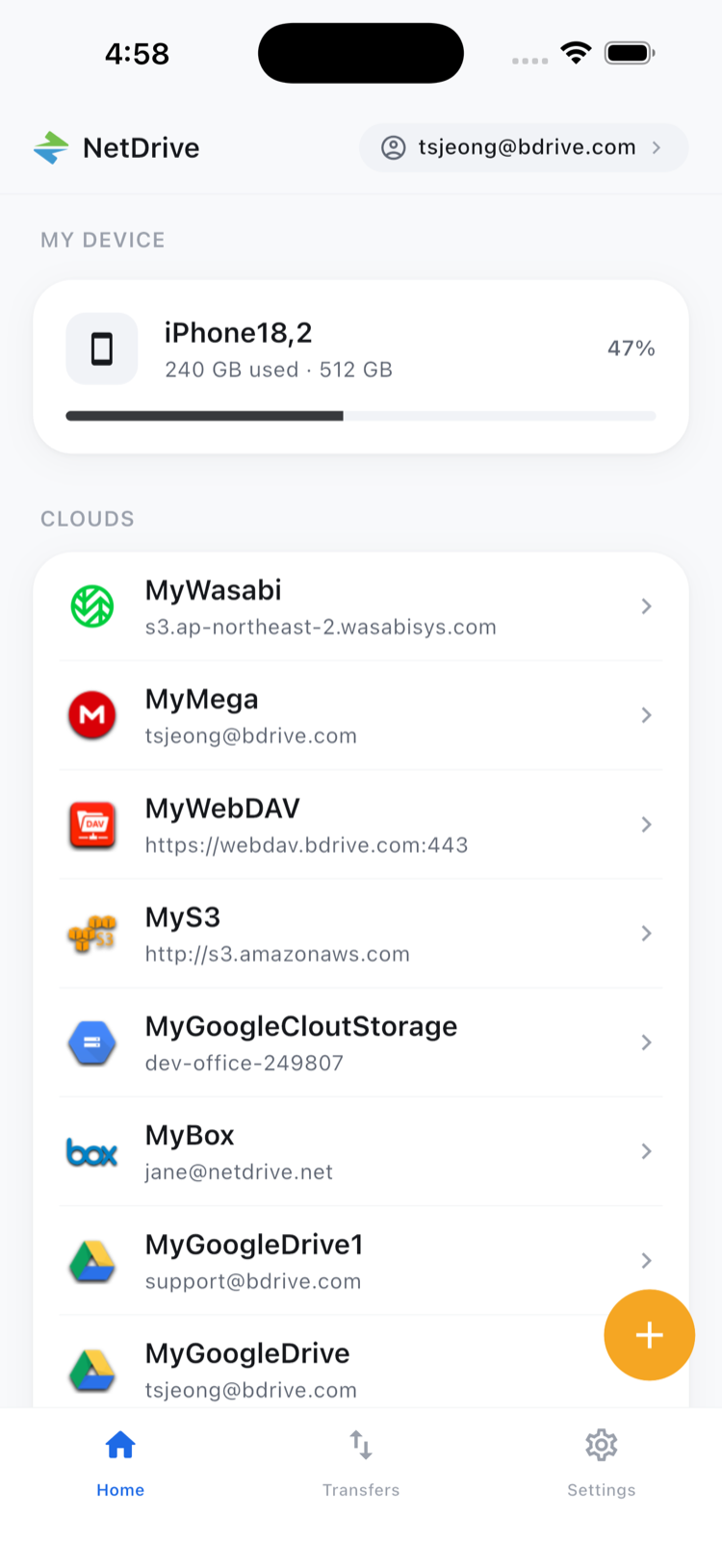
Every Studio and Client Cloud in One Place
Each cloud connects as its own drive and shows up on the home screen without merging accounts into a single pool — the studio’s Dropbox archive sits next to a client’s SharePoint folder, kept separate. A free Bdrive account covers every drive added afterward, so there’s no new login to create each time a client shows up with a different provider.
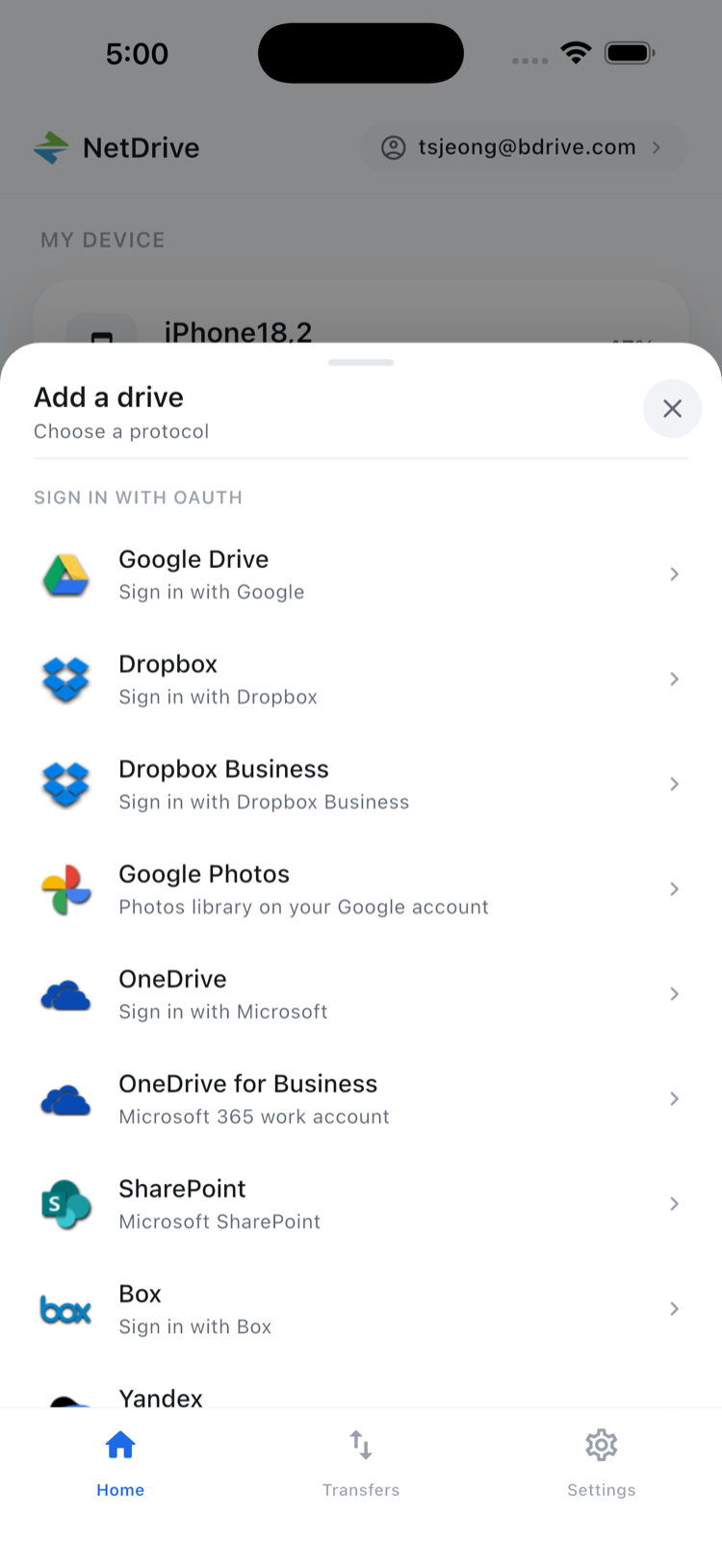
Adding a new client’s cloud mid-shoot takes one pass through the Add a drive sheet — pick the provider, sign in, and it’s ready for the rest of the event.
Uploading Proofs Straight From the Camera Roll
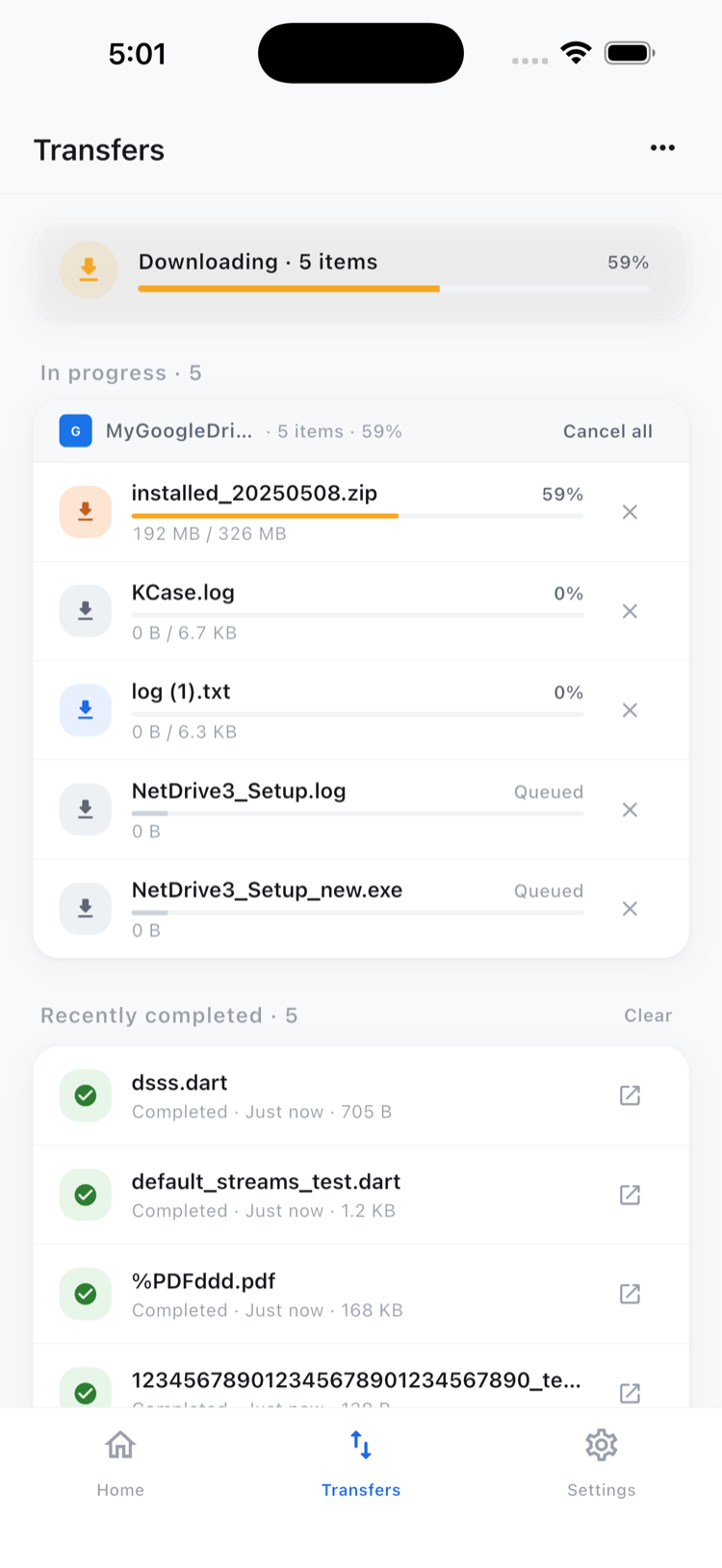
The moment a preview shot is worth sharing, it can go into the client’s folder without plugging the phone into a laptop first. Open the destination drive, navigate to the event’s folder, and upload directly from the camera roll. Transfers run in the background with live per-file progress and the option to cancel, so several proofs can queue up while the shoot keeps going instead of a photographer standing around watching a progress bar.
Checking the Shot Before It Goes Out
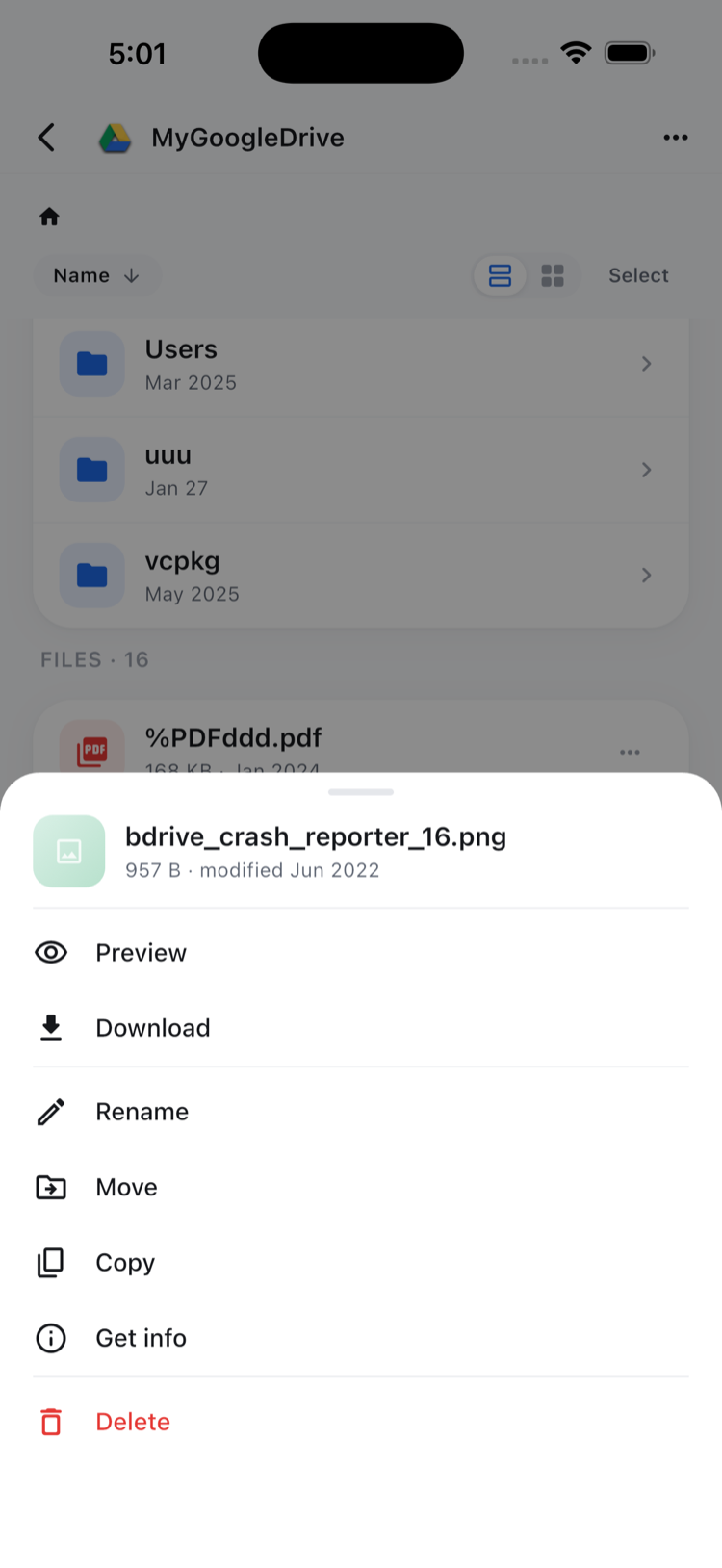
Sending a blurry frame or the wrong take to a client costs more goodwill to fix afterward than it takes to check first. NetDrive Mobile’s in-app preview opens photos directly from the file action sheet without downloading a separate copy — a quick look to confirm framing and focus before the file uploads.
Setting Up Before the Next Shoot
- Create a free Bdrive account at netdrive.net if you don’t already have one.
- Install NetDrive Mobile from the App Store or Google Play.
- Add the studio’s cloud — Dropbox, Box, or whichever the archive lives on — through the Add a drive sheet.
- Add each client’s cloud as it comes up, without a separate account for every one.
One thing NetDrive Mobile doesn’t do: move a file directly from one client’s cloud into another. Copying or moving inside the app stays within the drive it started on — sending a shot from a studio archive into a client’s folder still means uploading it there, not a direct cloud-to-cloud transfer.
Wrap-up
A shoot’s deliverables rarely end up in one place, and NetDrive Mobile is built around that instead of assuming otherwise — every client and studio cloud sits in the same app, ready for an upload or a quick preview. For the initial setup in more detail, see NetDrive Mobile — Getting Started; for batch uploads specifically, see Multi-File Transfers on NetDrive Mobile; and for the preview feature on its own, see In-App Preview on NetDrive Mobile.
— Robin, NetDrive