Browse Yandex Disk on iPhone and Android — NetDrive Mobile

Access Yandex Disk files on iOS and Android with NetDrive Mobile. Browse, upload, and download alongside all your other clouds in a single app.
Yandex Disk is the default cloud for millions of users in Russia and Eastern Europe — tight OS integration on desktop, reasonable free storage, and straightforward sharing. On mobile, though, you’re locked to Yandex’s own app. If you already have Dropbox, Google Drive, or a corporate WebDAV server in your workflow, that means juggling another icon on your home screen. NetDrive Mobile puts Yandex Disk alongside every other cloud you use so you can switch between them without switching apps.
This guide shows how to connect Yandex Disk in NetDrive Mobile on iPhone or Android and start browsing files in under two minutes.
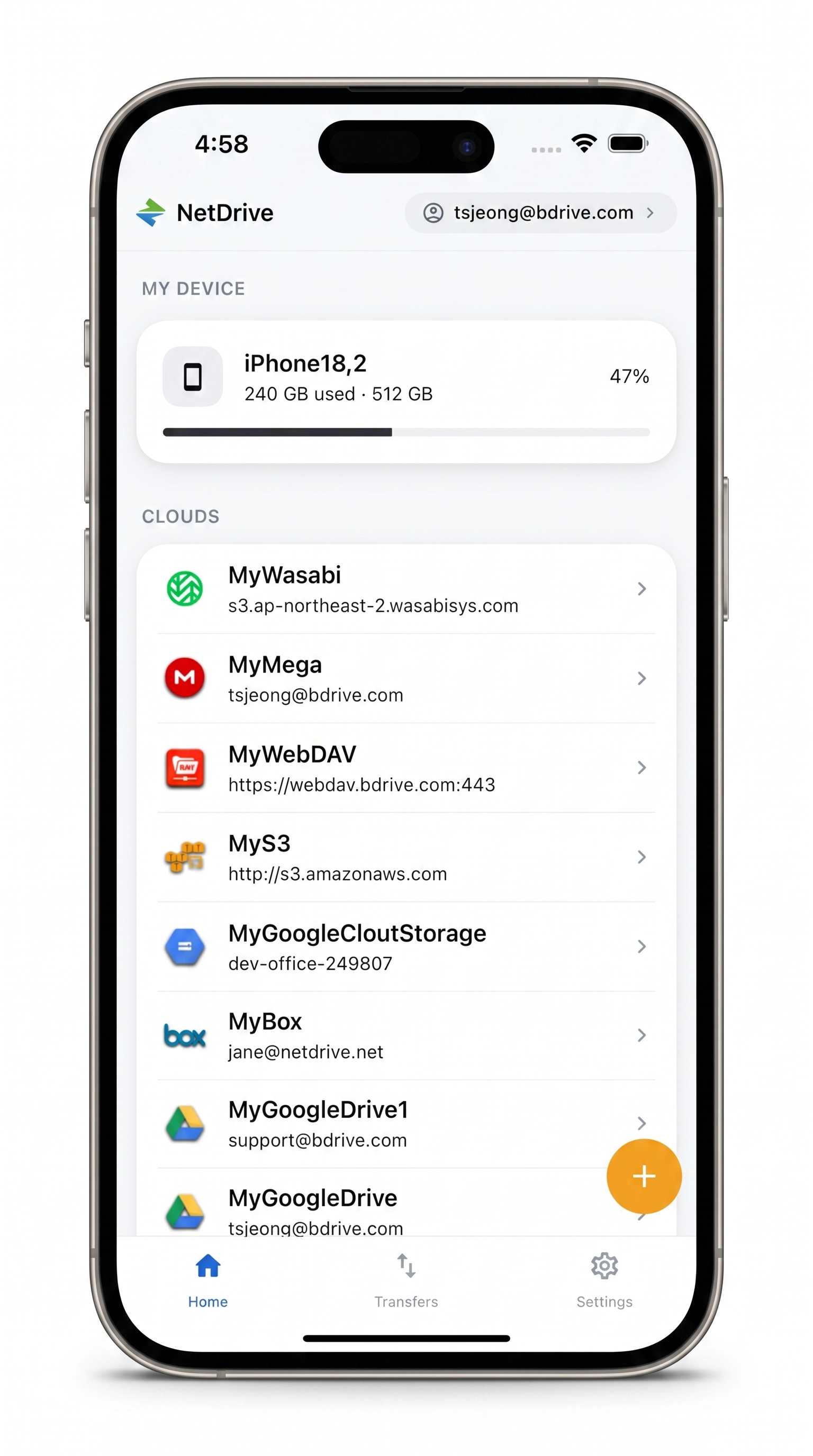
Yandex Disk, Dropbox, Google Drive — one app
Browse, upload, and download across all your clouds without switching apps.
- Add Yandex Disk with a single Yandex OAuth tap
- Preview documents, images, and videos in-app without downloading first
- Queue multiple uploads from your camera roll or Files app
Free Bdrive account required.
Before You Start
NetDrive Mobile requires a free Bdrive account — sign up at netdrive.net before opening the app for the first time. You’ll also need an active Yandex account with Yandex Disk enabled.
Download the app:
- iOS (iPhone / iPad, iOS 15 or later): App Store — NetDrive Mobile
- Android: Google Play — NetDrive
After installing, open NetDrive Mobile and sign in with your Bdrive account credentials. If you don’t have an account yet, you can create one for free on the login screen.
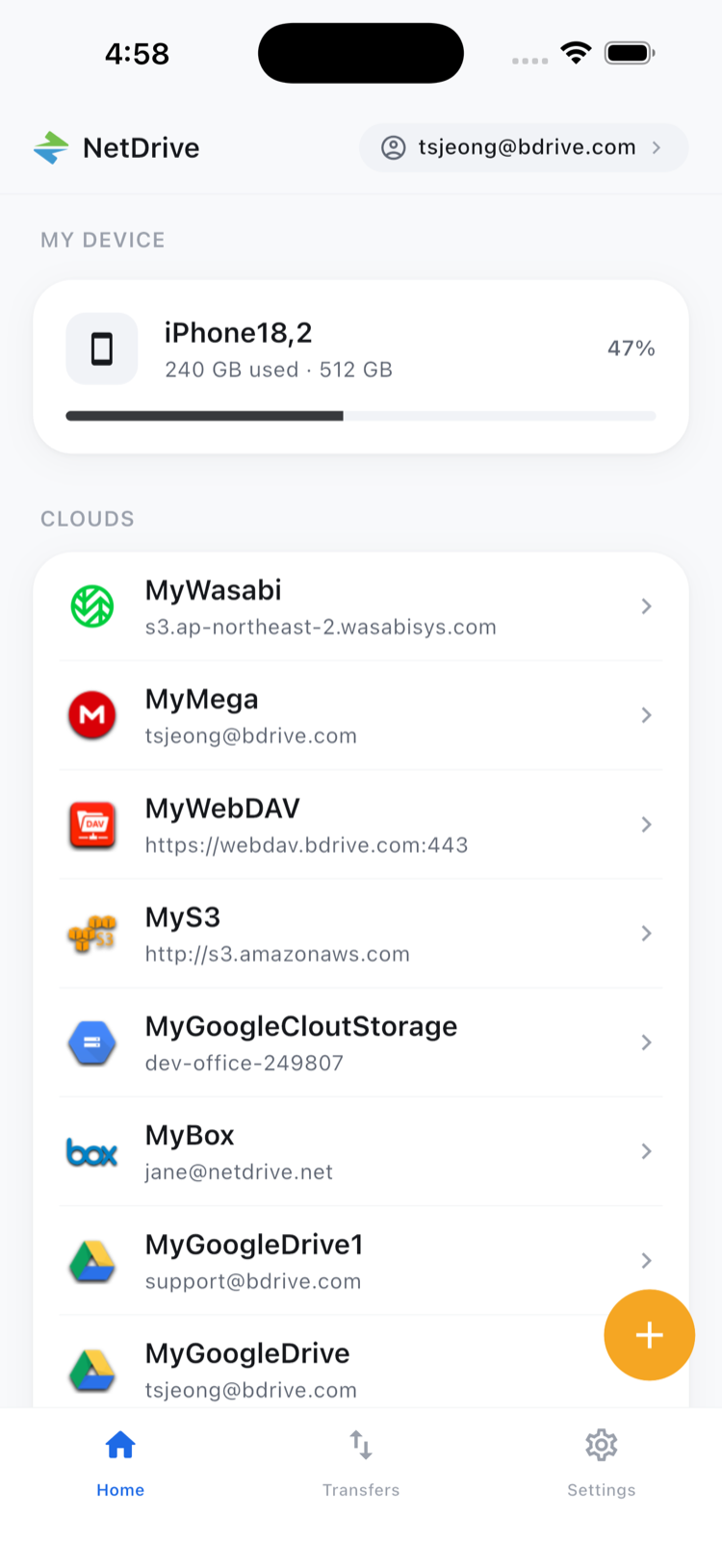
Adding Yandex Disk
The home screen shows your device storage at the top and connected cloud accounts under Clouds. To add Yandex Disk:
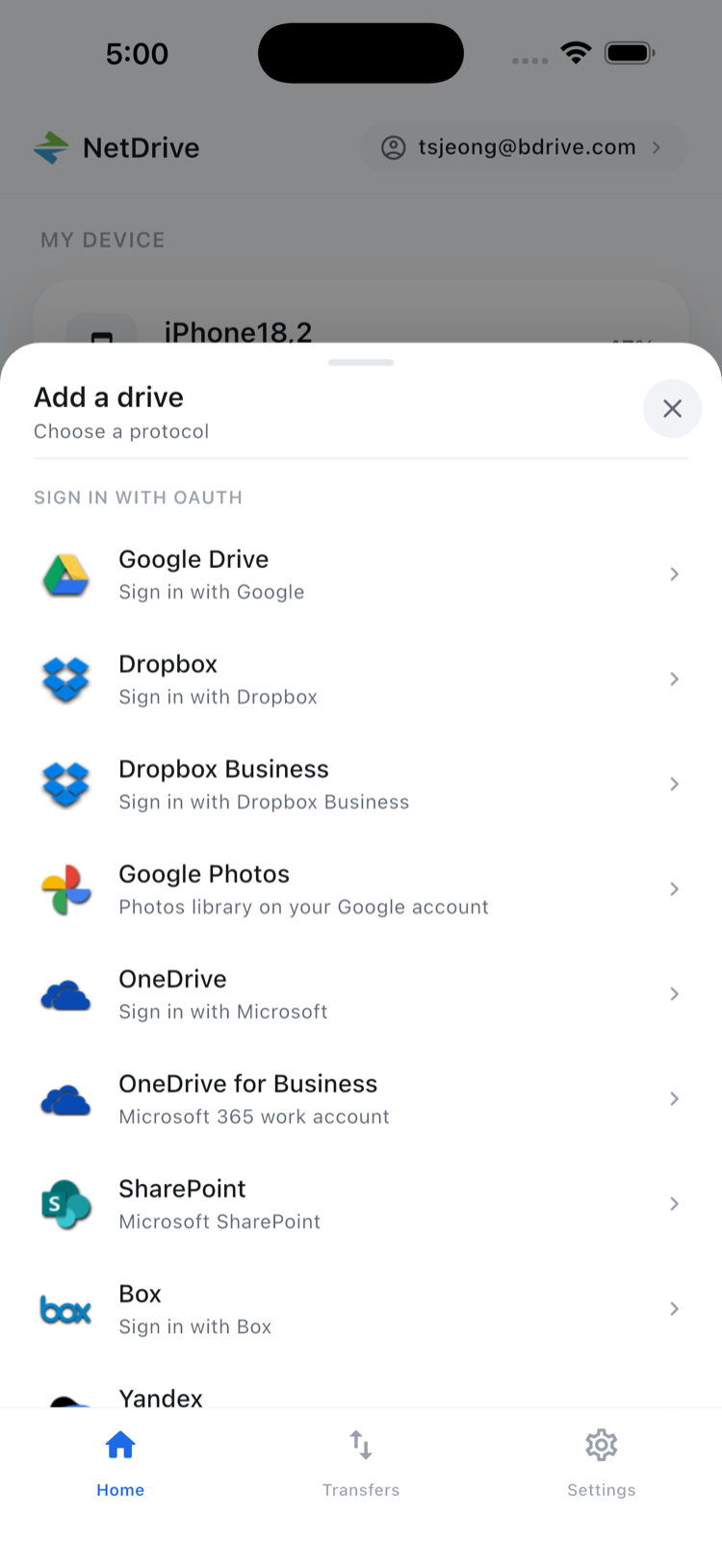
- Tap + in the top-right corner to open the Add a drive sheet.
- Scroll through the provider list and tap Yandex Disk.
- A Yandex OAuth screen opens inside the app. Enter your Yandex username and password.
- If your Yandex account has two-step authentication enabled, enter the code when prompted.
- Tap Allow to grant NetDrive Mobile access to your Yandex Disk files.
- The drive appears on your home screen under Clouds, labelled with your Yandex username.
The whole process takes under a minute. You can add multiple Yandex accounts — a personal and a work account, for instance — by repeating these steps for each.
Browsing and Managing Files
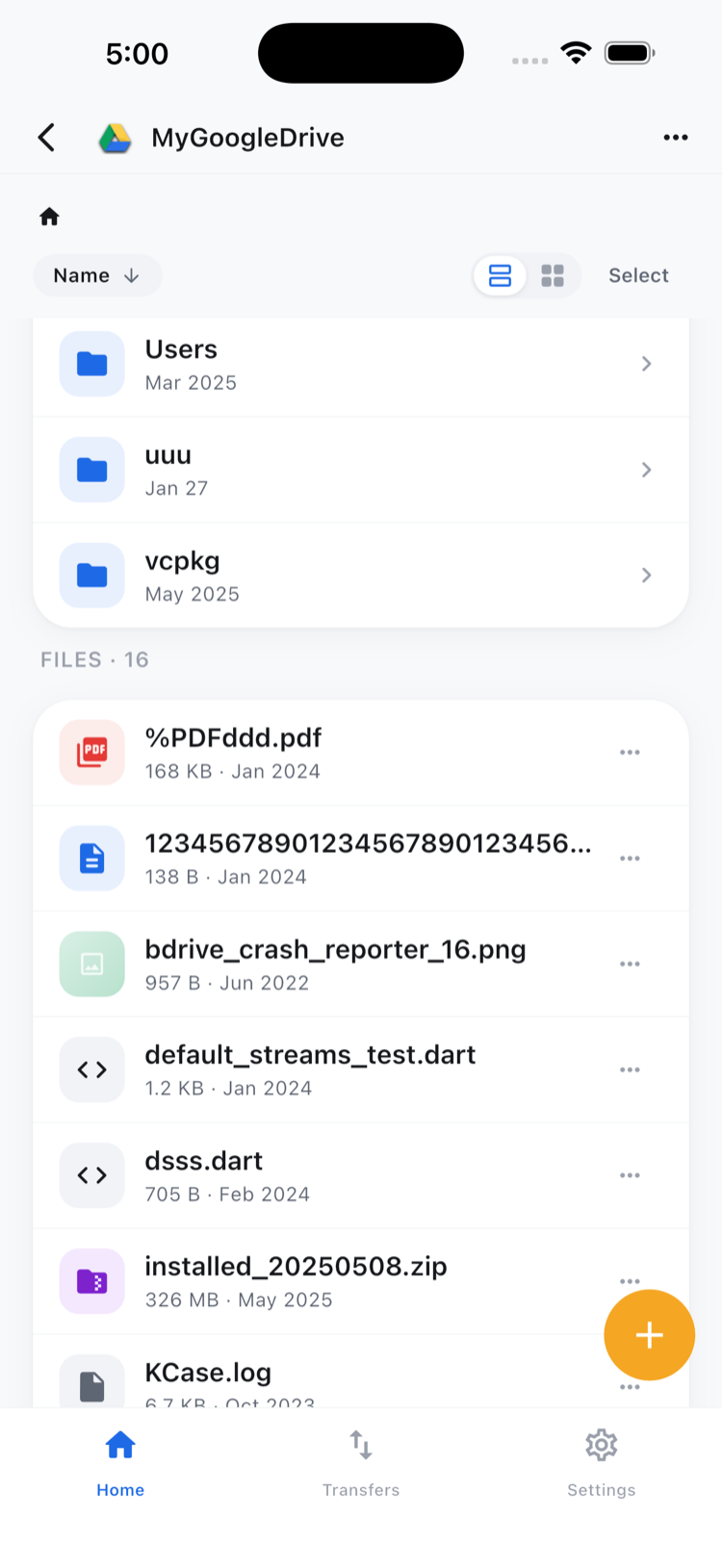
Tap the Yandex Disk card on the home screen to open its file browser. Folders and files appear exactly as they do in Yandex Disk — no special indexing or syncing delay.
From inside any folder, tap a file to see its action options:
- Preview — view documents, images, and videos directly in the app without saving anything to your device
- Download — save a local copy to your device’s Files app or photo library
- Rename / Move / Copy — reorganise files within the same Yandex Disk
- Get info — check file size, type, and last-modified date
- Delete — remove the file from Yandex Disk permanently
To select several files at once, tap Select in the top-right corner of the file browser, check each item you want, and choose a bulk action — Download, Move, Copy, or Delete — from the bar at the bottom of the screen.
Uploading to Yandex Disk
Navigate to the destination folder inside Yandex Disk, then tap + within the folder view. NetDrive Mobile gives you three upload sources:
- Camera — capture a new photo or video and upload it immediately
- Photo Library — pick one or more items from your device’s photo library
- Files — select any file stored in the Files app (iOS) or local storage (Android)
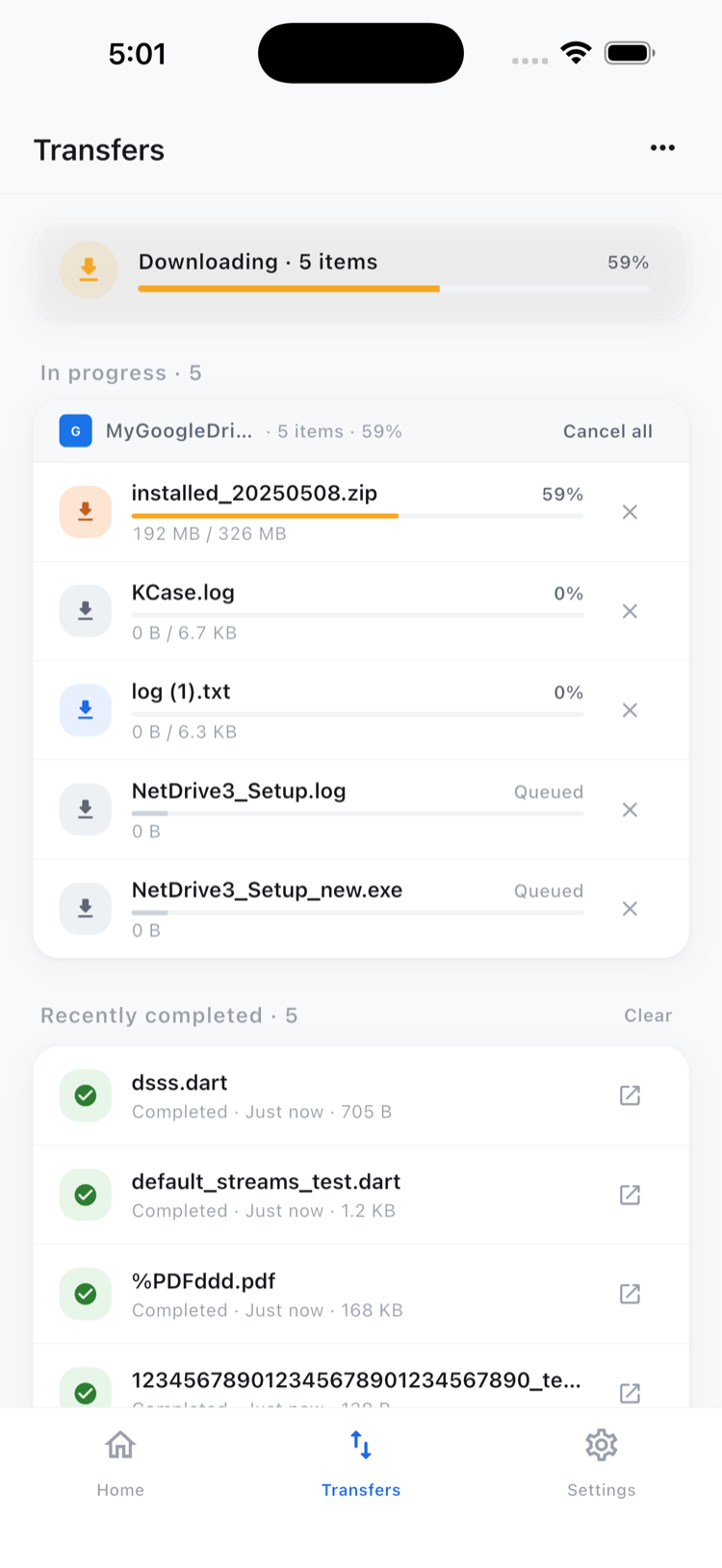
All active transfers appear in the Transfers tab with per-file progress bars. You can queue several uploads simultaneously; NetDrive Mobile runs them in parallel and lets you cancel individual transfers without stopping the rest.
Wrap-up
Once connected, Yandex Disk lives on your NetDrive Mobile home screen permanently — no login required each time, no extra app to open. Tap the card, browse to your file, and you’re done. Adding other providers like Box, pCloud, or a private SFTP server follows the same straightforward setup flow.
For a broader look at NetDrive Mobile and all the clouds it supports, see NetDrive Mobile — Every Cloud in One App. If you also need to reach a NAS or private server from your phone, Access NAS Files on Mobile via WebDAV and SFTP walks through that setup.
— Jay, NetDrive