Force Folder Refresh — Fixing Stale Cloud Listings Without Remounting
NetDrive's Force Folder Refresh instantly re-lists a mounted folder so new or changed cloud files show up, without unmounting and remounting the drive.
A teammate uploads three new invoices to a shared S3 bucket through the AWS console. On your machine, the same bucket is mounted as a drive letter in NetDrive — and none of the new files show up. The bucket has them. Your mounted folder just hasn’t been told to look again. Unmounting and remounting the whole drive fixes it, but it’s a heavier reset than the problem calls for.


Keep cloud drives in sync without remounting
NetDrive lets Google Drive, OneDrive, S3, SFTP, WebDAV and more appear as native drives on Windows and macOS — no syncing, no full downloads.
- Force Folder Refresh re-lists a folder instantly
- No need to unmount and remount the drive
- Works across every supported provider
Free trial. Lifetime and subscription plans available.
Why a Mounted Folder Can Fall Behind
NetDrive keeps a local listing of each folder in a mounted drive so that browsing feels instant — opening a folder with a thousand files doesn’t mean re-fetching all thousand names from the provider’s API every time. That listing is accurate for changes made from NetDrive itself, but it doesn’t automatically know about changes made from outside this machine: a colleague uploading through the provider’s web app, a script writing directly into an S3 or Backblaze B2 bucket, or another device syncing the same Google Drive or Dropbox account.
The files exist in the cloud. The mounted drive just hasn’t refreshed its view of that folder yet. This is the exact gap Force Folder Refresh is built to close.
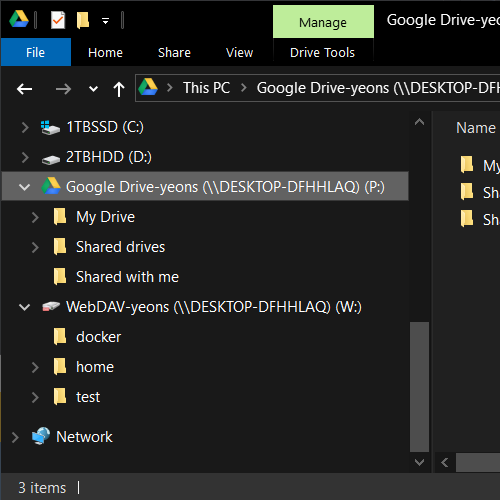
Triggering Force Folder Refresh
Force Folder Refresh works on any mounted folder, on any supported provider, without touching the drive’s mount state:
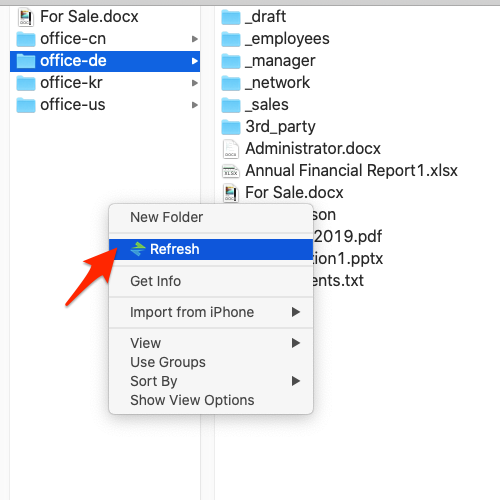
- Open the mounted drive in Windows Explorer (or Finder on macOS) and navigate to the folder that looks out of date.
- Right-click the folder and look for the NetDrive entry in the context menu.
- Select Refresh folder.
- Wait a few seconds, then reopen the folder. NetDrive discards the cached listing for that folder and pulls a fresh one from the provider.
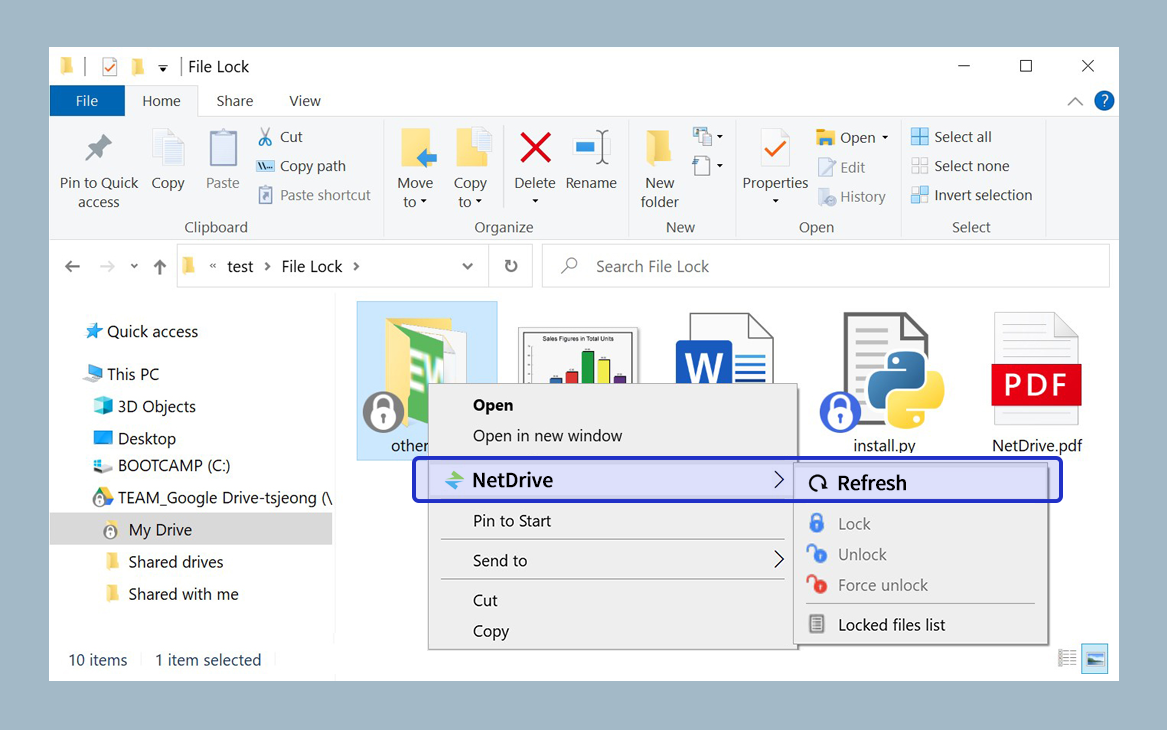
The refresh is scoped to the folder you right-click — it doesn’t reset the whole drive’s cache or interrupt any file that’s mid-transfer elsewhere on the mount.
Refresh vs. Remount: Which One You Actually Need
It’s worth knowing when Force Folder Refresh solves the problem and when it won’t:
- Stale listing, connection still healthy — new files uploaded elsewhere aren’t showing up, but the drive letter is present and other folders load fine. This is the Force Folder Refresh case.
- Drive shows disconnected or a red status indicator — the underlying connection dropped (expired OAuth token, network change, provider outage). No amount of folder refreshing fixes a connection that isn’t there; remount the drive from NetDrive’s drive manager instead.
- Whole drive feels wrong, not just one folder — if every folder across the mount looks stale, that points at a connection or session issue rather than one folder’s cache, and a remount is the faster fix.
For a team sharing a single cloud folder across several machines, this distinction matters day to day: refreshing is a five-second action you can do mid-task, while remounting means briefly losing access to everything on that drive, not just the one folder you care about.
Wrap-up
Force Folder Refresh is the fast path for the most common “where did my file go” moment — a change made somewhere else in the cloud that your mounted drive hasn’t caught up on yet. Right-click, refresh the folder, and move on without a full remount.
If you’re specifically missing a newly shared Google Drive Shared Drive rather than a single file, see Fix Google Drive Shared Drive Not Showing — NetDrive for that scenario, and NetDrive Team Drive & Shared Drives Guide for how shared folders behave across a team.
— Tayson, NetDrive