Fix Wrong File Timestamps on an FTP Drive — NetDrive

FTP files showing modified times hours off in NetDrive? Learn why FTP servers report time zones inconsistently and how NetDrive's manual FTP time offset fixes it.
You mount a hosting account over FTP, upload style.css, and Windows Explorer says the file was modified nine hours ago. Or a build script that compares modification times decides every file on the server is stale and re-uploads the whole site. Nothing is corrupted. The FTP server and your machine simply disagree about which time zone a timestamp is in, and NetDrive has a setting built for exactly this.
Mount FTP servers with correct timestamps
NetDrive lets Google Drive, OneDrive, S3, SFTP, WebDAV and more appear as native drives on Windows and macOS — no syncing, no full downloads.
- Manual FTP time offset for servers in another time zone
- FTP, SFTP, and WebDAV drives side by side
- Works in Windows Explorer and macOS Finder
Free trial. Lifetime and subscription plans available.
Why FTP Timestamps Drift by Whole Hours
FTP is old, and its directory listing format predates any agreement on time zones. When a client asks for a folder listing, most servers answer with a text line per file, and the date in that line is usually written in the server’s local time with no time zone attached. The client has no way to know whether “Nov 11 09:14” means 09:14 in UTC, in Frankfurt, or in Los Angeles.
The result is a telltale pattern:
| What you see | What it usually means |
|---|---|
| Every file is off by the same number of whole hours | Server clock is in a different time zone from yours |
| Offset changes by one hour in spring or autumn | Server observes daylight saving time and you don’t (or vice versa) |
| Only some files are wrong, by random amounts | Not a time zone issue — check the server’s actual clock |
| Freshly uploaded files show a time in the future | Server’s zone is ahead of yours |
If the offset is constant and a whole number of hours, you’re looking at a time zone mismatch, and the fix is on the client side.

Confirm the Offset Before Changing Anything
Measure the gap before you touch a setting, so you know what value to enter.
- Create a test file. In the mounted FTP drive, create or copy a small text file and note your local clock at that moment.
- Check the reported time. Look at the file’s Date modified column in Explorer, or Get Info in Finder.
- Calculate the difference. If you copied the file at 14:02 and the drive reports 05:02, the server is reporting times 9 hours behind your local time.
- Ask the host if you can. Many hosting control panels show the server’s time zone on the account overview page. It’s a quick way to confirm your math, especially around daylight saving changes.
Write the difference down, including its direction (ahead or behind).
Apply NetDrive’s Manual FTP Time Offset
NetDrive 3.17.799 (released 2022-11-25) added a manual time offset for FTP connections. It tells NetDrive how far the server’s clock is from yours so the times shown in Explorer and Finder line up with reality.
- Disconnect the FTP drive in NetDrive so the change applies cleanly on the next connection.
- Open the drive’s settings with Edit on the FTP drive item.
- Find the time offset option for the FTP connection and enter the difference you measured, in the direction that corrects it.
- Save and reconnect the drive.
- Recheck your test file. Its modified time should now match the moment you created it. If it moved further away, flip the sign and try again.
If you’re still on an older 3.x build, update first. The option isn’t there before 3.17.799.
Clear Out Cached Listings
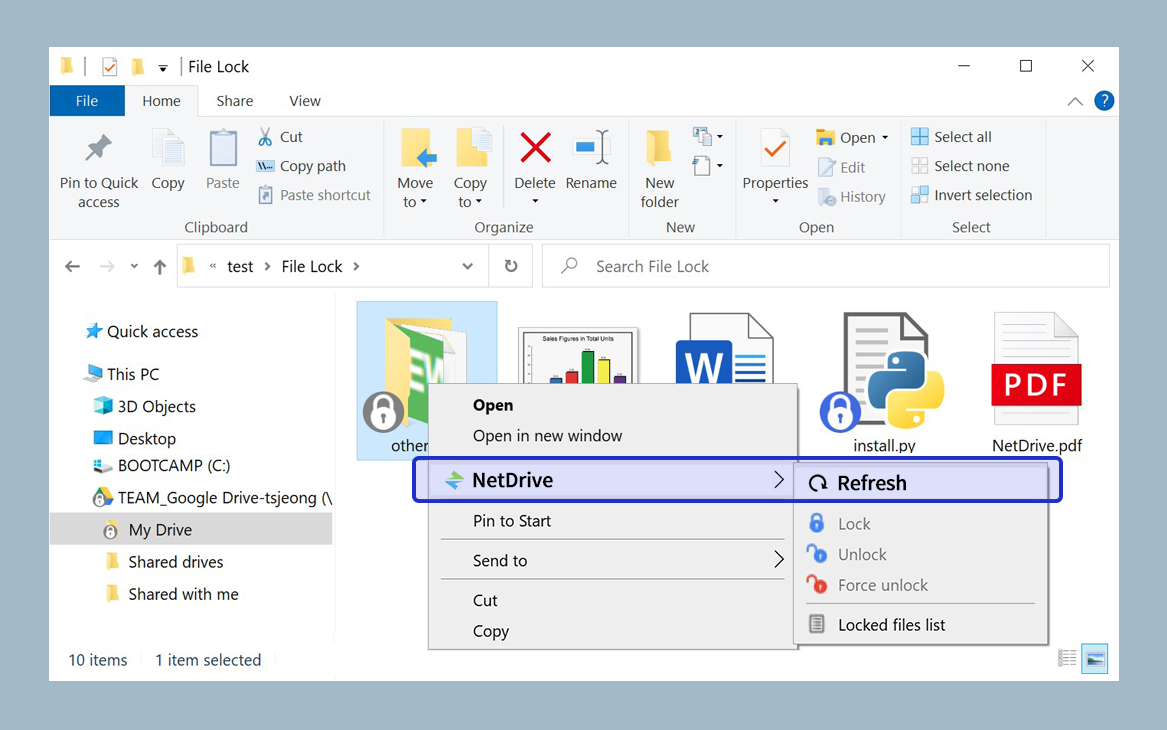
After changing the offset, a folder you had open may still show the old times for a moment because the listing was fetched before the change. Use NetDrive’s force folder refresh (available since 3.8.921) on the folder, or right-click it and refresh. That fetches a fresh listing with the corrected times.
Daylight Saving and Other Edge Cases
A fixed offset is fixed. If the server observes daylight saving time and you don’t, or the two of you switch on different dates, the gap changes by an hour twice a year. You’ll need to adjust the offset when that happens. Add a calendar reminder for the changeover weekends if your tooling depends on exact times.
If you control the server, there are better long-term options:
- Set the FTP service to report UTC. Several FTP daemons can be configured this way, which makes the offset predictable all year.
- Switch the connection to SFTP. SFTP sends modification times as absolute values rather than local-time text, so time zone mismatches don’t come up the same way. NetDrive supports SFTP alongside FTP, and most hosts that offer FTP also offer SFTP on the same account. See Mount an SFTP Server on Windows with NetDrive for the setup.
Also keep in mind that FTP listings often show only minute-level precision, or just the date for older files. Tools that compare times to the second may still see small differences after the offset is fixed. That comes from the protocol’s listing format, not the time zone setting.
Wrap-up
When every file on an FTP drive is off by the same number of hours, it’s a time zone mismatch. Measure the gap with a test file, enter it as NetDrive’s manual FTP time offset, refresh the folder, and remember to revisit it around daylight saving changes. If the connection itself is the problem, start with Fix FTP Connection Timeouts in NetDrive. For a fuller look at FTP and SFTP in a web workflow, read Web Developers: FTP and SFTP Staging Servers with NetDrive.
— Alex, NetDrive