Large File Uploads to Amazon S3 — NetDrive Settings That Matter

Copying multi-gigabyte files to Amazon S3 through NetDrive? Learn about 5 GB+ multipart support, upload mode, bandwidth limits, and cache size for big uploads.
A render farm finishes a 60 GB scene cache at 2 a.m., and the artist who needs it drags it onto a drive letter backed by an S3 bucket before heading home. By morning the question is whether it arrived, and whether the upload choked the office connection for everyone else in the meantime. Large objects behave differently from a folder of documents, and a few NetDrive settings decide how well they go.


Big files, calm uploads
NetDrive lets Google Drive, OneDrive, S3, SFTP, WebDAV and more appear as native drives on Windows and macOS — no syncing, no full downloads.
- Amazon S3 files of 5 GB and larger supported since NetDrive 3.5.434
- Background upload keeps Explorer and Finder responsive
- Per-drive bandwidth and cache controls
Free trial. Lifetime and subscription plans available.
Why 5 GB Is the Number to Know
Amazon S3 accepts a single upload request of up to 5 GB. Anything larger has to be sent in parts, and S3 objects can reach 5 TB overall, per the AWS documentation on uploading objects. NetDrive added support for S3 files of 5 GB and larger in version 3.5.434 (May 2018), so a drive letter backed by S3 can take a 40 GB archive the same way it takes a spreadsheet. You do not split anything by hand.

Choose the Upload Mode First
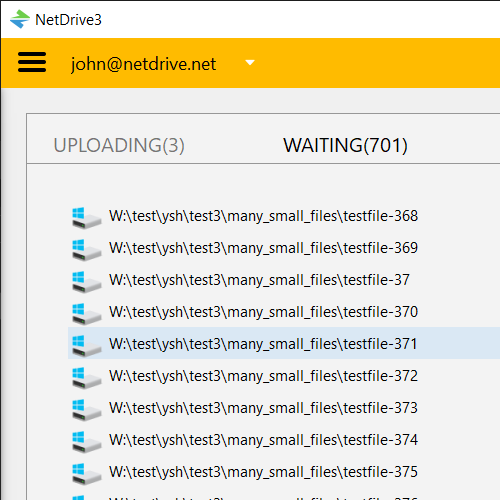
Each drive has an upload mode. Asynchronous lets the copy return right away and the file finishes uploading from a background queue, so your file manager does not freeze for the length of a 60 GB transfer. Synchronous waits until the upload actually completes, which suits scripts that must know the object exists before the next step runs.
For people dragging large files by hand, leave it on asynchronous and watch progress in the upload queue. For an automated job, switch that one drive to synchronous. The full comparison is in Background Upload Mode in NetDrive.
Keep the Office Connection Usable
A big upload will take whatever bandwidth it can find. NetDrive has a custom bandwidth setting so one transfer does not starve video calls and everyone else’s traffic. Cap it below your line speed during working hours and raise it for overnight runs. Details are in Bandwidth Limit in NetDrive.
Mind the Local Cache
NetDrive uses a local cache for mounted drives. Since 3.16.589 the cache size is a setting, with options from 100 GB up to 1 TB. If you regularly push single files in the tens of gigabytes, make sure the disk holding the cache has real headroom, and choose a size that fits. Cache Size Options in NetDrive covers the trade-offs.
A Practical Checklist
- Open NetDrive and select the S3 drive in the Drive Manager.
- Open the drive’s settings and confirm the upload mode matches your use: asynchronous for hands-on work, synchronous for scripts.
- Set a bandwidth limit if others share the connection.
- Check free disk space where the cache lives and pick a cache size that fits your largest file.
- Copy the file to the drive, then watch the upload queue until it finishes.
- Verify in the bucket listing, or open the bucket through the File Browser, before deleting the local original.
Limits Worth Knowing
NetDrive has no offline mode, so a drive needs its connection to the provider to keep working. Huge uploads are only as fast as your upstream link and your S3 region allow. If uploads fail with permission errors, see Fix S3 Access Denied Errors.
Wrap-up
Large S3 uploads are mostly a matter of picking the right mode, capping bandwidth sensibly, and leaving the cache enough room. If you have not connected a bucket yet, Mount Amazon S3 on Windows or on macOS gets you there.
— Jay, NetDrive