Nonprofit Teams with NetDrive — Shared Cloud Storage for Staff and Volunteers

Nonprofits mix staff, volunteers, and donated cloud accounts. See how NetDrive mounts Google Drive, OneDrive, and Dropbox as drives with team drives and read-only access.
A regional food bank keeps its donor spreadsheets on Google Drive, its grant applications on a donated OneDrive tenant, and its volunteer schedules on a Dropbox that someone set up years ago. The development director opens three browser tabs to find one file, and a weekend volunteer who only needs the shift roster ends up with edit access to everything. Mounting those clouds as ordinary drives, with the right access on each, solves a surprising share of that mess.


One drive list for every cloud you inherited
NetDrive lets Google Drive, OneDrive, S3, SFTP, WebDAV and more appear as native drives on Windows and macOS — no syncing, no full downloads.
- Mount Google Drive, OneDrive, Dropbox, Box, and more as drives
- Share team drives with staff, with file locking for documents
- Read-only drives for volunteers who only need to look
Free trial. Lifetime and subscription plans available.
The Reality of Nonprofit Storage
Small organizations rarely choose one storage platform on purpose. A board member donates a Dropbox plan, a software grant arrives as a OneDrive for Business tenant, and the founder’s Google Drive becomes the de facto archive. Staff turn over, volunteers come and go, and nobody wants to migrate years of files.
NetDrive does not migrate anything. It mounts each existing cloud as a native drive in Windows Explorer or macOS Finder, so staff work in the same folders, from the same programs, no matter where the files live. Supported providers include Google Drive, OneDrive, OneDrive for Business, Dropbox, Dropbox Business, Box, SharePoint, and Amazon S3, along with WebDAV, FTP, and SFTP.
Giving Volunteers Access Without Giving Them the Keys
The riskiest moment in a nonprofit’s file life is the handoff to a short-term volunteer. They need the event checklist, not the donor database.
Two NetDrive features help here:
- Read-only drives. Set a connection’s Drive Type to Read-only drive and every application on that machine is blocked from saving, renaming, or deleting files through it. A volunteer laptop can show the program handbook without any risk of damage. See the Read-Only Drive Mode guide.
- Team drives. With a NetDrive team license, an administrator publishes drives to members from the team management console, and removes access when someone leaves. The Team Drive guide covers the setup.
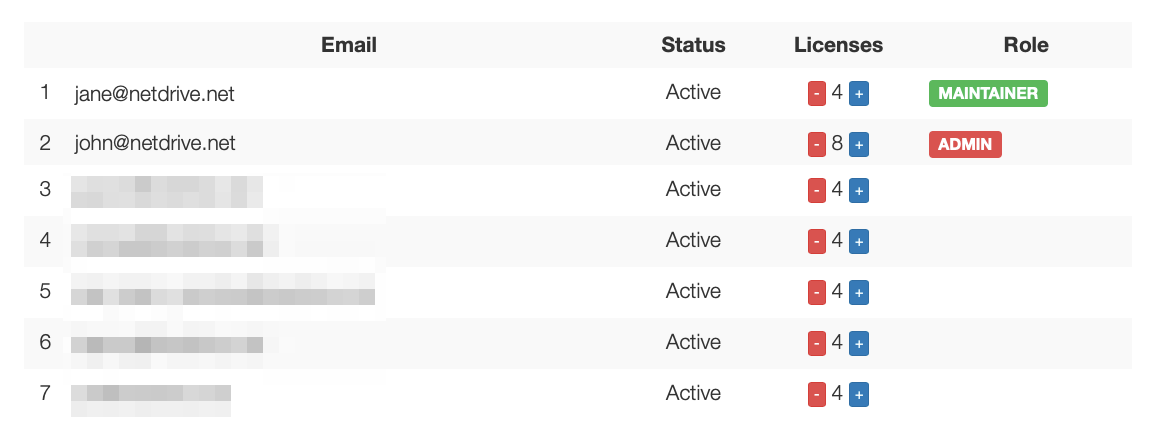
A practical split is one team drive per program area, such as fundraising, programs, and operations, with the sensitive donor drive published only to the two people who need it.
Stopping Two People From Overwriting the Grant Draft
Grant season means three people editing one narrative in the same week. NetDrive’s file locking works for all file types on team drives, and Microsoft Office files are handled too, so a second person opening a file someone else is editing gets a read-only copy instead of a conflict. The Office File Locking guide explains what each person sees.
Step by Step: Set Up a Shared Program Drive
- Open NetDrive and click Add Drive in the Drive Manager.
- Pick the provider that holds the program’s files, for example Google Drive or OneDrive for Business, and sign in.
- Set the Drive Type. Keep Network drive for staff who edit; use Read-only drive for reference material.
- Choose when it mounts. Auto-mount options let the drive appear at login or at boot, so the shared folder is just there each morning. See Auto-Mount on Boot.
- For team use, publish the drive to members from the team console and assign licenses to the staff who need them.
What to Keep in Mind
NetDrive has no offline mode and no client-side encryption, so files stream from the cloud when opened and protection comes from your provider’s own controls. Treat it as a way to reach the storage you already pay for, not as a backup or an encryption layer. Plans include a 7-day free trial, so a small team can test the workflow before deciding; check the store page for current options.
Wrap-up
For organizations running on donated accounts and part-time hands, the win is consistency: one place to look, and the right level of access for each person. If your team is fully Microsoft-based, Mount SharePoint on Windows with NetDrive is a good next read.
— Jay, NetDrive