Fix Slow SharePoint Directory Listing — NetDrive

Diagnose and fix slow file listing when NetDrive mounts a large SharePoint document library. Covers async listing, cache size, and library structure.
A marketing team mounts a shared SharePoint document library through NetDrive so the whole team can drag files into it like any other drive. The library has grown to over 20,000 files across a dozen campaign folders, and opening the top-level folder in Explorer now sits on a spinner for several seconds before anything renders. Nothing is broken — the library is just big enough that NetDrive has to do real work to enumerate it.


Mount SharePoint without the wait
NetDrive lets Google Drive, OneDrive, S3, SFTP, WebDAV and more appear as native drives on Windows and macOS — no syncing, no full downloads.
- Async directory listing for large document libraries
- Configurable directory cache up to 1 TB
- Force-refresh a single folder when upstream files change
Free trial. Lifetime and subscription plans available.
Why Large SharePoint Libraries List Slowly
SharePoint doesn’t hand NetDrive a folder’s contents in a single response the way a local filesystem does — it enumerates the library through SharePoint’s API, and a library with thousands of items takes real time and multiple round trips to walk. Before NetDrive 3.17.799 (2022-11-25), that enumeration ran synchronously: the folder view waited on the full listing before showing anything. 3.17.799 introduced async listing for SharePoint specifically to fix this, so the folder can start rendering entries as they arrive instead of blocking on the whole batch.
That same stretch of releases also improved how NetDrive surfaces SharePoint metadata — quota display for SharePoint drives landed in 3.16.667 (2022-06-30), the release right before async listing. If your team mounted SharePoint on an older NetDrive install and never updated, slow listing on a large library is the expected symptom, not a misconfiguration.

Confirm You’re on a Version With Async Listing
- Open NetDrive’s Drive Manager and check the version shown in the About panel (or Help menu).
- Compare it against 3.17.799 — anything older predates async SharePoint listing. The current release is 3.19.7.
- If you’re behind, download the latest installer from netdrive.net/download and reinstall; SharePoint connections and credentials carry over.
Give the Directory Cache More Room
Once a folder has been listed, NetDrive caches that listing locally so the next visit doesn’t repeat the SharePoint round trips. Cache size is configurable — up to 1 TB, a setting introduced in 3.16.589 (2022-03-31). A library with a dozen campaign folders and tens of thousands of files benefits from a larger allocation than the default, since more of the tree can stay warm between sessions. Adjust this from the drive’s settings inside Drive Manager.
The trade-off is staleness: if a colleague adds files to SharePoint directly through the browser, NetDrive’s cached view of that folder won’t show them until the cache expires or you refresh manually.

Force-Refresh a Folder Instead of Waiting on the Cache
When you know a specific campaign folder just changed upstream, there’s no need to wait out the cache or restart NetDrive. Right-click the folder in Explorer or Finder and use Force folder refresh — a feature NetDrive has had since 3.8.921 — to re-enumerate just that folder and update its cached listing.
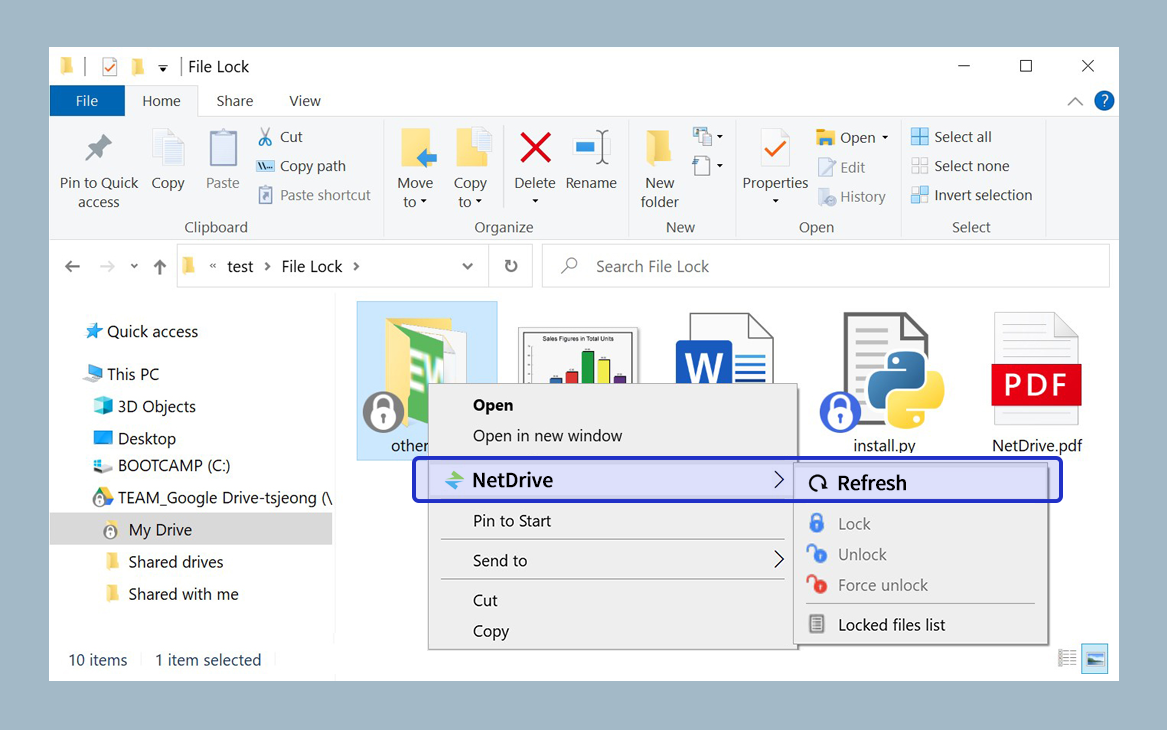
This scopes the SharePoint round trips to the one folder that changed, rather than the whole library, which keeps the fix fast even on a library with thousands of items elsewhere.
Structure the Library to Keep Listings Fast
Beyond version and cache settings, how the library itself is organized affects listing speed for every tool that reads it, not just NetDrive:
- Split flat folders by year or campaign. A single folder holding years of assets forces every listing call to walk the whole set. Breaking it into
2025/,2026/, or per-campaign subfolders keeps each individual listing smaller. - Archive finished campaigns out of the active folder. Move completed work to a separate library or folder tree that your team rarely opens, so the folder people browse daily stays lean.
Wrap-up
Slow SharePoint listing in NetDrive is almost always a version-and-cache issue rather than a connection problem: confirm you’re on 3.17.799 or later for async listing, give the directory cache room to hold the library’s tree, and use force folder refresh for one-off updates instead of waiting on cache expiry. For the SharePoint connection setup itself, see Mount SharePoint on Windows with NetDrive or Mount SharePoint on macOS with NetDrive; for the same caching mechanics applied to S3, see Fix Slow S3 Directory Listing with NetDrive.
— Robin, NetDrive