Mount SharePoint on macOS — NetDrive Setup Guide

Step-by-step guide to mounting SharePoint as a native macOS drive with NetDrive. Covers Sonoma requirements, OAuth sign-in, auto-mount, and troubleshooting.
A video team I know runs all editorial notes in a SharePoint document library. Every editor was downloading files to their Mac, making changes, then re-uploading — a two-minute round trip for a ten-second edit. After they set up NetDrive, SharePoint appeared as a drive in Finder. Open, save, move: same as working from a local folder, with nothing to sync manually.
This guide covers how to mount a SharePoint library on macOS with NetDrive, what requirements to meet first, and how to handle the three issues that come up most often.


Mount SharePoint on macOS in minutes
NetDrive lets Google Drive, OneDrive, S3, SFTP, WebDAV and more appear as native drives on Windows and macOS — no syncing, no full downloads.
- Read and write SharePoint files directly from Finder
- Works with personal accounts, OneDrive for Business, and team sites
- Supports macOS 14 Sonoma and later
Free trial. Lifetime and subscription plans available.
What you need before starting
NetDrive added SharePoint support in version 3.16.589 (March 2022). The current release is 3.19.7 (April 2026), so a fresh download has everything described here.
There is an important macOS constraint: NetDrive 3.18 and later requires macOS 14 Sonoma or newer. If you are still on macOS 13 Ventura, the highest compatible version is NetDrive 3.17, which still supports SharePoint but will not receive newer additions. Both are available from netdrive.net/download/mac.
You will also need a Microsoft account with at least read access to the target site. This works for personal OneDrive, OneDrive for Business, and SharePoint team sites — all three connect through NetDrive’s SharePoint driver. A NetDrive license (or the 7-day trial) is required.

Adding SharePoint as a drive
-
Open NetDrive. The app lives in the macOS menu bar; click its icon to bring up the Drive Manager. You can also launch it from the Applications folder.
-
Click ”+” to add a drive. NetDrive opens a provider picker showing all supported cloud types.
-
Select SharePoint. NetDrive opens the Microsoft sign-in page in your default browser via OAuth. Enter your credentials and approve the permission request. The resulting token is what NetDrive stores — your Microsoft password never enters the app.
-
Pick the site and document library. After authorization, NetDrive fetches the list of team sites and libraries your account can access. Select the one containing your working files.
-
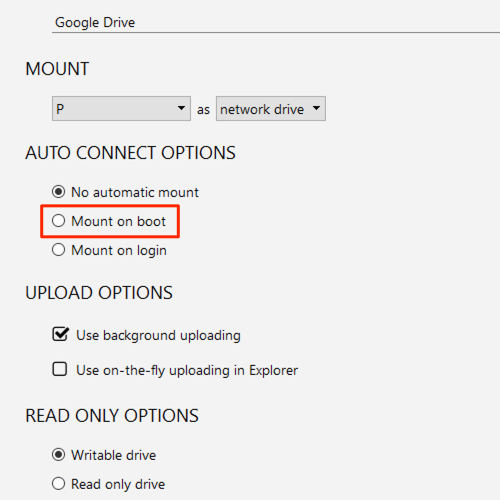
Set a drive label and mount options. Name the drive something you will recognize in Finder. To mount automatically each time you log in, enable Mount at login in the drive settings. For a Mac that starts unattended — a shared render node or a headless office machine — the auto-mount at boot option makes the drive available before any user session opens.
-
Click Mount. Within seconds the SharePoint library appears in Finder under the label you assigned.
Working with files from Finder
Once mounted, any macOS application reads and writes the SharePoint drive as if it were a local folder — no plugin, no sync tray, no manual upload step. Save a file and NetDrive pushes the change to SharePoint in the background through its async upload mode, so the app returns to ready state immediately even on a slower connection.
A few features that matter in practice:
Async directory listing — Since version 3.17.799, SharePoint drives populate large folder contents progressively rather than blocking until the full directory fetch completes. On libraries with thousands of files, this means you see folders and documents appear as they load instead of staring at a spinner.
Quota display — NetDrive shows the SharePoint site’s reported storage quota in the Drive Manager and Finder’s status bar (added in 3.16.667). Useful for libraries on accounts with tight storage limits.
File locking — For team environments, right-click any file in Finder and use NetDrive’s lock option to prevent concurrent edits. Other team members see a lock indicator until you release the file.
Auto-mount at login or boot
For most setups, Mount at login is the right choice — NetDrive reconnects the SharePoint drive as part of your login session each time you start your Mac. For a Mac used as a file server that boots without a logged-in user, the boot-time auto-mount option starts the connection before any session opens.
Both options are in the individual drive’s settings panel inside the Drive Manager.
Troubleshooting common issues
OAuth loop does not complete — If the Microsoft sign-in page keeps reloading without finishing, a browser extension or popup blocker is likely intercepting the redirect callback. Temporarily disable ad-blocking extensions and try again.
Files open read-only — SharePoint locks files server-side when another user has them open. NetDrive respects that lock. Wait for the other session to close or coordinate with your team.
Drive disappears from Finder after sleep — macOS sometimes unmounts network volumes when the machine sleeps. Open the Drive Manager and click the mount icon to reconnect. For a permanent fix, see Fix mount disconnects after sleep on macOS, which covers the reconnect-on-wake setting.
Slow first open on large libraries — The initial directory load for a SharePoint library with thousands of files takes longer because NetDrive is fetching the remote tree for the first time. Subsequent opens use the local cache. Increasing the cache size in NetDrive preferences (100 GB–1 TB range) reduces the wait on large libraries.
Wrap-up
Mounting SharePoint on macOS with NetDrive turns a browser-bound document library into an ordinary Finder drive. The async upload and directory-listing features handle the round-trip latency that would otherwise make a live SharePoint mount feel sluggish.
If your team also uses Windows machines, the setup is nearly identical — see Mount SharePoint on Windows with NetDrive. For Microsoft 365 authentication issues during setup, Fix OneDrive for Business Auth Error in NetDrive covers the same OAuth flow.
— Morgan, NetDrive