Mount Google Cloud Storage on macOS — NetDrive Step-by-Step Guide

Mount Google Cloud Storage buckets as a native macOS drive with NetDrive. Access GCS files from Finder on Sonoma and later — no CLI required.
A data architect storing 800 GB of BigQuery exports in Google Cloud Storage buckets shouldn’t need a terminal session every time they want to inspect a Parquet file. With NetDrive, GCS buckets mount as a native macOS drive in Finder — readable by any app, writable when needed, and available automatically on login.


Browse GCS buckets like a local Mac drive
NetDrive lets Google Drive, OneDrive, S3, SFTP, WebDAV and more appear as native drives on Windows and macOS — no syncing, no full downloads.
- Access GCS files from Finder and any macOS app
- Supports all bucket regions and MIME-typed objects
- Auto-mounts on login — no setup after reboot
Free trial. Lifetime and subscription plans available.
What You Need Before Starting
Three things must be in place before connecting:
macOS 14 Sonoma or later. NetDrive 3.18 raised the minimum macOS version to Sonoma. If you are on macOS 13 Ventura or older, NetDrive 3.17 is the highest version that will run — check the release history for that download.
macFUSE. NetDrive on macOS uses a modified macFUSE kernel extension as its mount layer. The NetDrive DMG installer handles the macFUSE installation, but macOS will ask you to approve the system extension in System Settings → Privacy & Security → Security on first install. Allow it there, then restart if prompted, before attempting your first mount.
NetDrive 3.18 or later. Download the latest DMG from netdrive.net/download/mac/. A 7-day free trial covers the full feature set with no registration required up front.
Add Google Cloud Storage in NetDrive
Once macFUSE is approved and NetDrive is installed, adding a GCS bucket takes under two minutes:
- Open NetDrive from the menu bar icon or from Applications → NetDrive 3.
- Click ”+” in the Drive Manager to create a new drive connection.
- Select Google Cloud Storage from the provider list.
- Click Connect — NetDrive opens a standard Google OAuth consent screen in your default browser.
- Sign in with the Google account that has access to your GCS buckets and approve the permissions request.
- Back in NetDrive, enter the bucket name you want to mount. Leave it empty to see all accessible buckets listed as sub-folders under the mount point.
- Choose a drive name and a drive type, then click Mount.
The bucket appears in Finder within a few seconds of mounting.
Drive Types and Access Control
NetDrive supports four mount modes for GCS, selectable in the Drive Manager:
| Type | When to use |
|---|---|
| Network drive | Default — appears in the Finder sidebar |
| Read-only drive | Shared buckets where accidental writes must be prevented |
| Local disk | Mounts like an internal volume (no Finder sidebar entry) |
| Removable drive | Useful for scripted workflows that eject after a batch job |
For production data buckets shared across a team, Read-only is the safest default. Engineers can browse and download content without risking accidental deletes or overwrites on the live bucket.
MIME Types and Large Objects
NetDrive has supported Google Cloud Storage since its initial 3.x release in 2017. Starting with version 3.15.450 (released 2021-11-08), NetDrive correctly handles MIME type metadata on GCS objects. This matters for buckets containing web assets or media: a .jpg object tagged image/jpeg opens in Preview rather than a hex editor, and a .csv file opens in Numbers rather than as raw text.
Auto-Mount and Daily Workflows
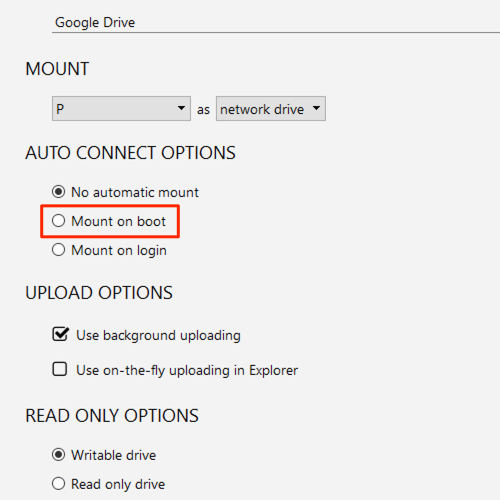
To make the GCS drive available every time you log in:
- In the Drive Manager, click the settings icon on the GCS drive card.
- Set Mount to “On login” — the drive reconnects automatically when your macOS session starts.
- For shared machines that need the drive before any user logs in, choose “On boot” instead.
If an upstream pipeline adds objects to the bucket and they do not show up immediately in Finder, right-click the mounted drive folder and choose Refresh from the NetDrive context menu to force a directory re-read without unmounting.
NetDrive also supports configurable bandwidth limits per drive — useful when a background GCS sync task should not compete with a video conference for your uplink.
Wrap-up
Mounting Google Cloud Storage on macOS with NetDrive removes the context-switch to gsutil for day-to-day file access. Once macFUSE is approved (a one-time step), the GCS bucket behaves like any other disk in Finder. For S3-compatible object storage alongside GCS, the same Drive Manager flow works for Amazon S3 on macOS and Backblaze B2 on macOS.
— Casey, NetDrive