Fix NetDrive Not Mounting After a Windows 10 Upgrade — Reinstall the Driver

NetDrive drives gone after upgrading to Windows 10 from an earlier version? Here's why the mount driver needs a reinstall, and how to fix it.
An office manager ran the in-place Windows 10 upgrade over a Windows 8.1 machine that had NetDrive mounting a shared Dropbox folder for the front desk. The upgrade finished, the desktop looked normal, but the Z: drive that used to hold the shift schedule was gone — and NetDrive’s tray icon showed the drive as disconnected with no obvious error. This is a known consequence of upgrading Windows in place rather than a NetDrive bug, and it has a straightforward fix.


Get your cloud drive back after a Windows upgrade
NetDrive lets Google Drive, OneDrive, S3, SFTP, WebDAV and more appear as native drives on Windows and macOS — no syncing, no full downloads.
- Reinstalling NetDrive re-registers its mount driver with the new OS
- Your existing drive connections and credentials are preserved
- Works the same way across Windows 8, 8.1, 10, and 11
Free trial. Lifetime and subscription plans available.
Why an In-Place Upgrade Breaks the Mount
NetDrive mounts a cloud account as a drive letter using a filesystem driver component that has to be registered with Windows so the OS knows to hand drive-letter requests to NetDrive. An in-place Windows upgrade — moving from Windows 8.1 to Windows 10, for example, or applying a major Windows 10 feature update — rebuilds enough of the OS that driver registrations from the old build don’t reliably carry over.
NetDrive’s own download page notes this directly: Windows 10 users who upgraded from an earlier Windows version may need to reinstall NetDrive after the upgrade completes. The drive doesn’t come back on its own because the driver component, not just the application, needs to re-register itself against the new OS build.
Reinstalling NetDrive After the Upgrade
- Open Settings → Apps (or Control Panel’s Programs and Features on older builds) and uninstall the existing NetDrive installation.
- Restart the machine. This clears any half-registered driver state left over from the OS upgrade.
- Download the current installer from netdrive.net/download/windows/. NetDrive supports Windows 8 / 8.1 / 10 / 11, along with Server 2012 / 2016 / 2019 / 2022, so the same installer works regardless of which version you landed on.
- Run the installer. If the Microsoft Visual C++ Redistributables (vcredist12, vcredist14) aren’t already present, the installer prompts to add them — accept that step.
- When Windows asks to allow NetDrive’s driver component, click Yes. This re-registration is the step that actually restores mounting.
- Reopen NetDrive’s Drive Manager. Your previously configured drives should still be listed — click Mount on each one to confirm the connection re-establishes.

Credentials for OAuth-based providers like Dropbox, Google Drive, and OneDrive are normally preserved through the reinstall, so most drives reconnect without a fresh sign-in. If a drive prompts for re-authentication, that’s independent of the OS upgrade — tokens do occasionally expire on their own schedule.
Confirming the Drive Is Back for Good
After reinstalling, verify the drive survives a second reboot before considering the issue closed — a one-time reconnect that doesn’t persist points to a different problem:
- Open Drive Manager and check that each drive shows a green connected indicator.
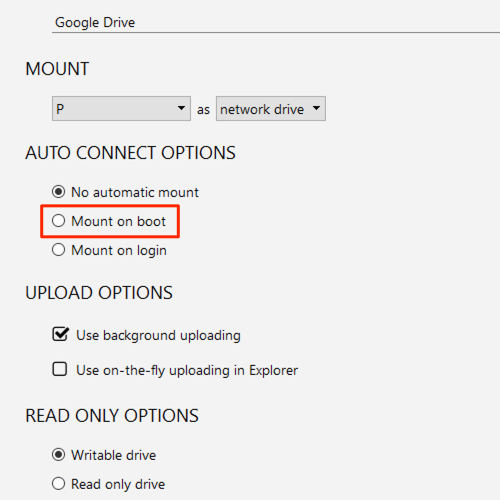
- Confirm the Auto Mount setting on each drive (Boot, Login, or Disabled) still matches what you had before the upgrade — reinstalling resets nothing here, but it’s worth a glance if a drive that used to mount at boot no longer does.
- Reboot once more and check that the drive letter appears in Explorer without manually clicking Mount.
If the drive still won’t reconnect after a clean reinstall and reboot, the cause is more likely a missing Visual C++ Redistributable than the OS upgrade itself — check for that separately rather than repeating the uninstall/reinstall cycle.
Wrap-up
A Windows in-place upgrade doesn’t remove NetDrive, but it can leave the mount driver unregistered — a clean uninstall, reboot, and reinstall re-establishes it without losing your existing drive connections. For the redistributable-specific version of this problem, see Fix “vcredist” Missing Error — NetDrive; if drives stop reconnecting after routine reboots rather than a Windows upgrade, see Fix NetDrive Not Auto-Mounting on Windows Startup.
— Robin, NetDrive