Nonprofit Staff with NetDrive Mobile — Event Photos and Forms from Any Cloud
Nonprofit staff and volunteers use NetDrive Mobile on iPhone and Android to open shared clouds, preview forms, and upload event photos to the right folder from the field.
The food bank’s volunteer coordinator keeps sign-up sheets in Google Drive, the board’s documents live in a donated OneDrive for Business tenant, and the communications volunteer uploads photos to a Dropbox the grant funder can see. On distribution day she is in a parking lot with a phone and a clipboard, and she needs the right form and the right upload folder. NetDrive Mobile opens all of those clouds in one app on iPhone and Android.
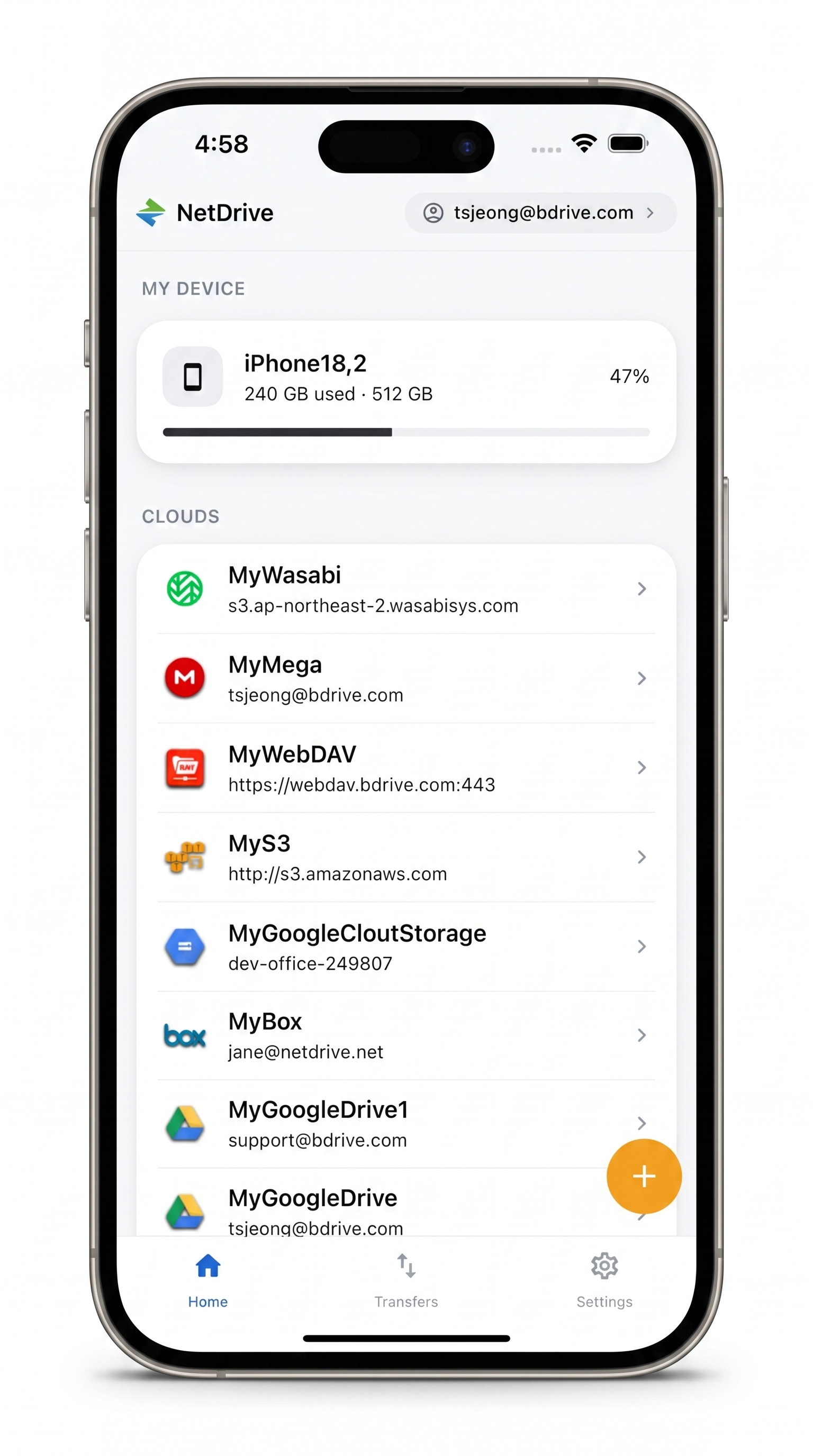
Every shared folder, one app
Open Google Drive, Dropbox, OneDrive and more from your phone, preview files, and upload photos as events happen.
- Switch between the organization's clouds without switching apps
- Preview forms and documents inside the app
- Upload event photos with live progress and cancel
Free Bdrive account required.
Small Organizations Rarely Have One Cloud
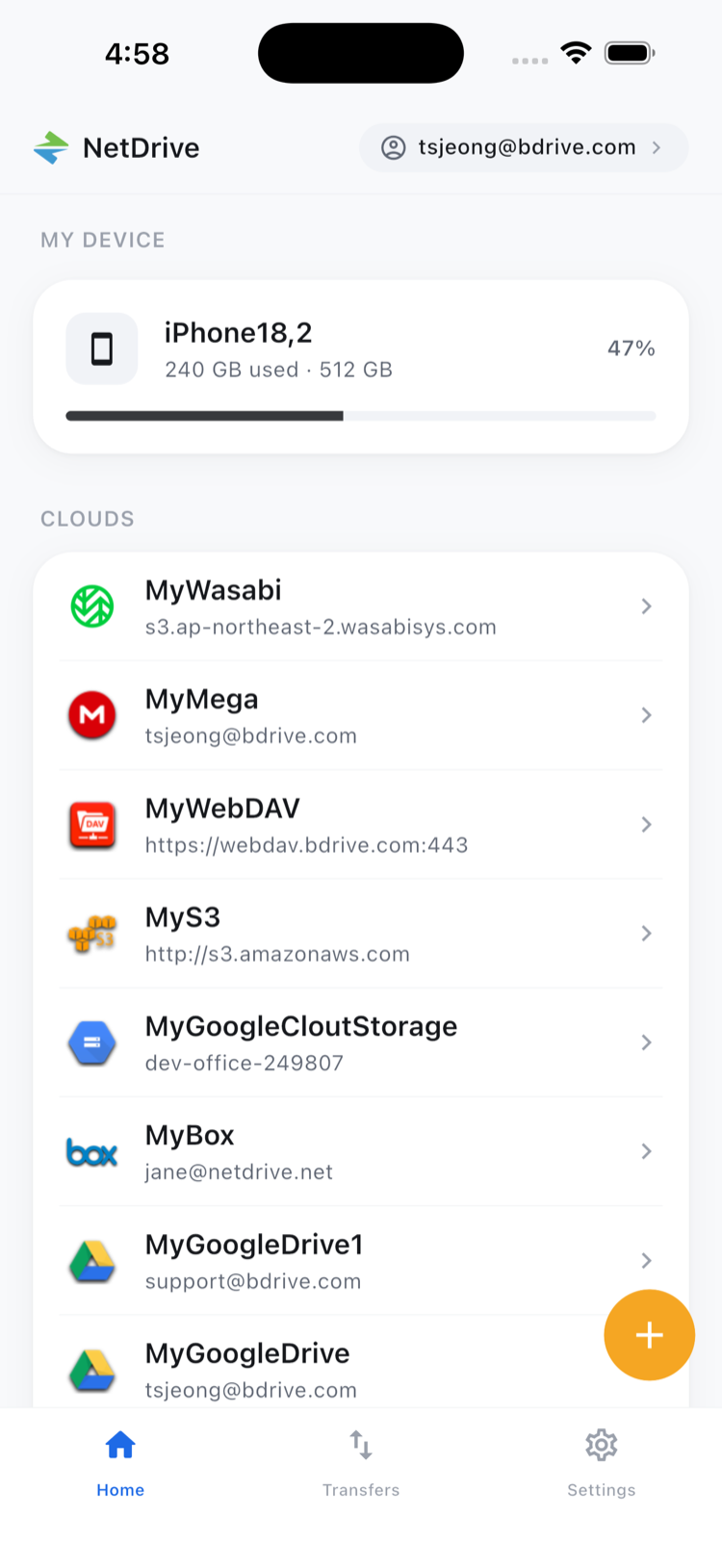
Nonprofits collect storage the way they collect furniture: donated tenants, a free tier someone set up years ago, a funder’s shared folder. Staff and volunteers get invited to each one. Instead of installing three apps and remembering which login goes where, you can connect each cloud to NetDrive Mobile once and see them together on the home screen. A free Bdrive account is required to sign in.
Connecting the Clouds Your Team Uses
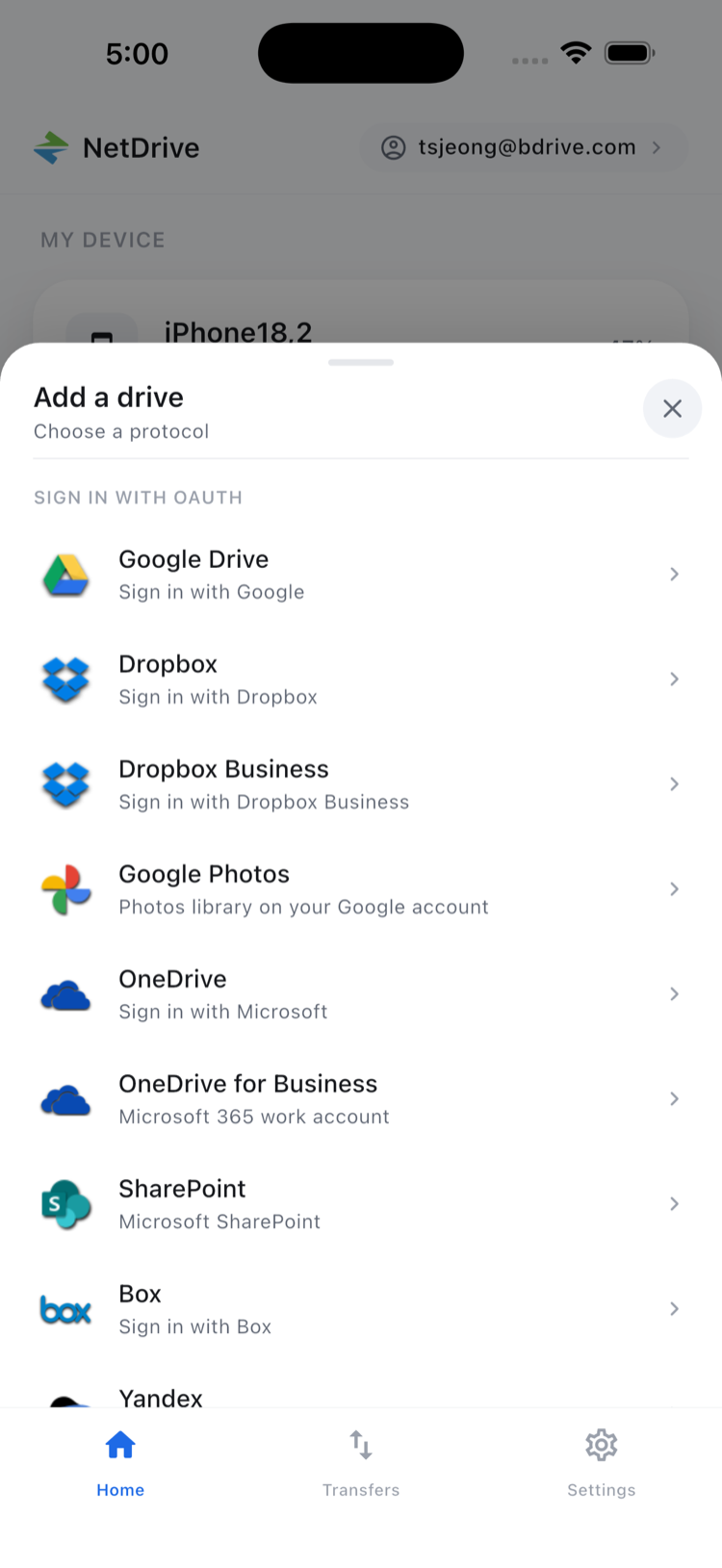
Open the Add a drive sheet, choose a provider and sign in. The list covers Google Drive, Dropbox, Dropbox Business, OneDrive, OneDrive for Business, SharePoint and Box, along with WebDAV, FTP and SFTP if your office runs a file server or NAS.
Credentials are kept in the phone’s secure storage, the Keychain on iOS and the Keystore on Android. If a volunteer uses a shared phone, sign out of the Bdrive account when the shift ends. Two-factor login, if enabled on the account, delivers its approval code as an app notification; the details are in Two-Factor Login in NetDrive Mobile.
Opening and Checking Files in the Field
Tap into a cloud, open the folder, and tap a file to see the actions sheet: Preview, Download, Rename, Move, Copy, Get info and Delete. Preview shows documents, images and video inside the app, so a volunteer can confirm that the intake form is the current version before handing out copies.
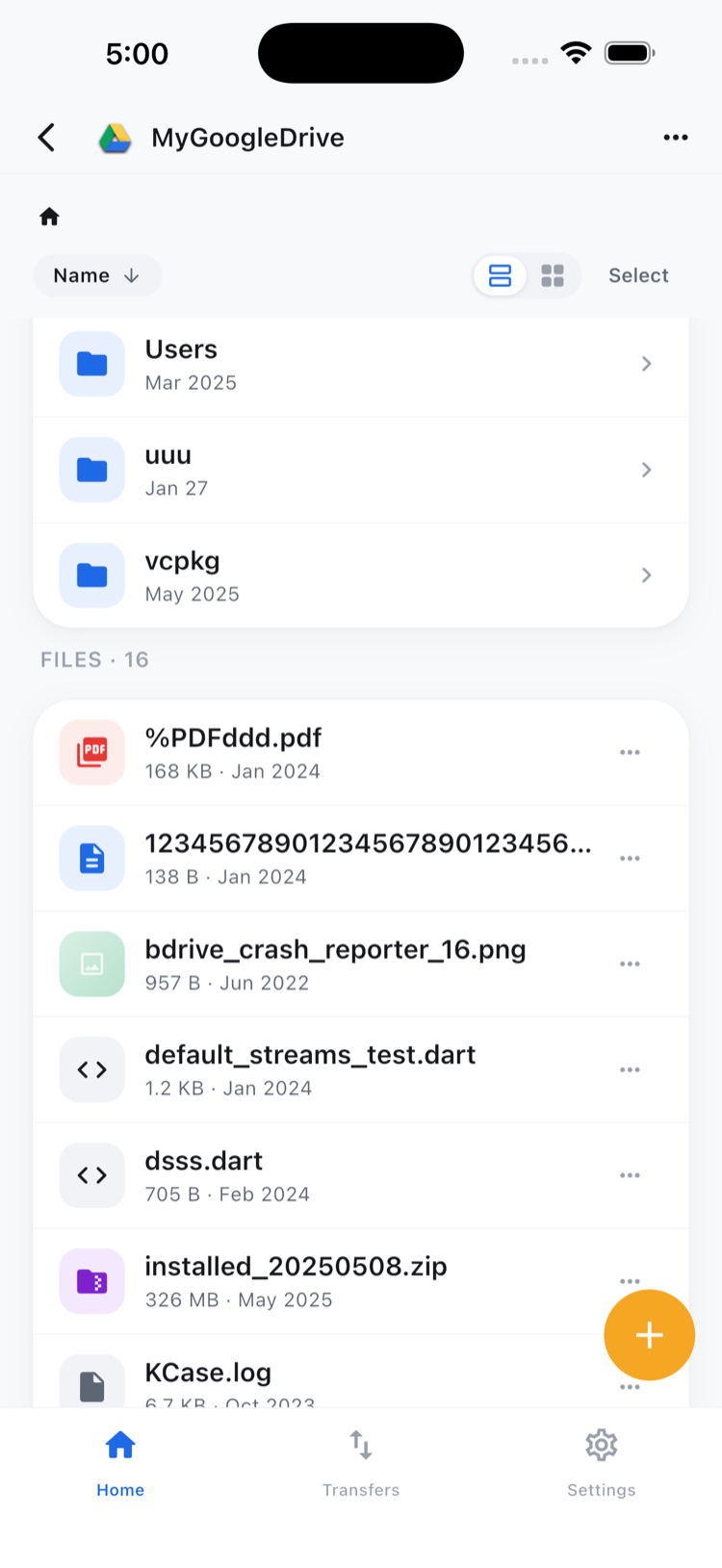
Two habits help small teams. First, agree on one folder per event with the date in the name. Second, use Get info to check the modified date when two versions of a form exist. See In-App Preview in NetDrive Mobile for what you can preview.
Uploading Photos and Signed Forms
Funders want proof of impact, and the evidence is usually a photo taken in the moment. From the destination folder, upload from the camera, your photo library or the file picker. Queue a batch, then watch the Transfers tab for progress and cancel anything you picked by mistake.
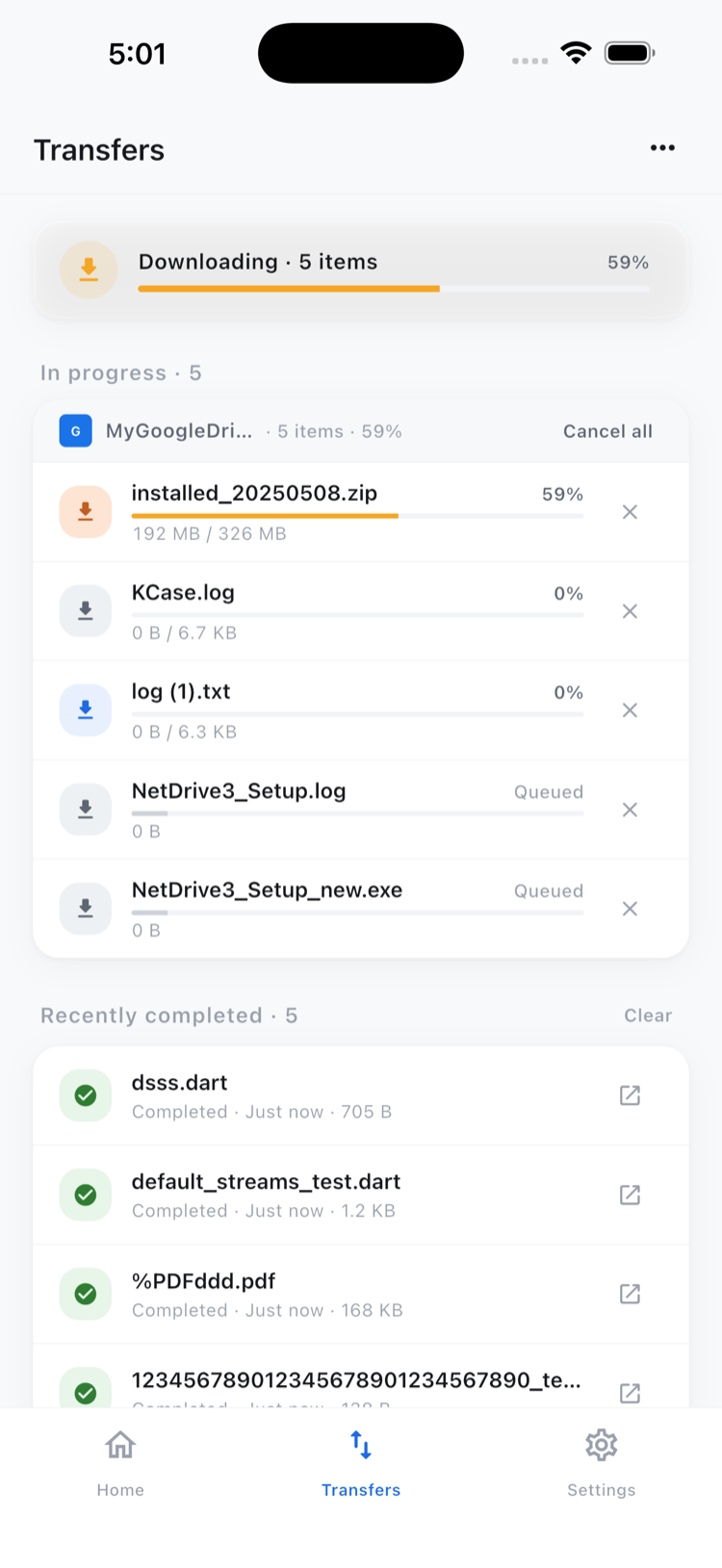
A simple routine: upload during a quiet moment while you still have a good connection, confirm the transfers have finished, and only then clear the photos from the phone. For the full flow, read Upload Phone Photos with NetDrive Mobile.
What It Will Not Do
NetDrive Mobile is a file manager. It does not run your volunteer database or edit documents, and you should not count on opening a file without a connection. Copy and move work inside a single cloud, so to get a file from the Dropbox into the OneDrive, download it and upload it again. Google Photos access is limited to items uploaded through the app, not your existing library.
Wrap-up
When your files are scattered across donated accounts, the phone is the one device that is always with you. Start with NetDrive Mobile — Getting Started, then see Multiple Cloud Accounts in NetDrive Mobile for managing several logins. If your office also works from desktops, Nonprofit Organizations with NetDrive covers that side.
— Tayson, NetDrive