Mount OneDrive on macOS — NetDrive Setup Guide for Sonoma

Mount OneDrive personal or Business as a native Finder drive on macOS Sonoma using NetDrive. No local sync required. Step-by-step setup guide.
A graphic designer working with a 1.2 GB Illustrator source file on OneDrive knows the freeze: the official client downloads the entire folder before the file opens, locking out the machine for two minutes. NetDrive takes a different approach — it mounts your OneDrive as a read-write Finder volume and streams file content on demand, so you open files directly from the cloud without waiting for a full local copy.


Browse OneDrive like a native Finder drive
NetDrive lets Google Drive, OneDrive, S3, SFTP, WebDAV and more appear as native drives on Windows and macOS — no syncing, no full downloads.
- Open any file without syncing the whole library
- Personal and OneDrive for Business both supported
- Works on Apple Silicon and Intel Macs
Free trial. Lifetime and subscription plans available.
Before You Start
NetDrive 3.18 and later require macOS 14 Sonoma or newer. If you are on macOS 13 Ventura, download NetDrive 3.17 from netdrive.net/download instead — the steps below are identical, just use the older build.
NetDrive uses macFUSE to present cloud storage as a kernel-level volume in Finder. The installer will prompt you to allow the macFUSE system extension under System Settings → Privacy & Security → Security. Click Allow, then restart once. This is a one-time step; subsequent mounts need no restart.
Apple Silicon Macs (M1, M2, M3, and later) run a native NetDrive binary — no Rosetta translation layer. Native Apple Silicon support shipped with NetDrive 3.14.309 (December 2020). You can verify your installed version in the NetDrive menu bar icon → About NetDrive.

Adding OneDrive to NetDrive
- Launch NetDrive from the menu bar icon or from Applications.
- Click + Add Drive in the Drive Manager window.
- Select OneDrive from the provider list. If your account is managed by a school or organization (Microsoft 365 / Exchange tenant), choose OneDrive for Business instead.
- Click Sign in with Microsoft. A browser tab opens to Microsoft’s OAuth consent screen. Complete authentication and return to the app — NetDrive detects the completed login automatically.
- In the Mount Point field, choose a volume name (e.g.,
OneDrive) or enable Advanced to mount at a specific local folder path under your home directory. - Set Mount on to Login so the drive appears automatically each time you log into macOS.
- Click Mount to connect immediately without waiting for the next login.
The volume appears in Finder’s Locations sidebar within a few seconds. Navigate it like any local folder — Spotlight search indexes it, drag-and-drop works, and Terminal paths resolve normally. Opening a file from the mounted drive streams only the data you access; the rest of the library stays on Microsoft’s servers.
OneDrive for Business and Shared Libraries
The OAuth flow is the same for OneDrive for Business accounts. After you sign in, NetDrive mounts the drive associated with your Microsoft 365 user. Items shared with you by colleagues appear inside the mounted drive’s Shared folder, consistent with how OneDrive Web presents shared content.
If your organization also uses SharePoint document libraries, add those separately: click + Add Drive, choose SharePoint from the provider list, and authenticate with the same Microsoft credentials. NetDrive keeps SharePoint libraries and OneDrive drives as distinct mount points, so a document library for a project can live at one path while your personal OneDrive is at another.
Microsoft Office File Locking
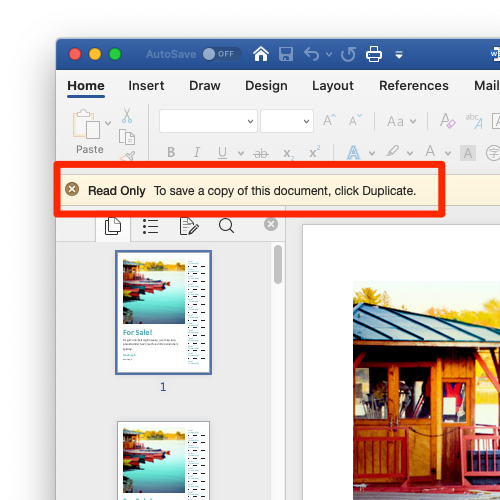
Saving Word or Excel files through a directly mounted cloud drive can be risky when multiple users share the same library — two people writing to the same .docx simultaneously can corrupt the remote copy. NetDrive handles this with a dedicated Office file-locking mechanism available since NetDrive 3.8.921.
When you open a .docx, .xlsx, or .pptx from the NetDrive-mounted volume, NetDrive places a lock that other NetDrive users on the same drive can see. If a colleague attempts to open the same file, they receive a read-only warning rather than getting a silent concurrent write session. This mirrors the guard rails you get with SharePoint co-authoring, applied to any OneDrive path.
Dealing with Disconnects After Sleep
macOS occasionally tears down FUSE volumes when the system sleeps. If your OneDrive mount disappears after the Mac wakes, open NetDrive preferences → Connection and confirm Reconnect on wake is enabled — this re-establishes the mount automatically within a few seconds of wake-up.
If disconnects persist even with that option on, try switching the Drive Type in the drive’s Advanced settings from Network drive to Local disk. Some Macs — particularly those running aggressive power management profiles — handle local-disk-type FUSE volumes more reliably across sleep/wake cycles. See Fix mount disconnects after sleep on macOS for a deeper walkthrough of that setting.
Wrap-up
Mounting OneDrive through NetDrive takes about three minutes and removes the need to sync your entire library to local storage — valuable on MacBooks with limited SSD space, shared machines with multiple user accounts, and creative pipelines where large assets live in the cloud but need to be opened by desktop apps that expect a file path.
For other cloud providers on macOS, see Mount Amazon S3 on macOS with NetDrive. For macOS version compatibility details, the NetDrive 3.18 release post covers the Sonoma transition in full.
— Jay, NetDrive