View Your Amazon S3 Buckets on iPhone and Android

Need to check an S3 object away from your desk? NetDrive Mobile browses Amazon S3 and S3-compatible storage on iPhone and Android — list, download, and upload.
You’re away from your laptop when a teammate asks whether a build artifact actually made it to the bucket, or whether last night’s export landed where it should. On a phone, that’s usually a dead end — the official AWS console is painful on a small screen, and most file apps don’t speak S3 at all. NetDrive Mobile gives you a plain file browser over your S3 storage instead.
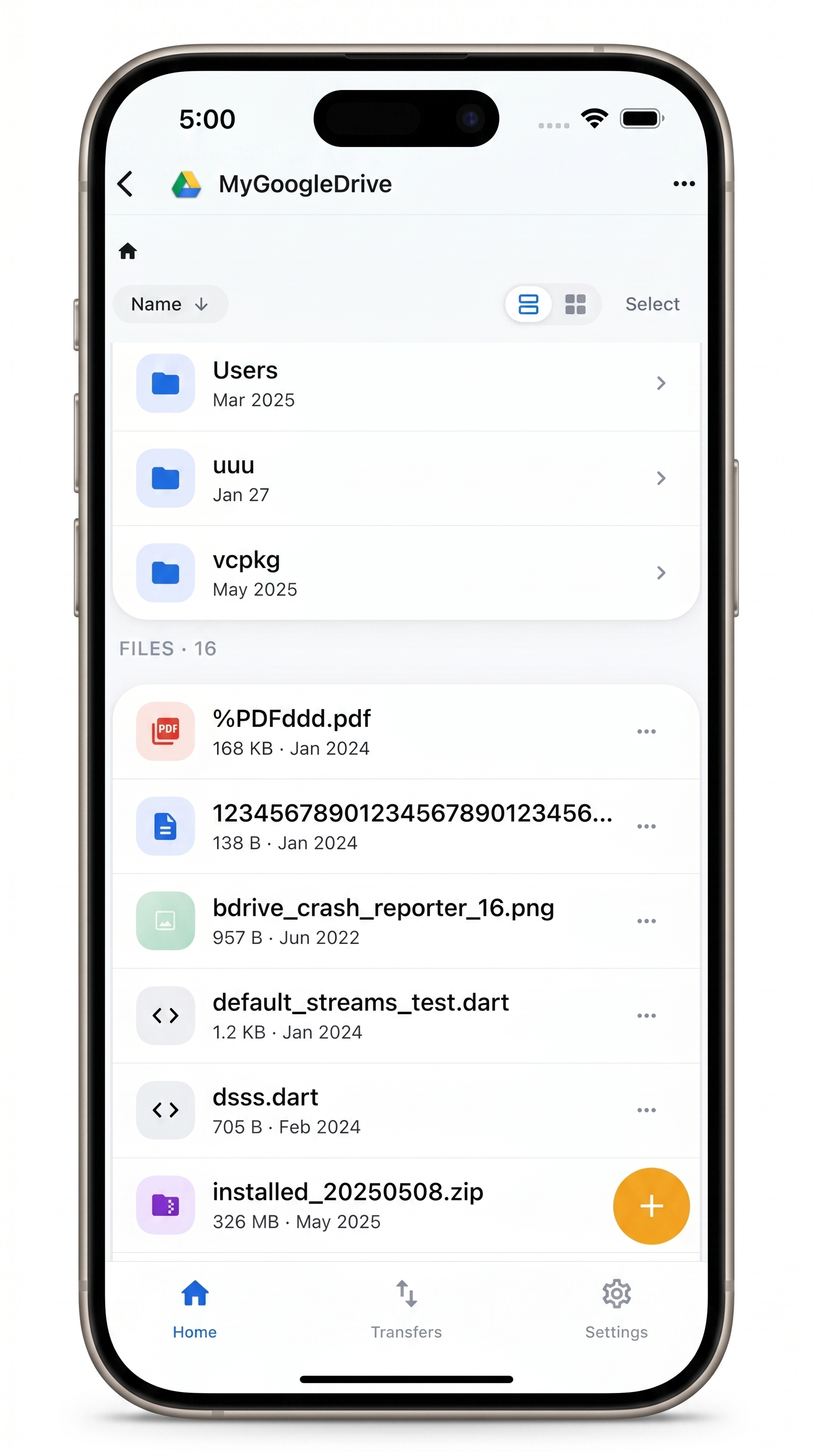
Your object storage, in your pocket
Browse Amazon S3 and S3-compatible buckets on iPhone and Android — list objects, download what you need, upload from the device.
- Real file browser over S3 buckets and prefixes
- Works with S3-compatible storage like Wasabi
- Download an object or upload one on the spot
Free Bdrive account required.
Why mobile S3 access is awkward
S3 isn’t a consumer cloud with a polished mobile app — it’s object storage meant for code and infrastructure. That’s great for servers and terrible for the moment you just need to look. The web console assumes a desktop, and generic cloud apps stop at Drive and Dropbox. So the common workaround is “wait until I’m back at my desk,” which is exactly when you can’t.
Connect S3 — and S3-compatible — storage
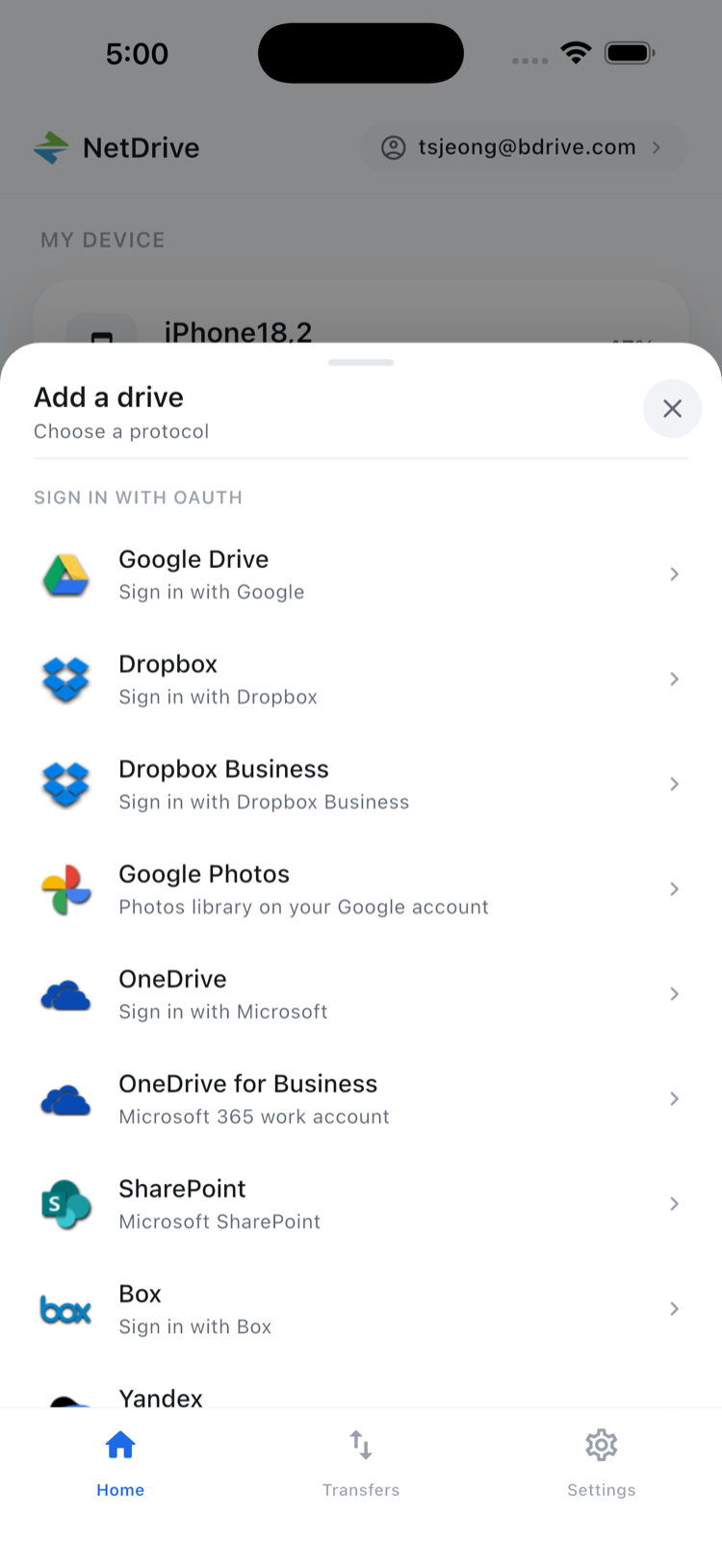
In NetDrive Mobile, open the Add a drive sheet and choose Amazon S3. You provide the same details you’d put in any S3 client: the endpoint, your access key and secret, and the region. Because S3-compatible providers speak the same API, the same flow connects services like Wasabi — you point the app at their endpoint instead.
Credentials are kept in the device’s secure storage (iOS Keychain, Android Keystore) rather than sitting in plain text, so connecting a bucket on your phone doesn’t mean leaving keys lying around.
Browse buckets and objects
Once connected, a bucket behaves like any folder in the app. You drill into prefixes, sort by name, switch between list and grid, and open an object to preview it. For the “did it upload?” question, that’s the whole answer — navigate to the prefix, see the object, check the size and modified time.
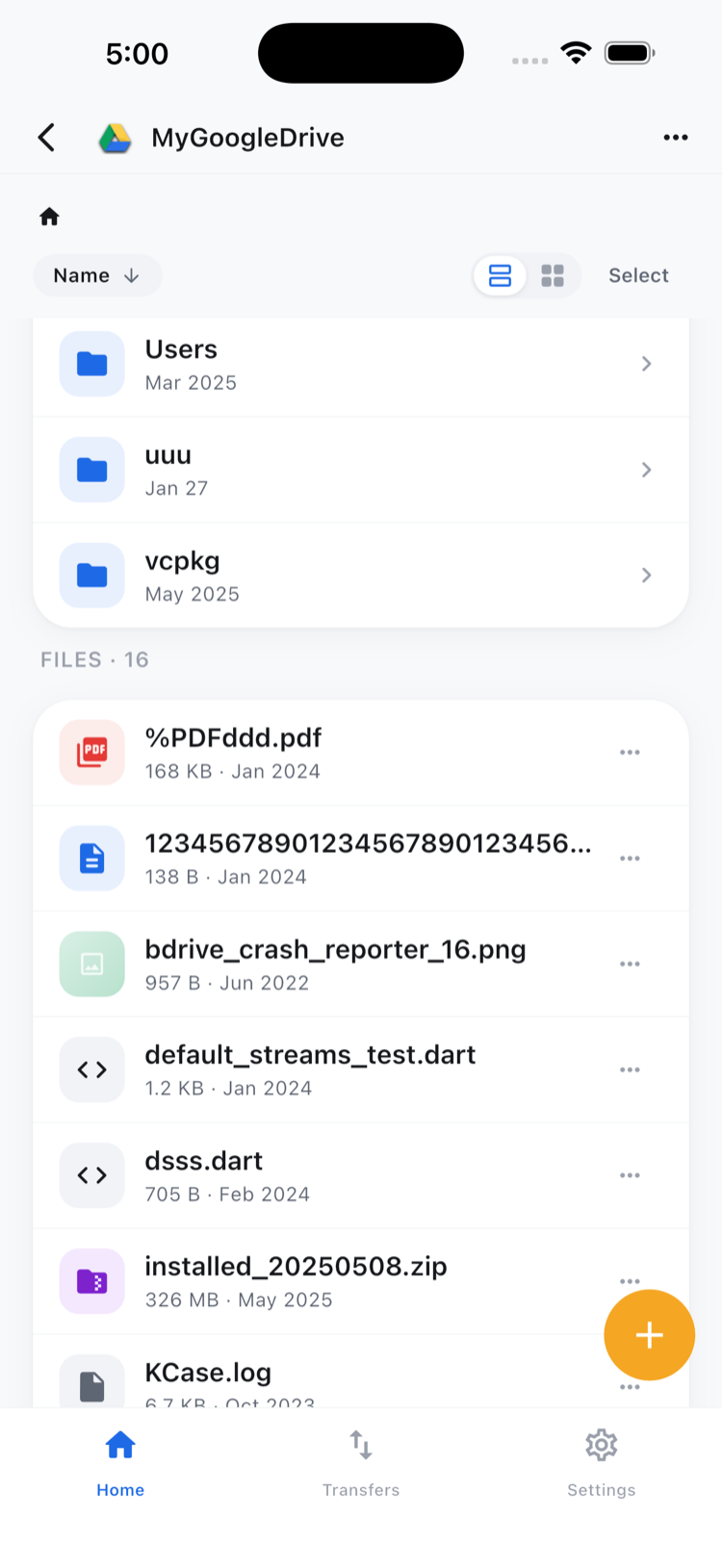
Select several objects at once when you need to act on a batch — download a set of logs, or clean up a handful of stray test artifacts.
Pull an object down, or push one up
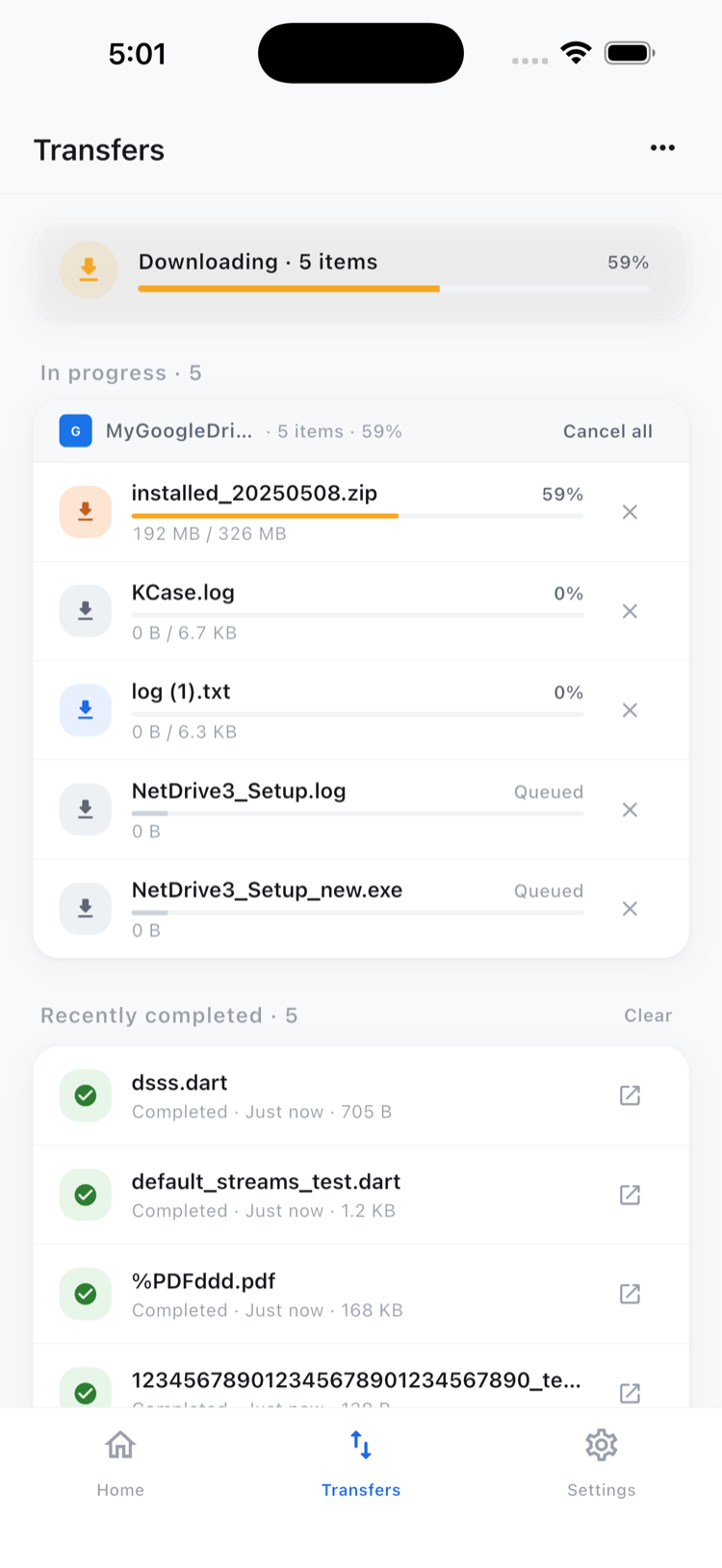
Downloads run on the Transfers tab with live progress, and you can queue several together. Need to get a config file or a log onto your phone to inspect it? Download it and open it in the in-app preview. Need to put something into the bucket — a photo, a file from the device — upload runs the same way, in the background, with the option to cancel.
Beyond S3
The same browser works across the rest of NetDrive Mobile’s object storage support — Backblaze B2, Azure Blob Storage, Azure File Storage, Google Cloud Storage, and OpenStack Swift. If your infrastructure spreads objects across more than one provider, they all show up on the same home screen, side by side with your other clouds.
Wrap-up
Checking an S3 object from a phone shouldn’t mean opening a laptop. Connect your bucket once in NetDrive Mobile and it’s a tap away whenever the question comes up. Download it from the App Store or Google Play and sign in with a free Bdrive account to get started.
— Steve, NetDrive