S3 Test Fixtures for CI Teams — Mounting Amazon S3 as a Drive with NetDrive

Mount Amazon S3 as a local drive letter so CI test fixtures work with ordinary file paths. A NetDrive use case for DevOps teams on Windows and macOS.
A backend team stores 40 GB of binary test fixtures on Amazon S3 — database snapshots, pre-rendered media files, and large reference datasets. Their integration suite reads these as ordinary file paths. Every time a fixture changes, the old workflow is the same: aws s3 cp downloads gigabytes to each CI runner, and anyone who triggers a pipeline waits 25 minutes before tests even start. Mounting the S3 bucket as a local drive with NetDrive eliminates that copy entirely — tests read directly from S3 through a path like T:\fixtures\, with no local download step.


Mount S3 as a drive letter — no downloads, no code changes
NetDrive lets Google Drive, OneDrive, S3, SFTP, WebDAV and more appear as native drives on Windows and macOS — no syncing, no full downloads.
- Any app that reads a file path works automatically
- Auto-mount on boot keeps the drive ready before any login
- Wasabi and MinIO work the same way as Amazon S3
Free trial. Lifetime and subscription plans available.
Why File-Path Compatibility Matters in CI
Most test suites are written to read fixtures from a local path. Changing every fixture reference to an S3 URL means touching dozens of files and potentially breaking the local developer experience too. The cleaner fix is to make S3 look like a local drive so the existing paths keep working without modification.
NetDrive mounts an S3 bucket as a network drive, read-only drive, or local disk volume, depending on what the CI runner needs. On Windows, this becomes a drive letter (T:, S:, etc.) that any process on the machine can read. On macOS, it appears as a FUSE volume in /Volumes/ or a custom path. The test suite sees a file system; NetDrive handles the S3 API calls in the background.
Large fixture files work reliably because NetDrive streams data in chunks and retries automatically on network blips. Files above 5 GB use S3 multipart transfers (available since NetDrive 3.5.434), so there is no practical ceiling on fixture size.

Setting Up an S3 Bucket as a Drive
- Open NetDrive and click + Add Drive in the Drive Manager.
- Choose Amazon S3 from the provider list.
- Enter your AWS Access Key ID and Secret Access Key. Use a dedicated IAM role with least-privilege access — read-only for fixture buckets, write permissions only where tests produce artifacts.
- Enter the Bucket Name. As of NetDrive 3.19.7, the region is auto-detected from the bucket’s configuration, so you can leave the region field blank unless you need to override it.
- In Drive Type, select Network drive for a standard read-write mount or Read-only drive if CI runners should never write back to the fixture bucket.
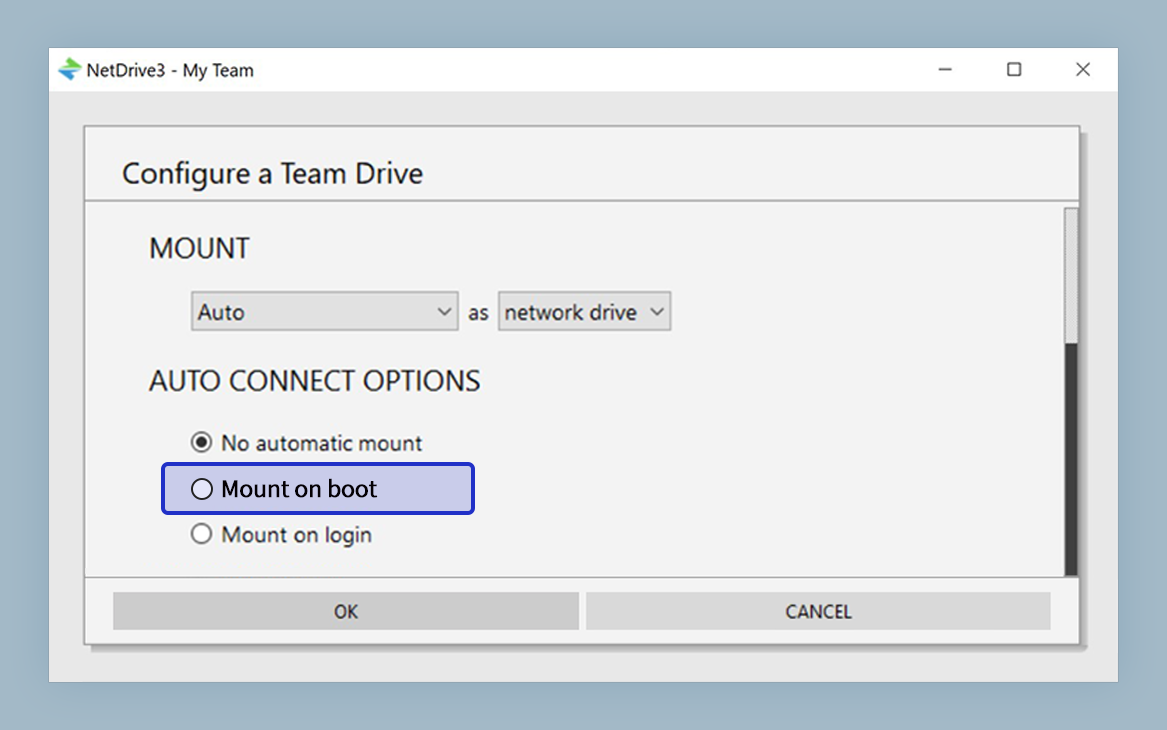
- Set Mount on to Boot — this is the key difference from a developer workstation setup. Boot-time mounting makes the drive available before any user logs in, which is exactly what headless CI servers require.
- Click Mount.
The drive letter (Windows) or volume path (macOS) is now accessible to any process on the machine, including the CI agent, without a user session being active.
Auto-Mount Without Login — Headless CI Server Setup
The Mount on Boot option is what makes NetDrive practical on CI infrastructure. Most CI runners (Jenkins agents, GitHub Actions self-hosted runners, GitLab agents) start as system services, not as user sessions. A drive that only mounts at user login is invisible to these agents.
With boot-time mounting enabled, the S3 drive is present as soon as the OS finishes starting. The CI agent picks it up automatically — no login, no script to run the mount command, no race condition between the agent starting and the drive appearing.
For cases where mounting needs to happen programmatically — for example, dynamically choosing which bucket to mount based on a branch name or pipeline variable — NetDrive includes nd3cmd, a command-line tool added in NetDrive 3.8.921 that allows scripted drive management. Consult the NetDrive support forum for the current nd3cmd command reference, as the exact flags vary by version.
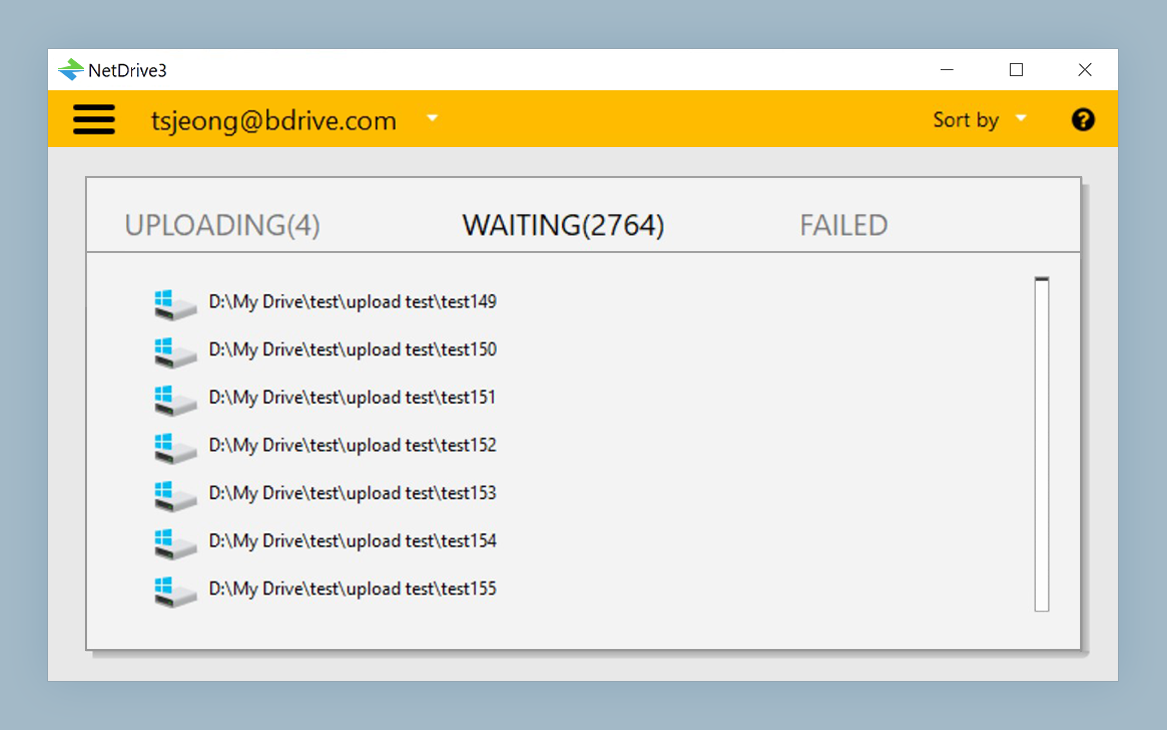
When tests produce artifacts (coverage reports, rendered outputs, benchmark results), the same mounted drive works for writes. NetDrive’s background upload mode writes to a local cache first and uploads to S3 asynchronously, so the test process is not blocked waiting for the upload to complete.
On-Premises S3: MinIO and Wasabi
Not every team uses AWS directly. Some run MinIO on-premises to keep fixture data off public cloud, others use Wasabi for cost-optimized cold storage. NetDrive supports S3-compatible storage providers since 3.4.398 and added explicit MinIO support in 3.15.450.
To connect an S3-compatible endpoint:
- Click + Add Drive and choose S3 Compatible (not Amazon S3).
- Enter the custom endpoint URL of your MinIO cluster or Wasabi region endpoint.
- Enter bucket name and credentials as before.
- Set drive type and mount trigger the same way.
The rest of the setup is identical. From the test suite’s perspective, T:\fixtures\ is T:\fixtures\ regardless of whether the backing store is AWS us-east-1, a Wasabi bucket, or a MinIO cluster running in the same data center as the CI runner.
Wrap-up
Mounting S3 as a drive letter is a zero-code-change way to give CI pipelines access to large fixture libraries stored in object storage. The test suite keeps reading local paths; NetDrive handles the S3 translation. Boot-time mounting means the drive is always there when the CI agent needs it, without any manual intervention.
For setting up S3 access on a developer Mac, see Mount Amazon S3 on macOS with NetDrive. If your team also needs a cost-effective cold storage tier for older fixtures, Mount Backblaze B2 on Windows with NetDrive covers a similar setup with Backblaze’s S3-compatible API.
— Alex, NetDrive