Print and Packaging Design Teams with NetDrive: Shared Artwork, No Overwrites

How print and packaging design teams use NetDrive to mount shared cloud storage, lock artwork files in use, and push big layouts to the cloud in the background.
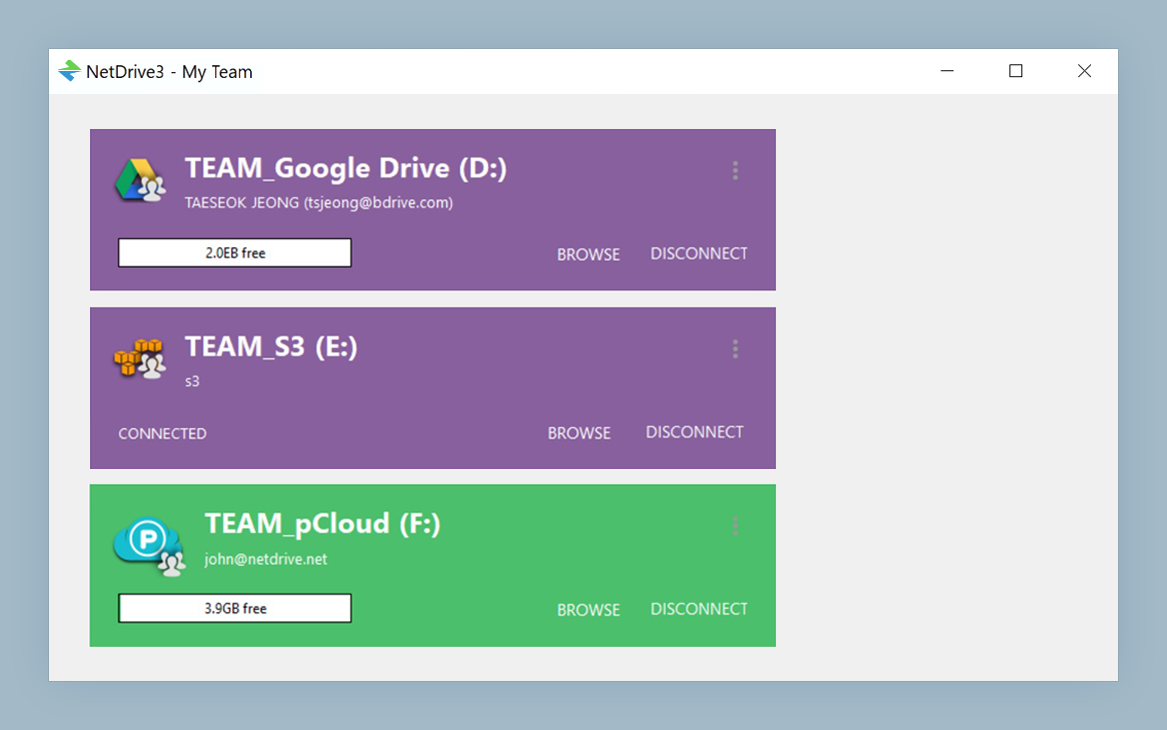
A packaging studio of six has one folder per client: dielines, layered artwork, proofs, and a “final_v7_REAL” file that somebody always opens at the same moment as someone else. The last person to hit Save wins, and the first person’s afternoon quietly disappears. NetDrive gives the whole team the same cloud folder as a regular drive and adds file locking, so two people stop editing the same artwork at once.
One shared drive, no overwritten artwork
NetDrive lets Google Drive, OneDrive, S3, SFTP, WebDAV and more appear as native drives on Windows and macOS — no syncing, no full downloads.
- Mount your team cloud storage as a normal drive on Windows and macOS
- Lock a file while you edit it so teammates see it is taken
- Send large layouts to the cloud in the background while you keep working
Free trial. Lifetime and subscription plans available.
Why Design Folders Break on Plain Cloud Sync
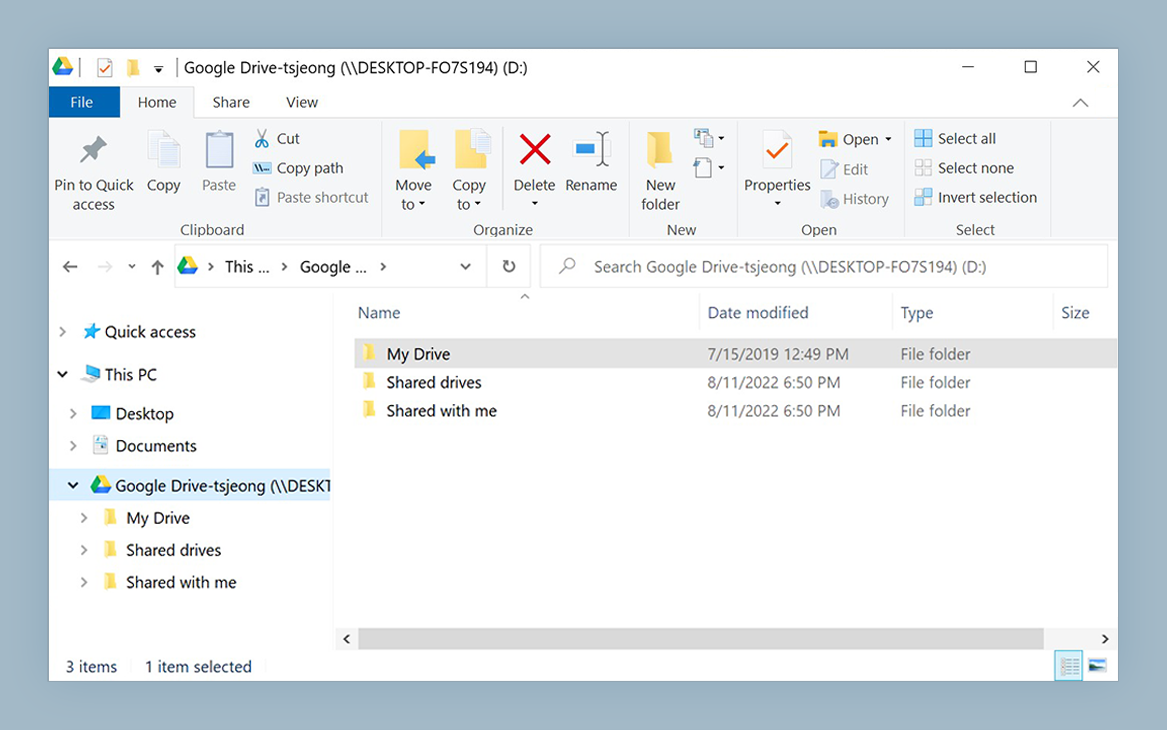
Print and packaging projects are mostly big, layered files and many small linked assets. A browser upload for each revision is slow, and a sync client that mirrors the whole client archive to every laptop eats disk space you would rather spend on working files. Mounting the storage instead means the folder appears in File Explorer or Finder, and your design application’s Open and Save dialogs reach it directly, like any other drive.
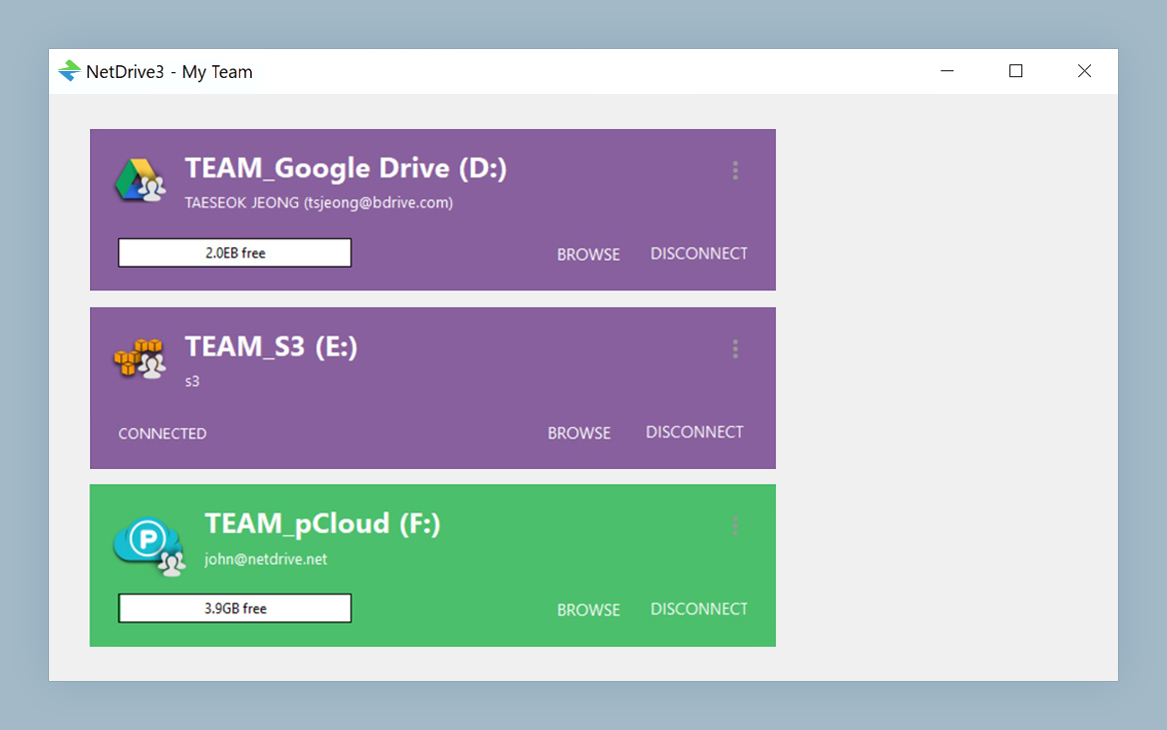
NetDrive can mount Dropbox Business, SharePoint, OneDrive for Business, Google Drive, Amazon S3, Backblaze B2, and SFTP or WebDAV servers, so a studio can keep the storage it already pays for. Add each one from the drive manager and give it a drive letter on Windows or a volume on macOS.
Locking Artwork While Someone Is Editing It
The feature that matters most to a design team is file locking. NetDrive supports locking for all file types, not only Office documents (all-file locking arrived in 3.9.1190; Microsoft Office locking in 3.8.921). Right-click a file, choose the lock option, and teammates see a lock overlay on it in their own Explorer window instead of finding out when their save collides with yours.
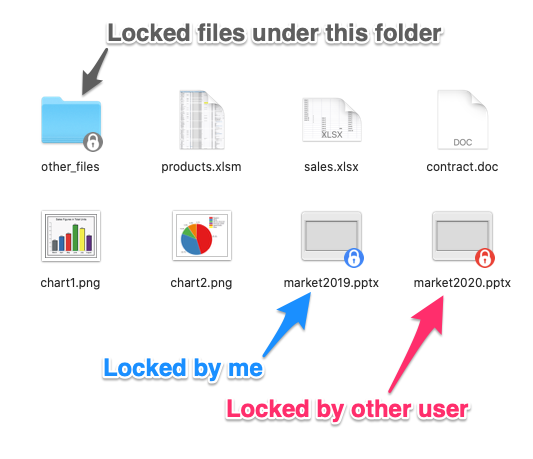
A workable habit for a studio: lock the master artwork file when you start a revision, and unlock it when the proof goes out. The locked-files list shows who is holding what, which makes the Monday question “who has the Acme carton file?” a ten-second look instead of a chat thread. Locking is a team feature, so it works with a NetDrive team license and a published team drive. See Office File Locking with NetDrive for how it behaves with Microsoft Office documents.
Setting Up the Studio Drive
- Open NetDrive and add a new drive from the drive manager.
- Choose the provider your studio already uses, for example Dropbox Business or SharePoint, and sign in.
- Pick a drive letter (Windows) or let macOS assign the volume, then mount.
- If you are the team admin, publish the drive as a team drive from the team management console so every member gets it automatically. The walkthrough is in NetDrive Team Drive — A Guide to Shared Drives.
- Ask each designer to lock a file before a long edit session.
Big Exports and Slow Connections
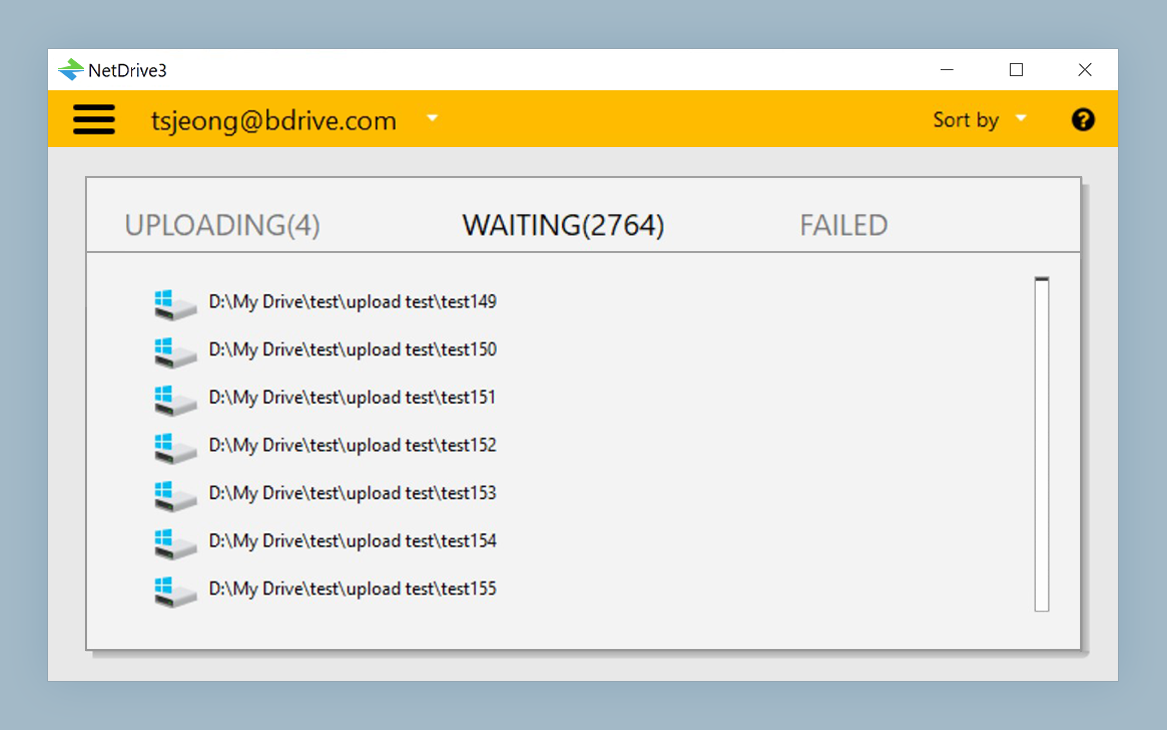
Print-ready PDFs and flattened proofs can run to hundreds of megabytes. NetDrive uploads in the background, so the Save returns and you can keep working while the file finishes its trip to the cloud. If the office line is shared with video calls, set a custom bandwidth limit so uploads do not choke the rest of the building; the steps are in Bandwidth Limit in NetDrive. For a deeper look at upload behavior, read Background Upload Mode in NetDrive.
One honest limit: NetDrive does not have an offline mode, so the mounted drive needs a connection to open files. For a studio working from an office or a good home line that is fine; for flights and site visits, copy the working files to local disk first.
Wrap-up
Design teams do not need another place to keep files; they need the place they already have to behave like a shared drive with a “this one is taken” sign. Mount it, publish it as a team drive, and lock what you edit. Start with the file browser if you want to look at a project folder without mounting anything first.
— Casey, NetDrive