Freelance Designers with NetDrive — One Cloud Workflow for Every Client

Freelance designers juggle a different cloud per client. See how NetDrive mounts Google Drive, Dropbox, Box, and S3 side by side so every client folder opens in your design apps.
A brand designer on three retainers opens Monday with three different logins: one client shares assets on Google Drive, another on Dropbox, and the third insists on Box. Each has its own desktop client, its own sync folder eating disk space, and its own idea of where “final_v7” lives. The fix is not another sync app. It is giving every client’s storage a drive letter, or a volume on macOS, and opening the files straight from Illustrator, Figma exports, or InDesign.


Every client's cloud, one drive list
NetDrive lets Google Drive, OneDrive, S3, SFTP, WebDAV and more appear as native drives on Windows and macOS — no syncing, no full downloads.
- Mount Google Drive, Dropbox, Box, S3, and 20+ other storage types
- Open and save from your design apps without a full local sync
- Windows and macOS, with read-only drives for approved deliverables
Free trial. Lifetime and subscription plans available.
Why Per-Client Sync Clients Break Down
Sync clients assume one person, one account, one folder that mirrors everything. Freelancers break that assumption on day one. Three clients means three background agents, three sync folders, and a laptop SSD that fills with brand archives you only touch twice a year.
NetDrive takes a different approach. It mounts each cloud as a native drive in Windows Explorer or macOS Finder, so a client’s Google Drive is just another location next to your local folders. You connect each client’s account once under its own entry, and the Drive Manager lists every connection as a card. Nothing about one client’s account touches another’s.
Supported providers include Google Drive, Dropbox, Dropbox Business, Box, OneDrive, OneDrive for Business, SharePoint, Amazon S3, and Backblaze B2, plus WebDAV, FTP, and SFTP for the client who still runs a file server. Check the NetDrive download page for the current platform requirements.
A Setup That Keeps Clients Separate
The easiest way to stay organized is to mirror your client roster in the Drive Manager. One connection per client account, named for the client, mounted every time you log in. When a retainer ends, you remove that one entry and nothing else on your machine changes.
Here is a layout that works well in practice:
- Active client drives mounted as normal network drives, so you can read and write.
- Brand-guideline or approved-asset drives switched to a read-only drive. Once a client signs off on a logo pack, you can reference it without any chance of saving over it by accident. The Read-Only Drive Mode guide walks through that setting.
- Your own archive, for example a Backblaze B2 bucket of finished projects, mounted so old work is one click away without living on your SSD.
Uploading Big Exports Without Babysitting
Design deliverables get large quickly: layered PSDs, packaged InDesign folders, video bumpers rendered for a campaign. Saving a 600 MB package straight to a client’s cloud can stall your app if it waits on the upload.
NetDrive’s background upload mode lets the save return quickly while the upload continues behind it, and you can watch progress from the upload queue. If you would rather an app only report “saved” after the file has reached the cloud, NetDrive also offers a synchronous mode. Pick per drive depending on how much you trust the connection you are on that day. The details are in Background Upload Mode.
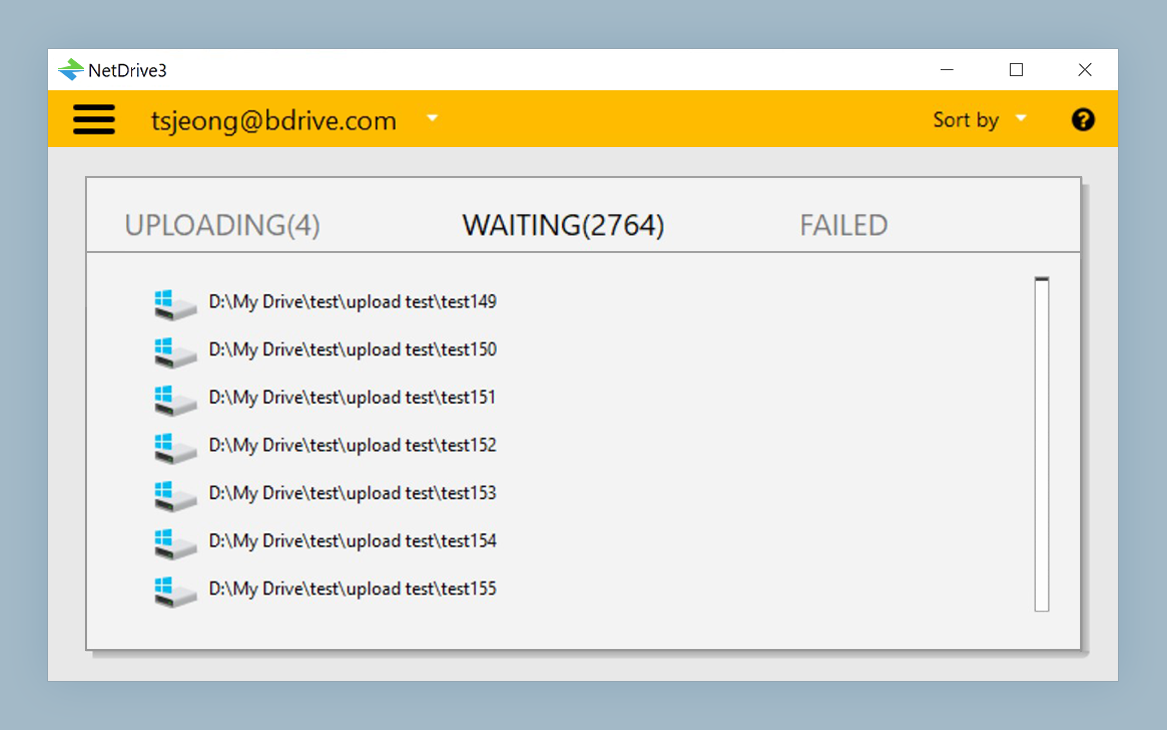
One caution: NetDrive does not have an offline mode. Files stream from the cloud when you open them, so plan for a connection when you travel. Download anything you must work on in the air before you leave.
Step by Step: Add Your First Client Drive
- Open NetDrive and click Add Drive in the Drive Manager.
- Choose the provider your client uses, such as Google Drive, Dropbox, or Box, and sign in to the client’s account when prompted.
- Name the connection after the client so it is obvious in the list.
- Set the Drive Type. Leave it as Network drive for active work, or pick Read-only drive for finished assets.
- Mount the drive. On Windows it gets a letter; on macOS it appears in Finder under
/Volumes. - Repeat for each client. Every connection stays independent.
If a listing ever looks out of date because a client’s teammate just added files, use the folder refresh option described in Force Folder Refresh.
Wrap-up
NetDrive will not replace your design tools, and it does not make a slow connection fast. What it does is remove the per-client sync clutter so your work lives in the clouds your clients already use. A free trial is available on the download page, so you can try it on your next project kickoff.
If you work with a small team rather than solo, Team Drives and File Locking for Creative Teams covers shared drives. For heavier media work, see Video Editing with 4K Raw in Cloud Storage.
— Alex, NetDrive