Browse Azure Blob Storage on iPhone and Android — NetDrive Mobile

Connect Azure Blob Storage containers to NetDrive Mobile and browse, upload, or download your blobs directly from iOS or Android. No laptop needed.
Azure Blob Storage is the default object store for a huge range of workloads — backup archives, media pipelines, data lake staging, application logs. Getting to a specific blob from your phone usually means navigating the Azure Portal’s mobile site or hoping a shared link has not expired. NetDrive Mobile connects directly to your Blob containers and lets you browse, upload, download, and preview files on iOS and Android as if it were a standard file manager.
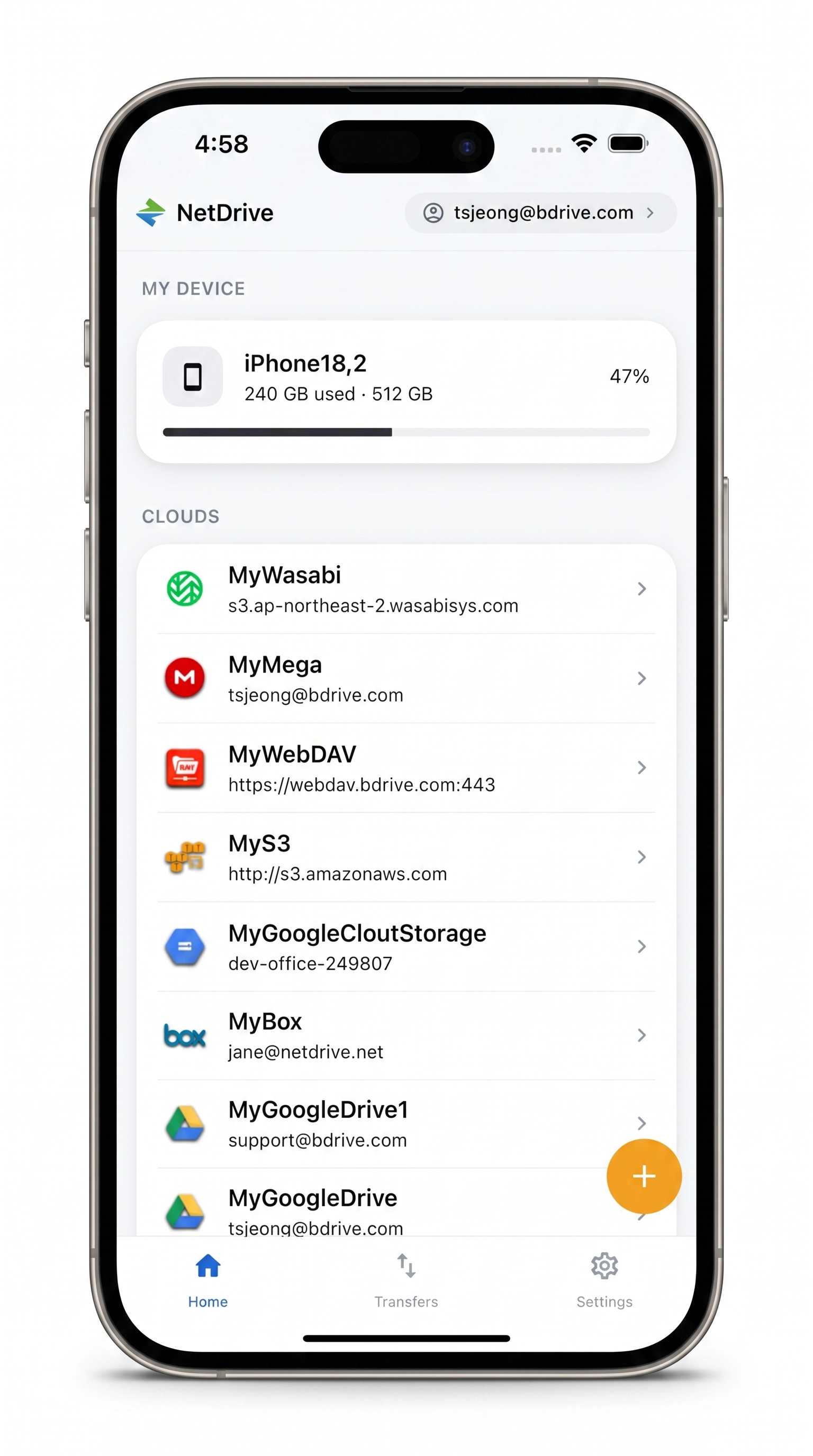
All your cloud storage — including Azure Blob — in one mobile app
NetDrive Mobile opens Google Drive, Dropbox, OneDrive, S3, WebDAV, SFTP and more in one app — browse, upload, download, and preview right from your phone.
- Browse Blob containers and virtual folder prefixes
- Upload photos and files directly from your phone
- Preview documents and images in-app, no download needed
Free Bdrive account required.
What You Can Do with Azure Blob in the App
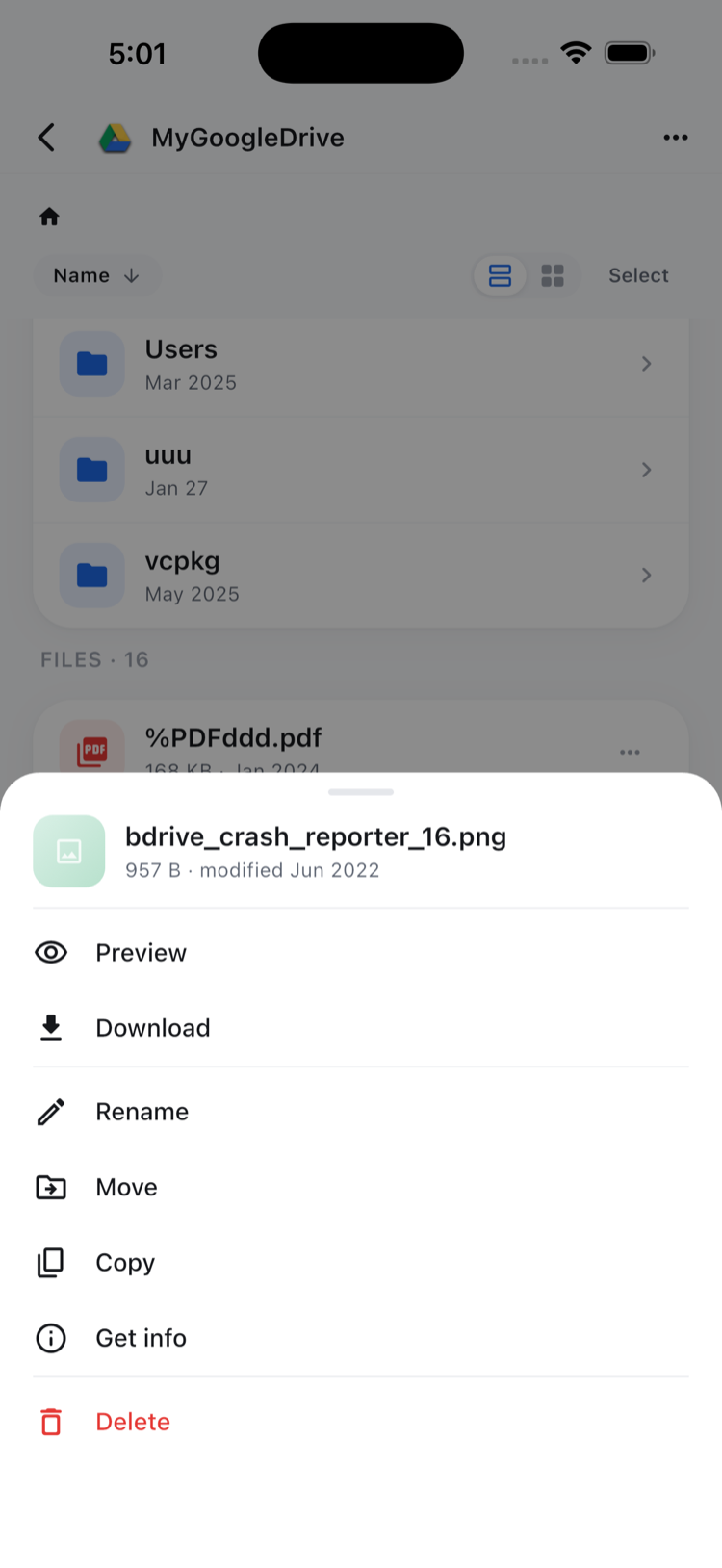
NetDrive Mobile treats your Azure Blob containers as browsable folders. You navigate virtual folder prefixes the same way you would browse directories on a file system: tap a prefix to drill in, tap a file to open the action sheet.
From the action sheet you get Preview, Download, Rename, Copy, Move, Get info, and Delete. Preview opens images, documents, and videos directly in the app without saving the full file to your camera roll. Download saves the blob locally so you can hand it off to another app — a PDF reader, a spreadsheet editor, or your media player.
Copy and move work within the same Azure Blob drive. If you need to transfer blobs between Azure and a different cloud provider — say, from Blob to Google Drive — that falls outside NetDrive Mobile’s scope. Cross-provider transfer is the domain of RcloneView, the sibling product built for cloud-to-cloud operations.
What You Need Before You Start
- A free Bdrive account — sign up at netdrive.net
- An Azure Storage account with at least one Blob container
- Your Azure Storage credentials (account name and key)
- NetDrive Mobile on your iPhone (iOS 15 or later) or Android device
Add Your Azure Blob Account
Open NetDrive Mobile and tap + to open the “Add a drive” sheet. Scroll through the provider list and select Azure Blob Storage.
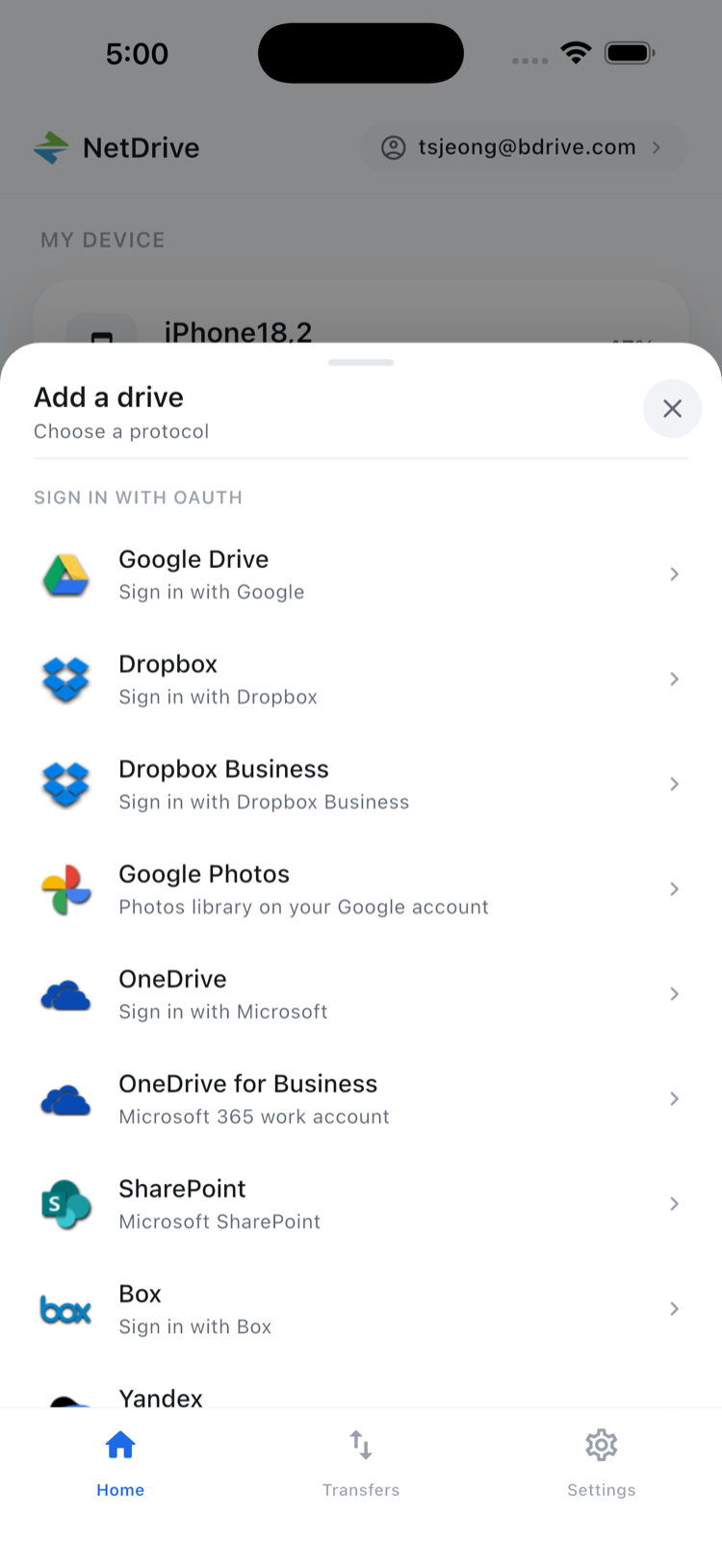
Enter your storage account name and access key. After a successful connection your containers appear as top-level entries on the drive’s home screen. You can add multiple Azure accounts — separate accounts for production and staging, for example — and NetDrive Mobile keeps them in a unified list alongside your other clouds.
Browsing Containers and Blob Paths
Your container list appears as a folder view. Tap any container to see its contents. Azure Blob Storage does not have true directories, but NetDrive Mobile renders the /-delimited blob names as a nested folder tree, so a blob named logs/2026/june/app.log appears under logs → 2026 → june, exactly as you would expect from a file manager.
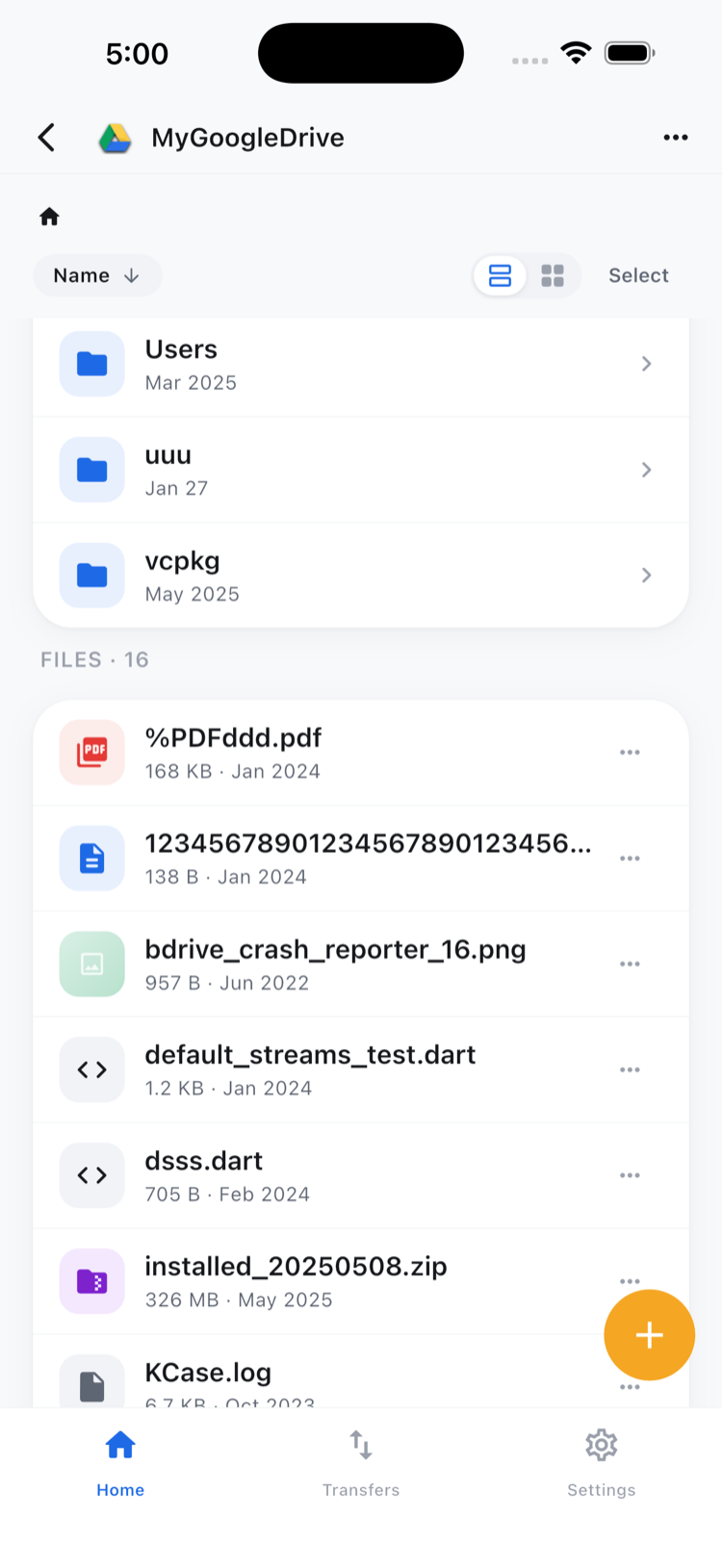
Tap any file to open its action sheet and choose what to do with it.
Uploading Files from Your Phone
Navigate to the target prefix and tap the upload button. You can pick from your camera roll, take a new photo or video, or choose any file from the iOS Files app or Android’s storage picker. Multiple uploads queue in the Transfers tab, where you can monitor progress and cancel individual items.
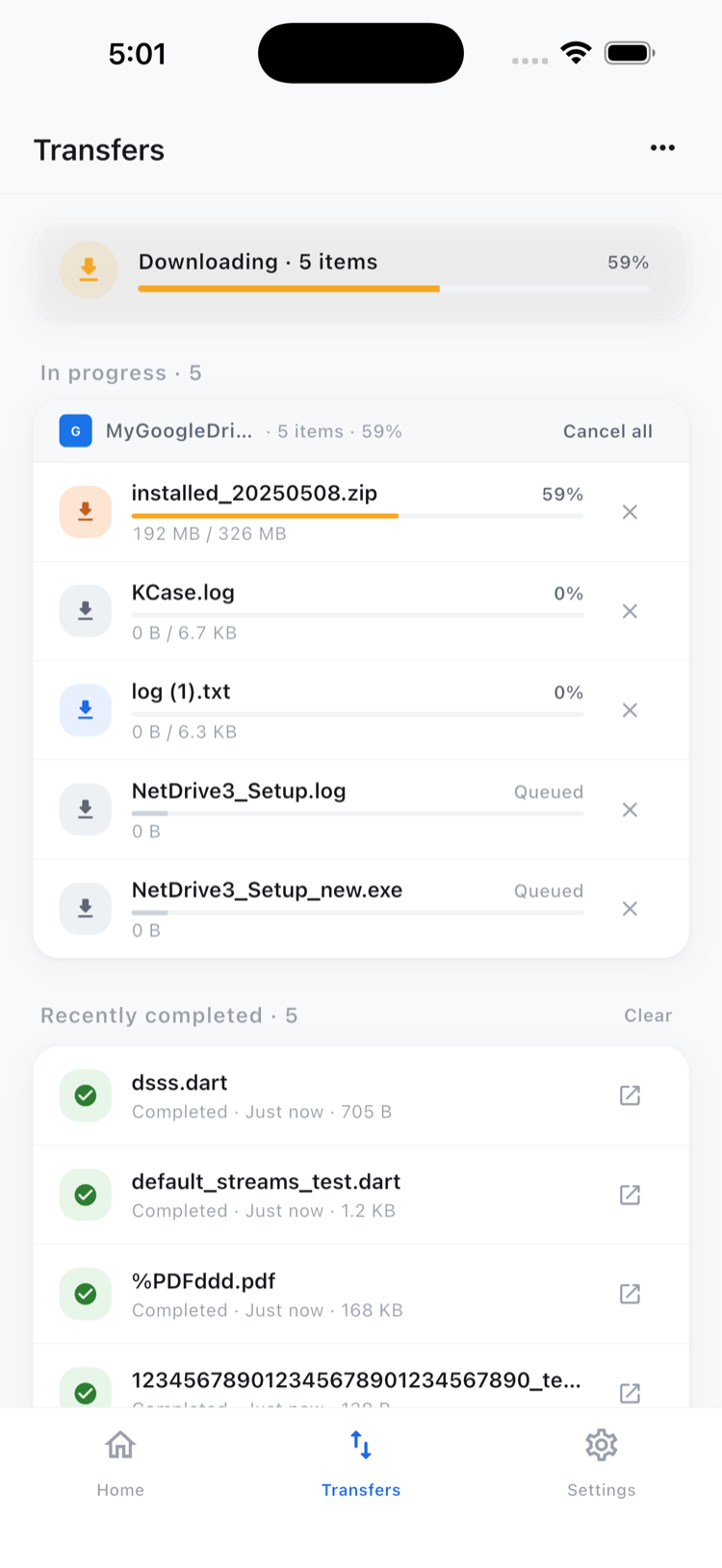
This flow is practical for field engineers who collect inspection photos on their phone and need them in a Blob container for automated processing — navigate to the right prefix, tap upload, confirm the transfer completed, done.
Real Scenarios Where This Helps
A data analyst who keeps monthly reports in Blob can pull the latest CSV while waiting for a meeting to start, without opening a laptop. A developer on call who needs to check a log file stored in a staging container can browse directly to it from their phone rather than SSHing into a jump box. A content team uploading raw assets for a media pipeline can send files from the field the moment a shoot wraps.
All of this requires only a free Bdrive account and your Azure credentials — no extra configuration, no desktop client running somewhere, no VPN in most cases.
Wrap-up
Azure Blob Storage on NetDrive Mobile closes the gap between your cloud infrastructure and your phone. For a broader look at all the cloud providers NetDrive Mobile supports, see Every Cloud in One App. If you also store files in Amazon S3, the S3 provider guide for mobile walks through the same workflow for S3 buckets.
— Robin, NetDrive