Mount OneDrive on Windows — Drive Letter Access with NetDrive

Mount personal OneDrive or OneDrive for Business on Windows as a drive letter with NetDrive. Skip forced sync and browse your cloud files like a local disk.
You have 1 TB of OneDrive storage through Microsoft 365, but the built-in OneDrive sync client keeps downloading gigabytes of files you haven’t touched in months. NetDrive takes a different approach: it mounts your OneDrive account as a drive letter—O:, Z:, or whatever you prefer—and streams files on demand. Nothing lands locally until you actually open a file.


Access OneDrive as a Windows drive letter
NetDrive lets Google Drive, OneDrive, S3, SFTP, WebDAV and more appear as native drives on Windows and macOS — no syncing, no full downloads.
- Mount personal OneDrive or OneDrive for Business
- No forced sync — files stay in the cloud until you open them
- Auto-mount on Windows startup, even before login
Free trial. Lifetime and subscription plans available.
What Mounting Means Compared to Syncing
The built-in OneDrive client maintains a local copy of your files—or at minimum their placeholders—and continuously watches for changes. That works fine for a handful of project folders, but it struggles when you have hundreds of gigabytes across team libraries and need those files reachable from any Windows app: Premiere Pro, AutoCAD, a data pipeline, or a legacy tool that only understands local paths.
NetDrive presents your OneDrive account as a native Windows network drive. Windows Explorer shows it alongside C: and your other drives. Any application that can open a file from a path can open a file from your mounted OneDrive. You read and write to cloud storage exactly as you would a local folder, without configuring sync rules or managing exclusions.
NetDrive supports both personal OneDrive (Microsoft account) and OneDrive for Business (Microsoft 365 / work account), including OneDrive for Business v2, which uses Microsoft’s modernized API.
Requirements
- Windows 8, 8.1, 10, or 11 (including Windows Server 2012 through 2022)
- NetDrive installed — a 7-day free trial covers the full setup and initial testing
- A Microsoft account for personal OneDrive, or Microsoft 365 credentials for OneDrive for Business
No additional drivers are required. NetDrive ships its own filesystem driver (CBFS — Callback Filesystem) on Windows, so there are no third-party kernel extensions to install separately.
Connecting OneDrive in NetDrive
- Open NetDrive and click the + button in the drive manager to add a new connection.
- In the provider list, select OneDrive (for a personal Microsoft account) or OneDrive for Business (for a Microsoft 365 work or school account).
- Click Sign in with Microsoft — NetDrive opens a browser window for OAuth authentication. Log in with your Microsoft credentials and grant the requested permissions.
- After authentication, the drive configuration screen appears. Assign a Drive Letter — O: is a convenient mnemonic for OneDrive — and give the connection a display name.
- Under Mount Type, choose Network Drive for standard access. If an application on your machine checks whether a drive is local and refuses network drives, try Local Disk or Removable Drive instead.
- Click Mount — the drive appears in Windows Explorer within a few seconds.
The first time you browse the drive, NetDrive fetches directory listings from the OneDrive API. Individual files are not downloaded until you open them.
Mount Options Worth Configuring Early
Auto-mount on boot: Open the drive settings and set auto-mount to Boot if the drive must be available before any user logs in — useful on shared workstations or Windows Server machines where a service reads from OneDrive. Choose Login if you only need the drive during an active user session.
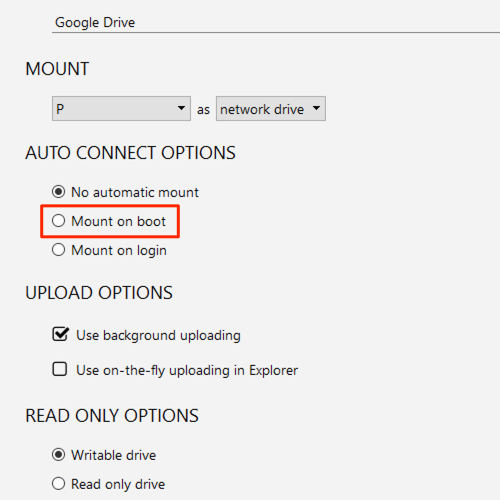
Async vs. sync upload mode: By default, NetDrive uploads files in the background so your application returns immediately after a save operation. If your workflow requires the file to be confirmed in OneDrive before the next step runs — for example, a script that moves a file after writing it — switch the drive to sync upload mode in the drive configuration panel.
Read-only mount: To share the drive on a machine where other users should not modify files, set the mount type to Read-Only Drive. NetDrive enforces read-only at the filesystem level, so no separate permission management is required.
Wrap-up
NetDrive gives you direct drive-letter access to OneDrive on Windows without sync overhead or storage consumption. Whether you’re accessing personal storage or a corporate OneDrive for Business account, the setup takes under five minutes and works with any Windows application that reads from a file path. For other providers, see mounting Google Drive on Windows or the full NetDrive provider comparison.
— Robin, NetDrive