Event Planners with NetDrive Mobile — Run-of-Show Files in Your Pocket
Event planners use NetDrive Mobile on iPhone and Android to open vendor contracts, floor plans and run sheets from several clouds, preview them and upload venue photos on site.
Two hours before doors open, the caterer asks for the final headcount sheet and the AV lead wants the stage plot. The headcount lives in the client’s Google Drive, the stage plot in your team’s Dropbox, and the venue sent a PDF to a SharePoint site. NetDrive Mobile opens all three in one app, so you can find each file without leaving the ballroom.

Every event file, one app
Open Google Drive, Dropbox, OneDrive and SharePoint on iPhone and Android. Preview, download and upload on site.
- Clients, venues and vendors on one home screen
- Preview PDFs and images before you share them
- Upload on-site photos with progress and cancel
Free Bdrive account required.
One Home Screen for Clients, Venues and Vendors
Every event pulls files from different organizations. NetDrive Mobile lists each connected account as its own drive on the home screen, so moving from the client’s folder to the venue’s takes a tap. You can add more than one account from the same provider, which helps when two clients each share a Google Drive.
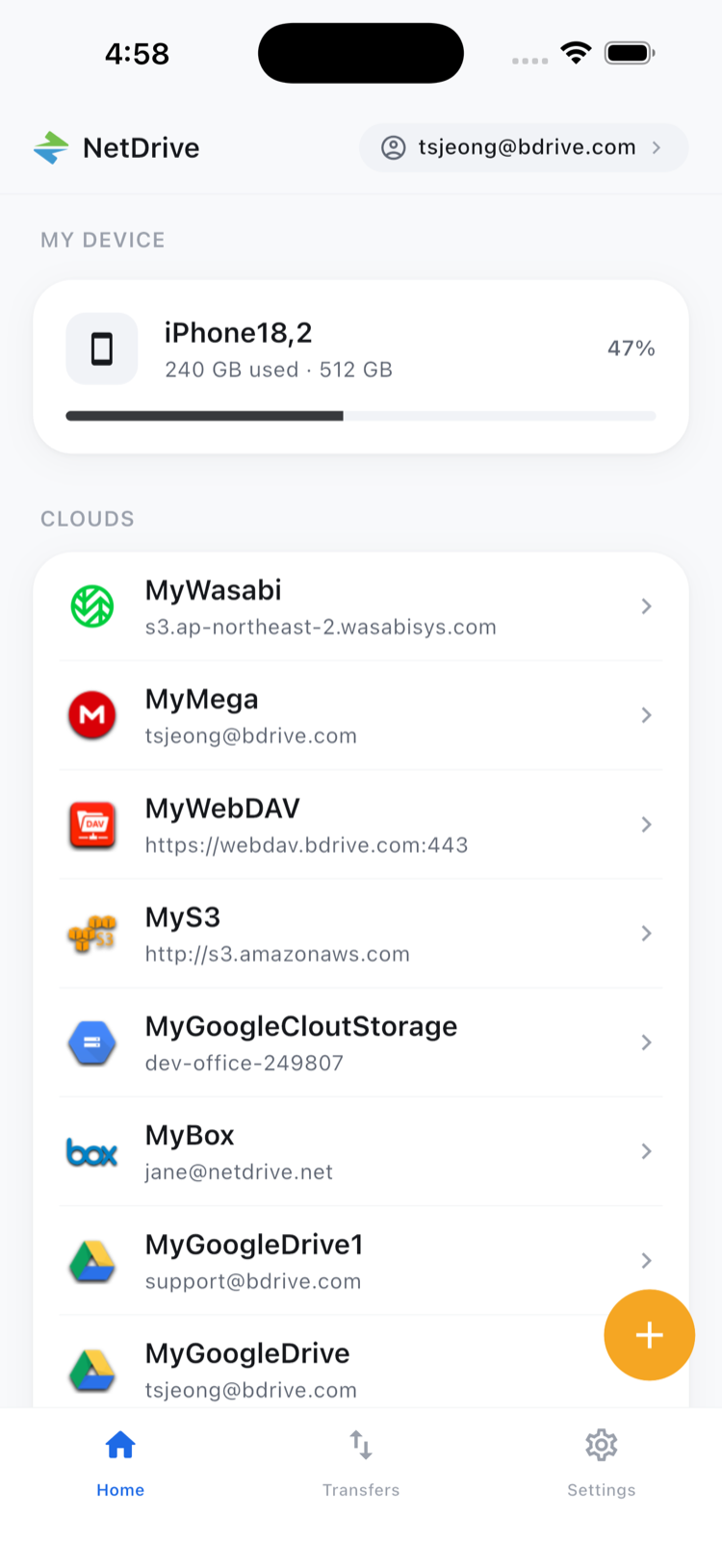
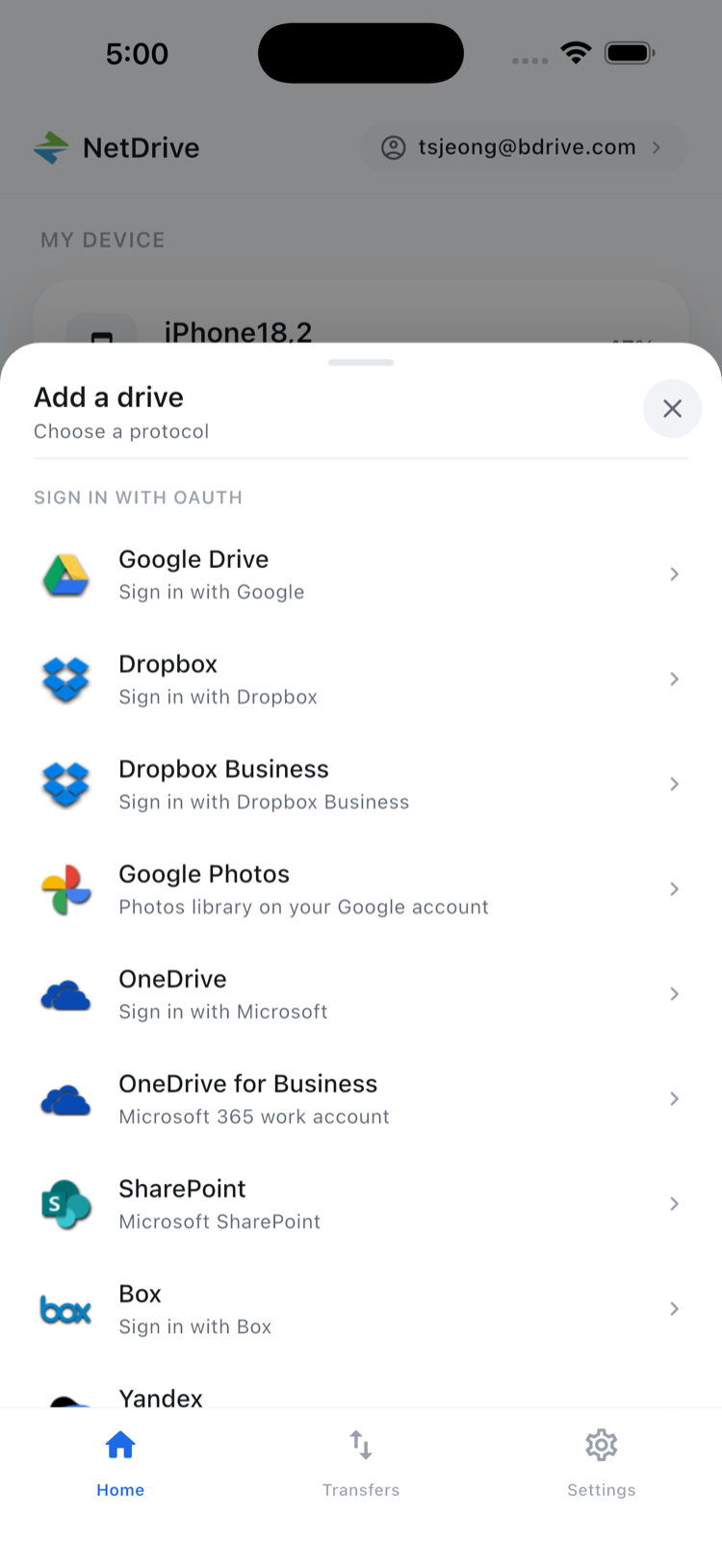
To connect an account, open the Add a drive sheet and pick the provider. Supported providers include Google Drive, Dropbox, OneDrive, OneDrive for Business, SharePoint, Box and Amazon S3, plus WebDAV, FTP and SFTP servers. NetDrive Mobile needs a free Bdrive account, and you can sign in with Apple or Google.
Open the Right File Under Pressure
Event files tend to have near-identical names: “RunOfShow_v7”, “RunOfShow_v8_FINAL”. Open the drive, go to the event folder and sort by date to see the newest one first. Tap a file to open the in-app preview for documents, images and video, and check the version before it goes to a vendor.
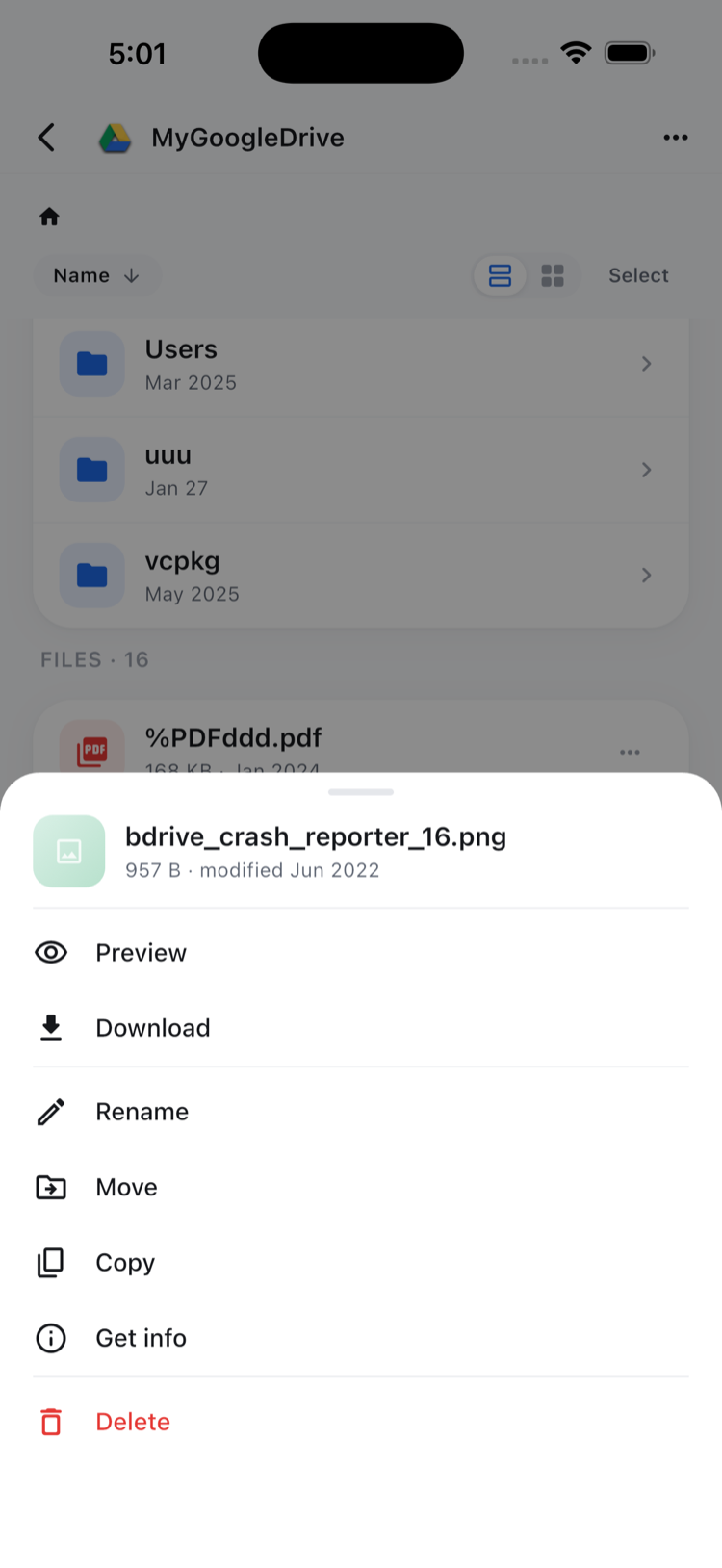
Tapping a file’s actions gives you Preview, Download, Rename, Move, Copy, Get info and Delete. Copy and Move work inside a single cloud, so a file stays in the drive it belongs to.
Capture on Site, Upload Right Away
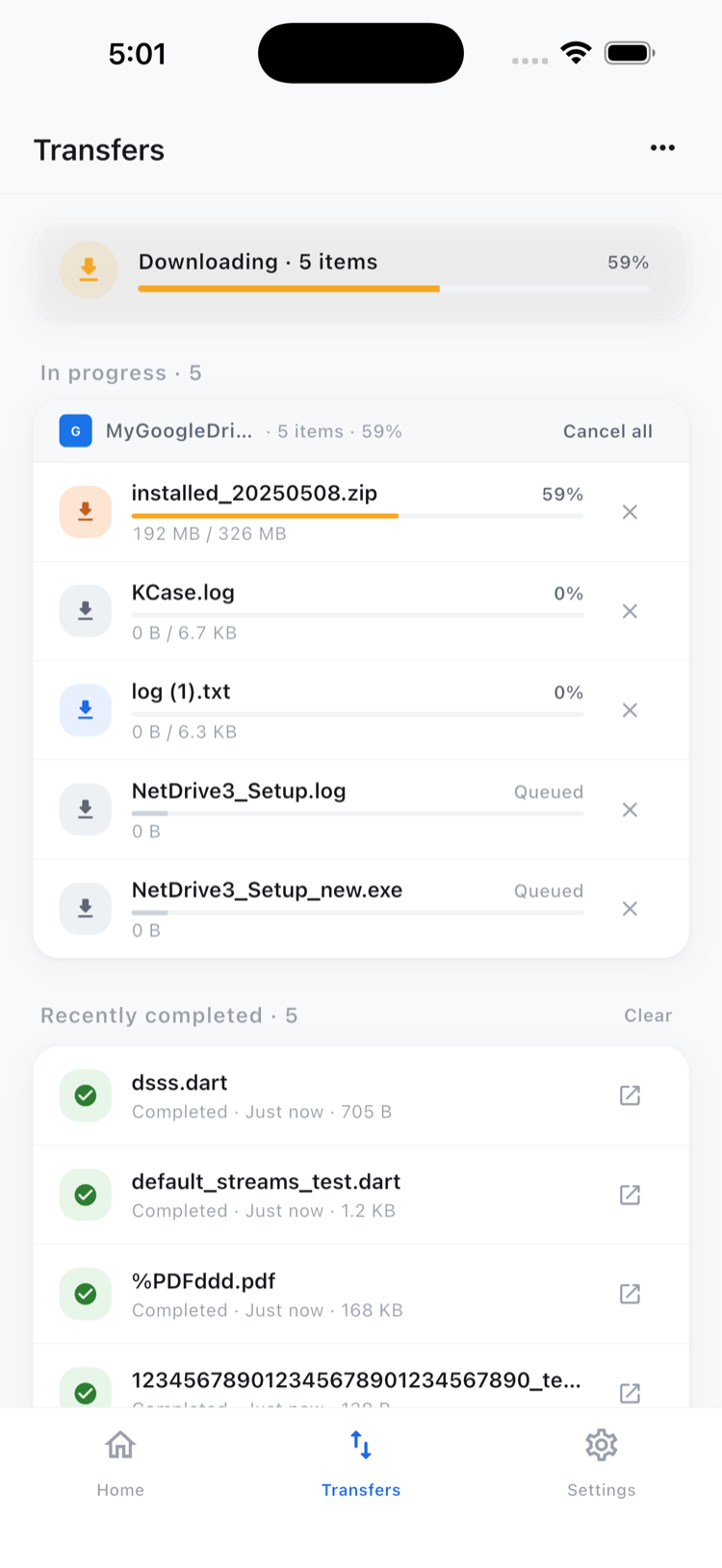
Walk-throughs generate evidence: a damaged chair, the final table layout, the load-in dock. Open the event folder and add files from the camera, your photo library or the file picker. Several uploads can run together, each with progress and a cancel option.
For a bigger cleanup, multi-select lets you act on many files at once. Bulk File Actions in NetDrive Mobile walks through it.
A Quick Routine for Event Day
- Open NetDrive Mobile the day before and confirm each client and venue drive still loads.
- Download the run sheet, floor plan and vendor contacts you cannot afford to miss, since venue basements rarely have reliable signal.
- Check the drive name at the top of the file browser before you upload so photos land in the right folder.
- Upload site photos and signed forms as the day goes on.
What to Keep in Mind
NetDrive Mobile browses, previews, uploads and downloads. It does not move a file directly from one cloud to another, so to put a vendor file in the client’s folder, download it and upload it there. Some clients limit which devices can sign in, so check their policy first. If you work from a laptop in the office, Marketing Agencies with NetDrive covers the desktop side.
Wrap-up
Event work happens away from the desk, and the file you need is rarely where you are. For first-run setup, start with NetDrive Mobile — Getting Started, and see Multiple Cloud Accounts in NetDrive Mobile for keeping logins tidy.
— Tayson, NetDrive