Podcast Producers with NetDrive — Raw Recordings Without Filling Your Laptop

Mount Backblaze B2 or Dropbox as a drive for podcast raw tracks, edits, and episode archives with NetDrive. Background uploads, file locking, and bandwidth control.
A weekly interview show records two hours of multitrack audio per episode: one WAV per guest, a backup recorder, and a pile of room tone. After a year that is a few hundred gigabytes the producer’s laptop was never meant to hold, yet last season’s tracks still have to be reachable when a guest asks for a clip or a sponsor wants a re-cut. NetDrive mounts a cloud bucket as a normal drive on Windows or macOS, so the whole archive sits in the file dialog of your editor without living on your disk.
Keep every episode one folder away
NetDrive lets Google Drive, OneDrive, S3, SFTP, WebDAV and more appear as native drives on Windows and macOS — no syncing, no full downloads.
- Mount Backblaze B2, Dropbox, or Google Drive as a drive letter or Finder volume
- Background uploads keep finished mixes moving while you edit
- File locking stops two editors overwriting the same session
Free trial. Lifetime and subscription plans available.
Why a Mounted Drive Suits an Audio Workflow
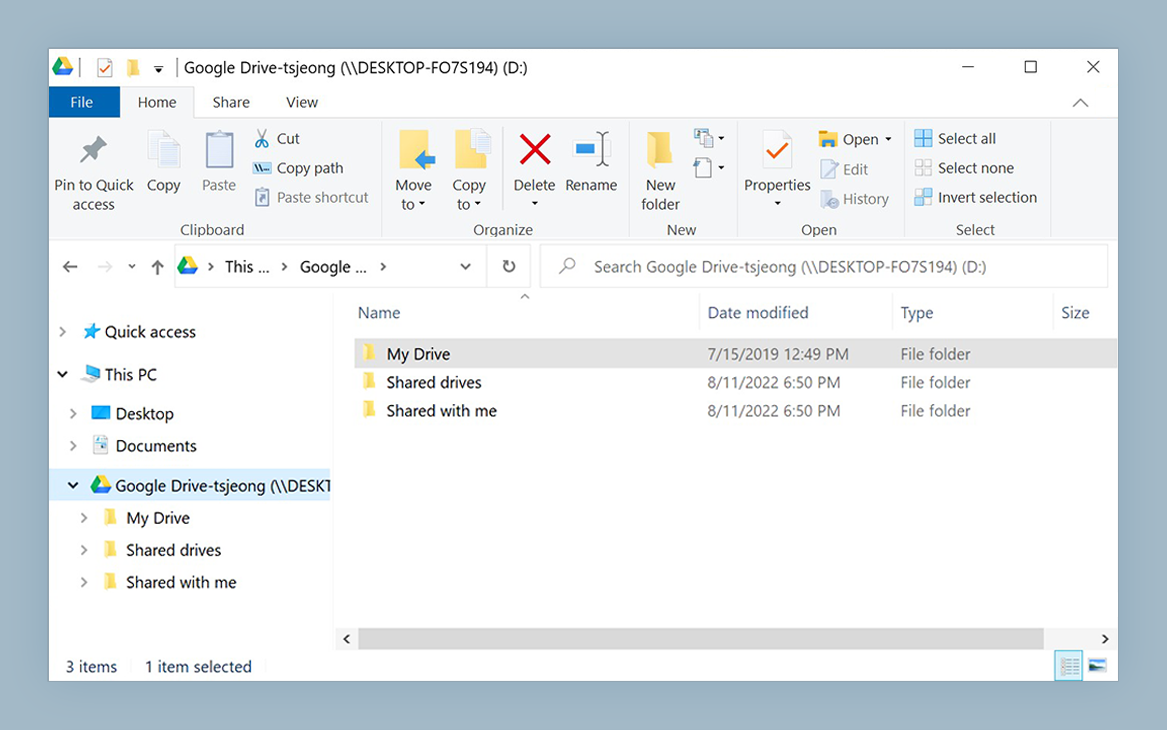
Editors such as Reaper, Audition, or Logic open files through ordinary file dialogs. They do not know about cloud accounts, and they should not have to. Once NetDrive mounts a bucket as a drive, the editor browses Podcast-Archive/2026/ like any local folder, and you open last March’s episode in the same way as yesterday’s.
Compare that with a sync client, which wants a full local copy of every folder it manages. For a show with three seasons of tracks, that is the exact problem you were trying to avoid. A mounted drive gives you the archive’s structure without asking for its full size on your disk.
Picking a Home for the Archive
Which provider you use matters less than keeping one consistent layout. Many shows split storage by purpose:
- Raw recordings and finished masters go to an object store such as Backblaze B2 or Amazon S3, where large audio files rarely change.
- Show notes, scripts, and artwork stay in Dropbox or Google Drive, where the whole team already has accounts.
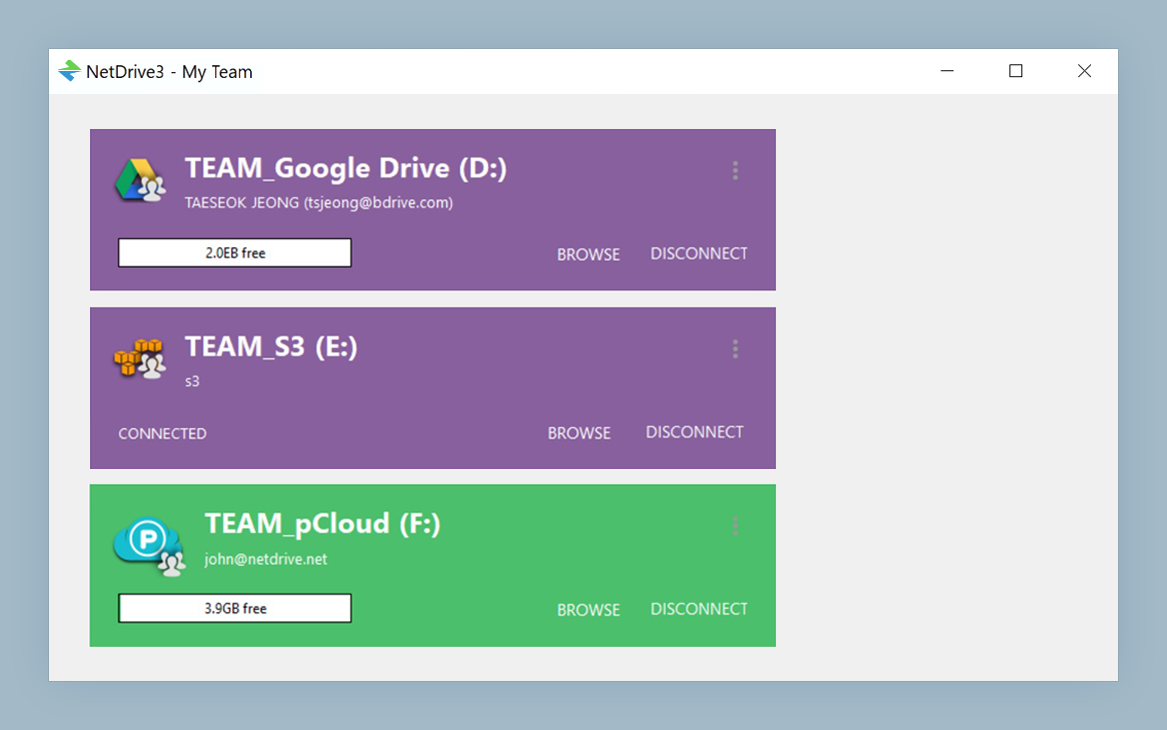
NetDrive can mount several providers at once, so both appear side by side in the drive manager with their own letters. Nothing forces you to consolidate before you start.
Uploading Without Stalling the Edit
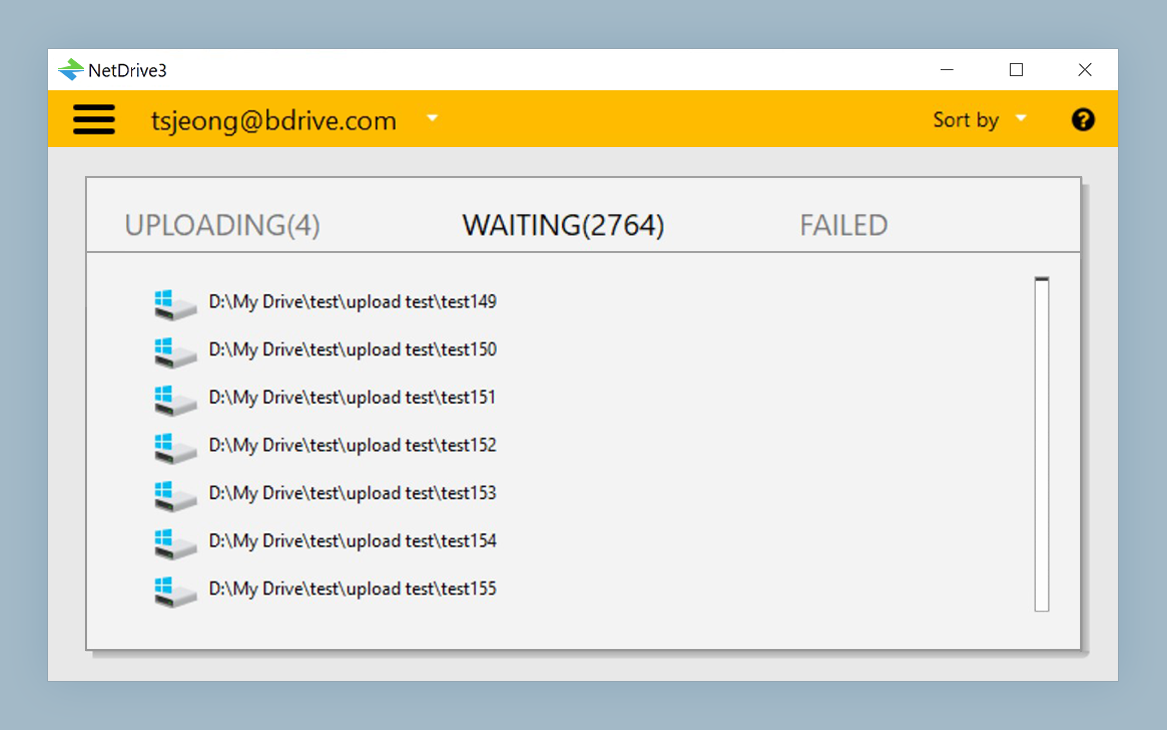
The awkward moment is finishing a mix at 11 p.m. and needing it uploaded for the morning release. Saving or copying files into the mounted drive queues them for upload in the background, so the editing app is free again right away. The upload view shows progress, which tells you whether the master is safely in the bucket before you close the laptop.
If the upload competes with a live call or a remote recording session, use NetDrive’s bandwidth setting to cap its share of your connection. Details are in Bandwidth Limits in NetDrive, and how queued transfers behave is covered in Background Upload Mode.
Setting Up the Archive Drive
- Open NetDrive → click Add a Drive in the drive manager.
- Choose Backblaze B2 (or your own provider) and enter the account credentials.
- Pick a drive letter on Windows, or a mount location on macOS.
- Click Mount. The bucket appears in Explorer or Finder.
- Create a folder per season, and a
rawandmastersfolder inside each, so everyone uses the same layout.
For a more detailed provider walk-through, see Mount Backblaze B2 on macOS.
Protecting Sessions When Two People Edit
With a co-host or an outside editor, the risk is that both open the same session on the same night and the later save wins. NetDrive’s file lock works on any file type on a mounted drive, so a session you are editing shows as locked to everyone else. Teams publishing a shared drive can read how in NetDrive Team Drive.
One honest limit: NetDrive does not offer an offline mode, so you need a connection to reach files on the mounted drive. Plan travel sessions accordingly, and copy the tracks you will need onto local disk beforehand.
Wrap-up
Treat the cloud bucket as the archive and your laptop as the workbench: record, edit, copy the mix into the mounted drive, and let the upload finish in the background. For the studio-sized version of this setup, read Audio Studios with NetDrive.
— Jay, NetDrive