NetDrive Team Drive — Share Cloud Drives Across Your Entire Team

Learn how NetDrive's Team Drive lets an IT admin publish shared cloud storage to every team member automatically, with built-in file locking to prevent edit conflicts.
A 12-person creative studio using an S3 bucket as their shared asset library runs into the same problem every time someone new joins: two days of hand-holding to configure NetDrive, and inevitably one or two machines end up with mistyped bucket names or wrong regions. NetDrive’s Team Drive feature eliminates that setup tax — an administrator publishes shared drives once, and every team member receives them automatically on login.


Mount shared cloud storage for your whole team
NetDrive lets Google Drive, OneDrive, S3, SFTP, WebDAV and more appear as native drives on Windows and macOS — no syncing, no full downloads.
- Admin publishes team drives once — members get them automatically on login
- File locking prevents two people from overwriting the same document
- Works with S3, SharePoint, Dropbox, Google Drive, and 20+ other providers
Free trial. Lifetime and subscription plans available.
What Team Drive Is (and What It Is Not)
Team Drive is a NetDrive feature built around a two-role model: an administrator who defines and publishes cloud drives, and members who see those drives appear automatically after logging in with their Bdrive account.
The key difference from a personal drive is ownership. A personal drive lives only on the machine where it was created. A Team Drive is stored in the team account and pushed to every member who has a license assigned to them. When the admin updates the connection settings — say, rotating an S3 access key — every member picks up the change on their next reconnect, without anyone filing a support ticket.
This is not a sync tool. NetDrive does not copy files from the cloud to a local disk. Team Drive is a shared mount configuration: every member accesses the same bucket or folder directly through their own NetDrive client, with no local copy made.
Setting Up a Team Drive as Administrator
To create a Team Drive, open the NetDrive application and switch to the Team section. From there:
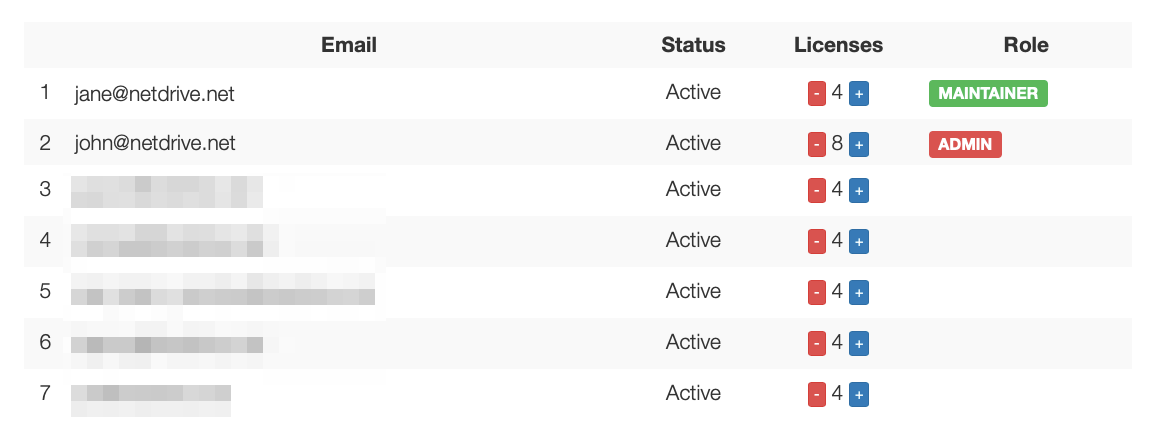
- Create or select a team. If this is your first time, create a team and assign Bdrive licenses to your members. Members must accept the invitation before they can receive team drives.
- Add a new drive. Click New Drive inside the team context and choose the cloud provider. Configuration steps are identical to a personal drive — credentials, bucket or folder path, optional drive letter.
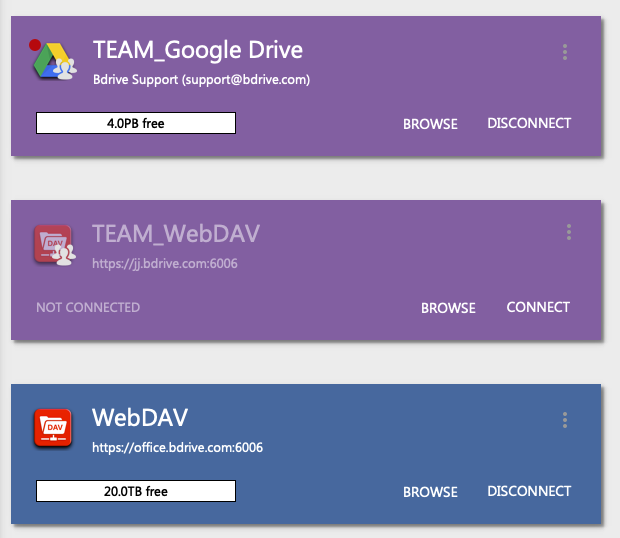
- Publish to members. Once saved, the drive appears in the member list with a toggle to control which members receive it. Enable it and the drive shows up for those members on their next NetDrive login.
The admin can publish different drives to different members. A design team might get the S3 media bucket while the engineering team gets the SFTP build artifacts share — all managed from the same admin view without duplicating credential configurations.
How Members Connect
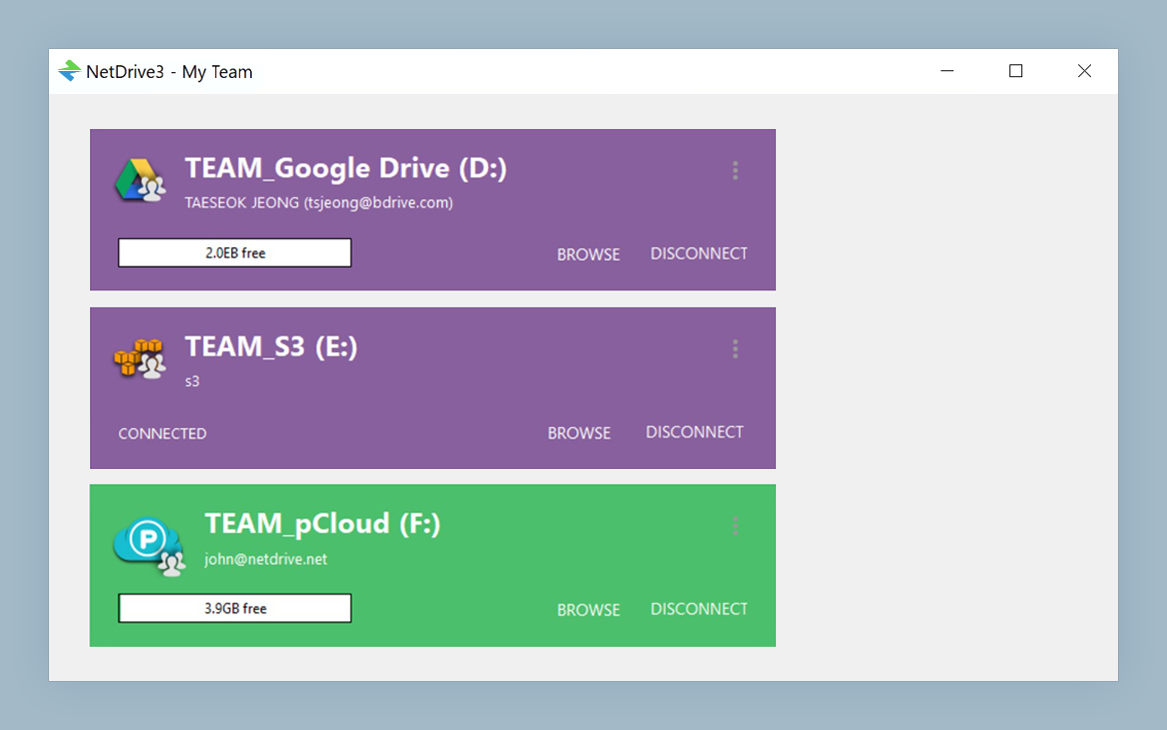
Members do not configure anything manually. After accepting the team invitation and logging in to NetDrive with their Bdrive credentials, the team drives appear in their drive list alongside any personal drives they have set up.
If a member’s team drive disconnects, they can remount it without needing to know the underlying credentials. This is particularly useful for contractors or rotating staff who need access to shared storage without exposing the API keys or storage account details behind it.
File Locking: The Piece That Makes Collaboration Safe
When two people open the same document from a shared cloud mount simultaneously, the second person to save wins and silently overwrites the first person’s changes. NetDrive’s file locking prevents this at the mount layer.
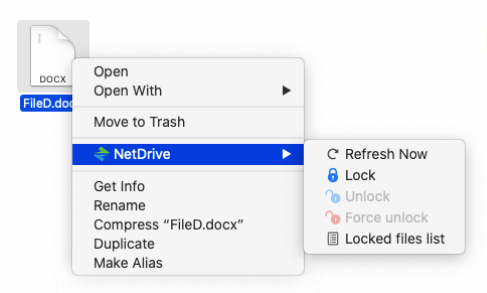
A team member locks a file by right-clicking it in Windows Explorer or macOS Finder and selecting Lock from the NetDrive submenu. Once locked, other members who try to open or modify the same file see it marked as locked by that person’s name. Depending on the application, the client typically opens a read-only copy for other members until the lock is released.
File locking in NetDrive works across all file types — not just Microsoft Office documents. This matters for teams working with design files, video project files, or proprietary data formats where standard Office co-authoring does not apply. Office files additionally benefit from a dedicated MS Office integration that shows a “file in use” dialog consistent with what SharePoint and OneDrive users already expect.
License and Access Management
Team licenses in NetDrive are assigned per member and managed through accounts.bdrive.com. An admin can reassign a license from a former employee to a new hire in the team console — the incoming member immediately gains access to all team drives, and the outgoing member’s access is revoked.
If a team member should see only a subset of drives — a contractor who needs access to the asset bucket but not the source file repository — the admin can publish drives selectively. There is no need to create separate teams or maintain duplicate credential configurations.
Wrap-up
NetDrive Team Drive reduces provisioning shared cloud storage from a per-person manual setup to a one-time admin configuration. Pair it with file locking and you have a functional shared filesystem on top of any supported cloud provider — S3, SharePoint, Dropbox, Google Drive, SFTP, WebDAV, or any of the other storage types NetDrive supports.
If you are debugging an individual member’s connection rather than the shared configuration, see Fix OneDrive for Business authentication errors in NetDrive for an example of the reconnect flow that applies to most OAuth-based providers.
— Jay, NetDrive