Browse SharePoint on iPhone & Android — NetDrive Mobile

Access SharePoint document libraries from your iPhone or Android phone with NetDrive Mobile. Browse, download, preview, and upload files without a laptop.
Your SharePoint document library holds the files your team needs in the field — signed contracts, inspection reports, updated floor plans, meeting notes. NetDrive Mobile puts those files on your iPhone or Android phone without forcing you back to a desk. You browse SharePoint like a local file manager, download what you need, preview documents inline, and upload photos or PDFs straight from your camera roll.
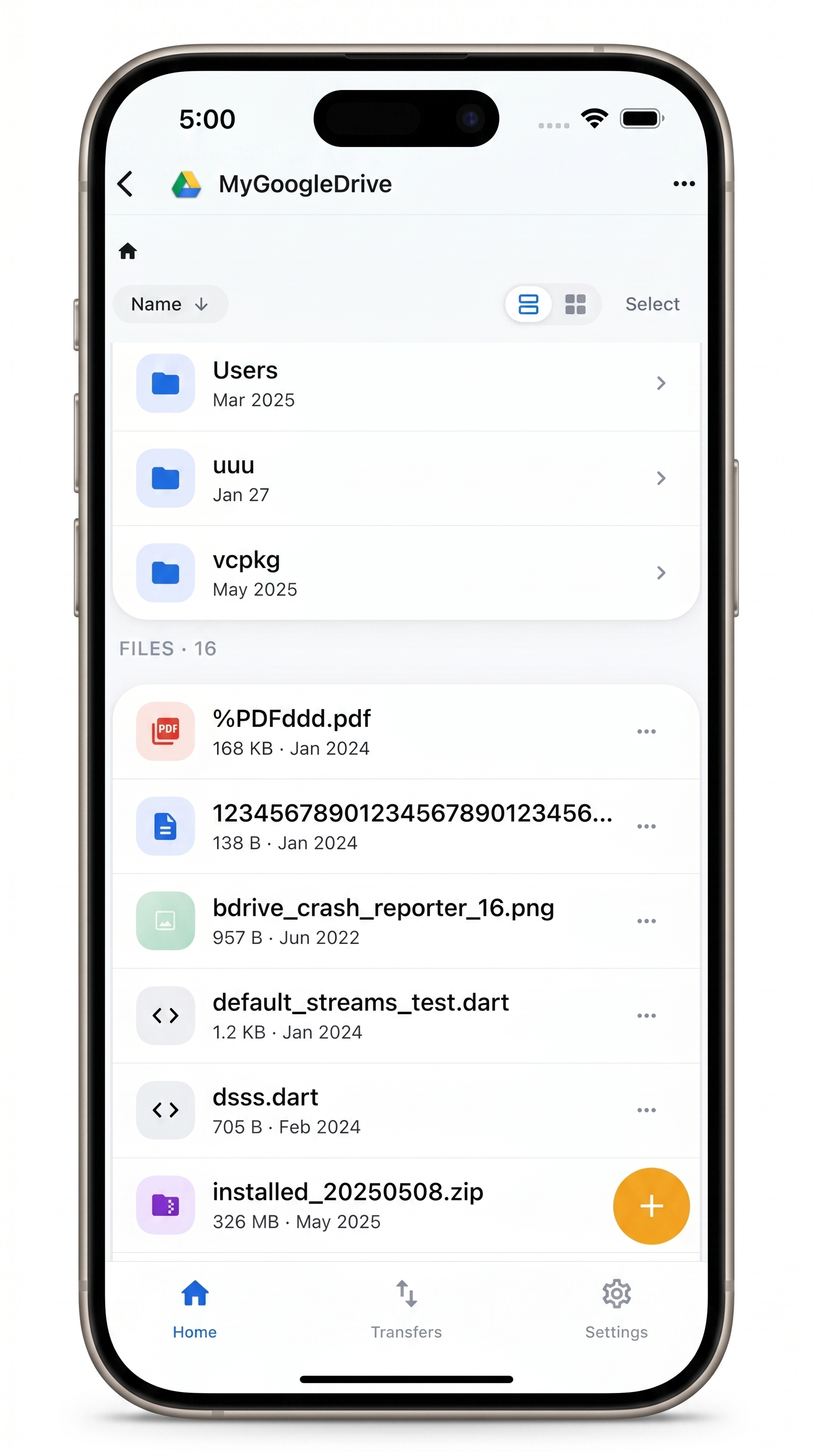
Every cloud in one app — including SharePoint
Browse, download, and upload SharePoint files from your phone.
- Access SharePoint alongside Google Drive, Dropbox, S3, and more
- Preview documents, images, and video without leaving the app
- Upload from your camera, photo library, or device storage
Free Bdrive account required.
What You Need
Before adding SharePoint to NetDrive Mobile, make sure you have:
- NetDrive Mobile installed — App Store for iOS 15.0 and later, or Google Play for Android
- A free Bdrive account — sign up at netdrive.net if you don’t have one yet; NetDrive Mobile requires a Bdrive account to connect any cloud
- Your Microsoft 365 work or school account with access to the SharePoint site you want to browse
Adding SharePoint to NetDrive Mobile
Open NetDrive Mobile and tap + (or “Add a drive”) on the home screen. A bottom sheet slides up listing all available providers.
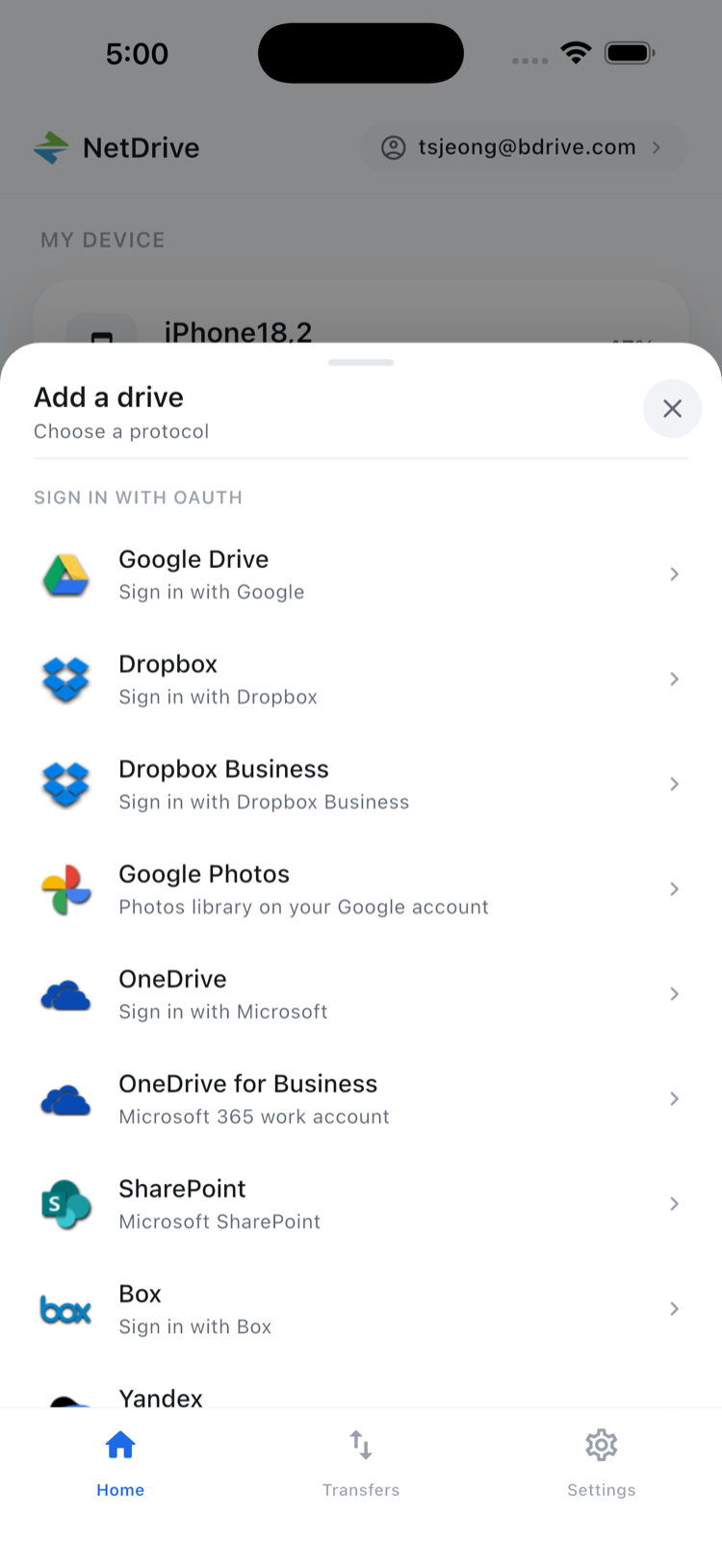
Scroll to SharePoint in the enterprise section and tap it. The app opens a Microsoft sign-in screen — enter your work or school account and complete any multi-factor authentication your organization requires. NetDrive Mobile stores the resulting access token in the iOS Keychain or Android Keystore so you won’t be prompted again unless the token expires or your organization requires periodic re-authentication.
After signing in, the app asks you to confirm your SharePoint site URL or select from a list of sites your account can access. If your organization uses multiple SharePoint sites — one per department, for example — confirm with your IT administrator which URL corresponds to the document libraries you need.
Browsing Document Libraries
Once SharePoint is connected, it appears on your home screen alongside any other clouds you’ve added. Tap it to see the document libraries, then navigate into folders just as you would in a desktop file manager.
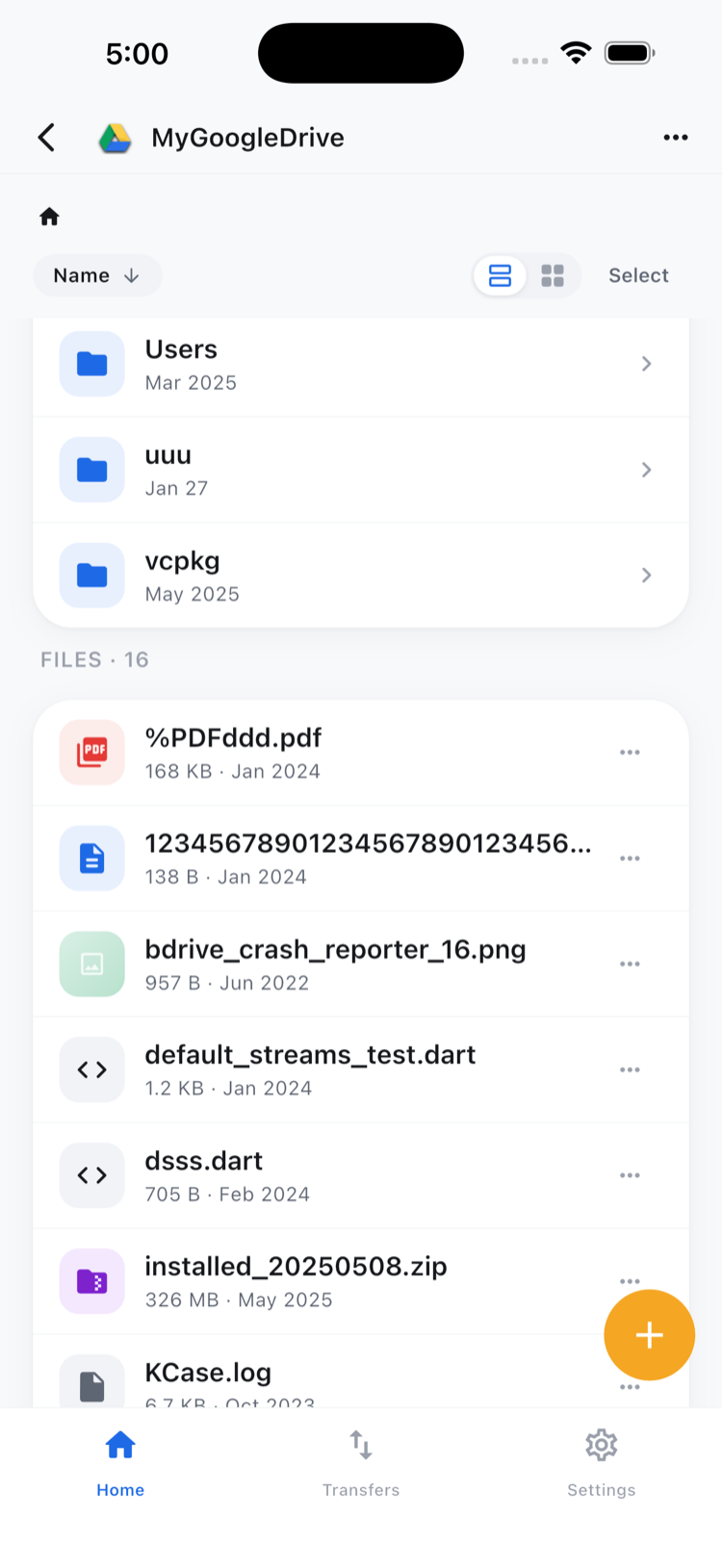
The file list shows names, sizes, and modification dates. You can sort and switch between list and grid view using the controls in the top right. SharePoint’s folder structure — nested libraries, subsites, document sets — appears exactly as it does in the SharePoint web interface.
Downloading, Previewing, and Uploading
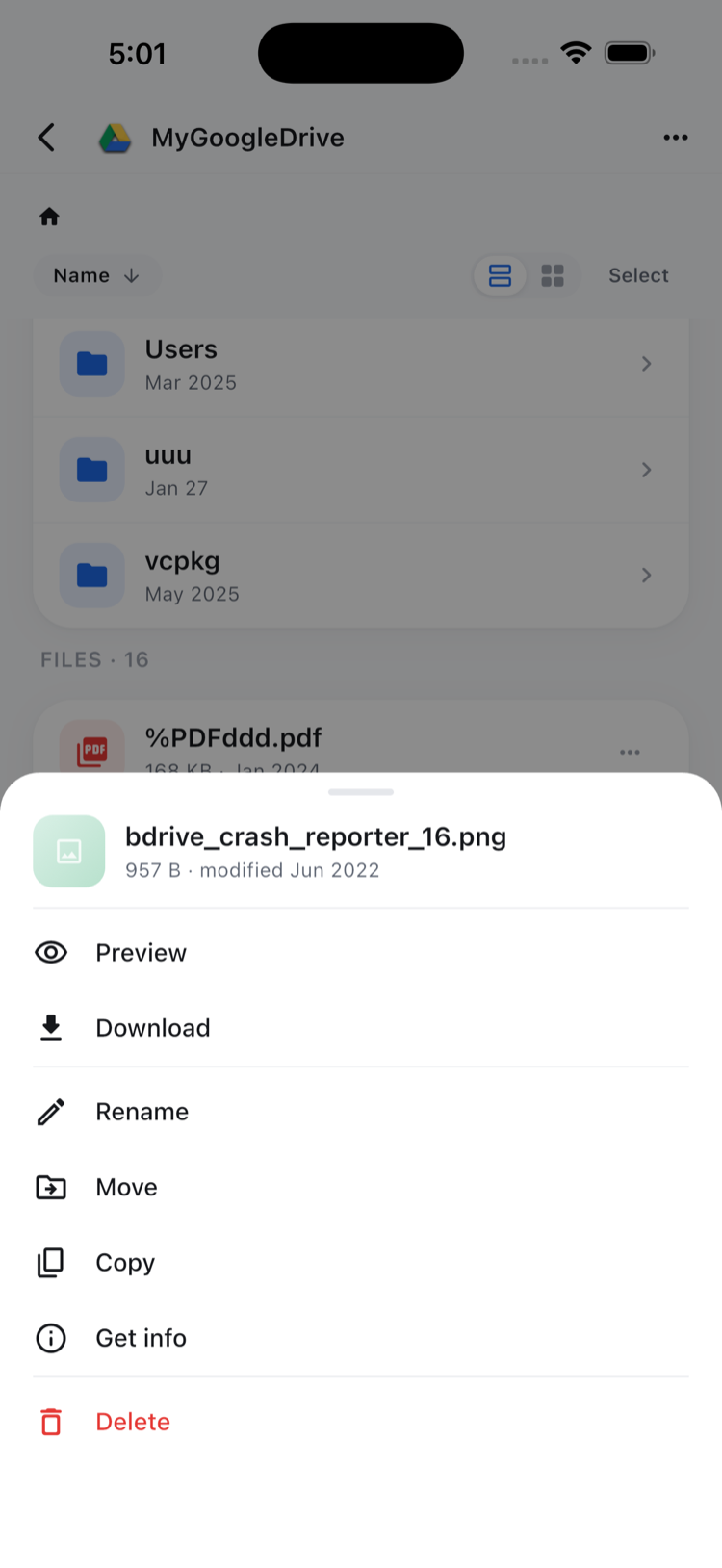
Viewing a file — tap the file name to open the action sheet, then choose Preview to open the file directly in NetDrive Mobile. PDFs display inline, images open in full resolution, and common document and spreadsheet formats render without leaving the app. If you need to hand a file off to another app — say, Markup for PDF annotations — choose Download and share from your device’s Files app afterward.
Uploading from your phone — navigate to the destination folder in SharePoint, tap the upload button (the arrow icon), and choose from your camera, photo library, or Files app. An on-site inspector uploading five photos from a job walk, or a field rep attaching a signed PDF to a project folder, takes under a minute this way. The Transfers tab shows real-time progress and lets you cancel an in-flight upload if needed.
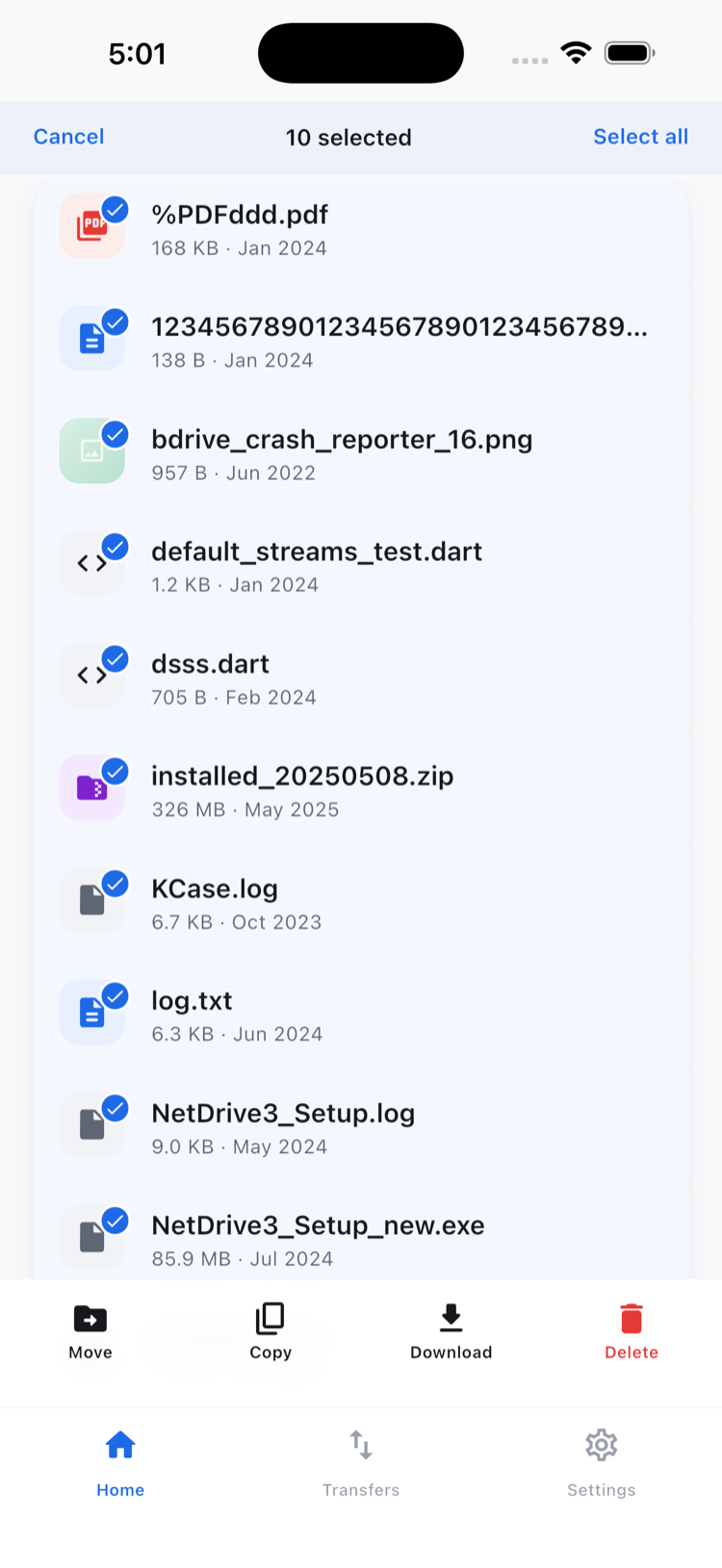
Working with multiple files — tap Select in the top right to enter multi-select mode, check the items you want, then choose from the bulk action toolbar at the bottom: Download, Move, Copy, or Delete.
Moving and Copying Files Within SharePoint
NetDrive Mobile’s copy and move operations work within the same connected drive. You can reorganize folders inside a SharePoint document library, move files between libraries on the same site, or copy a template into multiple project folders without downloading anything to your device first.
Moving files between two different providers — for example, from SharePoint to a Google Drive or an S3 bucket — requires downloading to your device and then uploading to the destination cloud. Cloud-to-cloud transfer between different providers is the job of RcloneView (NetDrive’s sibling product), not something NetDrive Mobile handles directly. On mobile, copy and move operate within a single connected drive.
Multiple Clouds, One App
If your team uses SharePoint alongside other storage — a shared Dropbox for external partners, an S3 bucket for media assets, a NAS accessible over WebDAV — NetDrive Mobile keeps all of them in one place. You add each as a separate drive and switch between them without leaving the app. Credentials for each provider are stored separately and securely on your device.
Wrap-up
NetDrive Mobile gives anyone who works away from a desk direct access to SharePoint on their phone. Setup takes under a minute: install the app, sign in with a free Bdrive account, tap Add a drive, authenticate with Microsoft, and your document libraries are a tap away.
For similar setup guides for other enterprise and team-oriented clouds, see Browse OneDrive on Mobile with NetDrive and Access NAS Files on Mobile via WebDAV and SFTP.
— Casey, NetDrive