Mount Koofr on macOS — A Finder Drive for Your European Cloud Storage

Mount Koofr as a native Finder drive on macOS with NetDrive. Step-by-step setup for Sonoma and later, no separate sync client required.
A two-person design studio in Munich keeps its client contracts and source files on Koofr specifically because the provider keeps data on servers inside the EU — a requirement their larger clients ask about during procurement. The friction shows up every time someone needs a file mid-review: open a browser tab, sign into the Koofr web app, find the folder, download. NetDrive now supports Koofr as a provider, so that storage can show up as an ordinary Finder volume on a Mac instead.


Give Koofr a Finder icon on your Mac
NetDrive lets Google Drive, OneDrive, S3, SFTP, WebDAV and more appear as native drives on Windows and macOS — no syncing, no full downloads.
- Browse Koofr files in Finder, no browser tab required
- Save directly from Photoshop, Pages, or any app's Save dialog
- Sits alongside your other mounted clouds in one drive manager
Free trial. Lifetime and subscription plans available.
What Changes Once Koofr Has a Mount Point
Without NetDrive, working with Koofr on a Mac means the web interface or a separate sync app that mirrors files to local disk — that keeps a copy available offline, but it duplicates storage and needs time to catch up after every change on either side. Mounting Koofr through NetDrive instead gives it a place in the macOS file system: it appears in Finder’s sidebar like any other volume, so Quick Look, drag-and-drop, and a Save As from any app all work against it directly.
There’s no second copy of the archive syncing to the laptop’s disk first. Saving or copying a file onto the mounted drive pushes the change to Koofr as a background upload, the same way NetDrive handles every other provider it supports — Google Drive, Dropbox, S3, and the rest.

Adding a Koofr Drive on macOS
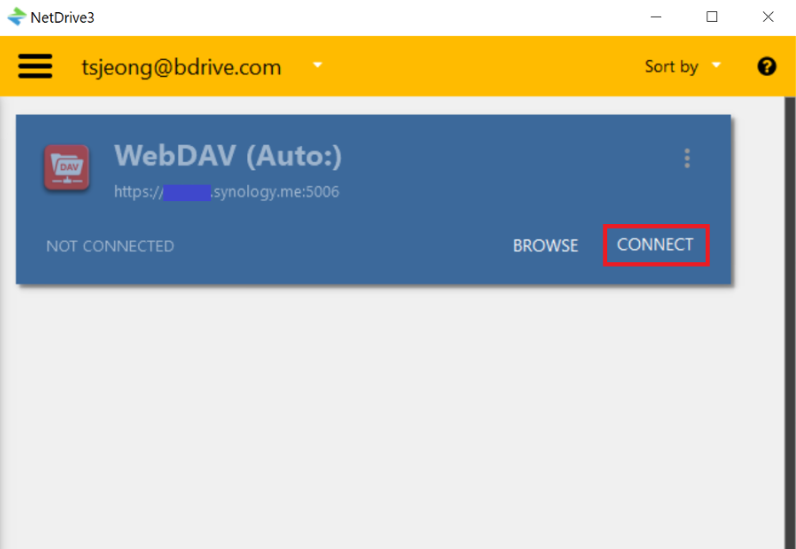
- Open NetDrive → click Add a Drive in the drive manager.
- Select Koofr from the provider list.
- Sign in with the Koofr account credentials when prompted.
- Confirm the mount point NetDrive suggests, then click Mount.
NetDrive 3.18 and later require macOS 14 Sonoma or newer to install — anyone still on Ventura or earlier needs to stay on NetDrive 3.17 until they update the OS. NetDrive runs natively on Apple Silicon as well as Intel Macs, and the connection to Koofr behaves the same on either.
One Note on the First Mount
Like every provider on macOS, NetDrive installs a one-time system extension to present the mounted volume to Finder. If this is the first cloud drive mounted on a fresh Mac, macOS prompts for a one-time approval of that extension in System Settings → Privacy & Security before the Koofr volume appears — click Allow, then remount. Anyone who’s already approved the extension for another provider (Google Drive, Dropbox, S3) won’t see the prompt again; it’s a per-machine approval, not per-provider. The macOS permission troubleshooting guide covers this step in more detail if the drive doesn’t show up.
Working With Koofr Day to Day
Once mounted, treat the Koofr volume like local storage. Copying a folder of finished files onto it queues a background upload — visible in NetDrive’s upload tray — so a large export doesn’t freeze Finder while it transfers. Renames, deletes, and moves happen through the mount point the same way they would on local disk, and NetDrive reflects them back to the Koofr account without a manual sync step.
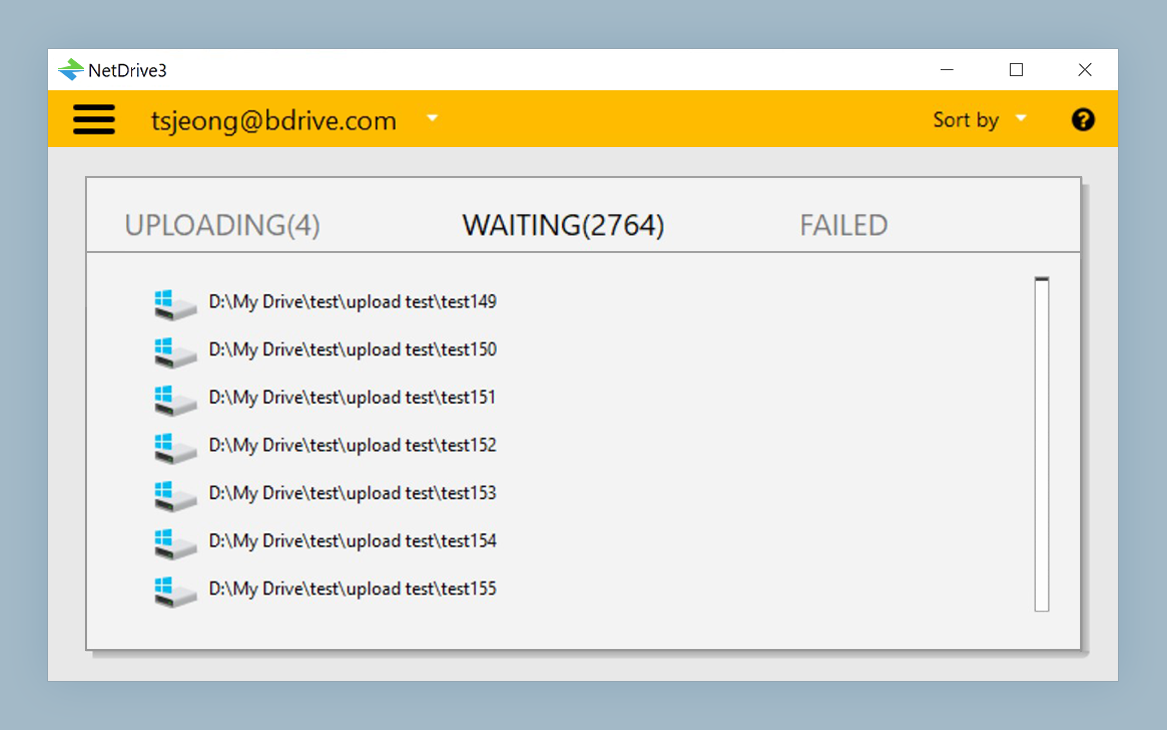
For a studio that also keeps long-term originals on Backblaze B2 or shares reference files through OneDrive for Business, that consistency is the real value: every account lists in the same drive manager with the same mount status, instead of three browser tabs and three different upload widgets to remember.
A Growing List of Providers to Choose From
Koofr is one of several providers NetDrive added support for this release cycle, alongside Filen, Files.com, ImageKit, and OpenDrive — each aimed at a different kind of storage need, from EU-hosted personal clouds to enterprise file exchange. Anyone weighing options across providers can mount more than one at a time and compare the day-to-day experience directly rather than relying on marketing pages alone.
Wrap-up
Mounting Koofr as a Finder volume removes the browser-tab step from a workflow that otherwise behaves like any other cloud drive. For related reading, see Koofr on Windows, how ImageKit mounts on macOS, or check NetDrive on Apple Silicon for platform-specific notes.
— Steve, NetDrive