NetDrive File Browser — Access Cloud Storage Without Mounting a Drive

NetDrive's File Browser lets you open, download, and share files from any configured cloud without mounting a full drive. Available on Windows and macOS.
You need one file out of an S3 bucket that holds 30,000 objects. Mounting the entire bucket as a drive letter just to grab that file adds unnecessary overhead: virtual filesystem initialization, background cache priming, a persistent device in Disk Management. NetDrive’s built-in File Browser handles this case cleanly — open it, navigate the remote tree, grab the file, close it. No drive consumed, no lingering background process.


Browse and download cloud files without a full mount
NetDrive lets Google Drive, OneDrive, S3, SFTP, WebDAV and more appear as native drives on Windows and macOS — no syncing, no full downloads.
- Open individual files from S3, Dropbox, SharePoint, and more
- Generate shareable links directly from the browser
- Available on both Windows and macOS
Free trial. Lifetime and subscription plans available.
What the File Browser Is
NetDrive introduced the File Browser in version 3.9.1190 (April 2020). It is a separate window inside the NetDrive application — not a mounted drive — that shows you the raw remote directory tree for any connection you have configured.
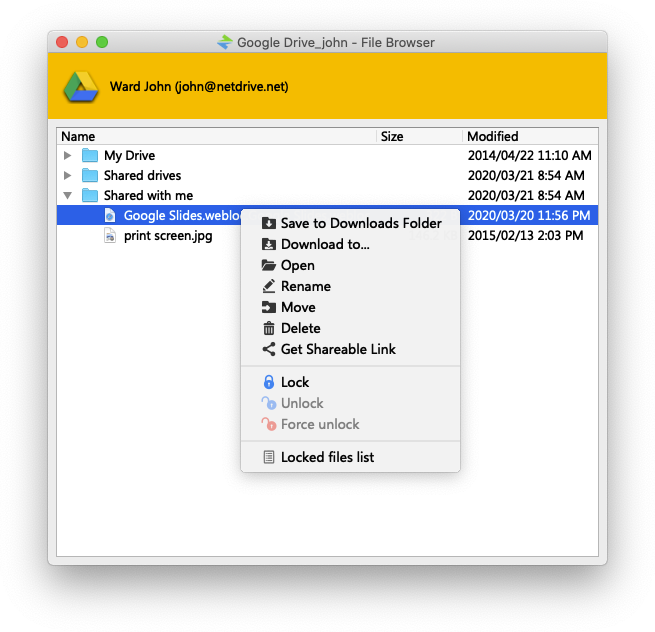
The distinction from a mounted drive matters in practice. When you mount a drive, NetDrive creates a persistent virtual filesystem device visible system-wide — every application, process, and shell on your machine can read and write through it. The File Browser is scoped to NetDrive itself. It is a lightweight viewer and file transfer tool, not a system-level filesystem. It opens faster, uses fewer resources, and disappears completely when you close it.
Situations where File Browser is the better choice over a full mount:
- One-off retrieval: pull a single PDF from a SharePoint library without mounting the whole document tree
- Remote auditing: browse an S3 bucket before committing to a mount configuration — verify folder layout, check file sizes, confirm the right credentials
- Low-overhead access: read a config file from a WebDAV server in a script without a persistent drive letter that other processes could stumble on
- Shareable links: generate a time-limited public URL for a specific file (see below) — this capability is exposed only in the File Browser, not via a mounted drive
Opening and Navigating the File Browser
The File Browser is accessible from the NetDrive drive manager window. Hover over any connection card to reveal its action icons, then click the folder icon labeled “File Browser.” You can also right-click the connection and choose Open File Browser.
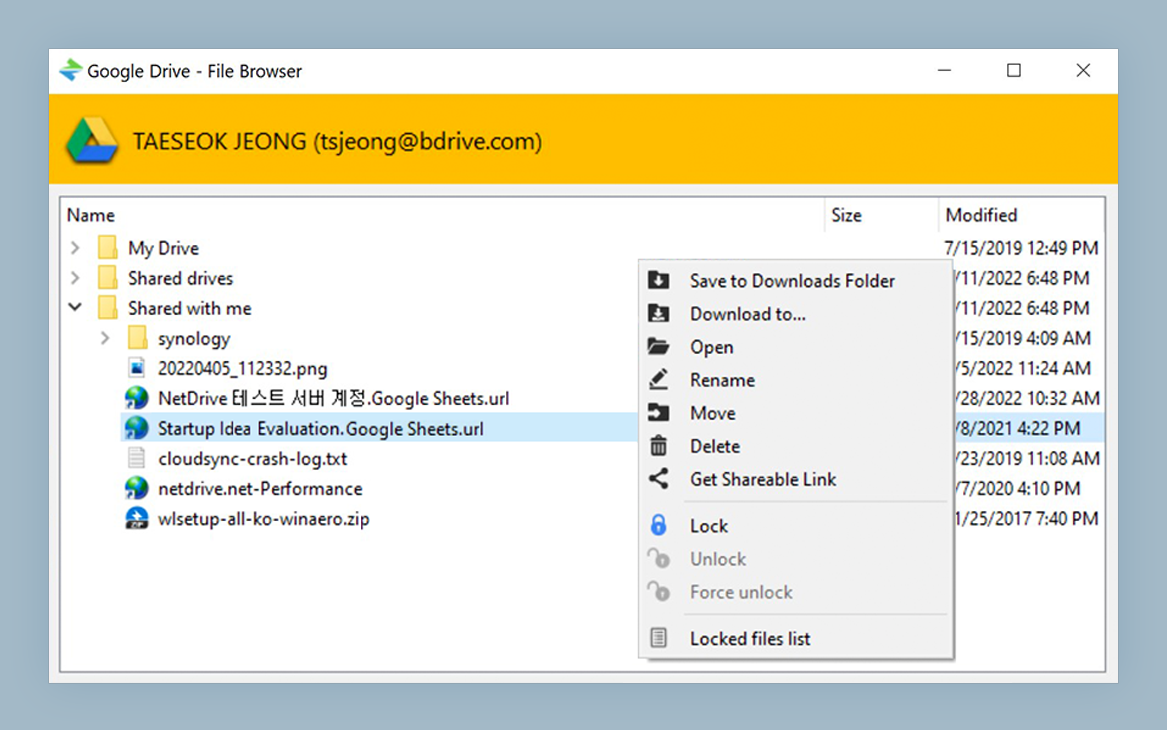
The browser connects to the provider and lists the top-level folders immediately. Navigation works like a two-pane file manager: expand folders in the left tree, and the right pane shows the selected folder’s contents with file name, size, and modified date.
Actions available on selected files and folders:
- Download — copies the item to a local path you choose
- Open — downloads to a temporary location and opens in the system default application; useful for quickly previewing a PDF or image without choosing a save location
- Upload — sends a local file or folder to the current remote path
- Delete, Rename, New Folder — standard remote file management
- Get shareable link — generates a public URL for supported providers
Shareable Links
Shareable link generation is one of the more useful File Browser features, and it is available only here — not from a mounted drive. When a drive is mounted, you interact with files through the standard OS file picker and Explorer/Finder shell, which expose only generic filesystem operations. Provider-specific API capabilities like link generation require direct API access, which the File Browser provides.
Select a file, right-click or use the toolbar to choose Get shareable link, and NetDrive returns a URL. Which providers support this depends on the provider’s own API. Where it is available, the link is a direct way to share a file with a colleague without emailing an attachment or changing folder permissions.
Combining File Browser with an Active Mount
The File Browser and a mounted drive can coexist on the same connection simultaneously. This is useful when you want system-wide drive access for day-to-day work but need to perform file management operations that are easier through a visual tree.
A DevOps engineer running integration tests might mount an S3 bucket as M: so the test runner can read fixture files from M:\fixtures\ using normal file paths. When a new fixture batch needs to be uploaded or a specific file needs to be downloaded for local inspection, the File Browser handles that without any interruption to the active mount.
You avoid the disruptive cycle of unmounting, uploading manually via another tool, then remounting. Both access modes stay open at the same time.
Wrap-up
The File Browser covers the gap between needing a full persistent mount and just needing one file. For quick lookups, one-off downloads, shareable links, or pre-mount auditing, open it from any connection card in the drive manager — no extra setup required.
If you have not configured a cloud connection yet, Mount Amazon S3 on Windows with NetDrive or Mount OneDrive on macOS will walk you through the initial setup. Once a connection exists, the File Browser is immediately available for it.
— Casey, NetDrive