Students with NetDrive Mobile — Class Files from Every Cloud on Your Phone

Students use NetDrive Mobile to open coursework from Google Drive, OneDrive and Dropbox on iPhone and Android, preview slides, and upload photos of whiteboards and notes.
The lecture slides are on the university’s OneDrive, your group project lives in a teammate’s Google Drive, and your own notes sit in Dropbox. Ten minutes before class, you need all three, and your phone is the only thing in your hand. NetDrive Mobile opens those clouds in one app.

All your class files, one app
Open Google Drive, OneDrive and Dropbox side by side on iPhone and Android. Preview slides and upload photos of the whiteboard.
- Keep school and personal accounts separate
- Preview documents in-app before class
- Upload photos and files with progress and cancel
Free Bdrive account required.
School, Group and Personal Accounts in One Place
Student files rarely live in one cloud. NetDrive Mobile connects each account as its own drive and lists them on the home screen, so you switch between them without leaving the app. You can add more than one account from the same provider, which keeps a school Google account apart from a personal one.
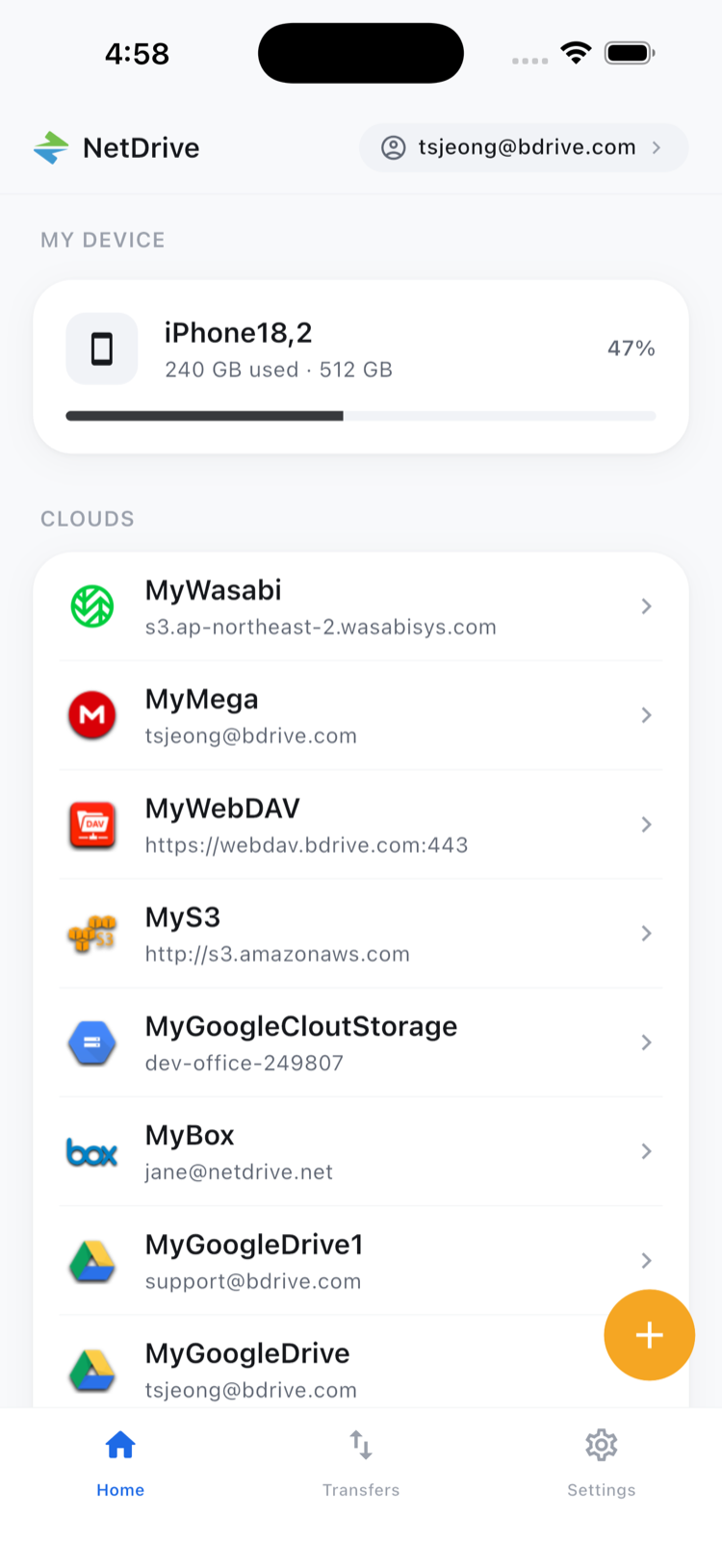
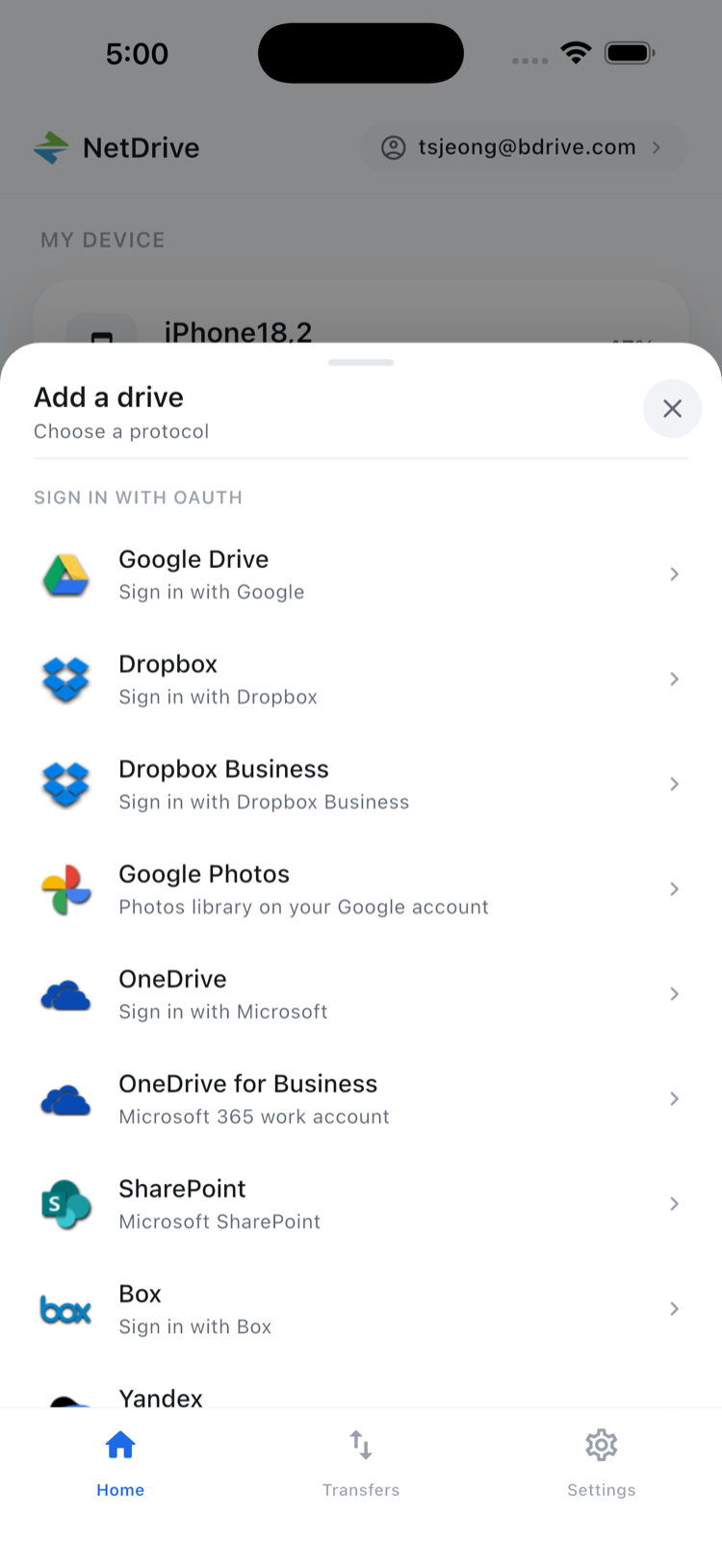
Open the Add a drive sheet and pick a provider. A free Bdrive account is required for the app, and it supports Sign in with Apple and Google as well as two-factor verification.
Find and Preview Slides Before Class
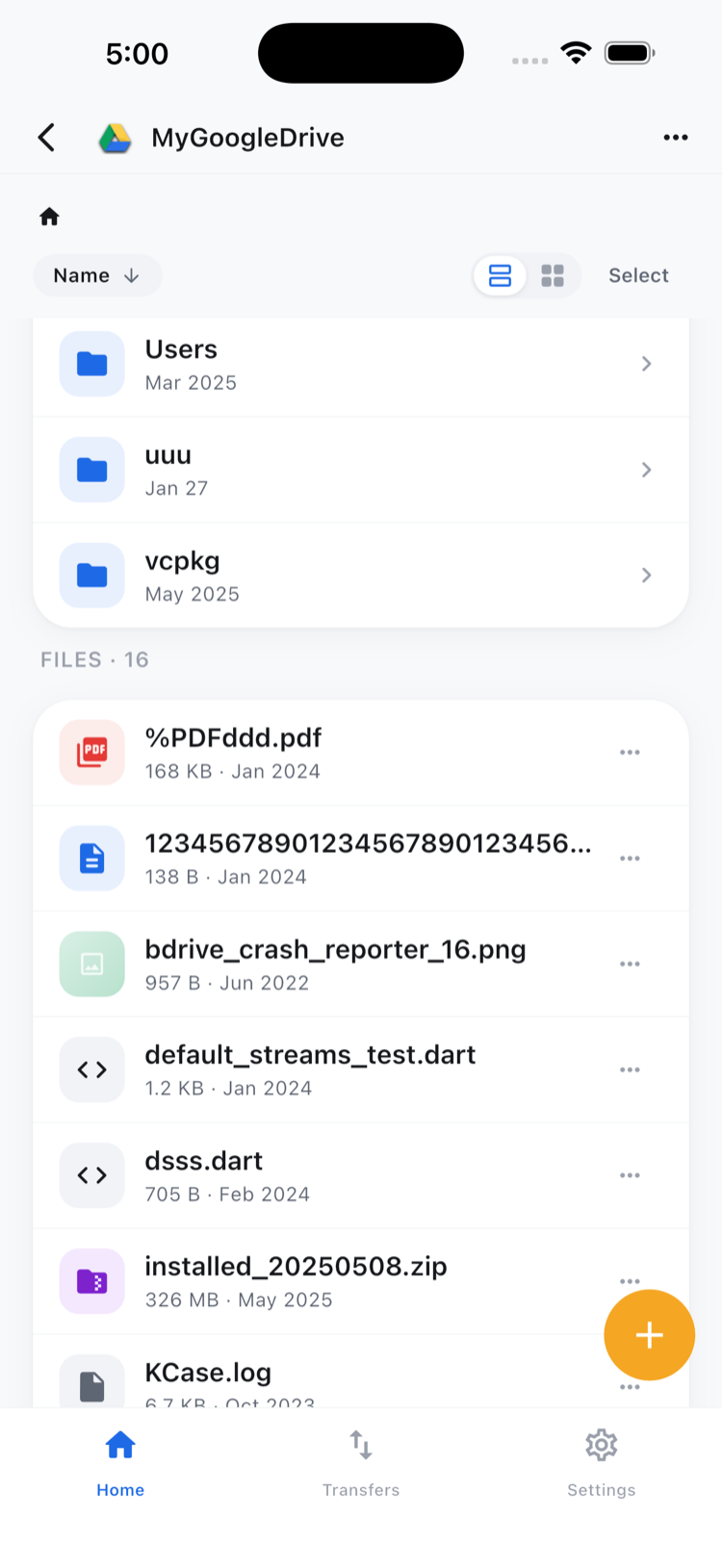
Open a drive, move into the course folder, and sort by date to surface this week’s material. Tap a document, image or video to open the in-app preview and check you have the right version, without installing a separate viewer.
From the file action sheet you can also Download a copy to your phone, Rename a file, or Move and Copy it. Copy and move work inside the same cloud, so a file stays in the drive it belongs to.
Capture the Whiteboard, File It Right Away
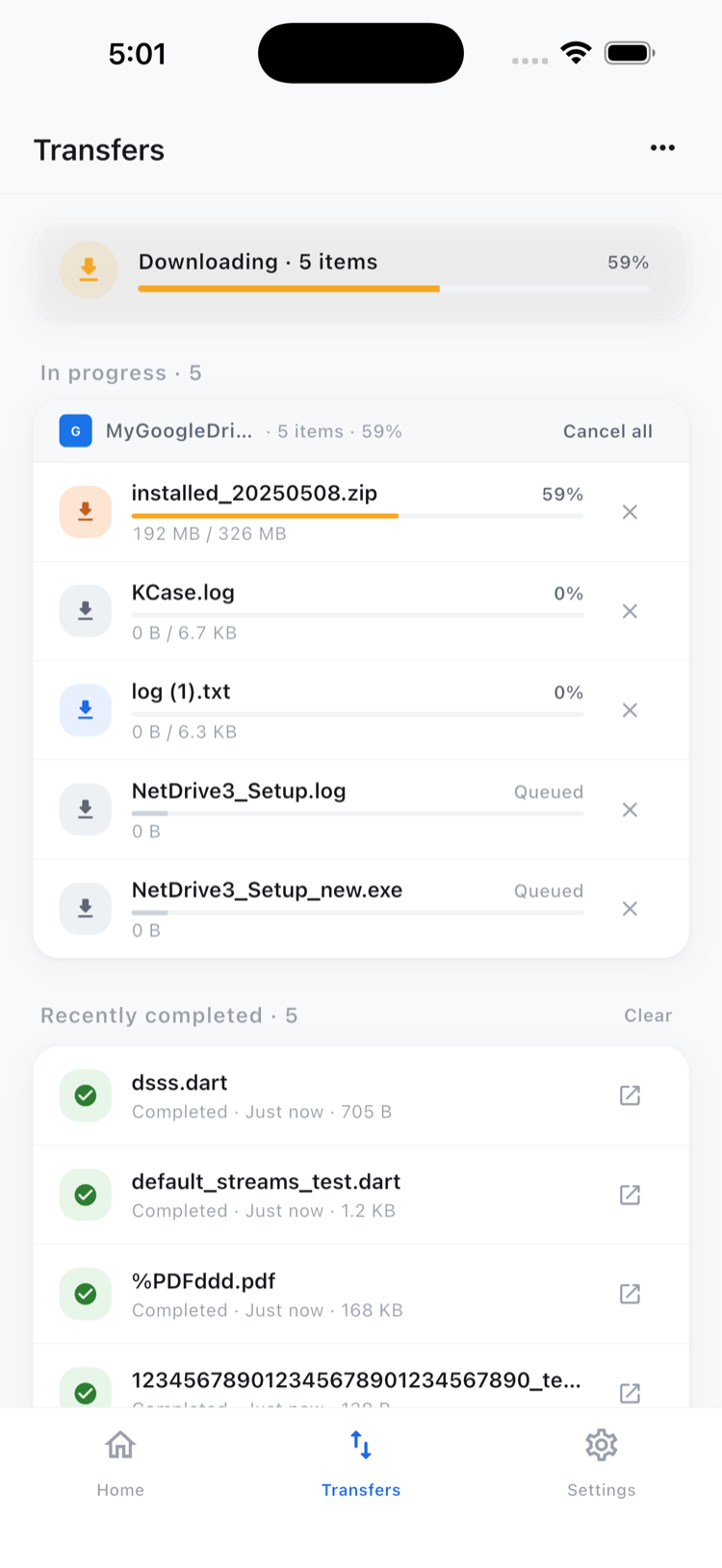
A photo of the whiteboard is useless if it sits in your camera roll for a month. Open the course folder in the right drive and upload straight from the camera or photo library. You can queue several uploads at once, watch the progress, and cancel any of them.
For many files at once, use multi-select to move or copy a batch within the same drive: Bulk File Actions in NetDrive Mobile.
A Setup That Survives the Semester
- Install NetDrive Mobile from the App Store or Google Play and sign in with your free Bdrive account.
- Add one drive per cloud you use for classes: the school account, the group project and your personal storage.
- Create one folder per course in the drive you own, with the same names each term.
- Upload as you go. File whiteboard photos and scans right after class instead of batching them.
Keep It Realistic
NetDrive Mobile browses, previews, uploads and downloads files in the clouds you connect. It does not move files directly between two different clouds, so a document stays in the drive it came from. Your school may also limit which accounts you can sign in to on a personal phone, so check its policy first. Access needs a connection; download a file to your phone if you need it somewhere with poor signal.
Wrap-up
For students, a good file app is the one already open when you need a document. See NetDrive Mobile — Getting Started for first-run setup, In-App Preview in NetDrive Mobile for what you can open, and Browse Google Drive on iPhone & Android for the most common setup.
— Jay, NetDrive