Social Media Managers with NetDrive Mobile — Campaign Assets from Any Cloud

Social media managers use NetDrive Mobile on iPhone and Android to find campaign assets across clouds, preview images and video, and upload on-site shots to the right folder.
You are at a product launch with ten minutes before the stage lights go up. The brand team’s final logo pack is in a Google Drive folder, the agency’s approved video cut is in Dropbox, and the photographer’s shots need to land in a client-owned OneDrive. Switching between three apps and three logins with a phone in one hand is how the wrong file gets posted. NetDrive Mobile opens all of those clouds in one app on iPhone and Android.
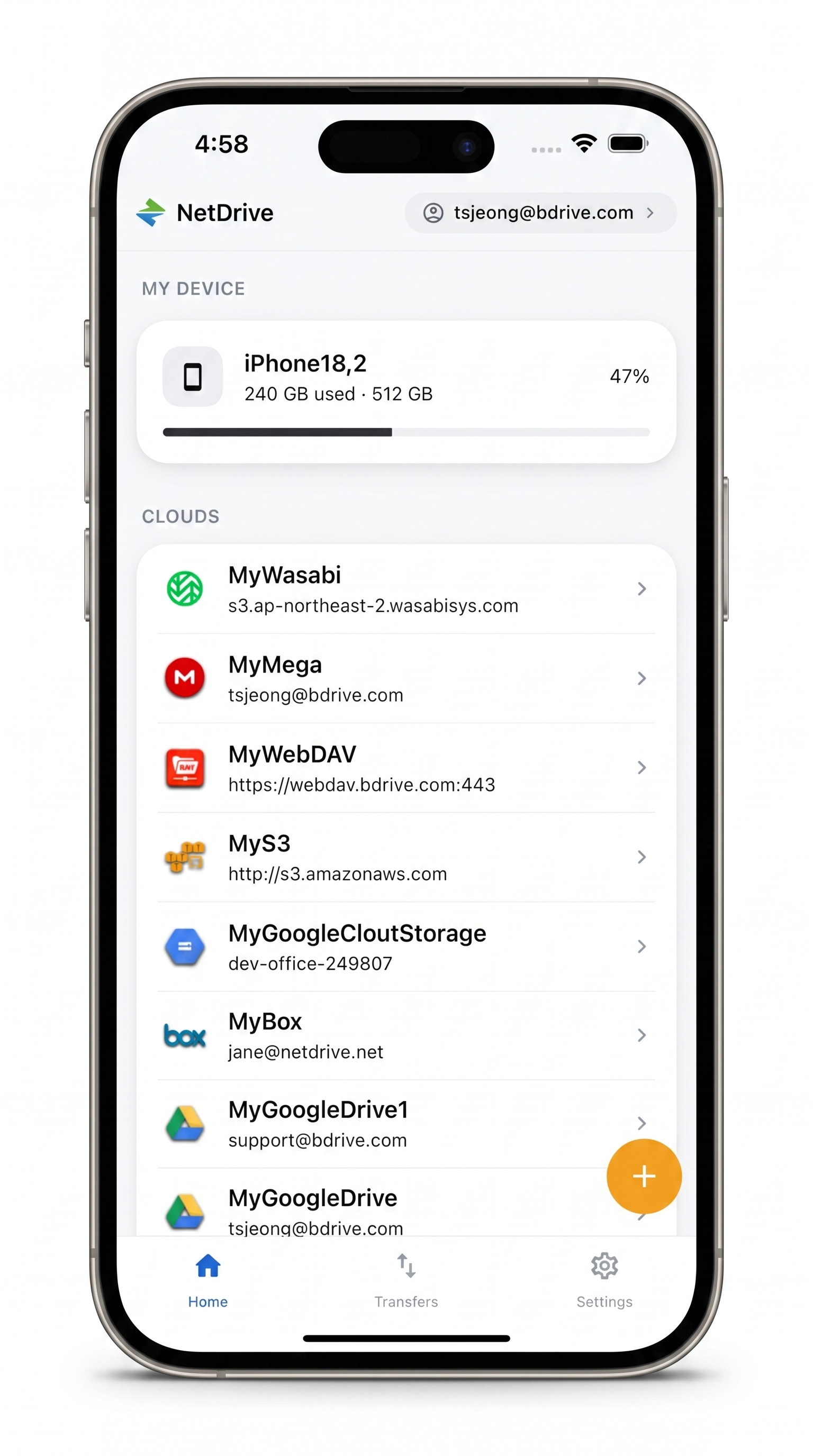
Every campaign asset, one app
Browse Google Drive, Dropbox, OneDrive and more side by side, and upload fresh shots from your phone.
- Switch between client clouds without switching apps
- Preview images and video before you post
- Upload from the camera with live progress and cancel
Free Bdrive account required.
One Home Screen for Several Brands
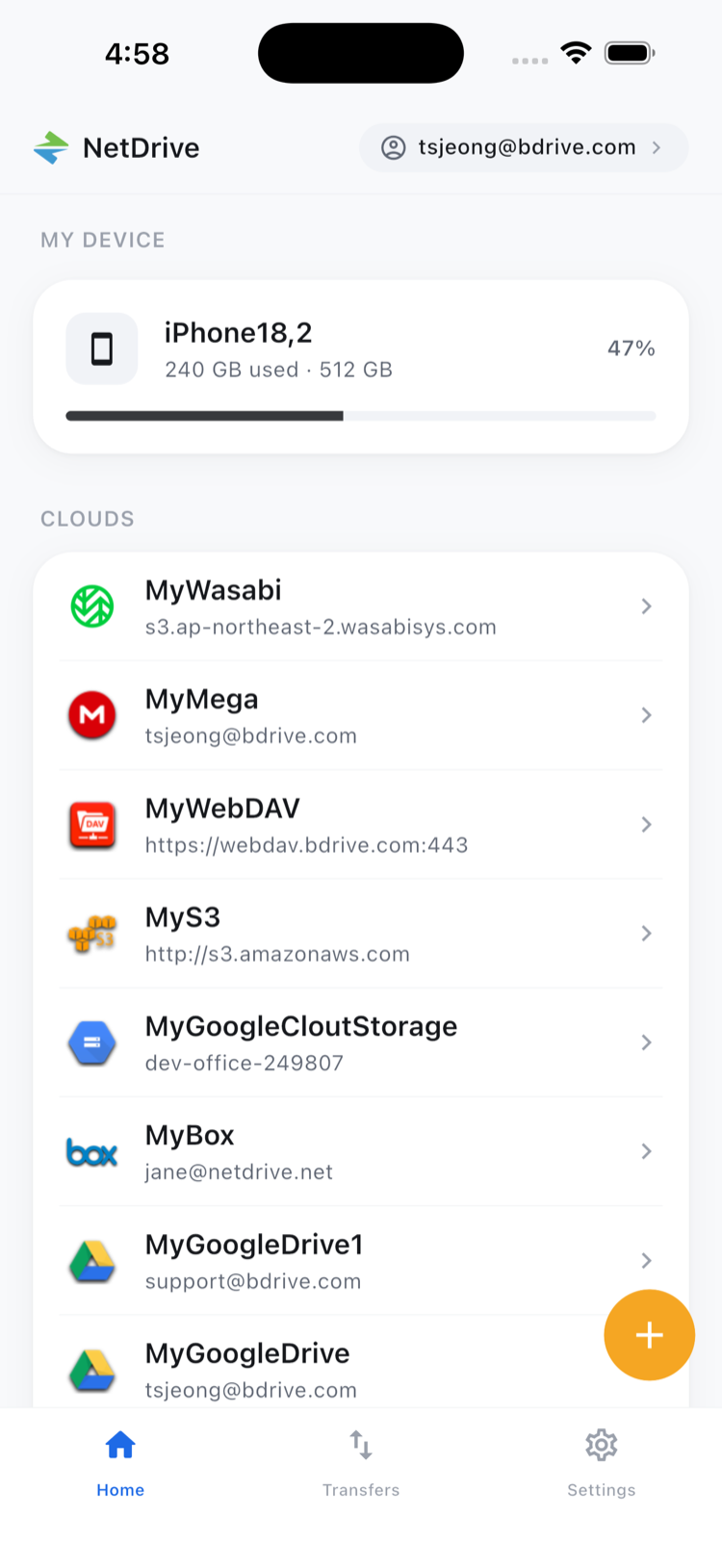
Managers who run more than one account rarely get one storage provider. Each client or agency has its own, and you are invited into all of them. NetDrive Mobile lists every connected cloud on the home screen, so reaching a different client’s asset library is a tap instead of a logout and login. It requires a free Bdrive account; after that, you add each cloud once.
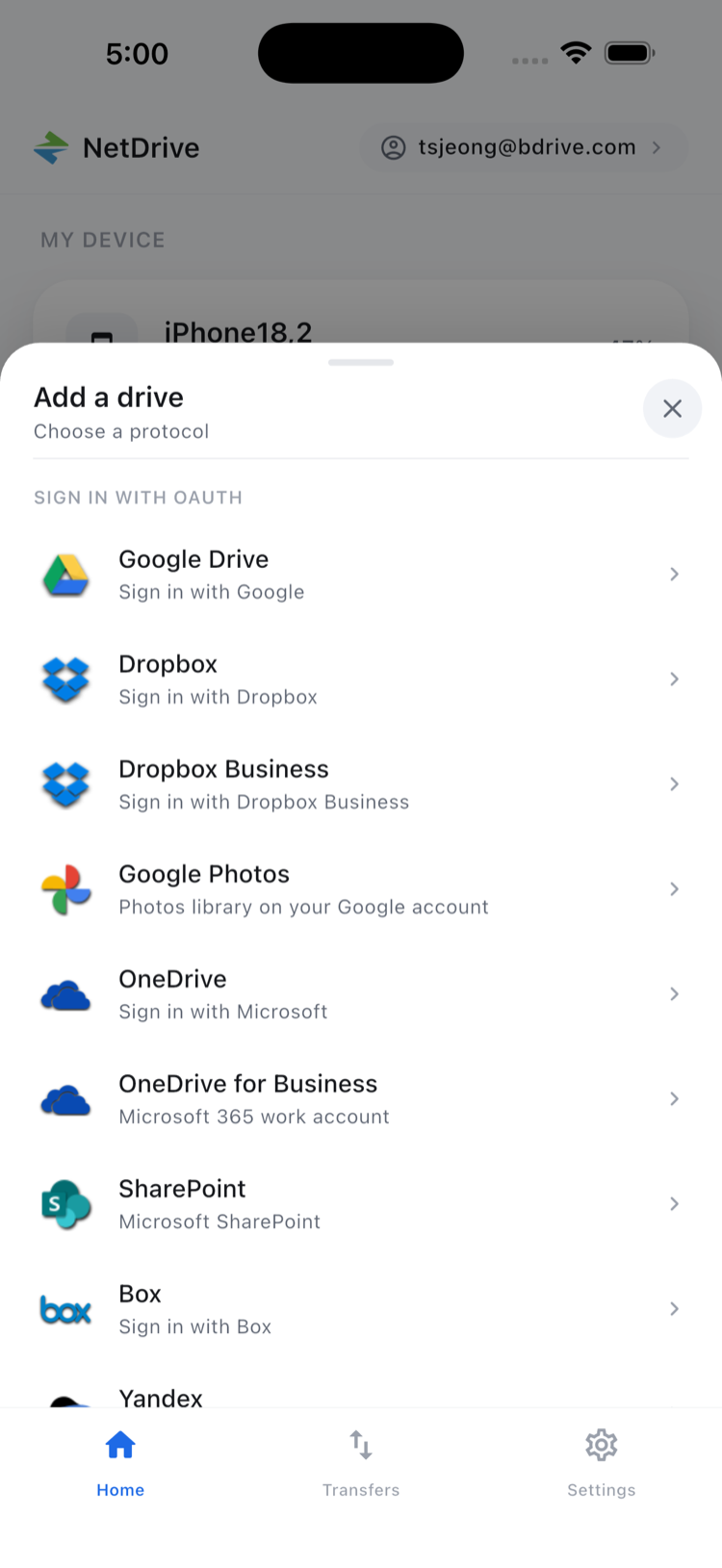
Adding the Clouds Your Clients Use
Open the Add a drive sheet from the home screen, pick a provider and sign in. The sheet includes Google Drive, Dropbox, Dropbox Business, OneDrive, OneDrive for Business, SharePoint and Box, plus object storage and WebDAV, FTP and SFTP if an agency hands you a server login.
Credentials are stored in the phone’s secure storage (Keychain on iOS, Keystore on Android). If your Bdrive account uses two-factor login, the approval code arrives as an app notification, including on the lock screen, so sort that out before a day on the road. See Two-Factor Login in NetDrive Mobile.
Finding and Checking the Right File
Open a cloud, move into the campaign folder and tap a file. The file actions sheet offers Preview, Download, Rename, Move, Copy, Get info and Delete. Preview opens images, video and documents inside the app, which is the quick way to confirm you have the approved cut and not the draft with the old tagline.
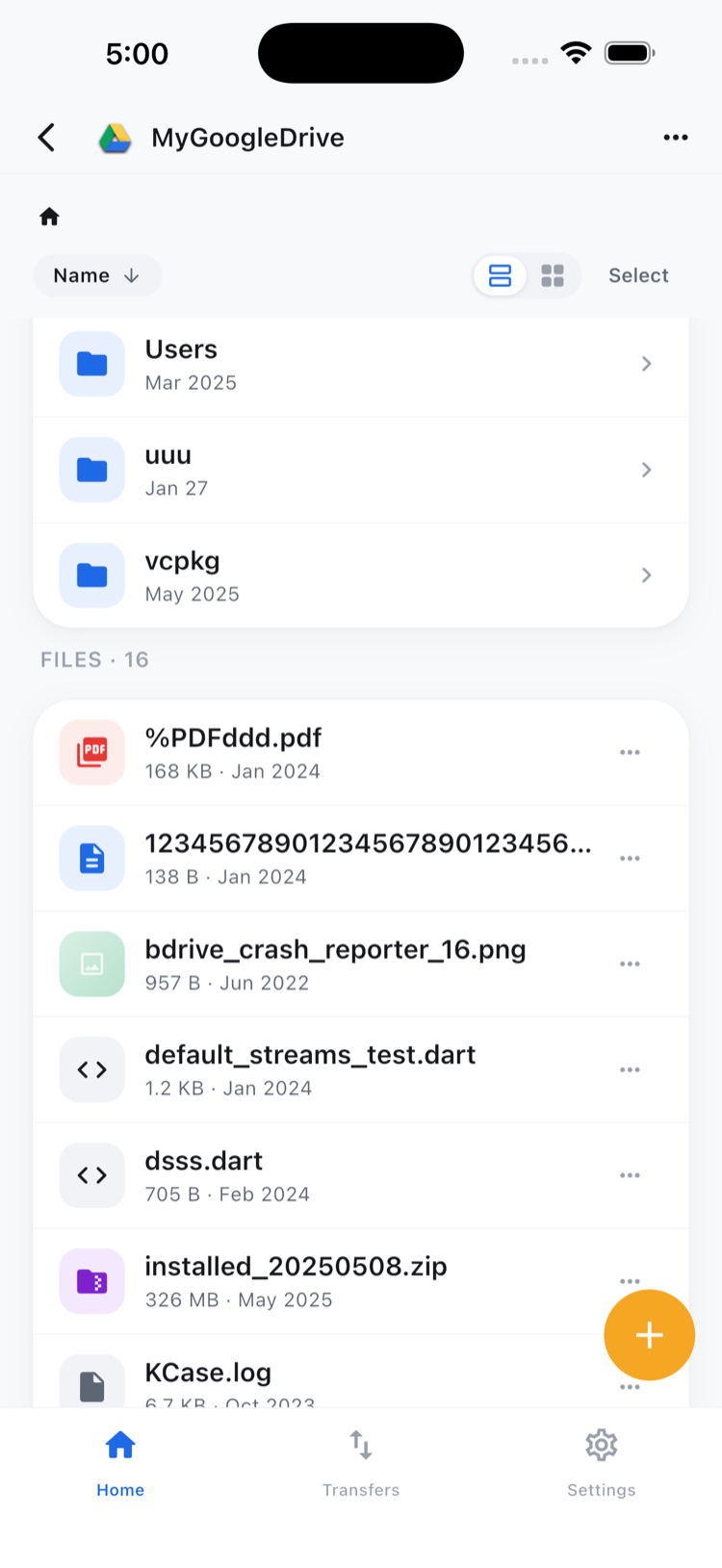
Check the file name and modified date with Get info before posting. A naming convention such as Campaign_Asset_v3-FINAL-approved helps, though the phone view is no substitute for your team agreeing on a single source folder. More on previews in In-App Preview in NetDrive Mobile.
Uploading On-Site Shots
Event photos are useless sitting in a camera roll. From a folder in your chosen cloud, upload from the camera, your photo library or the file picker. You can queue several uploads at once, watch live progress in the Transfers tab, and cancel one that was a mistake.
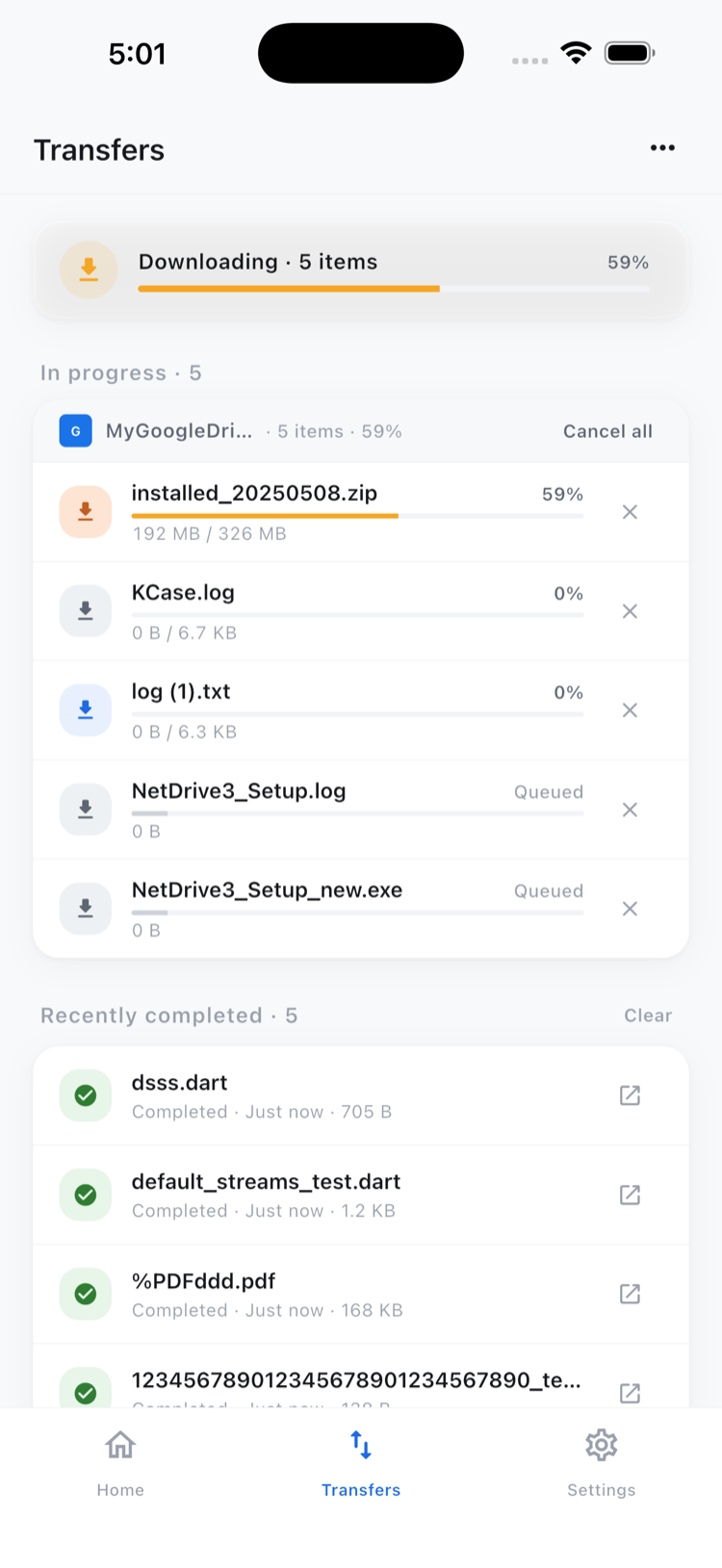
A routine that works: create a dated folder in the client’s cloud before the event, upload the best shots during downtime, and check the Transfers tab for finished uploads before you delete anything from the phone. For selecting many files at once, see Bulk File Actions in NetDrive Mobile.
Limits to Plan Around
NetDrive Mobile is a file manager, not a scheduler or an editing suite. It does not publish to social platforms, and you should not expect a file to open without a connection. Copy and move work within a single cloud; to get a file from one client’s cloud into another’s, download it and upload it again. Google Photos support is limited to items uploaded through the app, so it will not show your existing photo library.
Wrap-up
Treat NetDrive Mobile as the one place that knows where your campaign files live, then do your editing and posting in the tools built for that. To get started, read NetDrive Mobile — Getting Started, and for managing several client logins see Multiple Cloud Accounts in NetDrive Mobile.
— Robin, NetDrive