Mount Tencent Cloud COS on macOS — NetDrive

Step-by-step guide to mounting Tencent Cloud Object Storage as a native macOS drive with NetDrive 3.18+. Browse and edit COS buckets directly from Finder.
You have gigabytes of assets sitting in Tencent Cloud Object Storage, and you need them accessible from Finder — not through the web console, not through a CLI tool, but as an actual drive you can drag files into and out of. NetDrive added native Tencent Cloud support in version 3.17.799, and combined with macOS 14 Sonoma or later, you get a COS bucket that behaves like any other volume on your Mac.


Mount Tencent Cloud COS directly in Finder
NetDrive lets Google Drive, OneDrive, S3, SFTP, WebDAV and more appear as native drives on Windows and macOS — no syncing, no full downloads.
- Browse and edit COS buckets as a local drive — no sync required
- Works alongside Google Drive, S3, Dropbox, and more
- Native Apple Silicon support, macOS 14 Sonoma and later
Free trial. Lifetime and subscription plans available.
What You Need Before Starting
Before opening NetDrive, collect these three things from the Tencent Cloud console:
- SecretId — your API access key identifier (Tencent’s equivalent of an access key ID)
- SecretKey — the corresponding secret credential
- Bucket name and region — for example,
project-assets-1234567890in regionap-guangzhou
Log into the Tencent Cloud CAM console to find or create an API key pair under Access Management → API Keys. Rather than using root account credentials, create a sub-account scoped to COS permissions — QcloudCOSReadOnlyAccess for read-only access, or a custom policy if you need write access to specific buckets. NetDrive stores credentials in the macOS Keychain, so limiting the API key’s scope is still worth doing in case it ever needs to be rotated.
macOS version note: Tencent Cloud support was introduced in NetDrive 3.17.799. If you’re on macOS 14 Sonoma or later, you’ll need NetDrive 3.18 or higher (Sonoma is only supported from 3.18 onward). Users on macOS 13 Ventura can use NetDrive up to version 3.17.
Add Tencent Cloud as a Drive
- Open NetDrive and click the + (Add Drive) button in the drive manager.
- In the provider list, select Tencent Cloud.
- Enter your SecretId and SecretKey in the credential fields.
- Set the Region to match your bucket’s home region — for example,
ap-guangzhoufor South China,ap-singaporefor Singapore, orna-ashburnfor North America. Getting this wrong causes a connection error rather than silently mounting an empty drive, so double-check the region in the Tencent Cloud COS console. - Optionally enter a specific Bucket name to mount a single bucket as the drive root. Leave it blank to browse all buckets under the account.
- Assign a drive name (this becomes the volume name in Finder under
/Volumes/). - Click Connect.
Once connected, the bucket appears as a mounted volume in Finder and in the sidebar. You can open files directly — images in Preview, spreadsheets in Numbers, text files in any editor — and save changes back to COS without an explicit upload step. Files are fetched on demand; NetDrive doesn’t download the entire bucket to your Mac.
Performance and Large Files
NetDrive does not download the entire bucket to your Mac — you browse content as a mounted volume and only the files you explicitly open or download are transferred. Uploads run in the background automatically; you don’t need to manage upload parameters or split large files manually.
Directory listings on large buckets can take a few seconds on first open. If your bucket root contains tens of thousands of objects in a flat structure, organizing them into prefixes (pseudo-folders) on the COS side speeds up browsing noticeably — NetDrive renders prefixes as folders and lists them much faster than a flat directory of 50,000 files.
If you see 403 Access Denied immediately after connecting, the API key likely lacks the COS read or write permissions it needs. If the drive mounts but appears empty despite the bucket having content, the region setting is the most common culprit — verify it matches exactly what the COS console shows for that bucket.
Setting Up Auto-Mount on Login
Open the drive’s settings in NetDrive and set Mount Timing to On Login. After that, the COS drive appears in Finder automatically whenever you log into macOS. If you need the drive available before any user logs in — for a shared Mac or a headless Mac mini acting as a file relay — set it to On Boot instead.
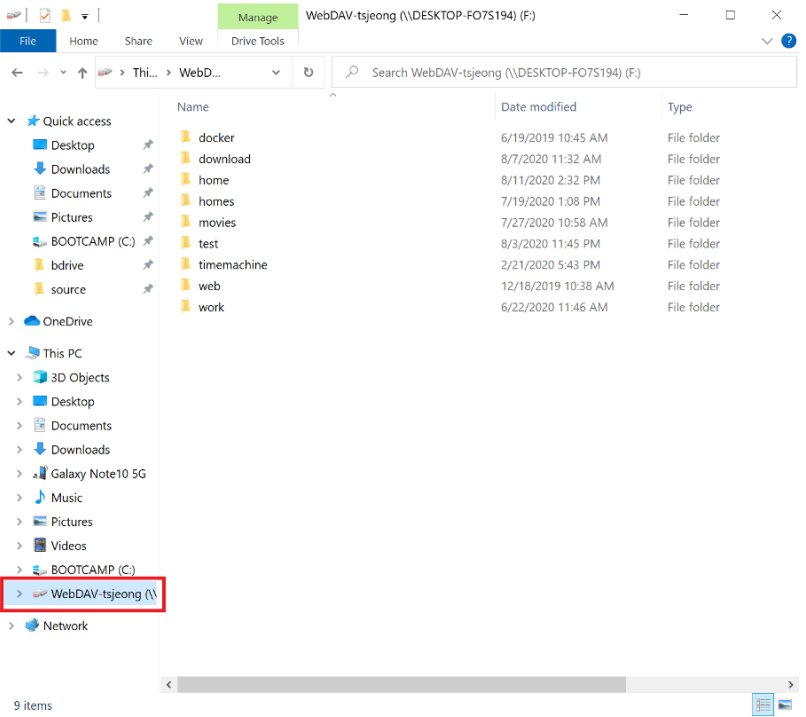
The drive manager shows a green indicator when the drive is mounted and reachable. If it shows disconnected, click the mount icon to reconnect manually, or check your network access to the COS endpoint.
Wrap-up
Mounting Tencent Cloud COS on macOS with NetDrive takes about two minutes once you have the API key pair in hand. The result is a Finder volume backed by your COS bucket — no separate sync client, no manual upload queue, no context switching to a web console.
For the equivalent setup on Windows, the steps are nearly identical to mounting Alibaba Cloud on Windows, which was added in the same NetDrive release. If you work with S3-compatible storage alongside Tencent COS, mounting Wasabi on macOS uses a similar flow with different endpoint settings. For DevOps teams reading fixtures from object storage in CI pipelines, the S3 test fixtures use case covers patterns that translate directly to Tencent COS.
— Morgan, NetDrive