Fix WebDAV connection errors when mounting Synology with NetDrive

When a Synology WebDAV mount in NetDrive fails with timeouts or 401 errors, the cause is almost always one of three DSM settings. Here's the order to check them in.
You added a Synology DiskStation in NetDrive, hit Mount, and got back either a 401 from DSM or nothing at all — a spinner that times out after thirty seconds. The good news: most failed Synology WebDAV mounts trace back to one of three settings on the NAS, and you can confirm or rule them out in about five minutes.


Mount your NAS shares the right way
NetDrive lets Google Drive, OneDrive, S3, SFTP, WebDAV and more appear as native drives on Windows and macOS — no syncing, no full downloads.
- WebDAV, SFTP, FTP — pick whichever protocol your NAS already exposes
- Background uploads, file locking, and Finder/Explorer integration
- Read-only mount mode for shares you only want to browse
Free trial. Lifetime and subscription plans available.
The three things that usually break a Synology WebDAV mount
A failed Synology WebDAV mount in NetDrive almost always falls into one of these buckets:
- The WebDAV server isn’t running on the NAS. DSM ships WebDAV as a separate package from the SMB/AFP file services most users enable first, and it’s installed-but-disabled out of the box.
- The user account that NetDrive is signing in as can’t see the share. WebDAV honours DSM’s per-user share permissions independently of the SMB ones.
- The port or HTTPS setting in NetDrive doesn’t match what DSM is actually listening on. DSM defaults to
5005for HTTP and5006for HTTPS — neither is the standard WebDAV port, so it’s easy to misconfigure.
Walk them in that order. Each step has a clear pass/fail signal, so you’ll know which one it was by the time you finish.
1) Confirm WebDAV is enabled in DSM
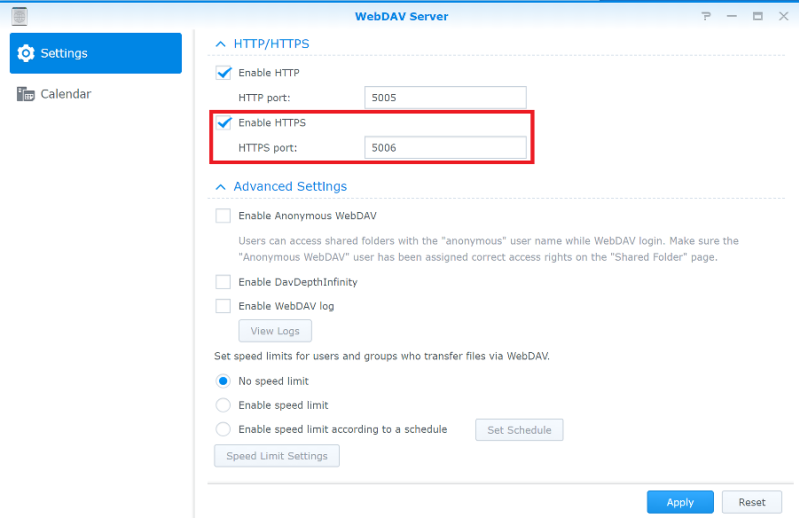
Sign into DSM as an administrator and open Package Center → WebDAV Server. If it isn’t installed, install it; if it’s installed but stopped, start it. Then open the package’s settings and enable either HTTP or HTTPS (or both). HTTPS is the right call for anything reaching the NAS over the public internet, and the only sensible call if your bucket of clients includes laptops on hotel Wi-Fi.
If the toggle was off, go straight back to NetDrive and retry the mount before changing anything else. About half of the failed mounts we see end here.
2) Verify the user has access to the share
The second-most-common cause is a permissions mismatch. WebDAV on Synology checks the same user database as SMB does, but the share permissions are evaluated separately per protocol — a user who can browse /volume1/projects over SMB might still get a 401 over WebDAV.
In DSM, go to Control Panel → Shared Folder, pick the share NetDrive is trying to mount, and open Edit → Permissions. Confirm the user account NetDrive is signing in with has at least Read/Write (or Read-only if that’s what you want NetDrive to do). If the share is set to No access for that user, NetDrive returns a 401 even though authentication itself succeeded.
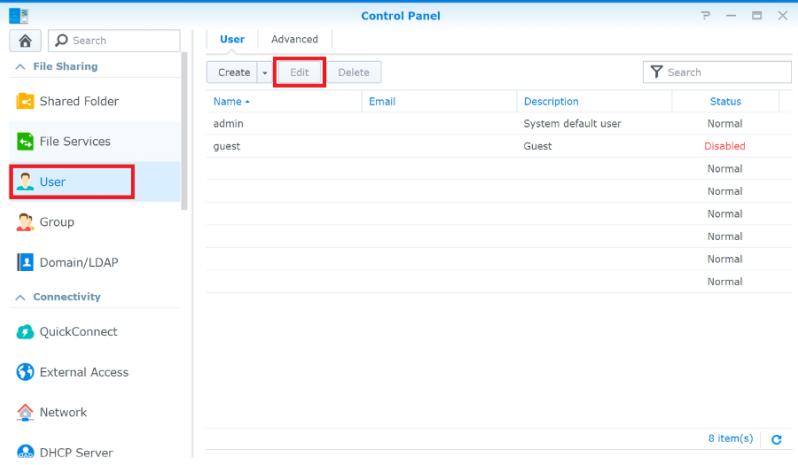
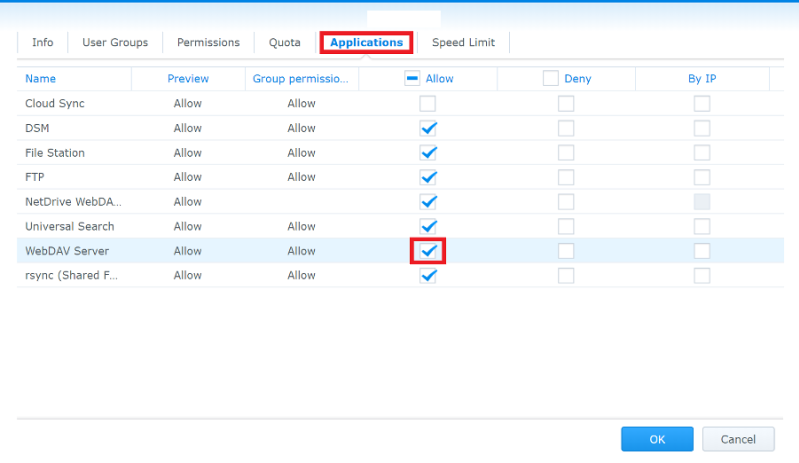
While you’re here, also check Control Panel → User & Group → the user → Applications. WebDAV must be set to Allow for that user. This is a separate switch from the share permission and disables the protocol entirely for the account if it’s denied.
3) Match the port and HTTPS setting in NetDrive
The third cause is mismatched transport settings. DSM’s WebDAV server defaults to:
- 5005 for HTTP
- 5006 for HTTPS
Neither matches the 80/443 defaults that most WebDAV clients start from. In NetDrive’s drive settings for this entry, fill in:
- Server URL —
https://nas.example.com(or the NAS IP). Don’t append the port here. - Port —
5006for HTTPS,5005for HTTP. Whatever you turned on in step 1. - Use HTTPS — checked if you enabled HTTPS in DSM.
- Path — leave blank unless you want to mount a subdirectory of a share. Synology’s WebDAV root is the share list, so omitting the path puts every shared folder the user can see under the mount root.
A self-signed DSM certificate also trips first-time mounts. Either install the certificate on the client first or, if you’re testing on a LAN, accept the warning NetDrive shows once and remount.
When the mount appears but the drive seems empty
If NetDrive reports a successful mount but the volume is empty, two things to check:
- The user has access to zero shares. WebDAV’s root is the share list — no shares visible, nothing to display.
- A force refresh hasn’t happened yet on a freshly created share. Right-click inside the mount and choose Force refresh; NetDrive re-fetches the listing immediately instead of waiting for change detection.
Wrap-up
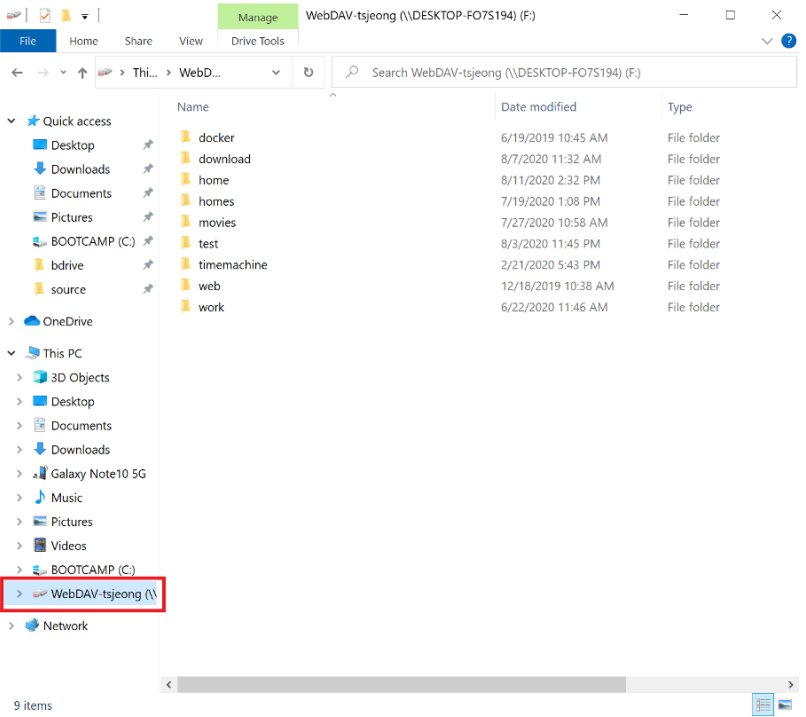
The three checks above resolve the vast majority of Synology WebDAV mount failures: WebDAV server enabled, share permission granted, port and HTTPS matched. If you’ve worked through them and the mount still won’t come up, the NetDrive forum is the fastest place to share DSM logs and NetDrive’s connection trace. The Google Drive on Windows 11 guide covers a much smoother provider for contrast — sometimes worth running through it on the same workstation to confirm NetDrive itself is healthy before you keep digging into DSM.
— Morgan, NetDrive