Mount an FTP Server on macOS — NetDrive Setup Guide

Connect any FTP or FTPS server as a native drive in macOS Finder using NetDrive. Works on Sonoma and later — setup takes under two minutes.
You’ve got an FTP server running — a legacy media archive at a studio, a hosting account packed with client assets, or a NAS in the office wiring closet — and you want to open those files directly in Finder without keeping an FTP client window pinned to your dock. NetDrive maps any FTP or FTPS server to a native macOS volume so every app on your Mac can read and write there as if it were a local disk.


Mount any FTP server as a macOS drive
NetDrive lets Google Drive, OneDrive, S3, SFTP, WebDAV and more appear as native drives on Windows and macOS — no syncing, no full downloads.
- Browse FTP files directly in Finder and any macOS app
- Saved credentials with anonymous-access support
- Works with FTP and FTPS (explicit and implicit SSL)
Free trial. Lifetime and subscription plans available.
Requirements
NetDrive 3.18 and later requires macOS 14 Sonoma or newer. If you’re still on macOS 13 Ventura, NetDrive 3.17 is the last compatible version — see the release history for download links. You’ll also need:
- The FTP server’s hostname or IP address and port (default: 21 for plain FTP, 990 for implicit FTPS)
- Username and password, or confirmation the server permits anonymous login
- A free Bdrive account to activate NetDrive — sign up at netdrive.net

Add the FTP drive in NetDrive
Click the NetDrive icon in the macOS menu bar, then choose Open NetDrive to bring up the drive manager. Click + (Add a drive) and select FTP from the provider list.
Fill in the connection form:
- Address — hostname or IP (e.g.,
ftp.example.comor192.168.1.50) - Port — 21 for standard FTP; adjust if your server uses a custom port
- Username / Password — leave blank for anonymous access, or enter your credentials
- Use SSL/TLS — enable for FTPS; choose explicit (STARTTLS on port 21) or implicit (port 990) to match your server’s setting
Give the drive a clear label — “Studio Archive” or “Client Hosting FTP” — then click Save.
Mount the drive and start working
Back in the drive manager, toggle the switch next to your FTP drive to mount it. NetDrive connects to the server and makes it appear as a volume in Finder’s sidebar under Locations, alongside your internal disk and any external drives.
From that point the workflow is ordinary Finder: drag files in and out, double-click a PDF to open it in Preview, open a PSD directly in Photoshop. Writes go through NetDrive’s background upload queue — a large file transfer won’t block your keyboard or force you to watch a progress bar.
Auto-mount at startup
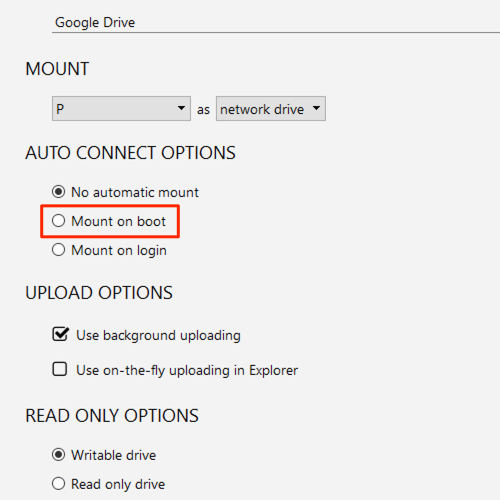
If production machines need the FTP server available before anyone logs in — a render node pulling assets from a studio NAS at boot, for example — open the drive’s settings in NetDrive and set Auto Mount to Mount on system startup. NetDrive stores credentials securely and re-establishes the FTP connection automatically each time the Mac powers on.
For workstations that share login sessions, Mount on login is the lighter option: the drive appears when a user logs in and disconnects when they log out.
Troubleshoot a failed connection
If the drive fails to mount, work through these checks in order:
- Confirm network reachability — open Terminal and run
ping ftp.example.com. A timeout here is a firewall or DNS problem, not a NetDrive issue. - Check the port — shared hosting providers often run FTP on a non-standard port listed in their control panel. Make sure the port in NetDrive’s settings matches.
- Verify SSL mode — if your server requires explicit FTPS and you set implicit (or vice versa), the handshake fails silently. Your hosting documentation will specify which mode is expected.
- Review the NetDrive log — open NetDrive → Help → Show Log for timestamped error codes that point directly to the failing step.
Wrap-up
Once mounted, FTP storage behaves like any other folder on your Mac — your existing apps need no changes and no FTP plugin. The same approach on Windows is covered in Mount an FTP Server on Windows with NetDrive. If your server already runs SFTP instead of FTP, Mount an SFTP Server on macOS has the equivalent walk-through with key-based authentication options.
— Alex, NetDrive