Custom Bandwidth Limits in NetDrive — Stop Uploads Hogging Your Connection
NetDrive lets you cap how much upload and download bandwidth a mounted drive uses, so background transfers stop competing with video calls and other traffic.
A remote employee kicks off a background upload of a folder of edited photos to a Google Drive account mounted through NetDrive, then joins a client video call five minutes later on the same home connection. The call starts stuttering almost immediately — not because the Wi-Fi is bad, but because the upload is using every bit of uplink bandwidth the router has to offer. Closing NetDrive would work, but it also stops the upload entirely. The setting that actually fixes this is a bandwidth limit most people never open.


Stop background uploads from choking your connection
NetDrive lets Google Drive, OneDrive, S3, SFTP, WebDAV and more appear as native drives on Windows and macOS — no syncing, no full downloads.
- Cap the upload and download bandwidth a mounted drive uses
- Background transfers keep running without saturating the line
- Set per drive, so other mounts stay unaffected
Free trial. Lifetime and subscription plans available.
Why a Mounted Drive Can Saturate a Connection
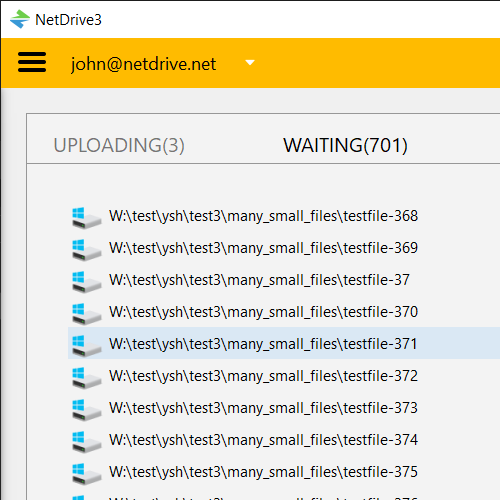
NetDrive has supported background uploads since its first release, which is exactly what makes them easy to forget about — a large folder queued for upload keeps transferring in the background while you work, with no dialog blocking you and no obvious indicator that it’s currently using most of your available bandwidth. On a fast office connection that’s rarely a problem. On a residential uplink, a mobile hotspot, or a shared office line during a video call, it competes directly with everything else trying to use the same connection.
NetDrive addresses this with a custom bandwidth setting, listed among its core features alongside background upload itself — the ability to cap how much of the connection a mounted drive is allowed to use, rather than letting transfers run at whatever speed the network permits.
Setting a Bandwidth Limit on a Drive
The setting lives alongside a drive’s other configuration, and applies per connection — one mounted provider can run with a bandwidth cap in place while another mount stays unrestricted:
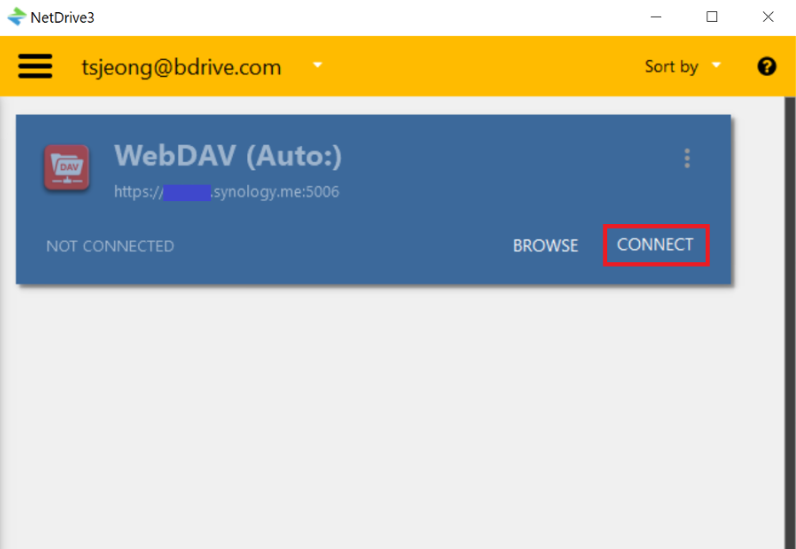
- Open NetDrive and find the drive in the Drive Manager.
- Open the drive’s settings — click the gear icon on the drive card.
- Locate the bandwidth field and enter the maximum transfer speed you want that drive to use.
- Save the setting. NetDrive applies the cap to that drive’s transfers going forward.
Because the limit is set per drive rather than globally, a bandwidth-heavy connection used for large archival uploads can be capped without touching a second mount that’s only ever used for quick document edits and doesn’t need the same restriction.
When a Bandwidth Cap Is Worth Setting
Remote work on a shared home connection. Video calls, VoIP, and screen sharing all need consistent uplink bandwidth. A background upload with no cap will happily take all of it, and the call is usually the first thing to visibly suffer.
Offices on a limited or metered plan. Smaller offices without a dedicated high-capacity line can have several people mounting drives through NetDrive at once. A per-drive cap keeps one person’s large transfer from degrading everyone else’s connection during business hours.
Any transfer running while you’re actively using the network for something else. Even on a fast connection, an uncapped upload competing with a large video call, a game, or another bandwidth-sensitive task can introduce enough jitter to notice. A modest cap smooths that out without meaningfully slowing the transfer down.
Not every drive needs a limit. A connection reserved for occasional manual file access, or one used exclusively outside working hours, gets little benefit from a cap and can be left to run at full speed.
Wrap-up
A bandwidth limit is one of those settings that only becomes obvious the day a video call stutters because of an upload nobody was watching. Setting one per drive keeps background transfers running without letting them dictate what the rest of the connection can do. For the transfer behavior this setting is capping in the first place, see Background Upload Mode in NetDrive; and for another per-drive setting worth knowing about, see Drive Type and Local Disk Mode.
— Tayson, NetDrive