Fix S3 Access Denied Errors when Mounting Amazon S3 — NetDrive

Getting Access Denied on a NetDrive-mounted S3 bucket? Walk through the three most common causes—wrong credentials, missing IAM actions, and bucket policy conflicts.
You mount an S3 bucket in NetDrive, the drive letter appears in Windows Explorer, and then every file operation returns “Access Denied.” The drive shows up but nothing is accessible. This happens when the IAM credentials NetDrive is using lack the required S3 actions — or when the IAM policy is correct but a bucket policy is overriding it.


Mount S3 buckets as a local drive
NetDrive lets Google Drive, OneDrive, S3, SFTP, WebDAV and more appear as native drives on Windows and macOS — no syncing, no full downloads.
- Supports Amazon S3 and S3-compatible storage (Wasabi, MinIO, and more)
- File browser lets you test bucket access before mounting
- Automatic S3 region detection since NetDrive 3.19.7
Free trial. Lifetime and subscription plans available.
Why Access Denied Appears on a Mounted S3 Drive
Amazon S3 access is governed by two independent layers: the IAM policy attached to the user or role whose access keys you entered, and the bucket policy attached to the bucket itself. Either layer can deny an operation without the other knowing.
NetDrive needs at least these S3 actions to mount and work with a bucket normally:
s3:ListBucket— to list objects and build directory viewss3:GetObject— to read file contents when you open a files3:PutObject— to write files back to the bucket (read-write mounts only)s3:DeleteObject— to delete files from the mounted drive (read-write mounts only)
A missing action causes “Access Denied” on that specific operation. You might be able to browse the directory but get denied when opening a file, or open files but get denied on save — both are symptoms of a partial IAM grant, not a complete credential failure.

Check 1: Credentials Entered in NetDrive
Start with the credentials themselves. A single transposed character in the access key or a stale secret key produces the same “Access Denied” symptoms as a misconfigured IAM policy.
- Open NetDrive → click the gear icon on your S3 drive to open its settings.
- Compare the Access Key ID character-for-character against the value shown in the AWS console under IAM → Users → [username] → Security credentials. Copy-paste rather than retyping.
- Re-enter the Secret Access Key. AWS never shows this value after initial creation, so if there is any doubt about correctness, generate a new key pair in IAM and update NetDrive with the new values immediately.
- Check the Region field. A region mismatch — for example, configuring
us-east-1when your bucket lives ineu-west-1— routes requests to the wrong endpoint and returns 403 errors. NetDrive 3.19.7 added automatic region detection on new connections, but drive configurations created before the upgrade still carry the originally entered value. Update the region manually if needed.
After correcting any credential issues, click Mount and try browsing a directory before continuing to the IAM layer.
Check 2: IAM Policy — Required S3 Actions
If credentials are correct but access is still refused, the attached IAM policy is missing one or more required actions. The fastest way to confirm this is the AWS IAM Policy Simulator.
In the AWS console, go to IAM → Policy Simulator, select the IAM user whose keys are in NetDrive, and test s3:ListBucket against your bucket ARN (arn:aws:s3:::my-bucket) and s3:GetObject against the objects ARN (arn:aws:s3:::my-bucket/*). If the simulator returns “Denied,” add a policy that grants the missing actions.
A minimal policy for read-write access to a single bucket:
{
  "Version": "2012-10-17",
  "Statement": [
    {
      "Effect": "Allow",
      "Action": [
        "s3:ListBucket"
      ],
      "Resource": "arn:aws:s3:::my-bucket"
    },
    {
      "Effect": "Allow",
      "Action": [
        "s3:GetObject",
        "s3:PutObject",
        "s3:DeleteObject"
      ],
      "Resource": "arn:aws:s3:::my-bucket/*"
    }
  ]
}
Note the two separate Resource values: ListBucket applies to the bucket ARN itself, while GetObject, PutObject, and DeleteObject apply to the objects inside it (/*). Combining them into one Resource line is a common mistake that silently breaks listing or object access.
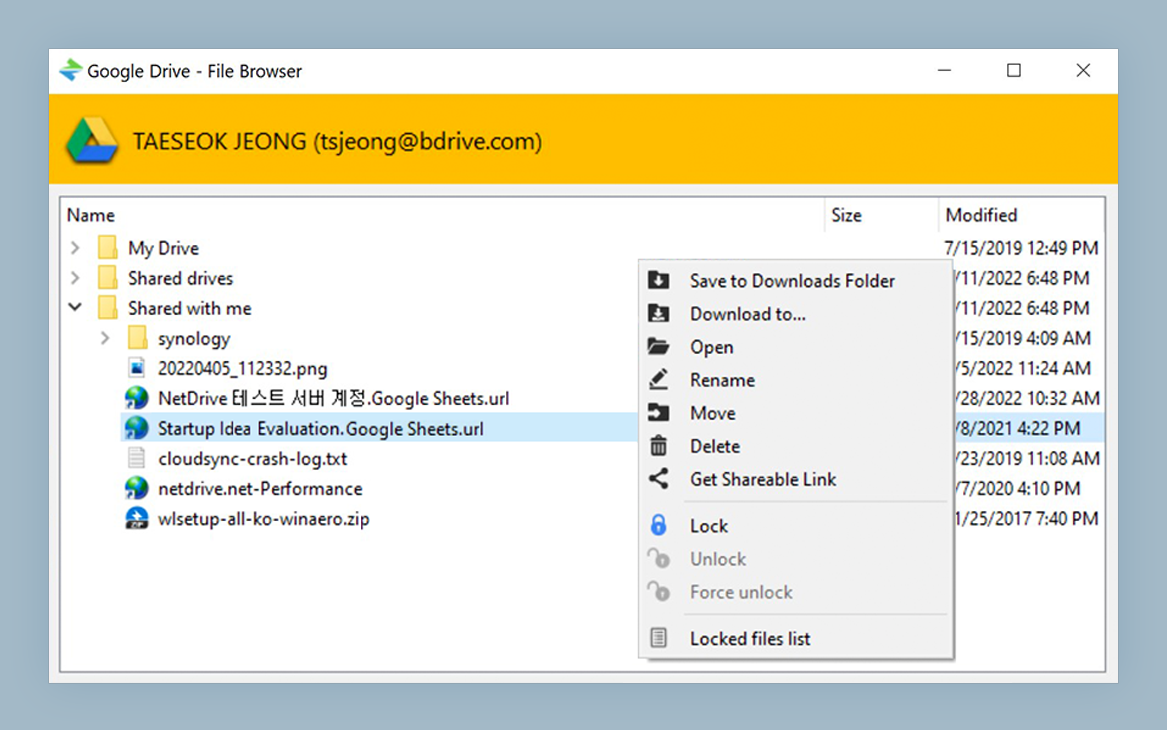
Use NetDrive’s File Browser (accessible without mounting) to quickly verify whether object access works after updating the IAM policy. It issues the same API calls as a mounted drive but without assigning a drive letter, making it a fast feedback loop during troubleshooting.
Check 3: Bucket Policy Explicit Denies
A permissive IAM policy is overridden by an explicit Deny in the bucket policy. Go to S3 → [your bucket] → Permissions → Bucket policy and look for any "Effect": "Deny" statements. Common culprits include:
- VPC endpoint restrictions — policies that deny requests not originating from a specific VPC endpoint (
aws:SourceVpc). Desktop NetDrive connects over the public internet unless you route through a VPN. - IP allowlists — policies using
aws:SourceIpthat block requests from your machine’s public IP address. - HTTP denies — a statement that denies requests when
aws:SecureTransportisfalse. This is normally harmless because NetDrive uses HTTPS for S3 requests (verified since version 3.1.234), but worth checking if a bucket policy was written defensively.
If you find a restrictive condition that applies to your access pattern, relax the condition or add the IAM user to an explicit Allow that takes precedence.
Wrap-up
S3 “Access Denied” errors in NetDrive almost always trace back to one of three causes: wrong credentials, an IAM policy missing a required action, or a bucket policy with an explicit deny. Work through them in that order — credentials are the fastest to rule out. For mounting other object storage providers, see mounting Amazon S3 on macOS or the DevOps S3 fixture workflow with NetDrive.
— Casey, NetDrive