In-App Preview on NetDrive Mobile — Open Files Without Downloading First

NetDrive Mobile previews documents, images, and video right inside the app, so checking a file from any connected cloud doesn't mean downloading it to your phone first.
A contractor gets a text asking for “the signed PDF from last week” while standing in a parking lot with spotty signal. Downloading the whole thing just to confirm it’s the right document, on a connection that might drop halfway through, wastes time neither the contractor nor the client has. NetDrive Mobile’s in-app preview opens the file where it already lives — inside whichever cloud it’s stored on — so checking it doesn’t require committing to a full download first.

Check a file without downloading it first
NetDrive Mobile opens Google Drive, Dropbox, OneDrive, S3, WebDAV, SFTP and more in one app — browse, upload, download, and preview right from your phone.
- Open documents, images, and video right inside the app
- Works the same across every connected cloud
- Download only after you know it is the file you need
Free Bdrive account required.
Why Preview Matters More Than It Sounds
Every cloud provider’s own app already lets you open a file, but NetDrive Mobile’s advantage is that preview works identically whether the file sits in Google Drive, an S3 bucket, a WebDAV share, or a SharePoint library. There’s no learning a second interface for the S3 bucket your team uses for build artifacts versus the Dropbox folder a client shares invoices through — the same tap-to-preview flow applies everywhere, from the same file browser.
That consistency matters most in the moment it’s needed: confirming a filename actually matches what someone’s asking for, checking whether a screenshot shows the right error before forwarding it, or scanning the first page of a contract before deciding it’s worth pulling down the full attachment.
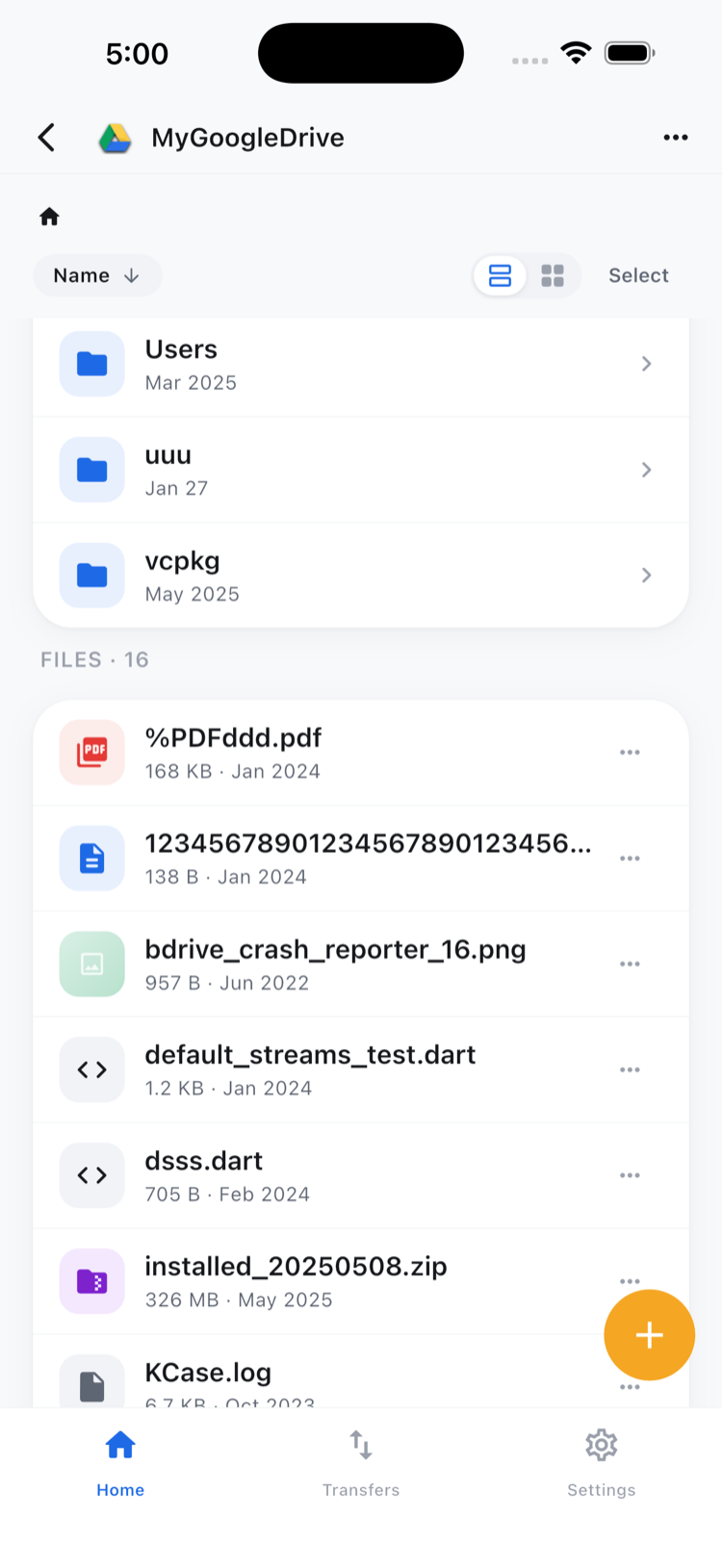
Opening a Preview
Tapping a file in the browser — rather than long-pressing to select it — opens it directly. For files where a preview makes sense, NetDrive Mobile renders the content in-app: images display full-screen, documents open in a scrollable viewer, and video plays inline. There’s no separate “preview” button to hunt for; opening the file is the preview.
The same file also has a dedicated actions sheet, reached with a long press or a details tap, listing Preview, Download, Rename, Move, Copy, Get info, and Delete as explicit options — useful when you want to jump straight to a specific action instead of opening the file first.
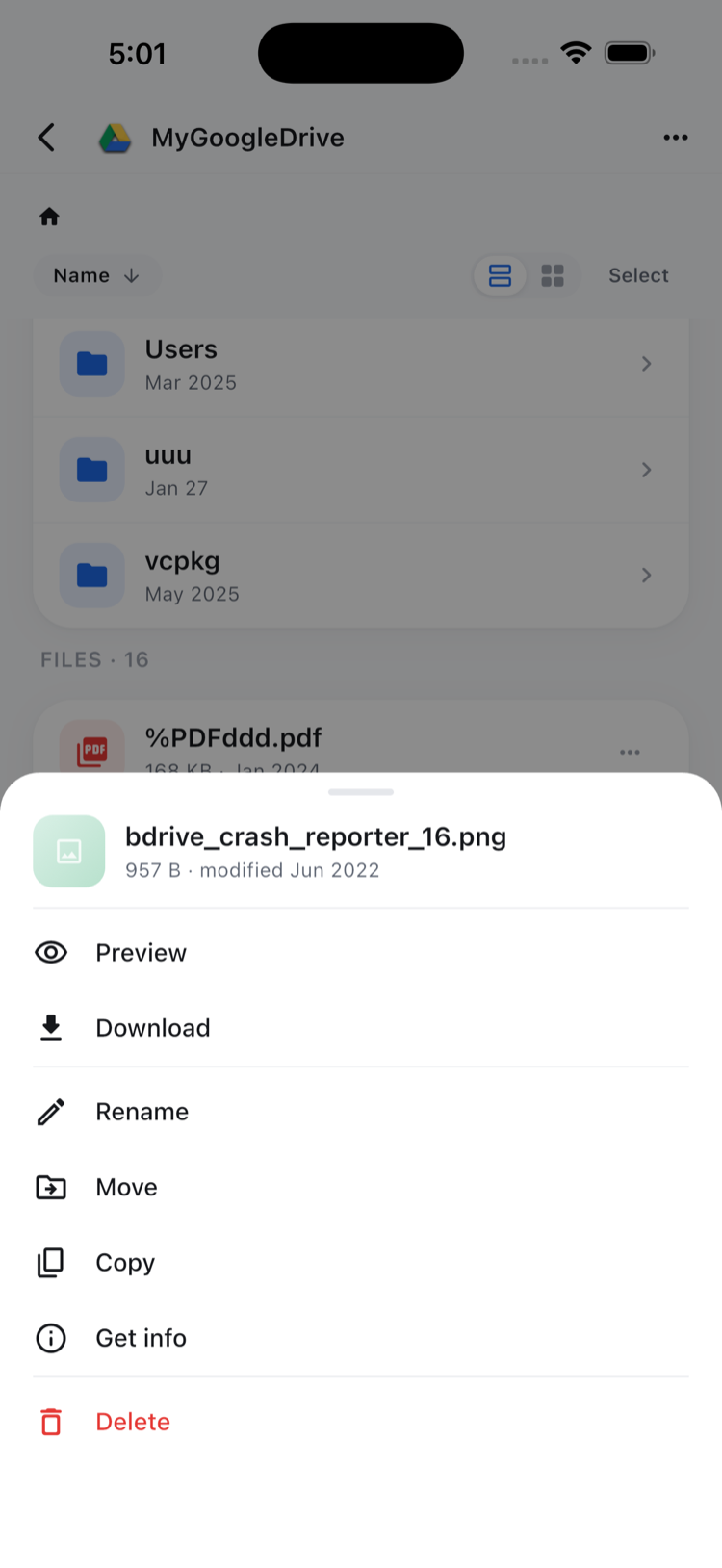
Downloading Only When You Actually Need the File Local
Previewing and downloading are separate steps on purpose. Plenty of file checks end at “yes, that’s the right one” and never need a local copy at all — leaving the file where it is saves phone storage and skips a transfer that wasn’t going to get used afterward. When a file does need to live on the device — attaching it to an email outside the app, or opening it in a dedicated editor — Download from the same actions sheet pulls it down, and it shows up in the Transfers tab with the same progress tracking as any other upload or download.
This split is also where NetDrive Mobile’s scope stays deliberately narrow: preview and download happen within the cloud account the file lives in. Moving a file directly from one provider into another — say, from a Google Drive folder straight into an S3 bucket — isn’t part of this flow; that kind of cross-provider transfer belongs to NetDrive Mobile’s sibling product, RcloneView, not to NetDrive Mobile itself.
Wrap-up
For anyone checking files from a phone more often than they’re actually editing them, in-app preview removes the download-just-to-look step across every connected cloud, one consistent flow instead of a different viewer per provider. To see the rest of what NetDrive Mobile handles once a file needs to move, read Multi-File Transfers on NetDrive Mobile — Progress, Cancel, and Queues, or start from NetDrive Mobile — Every Cloud You Use, In One App for the full picture.
— Robin, NetDrive