Recruiters with NetDrive Mobile — Candidate Files Between Interviews

How recruiters use NetDrive Mobile to preview resumes, check interview notes, and upload signed forms across Google Drive, OneDrive, SharePoint, and Box on iPhone and Android.
A recruiter is between two onsite interviews when a hiring manager texts: “Can you send me the panel scorecard and the candidate’s resume?” The resume is in SharePoint, the scorecard template lives in Google Drive, and the signed offer from yesterday went to Box. NetDrive Mobile keeps all three accounts in one iPhone or Android app, so the answer takes a few taps instead of three logins.
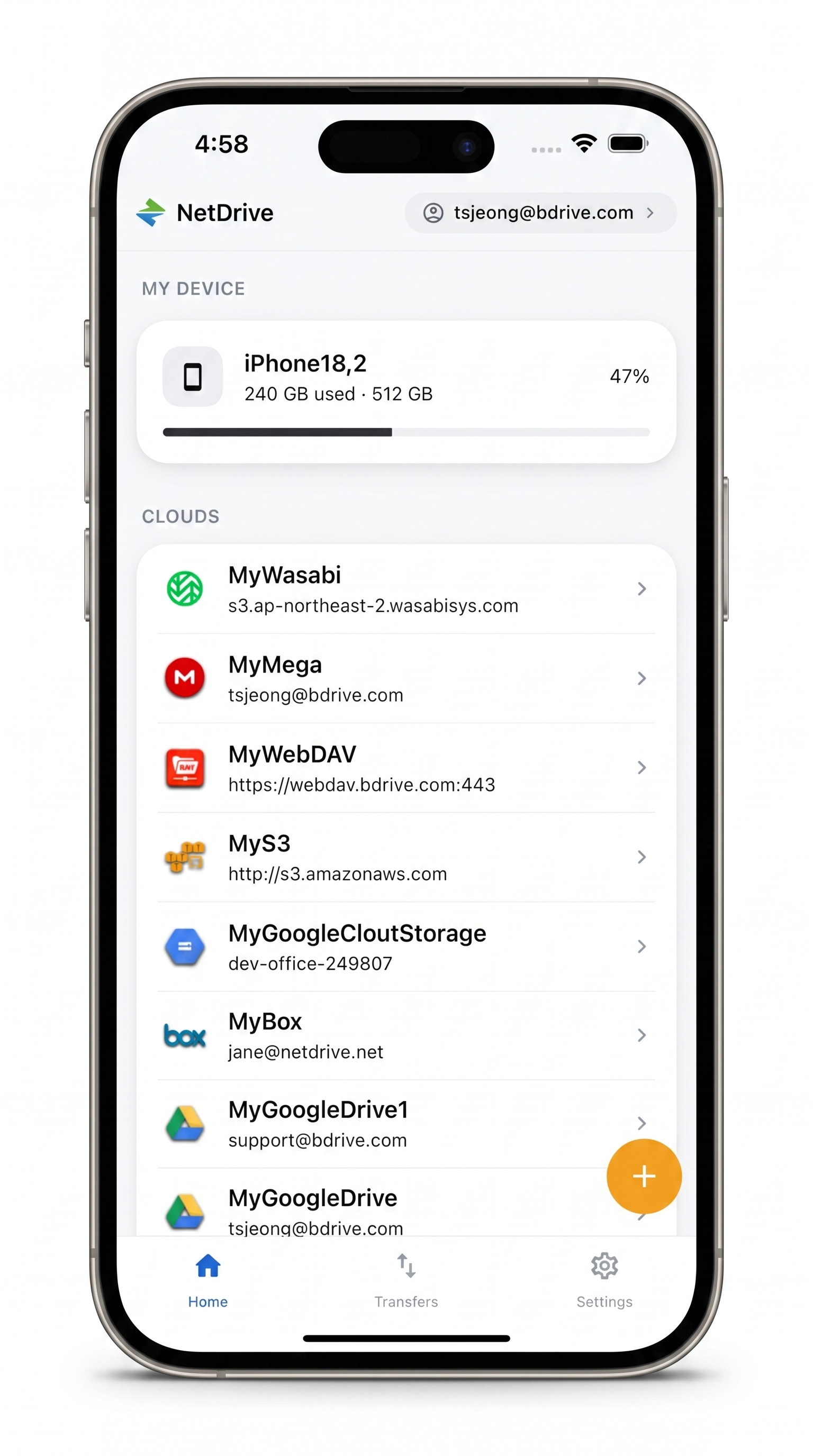
Candidate files, wherever you are
NetDrive Mobile opens Google Drive, Dropbox, OneDrive, S3, WebDAV, SFTP and more in one app — browse, upload, download, and preview right from your phone.
- Browse SharePoint, Google Drive, OneDrive, Box and more in one app
- Preview resumes and PDFs before downloading anything
- Upload signed forms straight from your camera or photo library
Free Bdrive account required.
One Home Screen for Every Hiring Account
Hiring teams rarely agree on a single storage service. The company standard might be SharePoint or OneDrive for Business, an agency partner shares a Dropbox folder, and a legal team keeps offer templates in Box. NetDrive Mobile does not ask anyone to consolidate. You add each account once, and the home screen lists them together under Clouds, with your phone’s own storage under My Device.
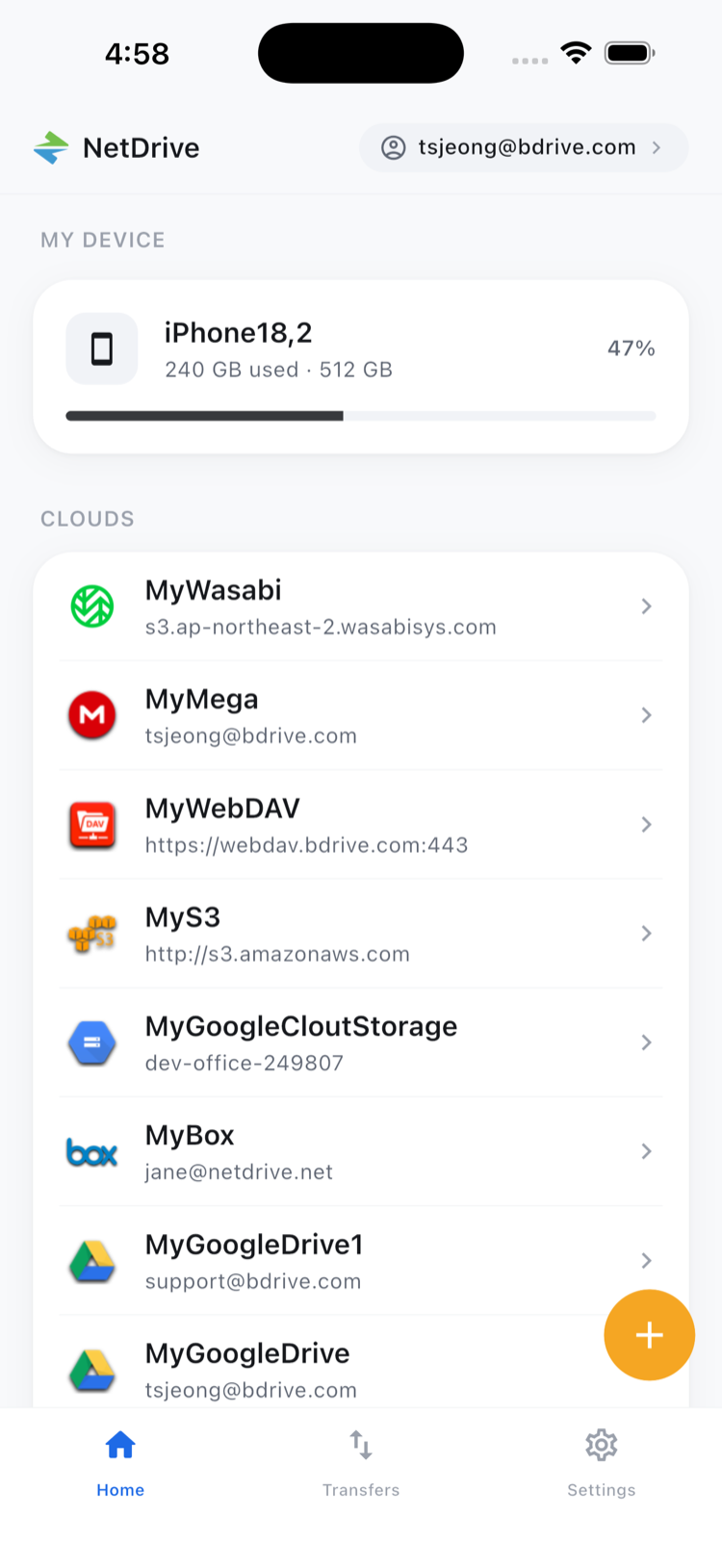
All of the providers above are supported, along with Dropbox Business, Google Drive, and others listed in NetDrive Mobile — Supported Clouds and Protocols. A free Bdrive account is required to sign in to the app.
Adding Your First Account
- Open NetDrive Mobile and sign in with your Bdrive account.
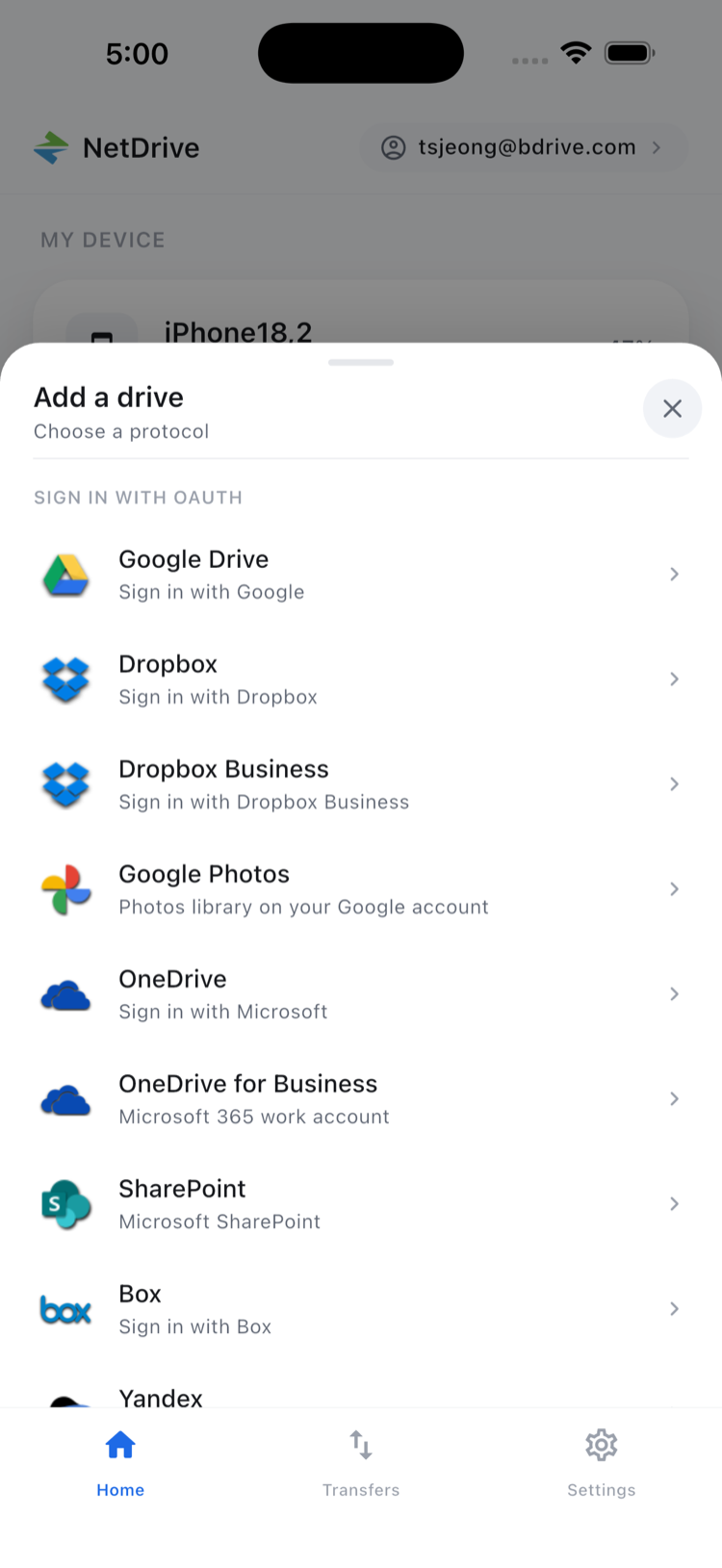
- Open the Add a drive sheet and pick a provider, such as SharePoint or Google Drive.
- Follow the sign-in prompts for that provider and confirm.
- Repeat for each account you use during hiring.
Credentials are stored in the device’s secure storage (iOS Keychain or Android Keystore). If your company protects its Bdrive login with two-factor authentication, the verification code arrives as an app notification you can approve and copy; the details are in Two-Factor Login on NetDrive Mobile.
Checking a Resume Before You Forward It
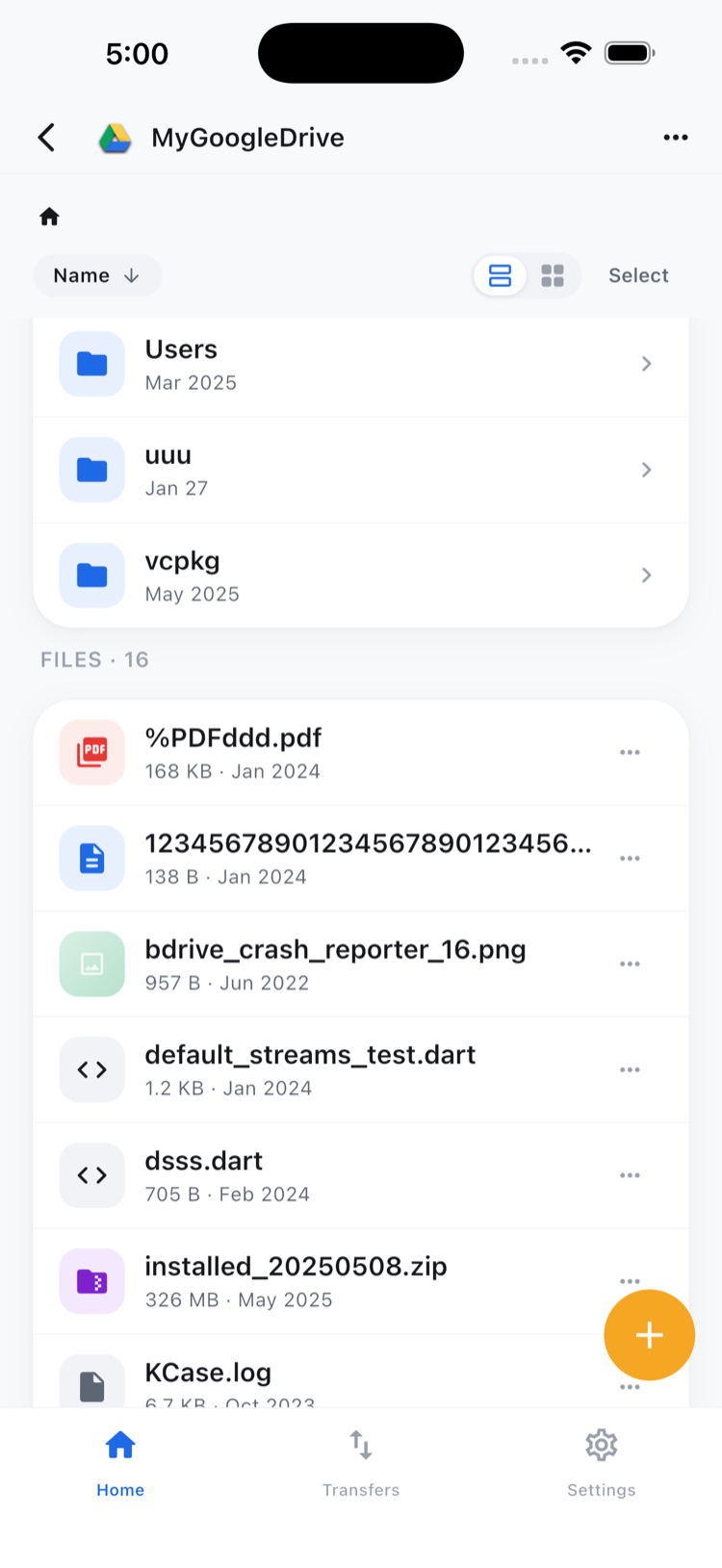
Open a resume from the file browser and NetDrive Mobile previews it inside the app, so you can confirm it is the right candidate and the right version before sharing it. Preview covers documents, images, and video; see In-App Preview on NetDrive Mobile. When you need a local copy to attach elsewhere, choose Download from the file’s action sheet.
Sorting and the list or grid toggle help when a requisition folder holds dozens of candidates. A predictable naming habit, such as Lastname_Firstname_Resume.pdf, makes a quick scan on a small screen far easier.
Getting Signed Paperwork Into the Right Folder
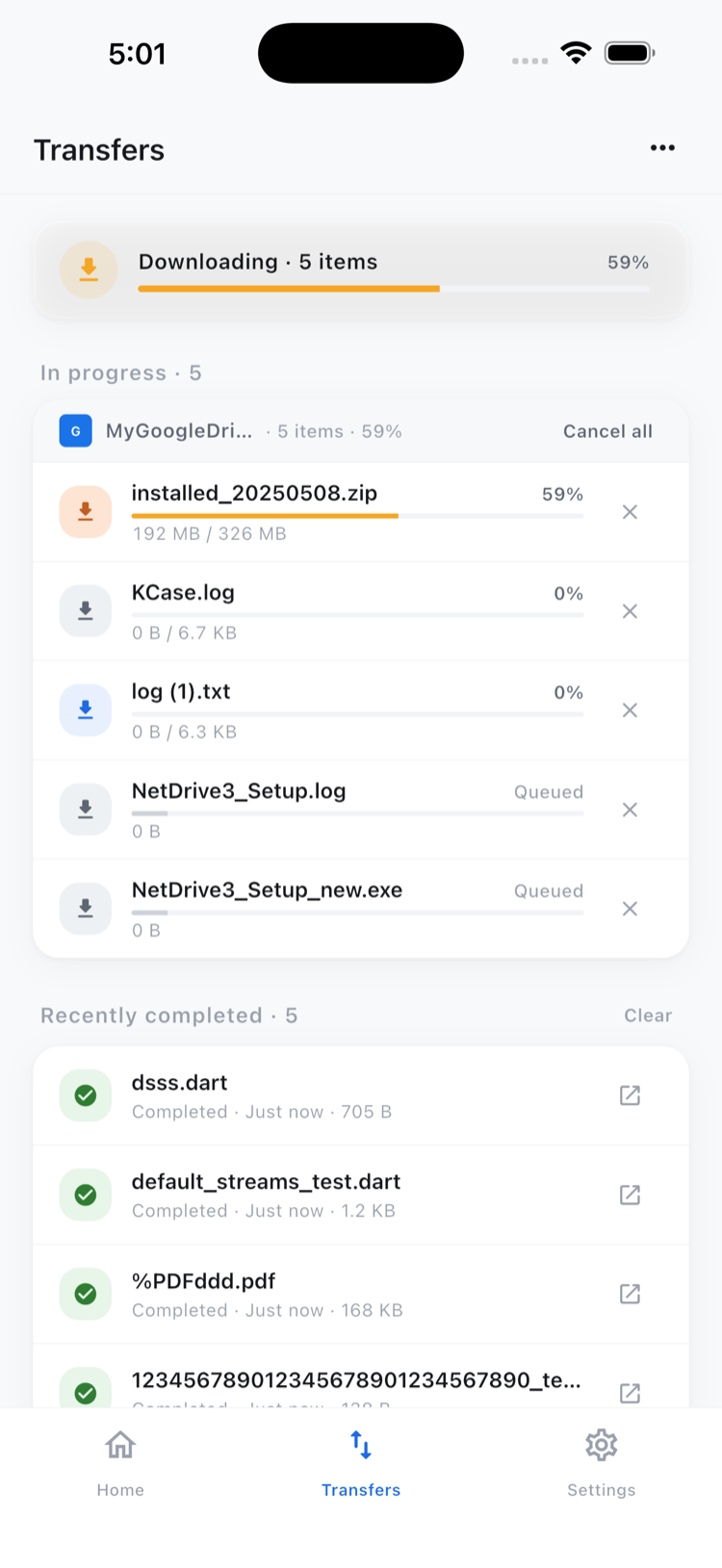
Offer letters and onboarding forms often come back as a photo or a scan taken on a phone. From the folder where the file belongs, start an upload and pick the camera, your photo library, or an existing file. Progress and a cancel option for each transfer appear on the Transfers tab, covered in Multi-File Transfers on NetDrive Mobile.
Know the Boundaries
Copy and move work within a single cloud, for example filing a candidate folder into Closed Requisitions inside the same SharePoint library. NetDrive Mobile does not copy a file directly from one provider to another; that job belongs to RcloneView, NetDrive’s sibling product. Candidate documents are sensitive, so rely on your providers’ own sharing and access controls, and avoid leaving a downloaded copy on a personal phone longer than you need it.
Wrap-up
For recruiters, the win is speed between meetings: find, preview, and send without opening three apps. New to the app? Start with NetDrive Mobile — Getting Started, then add your requisition storage first.
— Morgan, NetDrive