Mount MinIO on Windows — NetDrive S3-Compatible Setup Guide

Step-by-step guide to mounting a MinIO bucket as a Windows drive with NetDrive. Browse your private S3-compatible object storage directly from Windows Explorer.
You’ve stood up a MinIO cluster for your team’s build artifacts — two terabytes of test fixtures, Docker layer caches, and nightly exports sitting on hardware you control. Now you want every Windows developer to open a familiar drive letter and drag files directly in Explorer, without installing MinIO’s own client or wrapping everything in scripts. NetDrive handles this cleanly: it connects to MinIO’s S3-compatible API and presents the bucket as a native drive in seconds.


Mount MinIO as a Windows Drive
NetDrive lets Google Drive, OneDrive, S3, SFTP, WebDAV and more appear as native drives on Windows and macOS — no syncing, no full downloads.
- S3-compatible connection — works with any MinIO endpoint
- Browse buckets and objects directly in Windows Explorer
- Background uploads with real-time progress tracking
Free trial. Lifetime and subscription plans available.
What You Need Before You Start
Gather these before opening NetDrive:
- MinIO endpoint URL — typically
http://your-server:9000for a local or LAN instance, orhttps://minio.yourdomain.comfor a server behind a reverse proxy. MinIO’s default API port is 9000; the console runs on 9001 and is not what NetDrive connects to. - Access Key and Secret Key — create a service account in the MinIO Console under Identity → Service Accounts, or generate one with
mc admin user svcacct add. Use a service account rather than your root credentials; scope it to the specific bucket for least-privilege access. - Bucket name — NetDrive connects at the bucket level. If you want to expose multiple buckets, you add a separate drive for each one in NetDrive.
- NetDrive installed on Windows 8, 8.1, 10, or 11. Download the installer here.
MinIO’s modern releases use path-style addressing by default, which is the mode NetDrive uses for S3-compatible providers. If your MinIO version predates RELEASE.2022-10-08, verify that path-style access is not explicitly disabled in your MinIO configuration (MINIO_API_REQUESTS_MAX and virtual-hosted settings).
Connecting NetDrive to MinIO on Windows
Open NetDrive and click the + button in the Drive Manager to add a new drive. From the provider list, select Amazon S3 — MinIO speaks the S3 API, so this is the correct entry for all S3-compatible storage including MinIO, Wasabi, and other self-hosted solutions.
Fill in the connection fields:
- Access Key ID: your MinIO access key
- Secret Access Key: your MinIO secret key
- Region: type
us-east-1— MinIO ignores this value but the field must be non-empty - Endpoint: your MinIO API URL, e.g.
http://192.168.1.50:9000orhttps://minio.example.com - Bucket: the specific bucket to mount, e.g.
build-artifacts
Enable Path style (sometimes labelled Force path style depending on your NetDrive version). Virtual-hosted-style URLs like bucket.minio.example.com require DNS entries that typically don’t exist on self-hosted MinIO. Path style — where the bucket appears as a path component like minio.example.com/bucket — is what you want here.
Click Test to verify connectivity. A green check confirms NetDrive can reach MinIO and authenticate. If the test fails, the most common causes are a firewall blocking port 9000, an HTTPS endpoint with a self-signed certificate, or the access key lacking s3:ListBucket permission on the target bucket.
Assigning a Drive Letter and Auto-Mount
Once the connection test passes, scroll to the Mount section:
- Drive letter — pick an unused letter. For shared workstations, a team convention like
M:(for MinIO) keeps things consistent across machines. - Mount type — Network drive for full read/write access, or Read-only drive if this bucket holds reference datasets that shouldn’t be modified from workstations.
- Auto-mount options:
- On login — the drive appears after the user logs in to Windows. Good for developer workstations.
- On boot — the drive mounts before login, useful for scheduled tasks or services that run under a system account and need to read from MinIO at startup.
- Disabled — mount manually from the Drive Manager. Useful for rarely-accessed buckets.
Click the Mount (play) button. Within a few seconds, Windows Explorer shows the new drive letter. Navigate to it and you’ll see your MinIO bucket’s top-level folders and objects as if they were local.
Working with Files in Windows Explorer
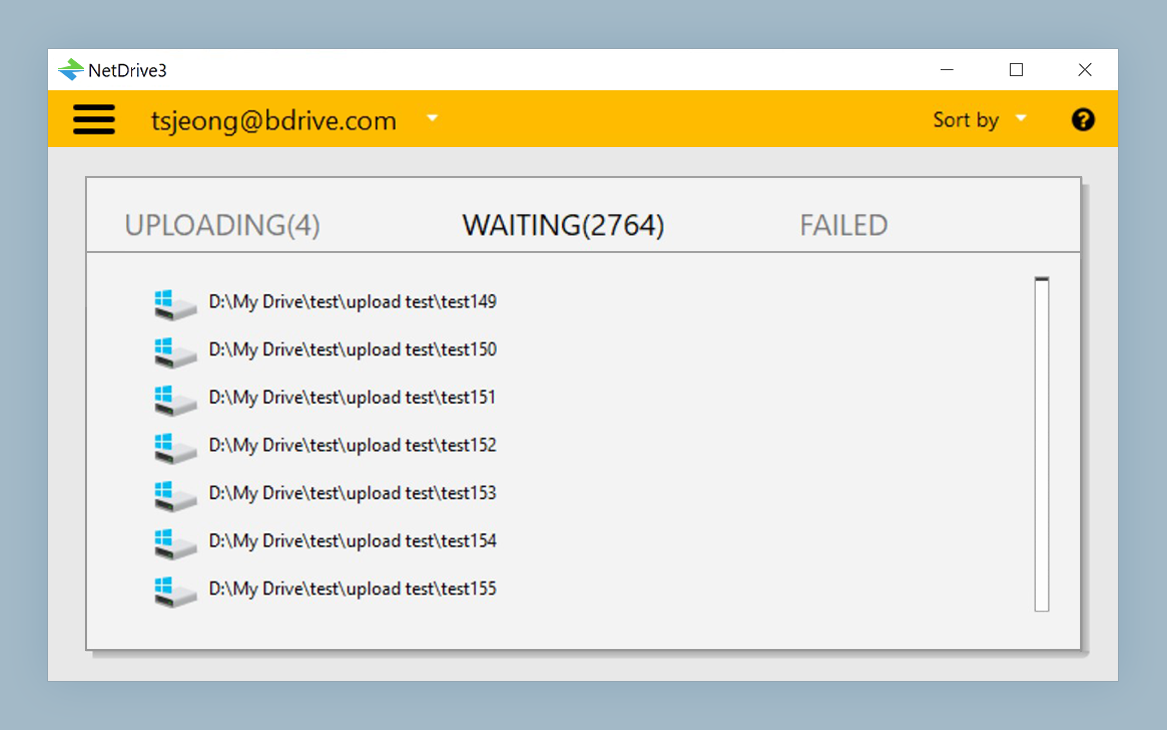
Drag-and-drop uploads work exactly as expected. NetDrive queues transfers in the background and reports progress through the system tray icon. For objects larger than 5 GB, NetDrive switches to S3 multipart upload automatically — no configuration needed for large artifact bundles or dataset files.
If another process writes to the bucket while you’re browsing it — a CI pipeline pushing new test fixtures, for instance — the drive listing may not update immediately. Right-click the mounted drive in Explorer and choose Force folder refresh from the NetDrive context menu to pull the latest directory listing.
For scripting or CI runner access, the nd3cmd CLI tool (available since NetDrive 3.8.921) lets you mount and unmount drives from the command line, which is useful when you need to automate the connection from a build script rather than the GUI.
Wrap-up
Connecting MinIO to NetDrive on Windows takes three to five minutes with credentials in hand. The same S3-compatible connection method works for other self-hosted or managed S3-compatible stores — Wasabi, Backblaze B2, and others — so the setup pattern scales across your storage fleet. For the macOS equivalent, see Mount MinIO on macOS with NetDrive. For AWS S3 proper, Mount Amazon S3 on Windows with NetDrive covers region selection and IAM credential setup.
— Steve, NetDrive